
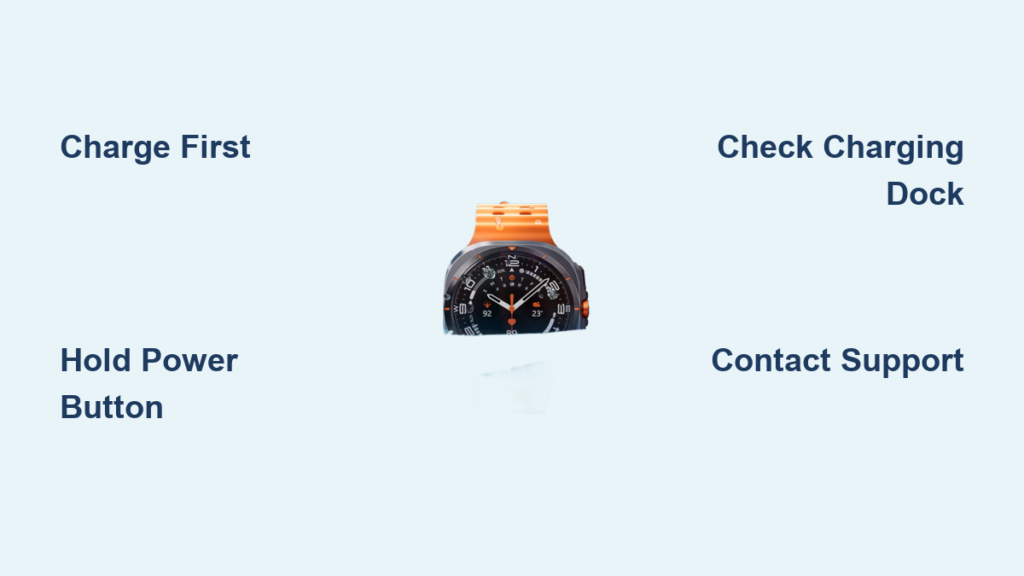
You just unboxed your Galaxy Watch Ultra, charger in hand, ready to sync it with your phone. Only to find it won’t power on. Don’t panic. The Galaxy Watch Ultra sometimes arrives with a low or fully drained battery, and even a simple power-on can feel confusing if you’re not sure what to expect. The good news is turning it on is usually quick, once it’s charged. This guide walks you through the correct power-on steps, what to do if the screen stays black, and how to avoid common mistakes that leave users thinking their device is broken.
Whether you’re setting up your watch for the first time or reviving it after long storage, you’ll learn how to force boot, troubleshoot charging issues, and recognize when it’s time to contact Samsung support.
Press and Hold the Power Button
The primary way to turn on the Galaxy Watch Ultra is with a long press of the power button, officially labeled the Home key.
Locate the Home Key
The Home key sits on the right side of the watch, just above the lower bezel button. It’s slightly raised for easy access and doubles as the main power and navigation button. Make sure you’re pressing the top button, not the one below it used for going back or accessing apps.
Activate the Watch
Press and hold the Home key for 5 to 10 seconds. Wait for the Samsung logo to appear on screen. Release the button and the watch will continue booting automatically. After a few seconds, you’ll see the watch face or setup screen.
Do not tap the button quickly. A short press only wakes the screen if the device is already on. You need a sustained press to initiate startup.
This method works for both brand-new devices and those previously powered off. However, if nothing happens when you hold the button, the likely culprit is a dead battery.
Charge Before First Use

A Galaxy Watch Ultra may not turn on simply because it has no charge, especially if it’s fresh out of the box or has been stored for weeks.
Why Charging Comes First
Factory-sealed watches are not always fully charged. Extended storage can lead to deep battery discharge, where the device won’t respond to button presses until it gains enough power. Samsung recommends charging the watch before attempting to turn it on for the first time.
How to Charge Properly
Place the watch on the official Samsung wireless charging dock. Connect the dock to a USB-C power adapter (5V/1.5A or higher). Plug the adapter into a wall outlet and avoid using low-power sources like laptops or power banks. Wait 15 to 30 minutes before trying to power it on again.
Let it charge for at least 30 minutes if the battery is completely dead. Some users report needing 2 to 8 hours of charging before the watch responds.
Check for Charging Confirmation
A flashing power icon or battery symbol on the screen means charging has started. If the screen stays black, keep it on the charger. Some deeply drained units take time to wake up. After charging, remove the watch from the dock before pressing the Home key. Some devices only boot when disconnected.
Troubleshoot If Watch Won’t Power On
If the Galaxy Watch Ultra still won’t turn on after charging, it’s time to troubleshoot.
No Response When Holding Power Button
The problem is pressing the Home key does nothing. There’s no vibration, no logo, no screen light. Recharge for at least 30 minutes using the original charger. Test the outlet and USB adapter with another device. Try a different charging cable or dock if available.
Screen Lights Up But Fails to Boot
The Samsung logo appears, then the screen goes black or loops. Possible causes include incomplete charge where the battery hasn’t reached boot threshold. Software glitch during startup is also possible. Hardware defect is rare but possible.
Leave the watch on the charger overnight (8+ hours). After charging, remove it from the dock and try the long-press method again. If it still fails, the device may be dead on arrival (DOA).
Try Wireless Power Share
If the standard charger isn’t working, use Wireless Power Share from a compatible Galaxy phone.
Open Settings > Battery and device care > Wireless Power Share on your Galaxy phone. Enable the feature. Place the back of the phone against the back of the watch. Hold it in place for 30+ seconds to begin charging. Wait 15 to 30 minutes, then remove and try turning on the watch.
This works with Galaxy S23, S24, Z Fold, and Z Flip models. Avoid third-party wireless chargers. Many don’t deliver enough power.
Verify Hardware and Storage History
Sometimes the issue isn’t user error. It’s the device itself.
Check Manufacturing and Storage Time
Watches stored in warehouses for over six months may suffer from battery degradation. Even sealed units can lose battery health over time. If your Galaxy Watch Ultra was made months before purchase, it might need extended charging or could be defective.
Look for Dead on Arrival Signs
No response after 8+ hours on the charger. Intermittent Samsung logo flashes without booting. Battery symbol appears but disappears after a few seconds.
Some buyers in India and Europe received imported units from Dubai or the UAE that wouldn’t power on. After troubleshooting, Samsung replaced them under warranty.
If your watch shows these signs, stop trying to force boot. It’s likely a hardware issue.
Test Charging Equipment

Faulty gear can mimic a broken watch.
Inspect All Components
Check the charging dock. Ensure no dirt or damage on the magnetic connectors. Check the USB-C cable. Use the original cable. Cheap alternatives may not conduct power. Check the power adapter. Use 5V/1.5A or higher. Phone chargers usually work. Tablet chargers are better. Check the wall outlet. Test with another device to confirm power delivery.
Try Alternative Setups
Swap in a known-working Samsung charger (from a Galaxy Buds case or another watch). Use a different wall outlet. Some USB ports in power strips don’t deliver full power. Test the dock with another Galaxy Watch if possible.
Never use fast-charging adapters over 15W unless specified. The Watch Ultra doesn’t support fast charging and may refuse to charge with incompatible power sources.
Seek Warranty Support If Needed
When all else fails, it’s time to contact Samsung.
When to Request a Replacement
Watch remains unresponsive after 8+ hours of charging. All cables, adapters, and charging methods have been tested. Device is brand new and sealed but won’t boot.
How to File a Claim
Visit Samsung Support at support.samsung.com. Start a warranty service request using your device’s IMEI or serial number. Choose repair or replacement. Most DOA units qualify for direct swap. Follow shipping instructions for your region.
International purchase note: Imported devices may not be covered under local warranty. You might need to return the watch to the country of purchase, which can delay service.
Avoid Out-of-Warranty Fees
Some users report being quoted $300+ for repairs on new devices with boot issues. Push for warranty coverage. Manufacturing defects are not user-caused. Keep your receipt and original packaging until the device is confirmed working.
Galaxy Watch Ultra Button Layout
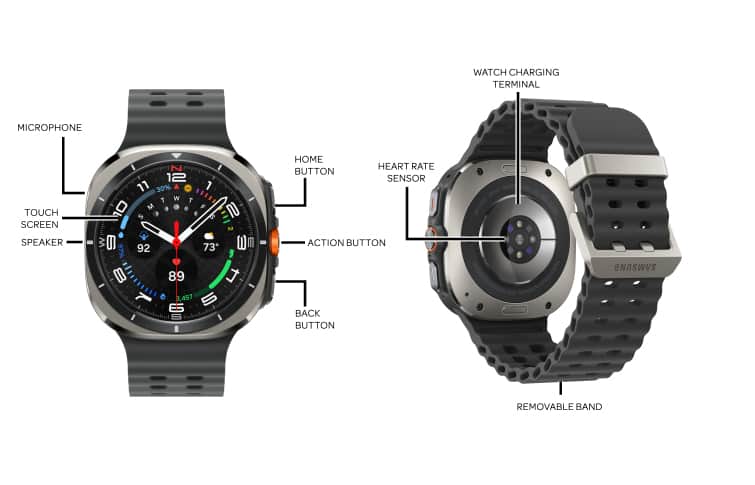
Knowing the button layout helps avoid confusion when turning on your device.
Top Button vs Bottom Button
The top button is the Home/Power key used to turn on. The bottom button is the Back/Action button that opens apps or returns to the previous screen. Confusing them can lead to frustration. Always use the top button for startup.
Large Size and Build
The Ultra model is larger and heavier than previous Galaxy Watches. It’s built for athletes and outdoor use with titanium casing and 5ATM + IP68 durability. Some users with smaller wrists find it bulky, but the size houses a bigger battery and stronger antenna.
Frequently Asked Questions About Turning On Galaxy Watch Ultra
Why won’t my Galaxy Watch Ultra turn on out of the box?
Your watch likely has a dead or deeply discharged battery. Factory-sealed watches are not always fully charged. Connect the watch to the official Samsung charger and let it charge for 15 to 30 minutes before attempting to power it on.
How long should I charge a new Galaxy Watch Ultra before first use?
Charge for at least 15 to 30 minutes. If the battery is completely dead, leave it on the charger overnight (8+ hours). Some users report needing 2 to 8 hours of charging before the watch responds.
What should I do if the watch turns on but loops at the Samsung logo?
Leave the watch on the charger overnight. After fully charging, remove it from the dock and try the long-press method again. If it still loops, the device may be defective and qualify for warranty replacement.
Can I use my phone to charge the Galaxy Watch Ultra?
Yes, if you have a compatible Galaxy phone (S23, S24, Z Fold, Z Flip). Enable Wireless Power Share in Settings > Battery and device care. Place the phone’s back against the watch back to begin charging.
How do I know if my Galaxy Watch Ultra is dead on arrival?
No response after 8+ hours of charging. Intermittent Samsung logo flashes without booting. Battery symbol appears but disappears after a few seconds. Contact Samsung support for warranty replacement.
Does the Galaxy Watch Ultra turn on automatically when charging?
No. Some devices only boot when disconnected from the charger. After charging, remove the watch from the dock before pressing the Home key to turn it on.
Key Takeaways for Powering On Your Galaxy Watch Ultra
Turning on the Galaxy Watch Ultra should be simple, but when it’s not, now you know exactly what to do. Most “broken” watches are just undercharged. Patience and the right charger solve 90% of cases.
Charge for 15 to 30 minutes using the official dock before first use. Remove from charger before pressing the Home key. Press and hold the top button for 5 to 10 seconds. Wait for the Samsung logo to appear.
If your device still won’t boot after full charging and troubleshooting, don’t waste time. Seek warranty help immediately. Your Galaxy Watch Ultra is built to last, but it all starts with a successful first power-on.



