

You just unboxed your new Garmin watch, and it is sitting there sleek, packed with sensors, and slightly intimidating. You are not alone. Millions of users start here, wondering how they actually use this thing. The truth is, your Garmin is not just a step counter or a fancy clock. It is a 24/7 health coach, fitness tracker, safety net, and performance analyst all wrapped around your wrist.
This guide cuts through the complexity and gives you exactly what you need to know, from turning it on for the first time to mastering advanced features like training readiness, Body Battery, and live safety alerts. Whether you are a beginner or looking to unlock hidden power, we will walk you through every essential step, customization, and pro tip.
Initial Setup: Power On and Charge Your Garmin Watch
Your Garmin arrives with a partial charge, but if the battery is too low, it will not power on. Follow these steps to get started correctly.
Charge Before First Use
Plug the magnetic USB-C cable into a 5V/1A wall adapter or computer USB port. Attach the magnetic puck to the back of the watch, aligning it with the charging contacts around the heart rate sensor. A lightning bolt icon appears when connected. If the screen is blank, charge for at least 15 minutes before proceeding.
Use a wall charger rather than a laptop. It charges faster and avoids sync issues later.
Power On the Watch
Press and hold the top button for 3 to 5 seconds. The Garmin logo appears followed by language options. Tap the screen to continue.
If nothing happens, hold the top button for up to 30 seconds to force boot. Ensure the watch is charged because low battery is the number one reason for non-response.
Pair Your Garmin Watch with the Garmin Connect App

The Garmin Connect app is the hub for all your data, settings, and synchronization. Here is how to pair your watch correctly.
Scan the QR Code
On your smartphone, open the camera app and point it at the QR code displayed on your watch. It redirects you to download or open the Garmin Connect app. If the app is already installed, it opens directly and starts pairing.
Create or Log In to Your Account
New users need to enter their name, email, password, and date of birth. You must be 13 or older. Confirm your email via the link sent to your inbox. Existing users simply log in with their credentials.
Enable Permissions and Confirm Pairing
During setup, grant Bluetooth for device communication, location services for GPS and incident detection, and accept the End-User License Agreement. A six-digit PIN appears on both the watch and phone. Verify they match, then tap Pair. Keep your phone within 3 feet of the watch during pairing.
If QR code fails, open Garmin Connect app, tap More, then Garmin Devices, then Add Device, and follow the prompts.
Set Up Your Personal Profile
Accurate data means accurate insights. Configure these settings in the Garmin Connect app:
Gender affects VO2 max, recovery, and sleep algorithms. Height and weight are essential for calorie burn, Body Battery, and fitness scores. Date of birth is used in age-based health assessments. Wrist preference impacts gesture sensitivity and sensor positioning. Sleep schedule enables auto Do Not Disturb and sleep tracking.
Update weight and height after major fitness changes to keep your metrics accurate.
Navigate the Garmin Interface
Most Garmin watches have two to three buttons plus touchscreen support. Mastering both gives you full control.
Physical Button Functions
The top button wakes the screen, confirms selections, and opens the activity menu when pressed. Hold it to access the Control Menu, activate Assistance, or start and stop activities. The bottom button returns to the previous screen or home. During activity, press it to mark a lap or advance a strength set. Hold it to access Settings, Music controls, or shortcuts. Some models include a middle button that is often customizable.
Touch Gestures
Swipe down from the top to open the Quick Status Panel showing heart rate, steps, battery, and stress. Swipe up from the bottom to view daily stats including intensity minutes and active calories. Swipe left to access recent apps and the full app list. Swipe right to go back on some models.
Press the bottom button or swipe down from the top to return to the home screen.
Connect Wi-Fi and Update Software
Adding Wi-Fi enables faster updates, music sync, and large data transfers without draining your phone battery.
Add a Wi-Fi Network
On your watch, go to Settings, then Wi-Fi, then Add Network. Select your network and enter your password using the on-screen keyboard. Tap Next and Setup Complete confirms success.
Install Software Updates
After pairing, the watch checks for updates automatically. If available, the download begins and the device restarts to install. A checkmark confirms completion. You can also update manually through the Garmin Connect app or Garmin Express desktop software.
Ensure the battery is above 50 percent before updating and never disconnect during installation.
Start and Track Activities
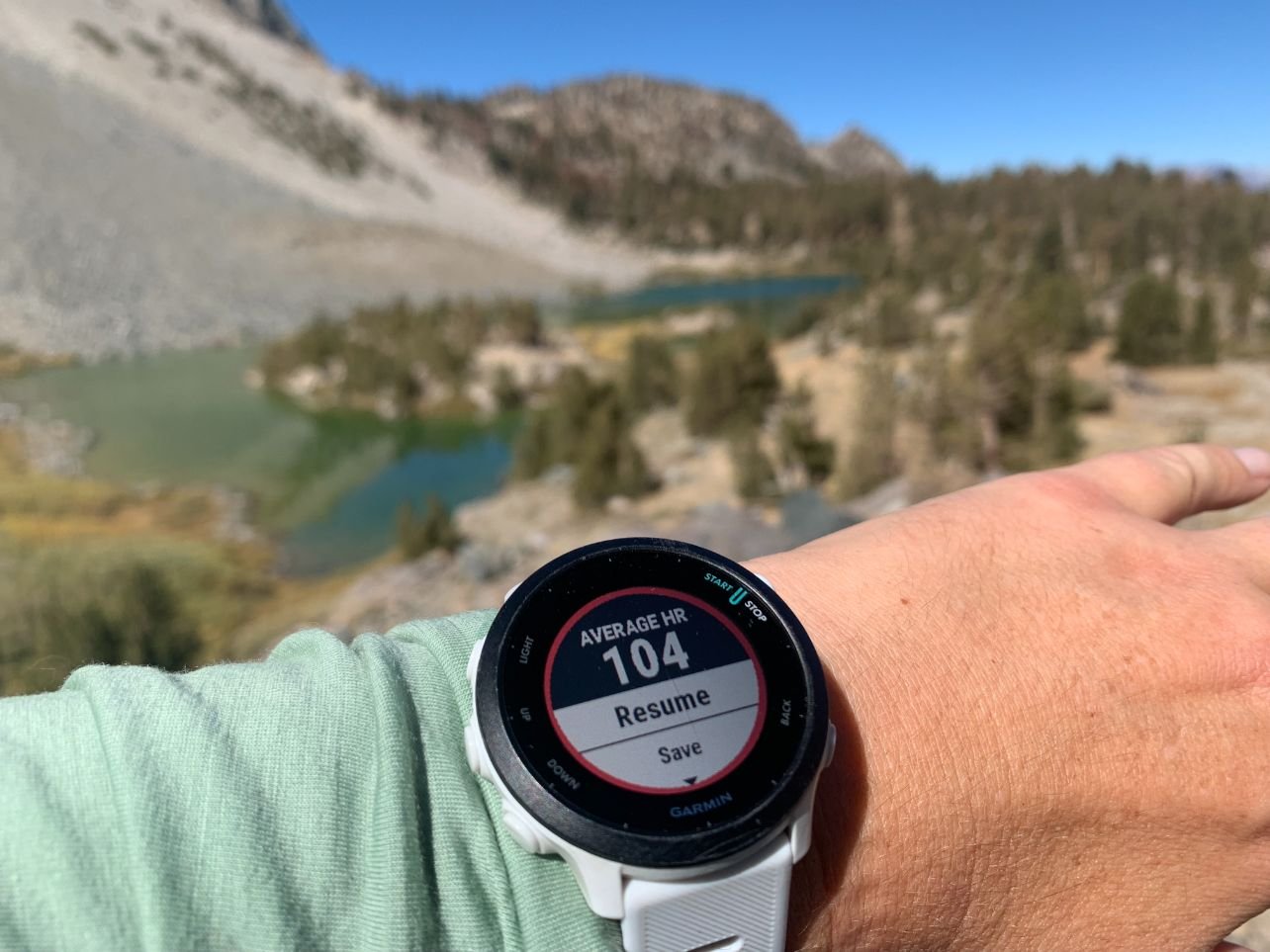
This is where your Garmin shines. Whether you run, bike, swim, or lift weights, tracking is simple.
Begin a Workout
Press the top button and select your activity such as Run, Bike, or Swim. Wait for GPS lock, indicated by a solid satellite icon. Do this outdoors with a clear sky view. Press Start to begin.
During the Activity
Swipe left or right to cycle through data screens showing pace, heart rate, cadence, and more. Press the bottom button to mark a lap or advance a strength set. Press the top button to pause or resume. Hold the top button to end the activity.
After stopping, choose to Save, Discard, or Share your activity.
Customize data screens in the Garmin Connect app under Devices, then Activities, then Edit Data Screens.
Use Automatic Activity Detection
Move IQ is enabled by default on most models. It automatically logs walking, running, cycling, swimming, and elliptical sessions. It tracks duration, distance, and calories. View these activities in the All Day Stress and Activity section of the app.
This feature may miss short or low-intensity sessions. It works best paired with manual tracking for accurate data.
Access Health Glances
Swipe up or down from the watch face for real-time health metrics. These glances include heart rate, stress level, Body Battery, sleep score, HRV status, steps, intensity minutes, and respiration.
Wear the watch consistently, especially at night, for accurate trends. The more data Garmin collects, the more reliable your insights become.
Try the Meditation Feature
Press the top button and select Meditation. Choose from Restore for relaxation, Stretch for movement-integrated sessions, or Mindfulness for breathing guidance. Tap Start and a 10-minute audio session plays through the built-in speaker.
Connect Bluetooth headphones first for private use. Press any button to exit early, then choose to Save or Discard the session.
Enable Morning Report
In the Garmin Connect app, go to Health and Wellness, then Morning Report, and enable it. Each morning you will see sleep quality, resting heart rate, Training Readiness, Body Battery, and HRV Status.
This 30-second snapshot helps you decide workout intensity for the day.
Understand Training Readiness and Body Battery
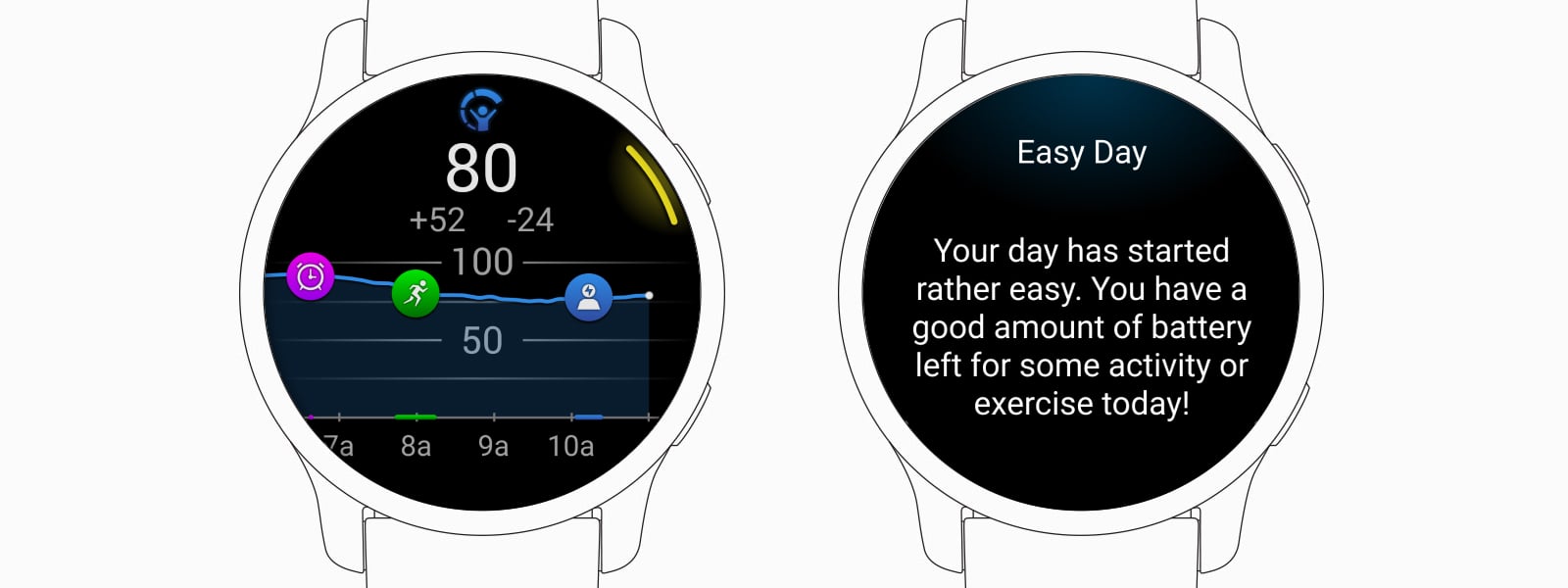
Training Readiness combines sleep, HRV, activity history, and recovery to suggest optimal workout intensity. High means you are ready for intense effort. Medium suggests light to moderate work. Low or Poor means rest or recover.
Body Battery is an energy reserve score from 0 to 100. It rises with sleep and rest and falls with stress and activity. Use it to schedule workouts and rest days. Many users follow a three-day cycle, hard day followed by two easy days, guided by these metrics.
Customize Your Watch Face and Glances
Rearrange Glances
Prioritize your most-checked metrics at the top such as Training Readiness, Sleep Score, and Weather. Group related glances into folders like Health, Training, and Tools. Edit through Garmin Connect under Devices, then Glances.
Set Button Shortcuts
Map shortcuts to functions you use daily. Hold GPS to open navigation. Hold Back to start a timer or alarm. Hold GPS plus Down to show altitude and compass. Hold Back plus Light to activate Do Not Disturb. Hold Back plus Up plus Middle for music controls.
Customize these in your watch settings to match your daily routine.
Personalize the Watch Face
In Garmin Connect, go to Devices, then Watch Faces. Choose or edit a face. A recommended minimalist layout includes the date, a top graph showing elevation or solar data, and a bottom line displaying temperature and elevation.
Avoid clutter. Do not show live heart rate unless it is essential for your needs.
Manage Notifications Smartly
In Garmin Connect under Notifications, enable incoming calls with vibration and optional tone. Disable texts, emails, and social media to reduce distraction. During activity, mirror your general settings so only calls come through.
The Garmin Connect app must stay running on your phone. If it closes or Bluetooth disconnects, notifications stop entirely.
Use Safety and Emergency Features
Set Up Incident Detection
This feature activates during outdoor activities like running, biking, and hiking. It detects hard falls. If you do not respond within 45 seconds, it alerts your emergency contacts with your live GPS location.
Add Emergency Contacts
In Garmin Connect, go to Safety and Tracking, then Emergency Contacts. Add names, numbers, and emails. Contacts must accept the invitation to be active.
Use LiveTrack and Assistance
LiveTrack lets you share your real-time location during workouts. Set the duration to 1, 3, or 6 hours. Access it through Activities before starting.
The Assistance feature works anytime. Hold the top button for 2 seconds and keep holding until prompted. It sends an alert with your location to all emergency contacts.
Maximize Battery Life
Pulse Ox settings significantly impact battery life. All-day monitoring gives approximately 16 days, sleep-only gives about 25 days, and manual checks give up to 35 days.
Power-saving tips include turning off backlight during sleep, using wrist raise only for screen wake, disabling sounds during activities, setting a Low Battery Alert at 2-day reserve, and using Battery Saver plus Do Not Disturb at night.
Troubleshoot Common Issues
If your watch will not turn on, charge it for 15 minutes and hold the power button for 30 seconds. If Bluetooth drops, restart your phone and keep the Garmin Connect app running. If GPS is slow to lock, wait in an open area with clear sky and ensure Auto-select satellites is enabled. If heart rate is inaccurate, clean the sensors, wear the watch snugly, or consider a chest strap for better precision. If sleep is not tracking, wear the watch at night and update your sleep schedule in the app.
Frequently Asked Questions About Using a Garmin Watch
How do I set up my Garmin watch for the first time?
Charge the watch for at least 15 minutes using the included magnetic USB-C cable. Press and hold the top button to power on. Scan the QR code on the watch with your smartphone to download and open the Garmin Connect app. Create an account or log in, grant Bluetooth and location permissions, and confirm the six-digit PIN to complete pairing.
Can I use my Garmin watch without a phone?
Yes, your Garmin watch works independently for tracking activities, displaying time, and monitoring health metrics. However, you need the Garmin Connect app for initial setup, firmware updates, and viewing detailed analytics. Some features like notifications, live safety alerts, and third-party app syncing require a phone connection.
How do I track workouts on my Garmin watch?
Press the top button to open the activity menu and select your workout type. Wait for GPS lock if needed, then press Start. During the activity, swipe to cycle through data screens and use the buttons to mark laps or pause. Hold the top button to end, then choose to Save, Discard, or Share.
How accurate is the heart rate monitor on Garmin watches?
Garmin optical heart rate sensors are generally accurate for daily monitoring and moderate exercise. Accuracy improves when the watch fits snugly and the sensors stay clean. For high-intensity training or medical purposes, a chest strap provides better precision.
How long does the battery last on a Garmin watch?
Battery life varies by model and settings. With typical use including activity tracking and notifications, most Garmin watches last 7 to 14 days. Heavy GPS usage reduces this to a few days. Turning off all-day Pulse Ox and using power-saving settings can extend battery life significantly.
How do I sync my Garmin watch with Strava?
Open Garmin Connect, tap More, go to Settings, then Connected Apps, and select Strava. Tap Authorize and log in to your Strava account. Grant permissions and all future activities sync automatically.
Key Takeaways for Using Your Garmin Watch
Your Garmin watch is a powerful tool when used fully and consistently. Wear it 24/7 for accurate recovery, sleep, and readiness metrics. Enter accurate personal data including height, weight, and date of birth for reliable calculations. Customize glances, buttons, and your watch face for efficiency in daily use.
Use the Morning Report to guide your daily activity planning. Leverage Training Readiness and Body Battery to avoid overtraining. Enable Incident Detection and Emergency Contacts for safety during outdoor activities. Limit notifications to calls only to reduce distraction.
Update firmware regularly for new features, bug fixes, and improved accuracy. Sync with external tools like scales, Strava, and TrainingPeaks for holistic health insights. Your Garmin is a silent, intentional companion. Use it to enhance your life, not interrupt it.



