
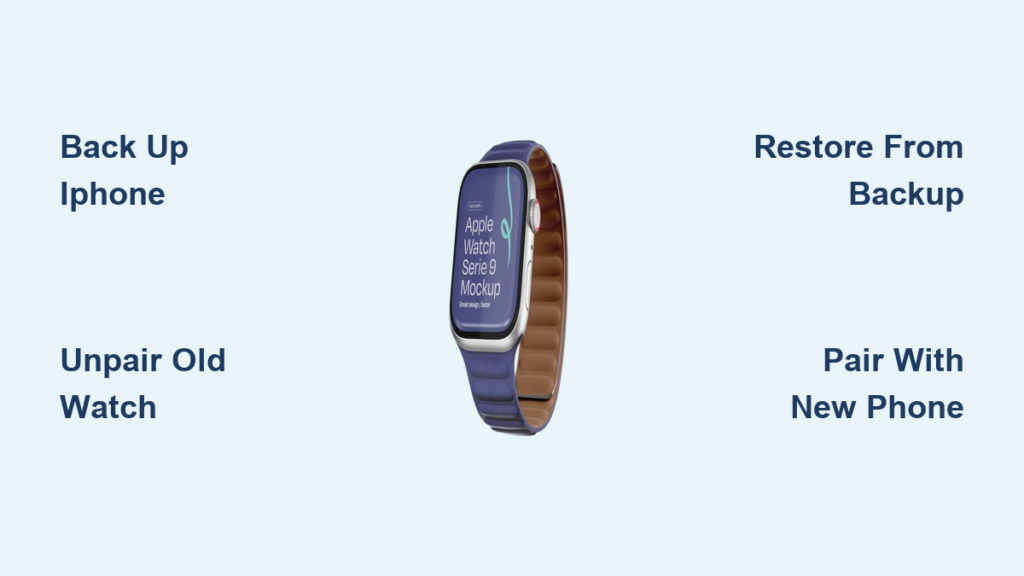
You’ve upgraded to a new iPhone, but your trusty old Apple Watch still has plenty of life. The good news is you can absolutely pair an older Apple Watch to your new phone, as long as you follow the right steps. This guide walks you through every method to successfully link your Apple Watch to your new device, whether you still have your old phone or not.
Most people assume pairing is instant, but skipping prep can trigger errors like “This Apple Watch Is Already Paired” or endless syncing loops. With the right approach, you’ll keep your Activity rings, workout history, and custom watch faces. Let’s get your watch back on your wrist, fully functional and synced.
Essential Setup Requirements Before Pairing
Before starting, confirm your devices meet Apple’s pairing criteria. Missing one requirement can halt the entire process.
Same Apple ID on All Devices
Your Apple Watch, old iPhone, and new iPhone must use the same Apple ID for iCloud, iTunes, and the Watch app. This syncs your backups and disables Activation Lock. If you switch IDs, you’ll lose access to encrypted data like Health records and Apple Watch settings.
Pro Tip: Sign in to iCloud on your new iPhone first. Go to Settings, tap your name, and verify the correct account is selected.
Bluetooth and Wi-Fi Must Be Active
Keep Bluetooth enabled on your new iPhone through Settings. The initial pairing uses Bluetooth to establish connection. A stable Wi-Fi network is also required, especially for restoring large backups with months of health data.
Warning: Mobile data alone will not work. Wi-Fi ensures uninterrupted sync during setup.
Confirm Device Compatibility
Older Apple Watches may not support the latest iOS versions. Check compatibility before proceeding.
Requirements to verify:
- Apple Watch Series 3 or later works with iOS 15 and newer
- iPhone 6s or newer required
- watchOS 9 or later needed to pair with iOS 17 or later
If your watch cannot update to a compatible watchOS version, pairing will fail.
Pair When Old iPhone Is Available

Use this method if you still have your original iPhone. It preserves all data and avoids factory resets.
Back Up Old iPhone First
Apple Watch data lives on the paired iPhone. Back it up before unpairing to preserve everything.
Backup options:
- iCloud backup: Go to Settings, tap your name, select iCloud, then iCloud Backup, and tap Back Up Now
- Computer backup (Recommended): Connect via USB, open Finder or iTunes, select your device, and enable Encrypt backup before backing up
Why encrypt? Only encrypted backups save Health data, Wi-Fi passwords, and Apple Watch settings.
Unpair Watch From Old iPhone
This step removes Activation Lock and creates a dedicated Apple Watch backup.
Steps to unpair:
- Open Apple Watch app on the old iPhone
- Tap All Watches, select your watch, then tap the information icon
- Scroll down and tap Unpair Apple Watch
- Confirm and enter your Apple ID password
- Wait 5 to 10 minutes for the process to complete
Success sign: The watch restarts with a swirling animation, ready to pair.
Never skip this step. Skipping unpairing leaves Activation Lock active, blocking new pairing.
Set Up New iPhone Correctly
Restore your new iPhone using the backup from the old device before pairing the watch.
During initial setup:
- Choose Restore from iCloud Backup or Restore from Mac/PC Backup
- Select the most recent backup
Best practice: Let the full restore finish before opening the Watch app. This ensures all Apple Watch data is available.
Start Pairing to New iPhone
Once your new iPhone is restored, begin pairing the Apple Watch.
Steps to pair:
- Bring Apple Watch close to iPhone within 1 foot
- Watch for Set Up Apple Watch prompt on iPhone
- Tap Continue
No prompt appears? Open Watch app manually and tap Start Pairing.
Scan the Animated Code
Continue with these steps:
- Tap Set Up for Myself
- Hold iPhone camera over Apple Watch screen
- Let it scan the moving dot pattern
Success sign: iPhone shows “Syncing…” and begins transferring data.
Restore From Backup
After scanning, choose your setup method to retrieve your data.
Select Restore from Backup to retrieve:
- Activity rings and workout history
- Custom watch faces and complications
- Notification settings and app layouts
- Bluetooth pairings and Medical ID
Backup location: If using computer backup, ensure iPhone restore included Watch data. For iCloud, verify backup exists under Settings, your name, iCloud, Manage Storage, Backups.
Apple Pay warning: Cards are not restored for security. You will need to re-add them later in the Wallet app.
Complete Final Setup Steps
Walk through the last few configuration screens to finish setup.
Create a Passcode
Enter a 4-digit or longer passcode. This enables wrist detection security, Apple Pay authentication, and device encryption.
Tip: Use a code you will remember. There is no reset bypass without it.
Sync Shared Settings
Choose to copy wallpaper and brightness, sound and haptics, and accessibility features like Zoom.
Convenience: Syncing keeps your experience consistent across devices.
Re-Enable Safety Features
Confirm settings for Fall Detection, Emergency SOS, and Crash Detection if supported.
Critical: These features rely on updated Medical ID. Verify in the Health app.
No Old iPhone? Reset the Watch
If your old phone is lost, sold, or broken, reset the Apple Watch directly before pairing.
Erase Using Settings
- On watch, open Settings
- Go to General, Transfer or Reset Apple Watch
- Tap Erase All Content and Settings
- Enter passcode and confirm
Outcome: Watch restarts into pairing mode.
Force Reset if Passcode Unknown
- Place watch on charger
- Press and hold Side Button and Digital Crown for 10 or more seconds
- Release when Apple logo vanishes and yellow exclamation mark appears
- Tap Reset, then Erase All
Data loss warning: This wipes the watch completely. But if iCloud backup exists, data can still be restored.
Pair After Reset
Even after factory reset, your data is not gone if it was backed up.
Open Watch App and Start Pairing
- On new iPhone, open Watch app
- Tap Start Pairing
- Hold iPhone near watch to scan animation
- Choose Set Up for Myself
Restore From iCloud Backup
During setup, you will see backup options. Pick the most recent one tied to your Apple ID.
Verification: Check date and size to confirm it is the right backup.
No backup? You will have to set up as new and reconfigure everything manually.
Troubleshoot Common Pairing Errors
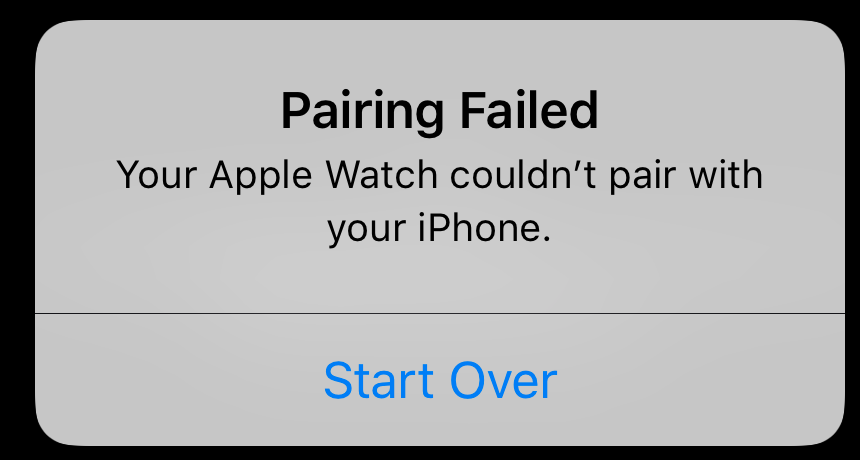
Even with preparation, issues happen. Here is how to fix them fast.
No Pairing Prompt Appears
Fixes to try:
- Ensure Bluetooth is on
- Restart both devices
- Open Watch app and tap Start Pairing
- Disable VPN or network restrictions
- Reset network settings through Settings, General, Transfer or Reset iPhone, Reset Network Settings
Why it works: Clears corrupted Bluetooth or Wi-Fi configurations.
Watch Will Not Enter Pairing Mode
Solutions:
- Charge at least 30 minutes if battery is low
- Force restart by holding Side Button and Digital Crown until Apple logo appears
- Erase via force reset if frozen
Visual cue: Look for the swirling animation. That is pairing mode.
Already Paired or Activation Lock Error
Cause: Activation Lock is still active from the previous pairing.
Fix:
- If possible, unpair via old iPhone
- If not, erase all content and settings on watch
- Enter original Apple ID and password when prompted
No bypass exists. Apple requires credentials. For secondhand watches, the seller must unpair first.
Slow or Failed Sync After Pairing
Causes include:
- Weak Wi-Fi signal
- Large backup size
- Low iCloud storage
Fixes:
- Keep both devices on charger and close together
- Ensure 5GB or more free in iCloud through Settings, your name, iCloud, Manage Storage
- Wait up to 2 hours for full sync
Patience pays. Interrupting sync may require restarting setup.
Apps Not Restoring
Why this happens:
- App not installed on new iPhone
- Third-party app lacks cloud sync
- Backup was incomplete
Fix:
- Open Watch app
- Go to Apps section
- Tap Not Installed and re-download apps
- Re-login to apps like Strava or MyFitnessPal
Prevent Data Loss: Backup Rules
Know what gets saved and what does not.
What Gets Preserved in Backup
Data types restored:
- Health and fitness history
- Watch faces and complications
- Notification settings
- Bluetooth pairings
- Medical ID and emergency SOS
- Messages with end-to-end encryption
Data not restored:
- Apple Pay cards (must be re-added manually)
When Data Is Lost Forever
Data loss occurs when there is no backup and the watch is erased, when the old iPhone is lost without prior backup, or when skipping unpair and trying to force pair.
User reality: One backup could save months of workout streaks.
Post-Pairing Optimization
Fine-tune your setup after pairing completes.
Re-Add Apple Pay Cards
- Open Wallet app
- Tap plus and follow prompts
- Verify card with your bank
Quick tip: Takes under 2 minutes per card.
Update watchOS
- On watch, open Settings
- Go to General, Software Update
- Install latest version
Why update: Ensures compatibility and security fixes.
Customize Watch Faces Again
- Press Digital Crown to home screen
- Long-press face, swipe, tap Edit
- Adjust complications and style
Pro tip: Reuse saved faces from backup. They will reappear after sync.
Pro Tips for Long-Term Success
Avoid future headaches with these habits.
Always Back Up Before Switching
Before selling, losing, or upgrading your iPhone, perform an encrypted backup and unpair Apple Watch properly.
Peace of mind: You are ready for any device change.
Verify iCloud Backups Regularly
Check monthly through Settings, your name, iCloud, Manage Storage, Backups. Confirm Apple Watch backup is recent and sized correctly.
Best practice: Do this after major updates or health data accumulation.
Store Apple ID Securely
Use a password manager to save your Apple ID email, password, and recovery key.
Critical: Without credentials, Activation Lock cannot be removed.
Frequently Asked Questions About Pairing Old Apple Watch to New Phone
Can I pair my Apple Watch to a new iPhone without resetting it?
You can only pair without resetting if you still have access to the old iPhone and properly unpair through the Watch app first. Without the old phone, a factory reset is required to remove Activation Lock.
Will I lose my workout data when switching to a new phone?
No, if you back up your iPhone before unpairing. The backup preserves Activity rings, workout history, and all health data. Just select Restore from Backup during setup on the new phone.
Why does my Apple Watch say it is already paired?
This means Activation Lock is still active. The watch is still linked to the original Apple ID. You must unpair it from the old iPhone or perform a factory reset to remove this lock.
How long does it take to sync everything after pairing?
It depends on backup size and internet speed. Small backups sync in 15 to 30 minutes. Large backups with years of health data can take 1 to 2 hours. Keep devices on charger and connected to Wi-Fi.
Can I pair a secondhand Apple Watch to my phone?
Yes, but only if the previous owner unpaired it first. If Activation Lock is still active, you will need their Apple ID credentials or ask them to unpair it remotely.
What if I forgot my Apple Watch passcode?
Use force reset. Press and hold the Side Button and Digital Crown for 10 or more seconds until the yellow exclamation mark appears, then tap Reset to erase all content.
Key Takeaways for Pairing Your Old Apple Watch
Pairing an old Apple Watch to a new phone is seamless when you follow the backup-unpair-restore sequence. Whether you have your old iPhone or not, your data is recoverable if protected by iCloud. Always choose Restore from Backup, keep devices charged and close together, and allow time for full sync.
Within an hour, your Activity rings will be live again, your watch faces will be restored, and your health journey will be uninterrupted. The key is preparation. Back up early, unpair cleanly, and set up smart. If you encounter Activation Lock and have no credentials, a factory reset is your only option, but iCloud backups ensure your data survives.



