

You just got a new phone or are lending your Galaxy Watch to someone else, and now you need to disconnect it. The good news: unpairing your Galaxy Watch from an Android phone is quick, safe, and doesn’t erase your workouts, heart rate logs, or sleep data. But here’s what most guides miss: you must use the Galaxy Wearable or Galaxy Watch app first. Simply forgetting the device in Bluetooth settings often isn’t enough and can leave sync profiles behind, causing issues later.
This step-by-step guide covers how to fully disconnect any Galaxy Watch, including the Galaxy Watch Ultra, Watch 8, Watch 6, and older models, from a Samsung or compatible Android phone. You’ll learn the correct order of operations, avoid common mistakes, and verify complete disconnection so your watch won’t reconnect automatically.
Open the Galaxy Wearable App on Your Phone
Before anything else, launch the correct companion app on your phone. Confusion between app names is the number one reason users fail to disconnect their watch.
Galaxy Wearable vs. Galaxy Watch App
The companion app you use depends on your watch model and region. Galaxy Wearable is the default on most phones running One UI 2.0 or later and works with Galaxy Watch 3 through Watch 8. Galaxy Watch is newer branding seen on Galaxy Watch Ultra and some 2024 models, but it’s functionally identical.
If both apps are installed on your phone, open the one showing your connected watch. Only one will display active pairing at a time.
Launch and Verify the Connection
Open the app and wait for it to load your watch’s dashboard. Confirm your watch is powered on and within Bluetooth range, typically about 30 feet. If the app shows no device, the watch may already be disconnected, or it’s out of range. Bring it closer and retry.
Navigate to Device Removal Settings
Now that the app recognizes your watch, you need to find the unpairing tool hidden in the menu.
Find the Menu Button
Look for three vertical dots in the top-right corner of the screen. This is the More options menu. Tap it to reveal the dropdown with device management options.
Alternative path: Some interfaces show a device icon at the bottom center. Tap it, then select your watch and tap the gear icon or the three dots to access the same menu.
Remove Your Galaxy Watch Through the App
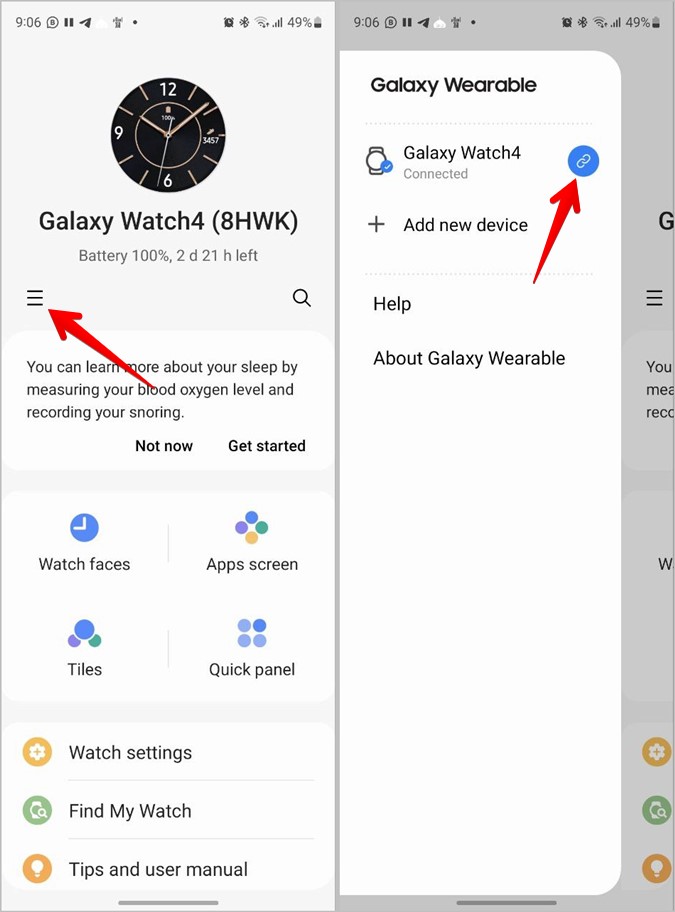
This is where most users make a critical choice that affects whether residual data remains on their phone.
Select Remove Device
From the menu, select Remove device. A list of paired wearables appears on the screen. Tap your specific Galaxy Watch model, such as Galaxy Watch 8 or Galaxy Watch Ultra.
Choose Remove All for Complete Cleanup
You’ll see two options displayed: Remove and Remove all. Always choose Remove all unless you plan to re-pair the watch immediately.
Remove all deletes synced notifications and messages, app configurations, watch face settings, and the device profile from your phone. Remove may leave behind cached data that causes sync conflicts later.
Confirm the Unpairing Process
A warning appears on screen stating that unpairing will stop syncing apps, data, and settings. Read this message carefully and tap Remove to confirm.
The unpairing process takes between 10 and 30 seconds. Once complete, the app returns to the home screen with no watch listed. Your watch is now disconnected at the app level, and syncing stops immediately.
Forget the Device in Bluetooth Settings

Even after app removal, your phone may still remember the watch in Bluetooth memory. This can trigger automatic reconnection when Bluetooth is enabled.
Steps to Remove from Bluetooth
Open Settings on your phone and go to Connections, then Bluetooth. Under Paired devices or Previously connected devices, find your Galaxy Watch. Tap the gear icon or info button next to it. Select Unpair, Forget, or Remove device, depending on your phone’s wording.
Some phones automatically remove the Bluetooth pairing during app unpairing. But manual verification ensures no hidden link remains active.
Verify Disconnection on Your Watch
Now check the wearable side to confirm the disconnection was successful.
What to Look For
Look for a broken Bluetooth icon in the status bar. You may also see a grayed-out phone symbol in quick settings or a brief animation stating that the phone is disconnected.
The watch remains fully functional in standalone mode. GPS tracking works, offline workouts save locally, LTE calls on cellular models still connect, and Spotify and other apps run normally. However, phone-dependent features like calls, texts, and notifications won’t sync until you re-pair the watch.
What Data Is Preserved After Disconnection
Your health data is safe when you unpair. Workouts, heart rate, and sleep logs stored on the watch remain intact. Samsung Health cloud data synced to your account also stays accessible. LTE profile on cellular models remains active.
However, unpairing does remove phone-side synced messages and call logs, app-specific settings tied to the phone, and watch face layouts unless you previously backed them up.
Before unpairing, ensure your latest fitness data synced to Samsung Health or Google Fit to prevent any gaps.
Re-Pairing Your Galaxy Watch Later
Planning to reconnect later? No factory reset is needed. Simply power on the watch, turn on phone Bluetooth, and open the Galaxy Wearable or Galaxy Watch app. Bring the devices close together, and setup starts automatically. Follow the prompts to re-sync apps and log into your Samsung Account.
If re-pairing to the same phone, it may restore some settings from cache. If connecting to a new phone, full setup is required, but watch data stays intact.
Common Troubleshooting Issues
Remove Device Option Missing
If the Remove device option doesn’t appear, your watch may be out of range, the app may not detect the connection, or there could be a software glitch. Move the watch closer, restart both devices, and force close and reopen the app.
App Crashes During Removal
Clear the app cache by going to Settings, Apps, Galaxy Wearable, Storage, and Clear Cache. Update the app via Galaxy Store or Google Play. Reinstall if crashes persist.
Watch Still in Bluetooth List After Unpairing
Manually forget the device in Bluetooth settings. Restart your phone to clear the Bluetooth cache.
Watch Shows Connected After Unpairing
On the watch, open Settings, Connections, Bluetooth. Tap the connected phone and select Unpair or Forget. Alternatively, restart the watch.
Cannot Reconnect After Unpairing
Update the Galaxy Wearable app. Reset network settings on your phone through Settings, General Management, Reset, Reset Network Settings. Perform a soft reset on the watch by holding the power button and selecting Restart.
Frequently Asked Questions About Disconnecting Galaxy Watch
Does unpairing my Galaxy Watch delete my health data?
No. Workouts, heart rate logs, and sleep tracking stored on the watch remain intact. Samsung Health cloud data synced to your account is also preserved. Only phone-side synced data like notifications and messages gets removed.
Can I disconnect my Galaxy Watch without the Galaxy Wearable app?
No. You must use the Galaxy Wearable or Galaxy Watch app to properly unpair the device. Simply forgetting the watch in Bluetooth settings doesn’t remove the device profile and can cause sync issues later.
Will my Galaxy Watch automatically reconnect after unpairing?
Not if you complete all steps. After app-based unpairing, manually forget the device in Bluetooth settings to prevent automatic reconnection when Bluetooth is enabled.
Do I need to factory reset my Galaxy Watch before selling it?
Yes. While unpairing removes your Samsung Account and phone connections, a factory reset ensures all personal data, installed apps, and settings are completely wiped from the device for the new owner.
Can I disconnect my Galaxy Watch from an iPhone?
Yes, but the process differs. Open the Galaxy Watch app for iOS, go to Settings, select your watch, and choose Disconnect. Note that iOS has limited functionality compared to Android.
Final Checklist for Complete Disconnection
Verify that your Galaxy Watch is fully disconnected by checking these items:
The Galaxy Wearable app shows no connected device. Your watch displays a broken Bluetooth icon. Bluetooth settings on your phone don’t list the watch. No notifications or calls are syncing between devices. Re-pairing requires manual setup. Your health data is preserved on the watch and Samsung Health cloud.
If all boxes are checked, your Galaxy Watch is completely disconnected and ready for standalone use or future pairing with a new device.



