
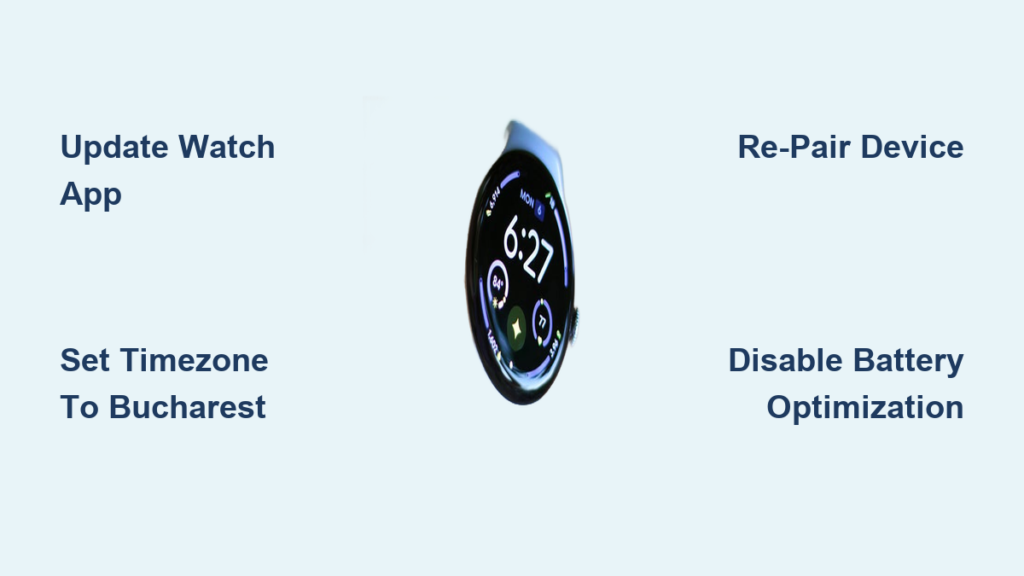
You’re not alone if your Pixel Watch isn’t syncing with Fitbit. Thousands of users across Pixel Watch, Watch 2, 3, and 4 report missing steps, stale heart rate data, sleep tracking that starts at 3 AM, or a persistent red sync icon even when Bluetooth shows connected. The Fitbit app fails to pull data from your watch, leaving your health metrics stranded. This is usually a software or integration issue between Wear OS, the Fitbit app, and your Google account, not a hardware flaw. The good news? Most cases are fixable. In this guide, you’ll learn proven fixes from updating the Fitbit app on your watch to bypassing critical timezone bugs, and how to prevent sync failures long-term.
Update Fitbit App on Your Pixel Watch
The number one fix for sync issues is often overlooked. The Fitbit app on your Pixel Watch itself may be outdated, even if your phone app is current.
Why This Causes Sync Failure
The watch runs its own version of the Fitbit app via Play Store. Updates don’t auto-install or sync with the phone app. An outdated app causes handshake failures and data transfer errors between the watch and Fitbit servers.
How to Update the Watch App
- Press the crown to return to the watch face.
- Swipe up to open the app list.
- Tap Play Store.
- Scroll down and tap “Manage apps and device.”
- Tap “Update all” to update Wear OS components and the Fitbit app.
Pro Tip: Don’t assume your phone’s app update covers the watch. Always check the watch-side Play Store separately.
User Result: Gforce100, Pjade, and barbmyers5 all reported full sync restoration after this single step.
Set Timezone to Bucharest for Sync Success
:max_bytes(150000):strip_icc()/NEW3-23919b870a9d45b7946fa8a860307c57.jpg)
A hidden bug introduced in May 2024 breaks sync for users in UTC+3 zones, especially if set to Kyiv or automatic timezone detection.
Why This Breaks Sync
Fitbit’s backend struggles with certain city-based timezone configurations. Automatic detection or Kyiv (GMT+3) triggers authentication or sync logic failures. Bucharest is also GMT+3 but uses a different server path that bypasses the bug.
How to Fix the Timezone
- On your Pixel phone, go to Settings > System > Date and time.
- Turn off “Set time automatically.”
- Tap “Select time zone” and choose Bucharest.
- Re-enable sync in the Fitbit app.
User Confirmation: Ok_Employment9774 confirmed sync worked with Bucharest but failed instantly when switching back to Kyiv or automatic mode.
Applies To: All Pixel Watches and Android phones in UTC+3 zones, including East Africa and Eastern Europe regions.
Re-Pair Pixel Watch in Fitbit App
If your watch lost power or rebooted, the pairing may be corrupted and require a full re-pair to restore sync functionality.
Why Re-Pairing Works
Sync relies on a persistent device token stored in both the app and watch. Battery drain or unexpected restarts can break this state. The Fitbit app doesn’t auto-repair broken pairings after power loss.
How to Re-Pair Your Watch
- Open Fitbit app on your phone.
- Tap Today tab > Profile icon > Devices.
- Select your Pixel Watch > Remove Device.
- Confirm removal.
- Tap Add a Device and follow the pairing steps.
User Result: Leanne Grummert fixed sync after her watch died overnight. Re-pairing restored complete data flow.
Warning: Don’t skip this step if you’ve experienced a full battery drain. It’s often the only fix that works.
Disable Battery Optimization for Fitbit
Android may be killing Fitbit’s background processes, which blocks sync from ever initiating.
Why Battery Optimization Causes Issues
Battery optimization restricts background activity on Android devices. Fitbit needs to run in the background to pull data via Bluetooth Low Energy. If the system kills the app, sync never triggers, even when the watch is nearby and connected.
How to Disable It
- Go to Settings > Battery > Battery Optimization.
- Tap the dropdown and select All apps.
- Find and tap Fitbit.
- Select Don’t optimize or Allow background activity.
Critical: Do this on every Android device linked to your Fitbit account.
Visual Cue: After disabling, check if sync occurs within 2 hours during normal use.
Clear Fitbit App Cache and Data
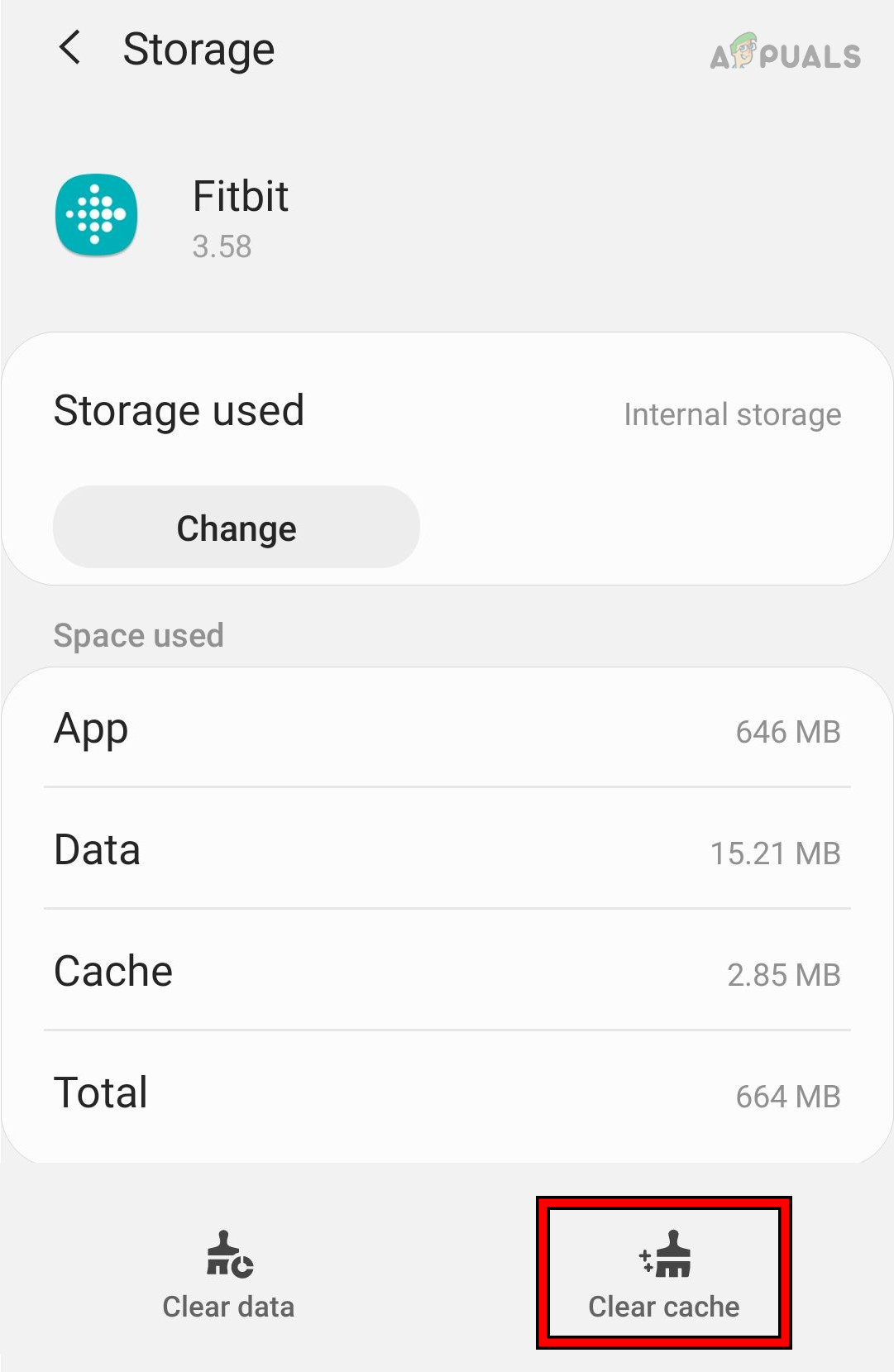
Corrupted app data can block sync completely, even with perfect Bluetooth connectivity and correct login credentials.
When to Use This Fix
Use this fix when sync fails despite correct login and Bluetooth pairing. It also helps when the app crashes when pulling down to sync or when you see 0% battery or missing data in the dashboard.
How to Clear Cache and Data
- Go to Settings > Apps > Fitbit.
- Tap Force Stop.
- Tap Storage > Clear Cache.
- If no improvement, tap Clear Data. You’ll need to log in again afterward.
Warning: Clearing data logs you out and may require re-pairing your watch.
Success Rate: High when combined with re-pairing the device afterward.
Restart Phone and Watch Together
A simple reboot clears temporary glitches in Bluetooth stack and app services that may be blocking sync.
How to Restart Both Devices
Restart your phone by pressing and holding Power + Volume Up, then tapping Restart. Restart your watch by pressing and holding the crown, then tapping Restart.
Best Practice: Do both in sequence. Restart the phone first, then restart the watch.
User Result: untainsyd reported sync resumed after dual restart, even though Bluetooth showed as connected the entire time.
Update All Software Components
Outdated operating system or app versions cause compatibility gaps that prevent sync from working properly.
What to Update on Your Phone
Update Android OS through Settings > System > Software Update. Update the Fitbit app through Play Store > Profile > Manage Apps and Device > Update.
What to Update on Your Watch
Open Play Store on the watch and tap Manage apps and device > Update all. This updates the Fitbit app and all Wear OS components.
User Report: Walcontent found sync returned only after both the timezone fix and a full software update were applied.
Tip: Check weekly for updates. Google rolls out fixes silently without announcement.
Use Fitbit Reconnect Assistant
When sync is stuck, the built-in recovery tool can re-establish the connection without full re-pairing.
How to Trigger Reconnect Assistant
- Open Fitbit app on your phone.
- Tap the sync icon in the top-left corner.
- Wait for “Reconnect Assistant” to appear.
- Let it run for 3 to 5 minutes.
What It Does: Resets the BLE connection, re-authenticates the device, and forces a data pull from the watch.
Limitation: Some users report infinite loops with this tool. If it doesn’t complete within 10 minutes, cancel and try re-pairing instead.
Reset Phone Network Settings
This fixes Bluetooth stack corruption that blocks data transfer even when the connection appears active.
When to Use This Fix
Use network reset when Bluetooth shows connected but no data syncs. It’s also helpful when other devices pair fine but Fitbit fails consistently, or when you’ve updated everything but still see 0% sync status.
How to Reset Network Settings
- Go to Settings > System > Reset options.
- Tap Reset Wi-Fi, mobile, and Bluetooth.
- Confirm the reset.
- Re-pair your Pixel Watch after restarting.
Note: This removes all paired devices from your phone. You’ll need to reconnect headphones, speakers, and other Bluetooth devices.
User Result: This resolved phantom connection issues where sync never initiated despite apparent Bluetooth pairing.
Factory Reset Pixel Watch as Last Resort
If nothing else works, erasing and rebuilding the watch may be necessary to restore sync functionality.
How to Factory Reset
- Back up any critical data. Options are limited on Wear OS.
- On the watch, go to Settings > System > Reset Settings > Erase all data.
- Follow the setup wizard and re-pair with the Fitbit app.
Use Case: Persistent failure across multiple phones or after completing all other troubleshooting steps.
Success Rate: Two out of five stars. Only use this after exhausting all other options.
Fix Account Migration Conflicts
If you moved from a standalone Fitbit account to Google during setup, you may be locked out of sync functionality.
Why Migration Breaks Sync
Fitbit no longer recognizes your original login credentials after migration. The watch shows “Not logged in” despite correct Google credentials. There’s no official way to revert to a standalone Fitbit account.
Workarounds to Try
Log out and back into the Fitbit app using your Google account. Ensure the same Google account is used on both your phone and watch. Contact Fitbit support and reference “account migration bug” for escalation.
Critical Gap: No user has reported successfully reverting to a standalone Fitbit account after migration. This remains an unresolved issue.
Support Tip: Escalate if the support agent doesn’t acknowledge migration-related issues.
Prevent Future Sync Failures
Stay ahead of bugs with proactive maintenance and good habits.
Daily Habits to Maintain Sync
Keep your phone within 3 feet of the watch during sleep tracking for reliable data transfer. Check sync status each morning by pulling down in the Fitbit app to confirm data updated.
Monthly Maintenance Tasks
Clear the Fitbit app cache monthly to prevent corruption buildup. Confirm the Fitbit app is updated on the watch through the Play Store. Verify your timezone is still set correctly, especially after system updates.
Device Rules for Stability
Use only one primary device. Remove old phones and tablets from your Fitbit account to prevent pairing conflicts. Avoid logging into Fitbit on multiple Android devices simultaneously.
Use Google Fit as Backup Sync
Enable Google Fit integration to create a data safety net when Fitbit sync fails.
How to Enable Google Fit Integration
- Open Fitbit app > Profile > Settings.
- Tap Google Fit.
- Toggle “Enable Google Fit” to on.
Benefit: Some users report more reliable data flow through Google Fit, even when direct Fitbit sync fails consistently.
Limitation: Not all metrics sync through this bridge. Stress and readiness scores may not transfer.
Try Third-Party Sync Tools
Automate and monitor sync when the official Fitbit app fails repeatedly.
Recommended Tool: Power Sync for Fitbit
This tool offers auto-sync triggers, push notifications for sync status, and Apple Health export capabilities. The cost is $2.99 per month or a one-time purchase. It requires access to health data, so only install from trusted sources.
Use Case: Ideal for users with intermittent sync who need reliable data transfer without manual intervention.
Caution: Third-party tools are not a replacement for fixing root causes. Use them as a temporary workaround while troubleshooting.
Recognize Unresolved Issues
Some problems still lack fixes. Know when to escalate to support rather than continuing troubleshooting.
Intermittent Syncing Issues
Sync works once, then stops for days. This is likely a background service or token expiration bug. Report to Fitbit with device logs if this persists after trying all fixes.
Data Inconsistencies
Sleep tracking starts at 3 AM instead of bedtime, or step count differs between the watch and app. This is caused by sensor data not being flushed properly and sync timing being off. Oney01’s sleep score began at 3 AM instead of 11 PM, a known issue with no permanent fix.
No Revert from Google Account
Once migrated, you cannot go back to a standalone Fitbit account. This leaves users stuck in a broken authentication loop with no escape. Demand a solution from support. This is a known gap that requires backend fixes from Google and Fitbit.
Frequently Asked Questions About Pixel Watch Fitbit Not Syncing
Why does my Pixel Watch show as connected but not syncing?
Bluetooth may show connected, but the Fitbit app’s application-level handshake fails. This is a known bug in Fitbit’s BLE service discovery logic. Try re-pairing the watch or using the Reconnect Assistant tool.
How do I fix the red sync icon on my Pixel Watch?
Start by updating the Fitbit app on your watch through the Play Store. If that doesn’t work, try re-pairing the device, disabling battery optimization, or clearing the app cache. The red icon indicates failed or incomplete sync.
Why does sleep tracking start at 3 AM instead of my bedtime?
This is a known data inconsistency issue. The sensor data isn’t being flushed properly, and sync timing is misaligned with the sleep detection algorithm. No permanent fix exists yet, but updating all software may help reduce occurrences.
Can I revert from my Google account back to a standalone Fitbit account?
No. Once you migrate to a Google account, there’s no documented way to revert. This is a critical gap that affects users who experience sync issues after migration. Contact Fitbit support for assistance if you’re locked out.
Why does my Fitbit app show 0% battery for the watch?
This indicates a sync failure where the app can’t communicate with the watch properly. Try re-pairing the device, clearing the app cache, or using the Reconnect Assistant. This is a software issue, not a battery problem.
Will a factory reset always fix sync issues?
No. Factory reset has only a two out of five stars success rate for sync problems. It’s a last resort after all other troubleshooting steps fail. Most sync issues resolve with app updates, re-pairing, or timezone fixes.
Key Takeaways for Fixing Pixel Watch Fitbit Sync Issues
Pixel Watch Fitbit not syncing is a widespread but usually fixable issue. Start with updating the Fitbit app on your watch, then set timezone to Bucharest (GMT+3) if you’re in a UTC+3 zone. Re-pair the device, disable battery optimization, and restart both devices together. Most users restore sync within minutes using these steps. If problems persist, escalate to Fitbit support with details on timezone bugs, account migration issues, or Reconnect Assistant failures. Keep all software updated and limit multi-device logins to stay sync-stable long-term. For persistent issues, try Google Fit as a backup sync method while working with support on a permanent solution.



