

Your Bose Sport Earbuds suddenly drop Bluetooth connections, touch controls feel laggy, or battery drains faster than it used to. These frustrating symptoms often trace back to outdated firmware running quietly in the background. Keeping your Bose Sport Earbuds firmware current is the single most effective way to restore audio clarity, fix connectivity bugs, and unlock new features without replacing your hardware.
This guide covers every reliable method for updating your Bose Sport Earbuds firmware, including the Bose Music App workflow, the desktop Bose Software Updater, and proven troubleshooting tactics when things go wrong. You will also learn what changes to expect after each update and how to avoid the most common pitfalls.
Update Bose Sport Earbuds Firmware Through the Bose Music App
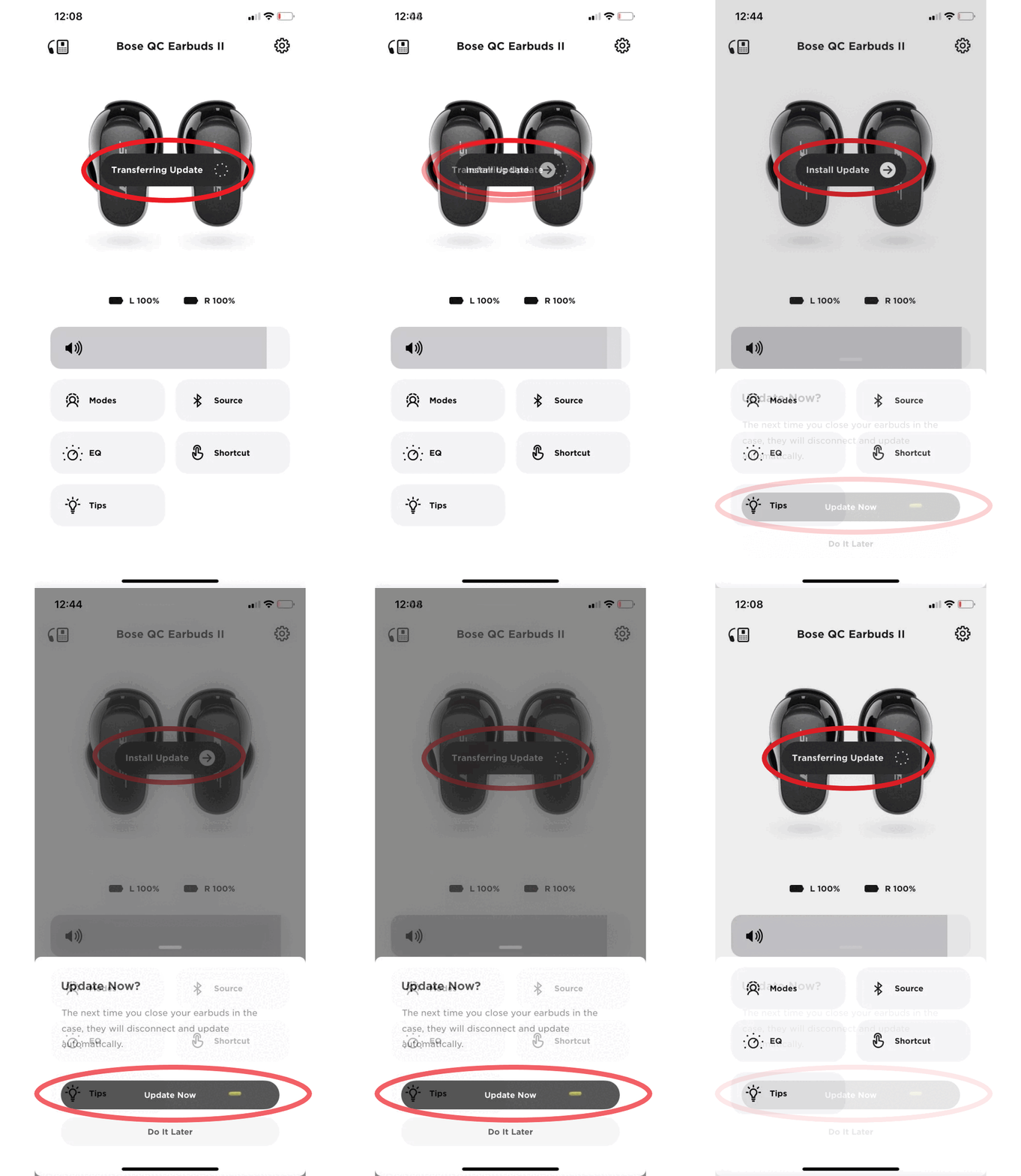
The Bose Music App remains the primary and most convenient channel for delivering Bose Sport Earbuds firmware updates. Available on both iOS and Android, it handles version checks, downloads, and installations in a single streamlined flow.
Verify Your Current Firmware Version
Start by launching the Bose Music App on your paired smartphone or tablet. Confirm your earbuds are powered on and actively connected via Bluetooth. From the home screen, tap the tile labeled for your Bose Sport Earbuds. In the upper-right corner of the screen, tap the menu icon (•••), then select “Product Update” from the dropdown list.
The app automatically queries Bose servers to compare your installed firmware against the latest release. If a newer version exists, a “Download” button appears in active color. If the button looks grayed out, your earbuds already run the most current firmware available.
Install the New Firmware Package
Tap “Download” to begin transferring the update file. A Wi-Fi connection is strongly recommended over mobile data for stability and speed. Once the download completes, the installation kicks off automatically without requiring additional taps.
During installation, your earbuds will power cycle internally. Keep the phone within three feet to preserve a strong Bluetooth signal. Do not remove the earbuds from their case or disconnect Bluetooth mid-process. The full cycle typically finishes within 5 to 10 minutes. A confirmation message appears in the app when complete, and reconnection usually happens automatically.
Sidestep Common Mobile Update Errors
Mobile updates fail most often due to background restrictions, weak signals, or insufficient battery. Before starting, close other apps that consume Bluetooth or bandwidth. Disable battery saver mode, since it can throttle background downloads and stall the update.
Make sure your earbuds carry at least 50% charge before initiating the process. Stay on a single Wi-Fi network throughout, and avoid switching connections mid-update. If the progress bar stalls around 75% or the app times out, resist the urge to retry repeatedly. Switching to the desktop method often resolves the issue faster.
Update Bose Sport Earbuds Firmware Using the Desktop Bose Software Updater
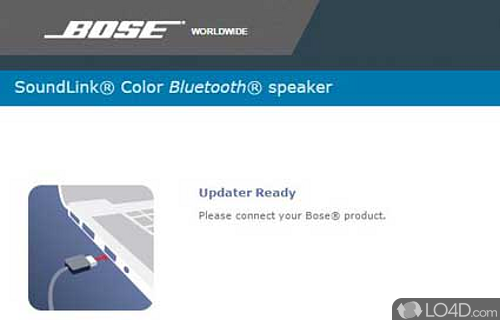
When mobile updates stall or fail entirely, the Bose Software



