

Is your Fitbit showing the wrong time? You’re not alone. Many users notice their Fitbit clock is off by hours or stuck in the wrong time zone, especially after traveling or during Daylight Saving Time changes. The good news: you can fix the clock on your Fitbit quickly and easily. Since Fitbit devices don’t set time independently, they rely entirely on your smartphone’s settings and a proper sync.
In this guide, you’ll learn exactly how to fix the clock on your Fitbit, from simple syncs to advanced troubleshooting. Whether your device shows the wrong hour, won’t update after travel, or ignores 24-hour format settings, we have step-by-step solutions that work.
Sync Your Fitbit Immediately
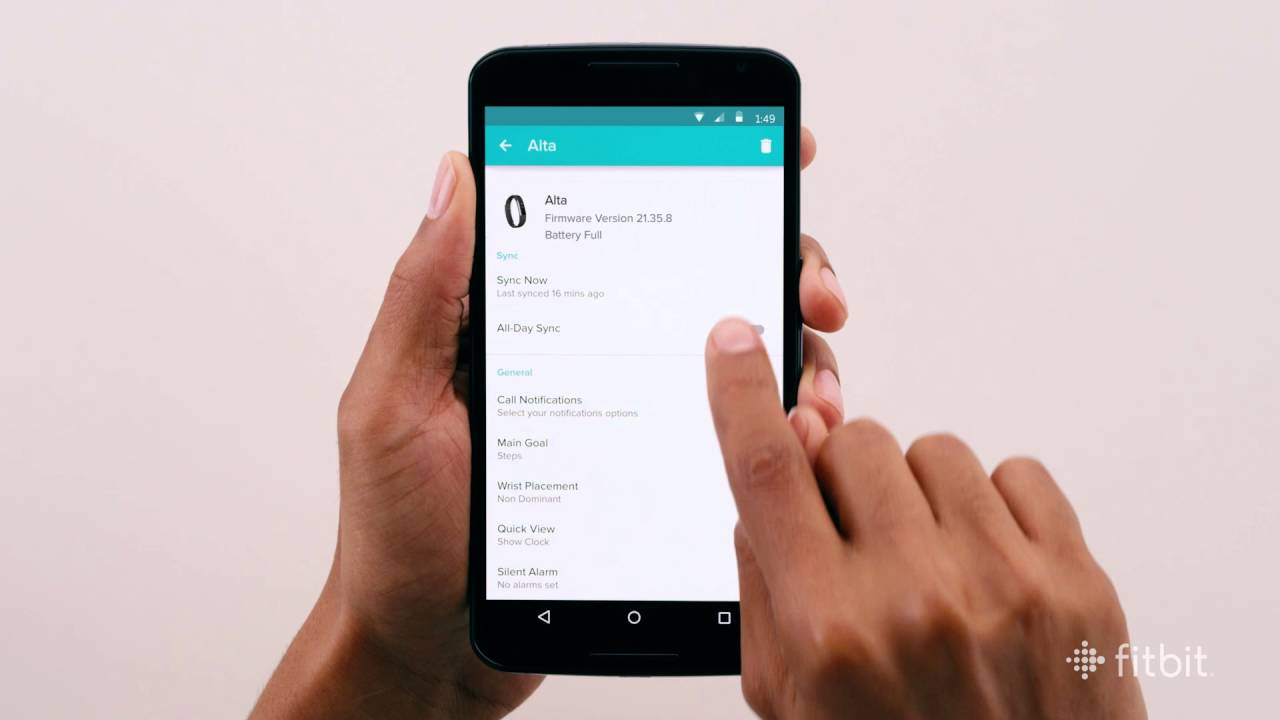
The fastest fix for a wrong clock is a manual sync. Most time errors resolve with this single step.
Force a Manual Sync
If your Fitbit clock is off, syncing forces it to pull the correct time from your phone.
Steps:
- Keep your Fitbit within 20 feet of your phone.
- Turn on Bluetooth on your phone.
- Open the Google Health app or Fitbit app.
- Swipe down on the dashboard or tap Sync Now.
- Wait for the sync icon to stop spinning.
- Check your Fitbit screen. The time should now be correct.
Pro Tip: Syncing happens automatically every few hours, but only when the app is open. If you rarely use the app, manual syncs are essential after time changes.
Fix Wrong Time Zone Automatically
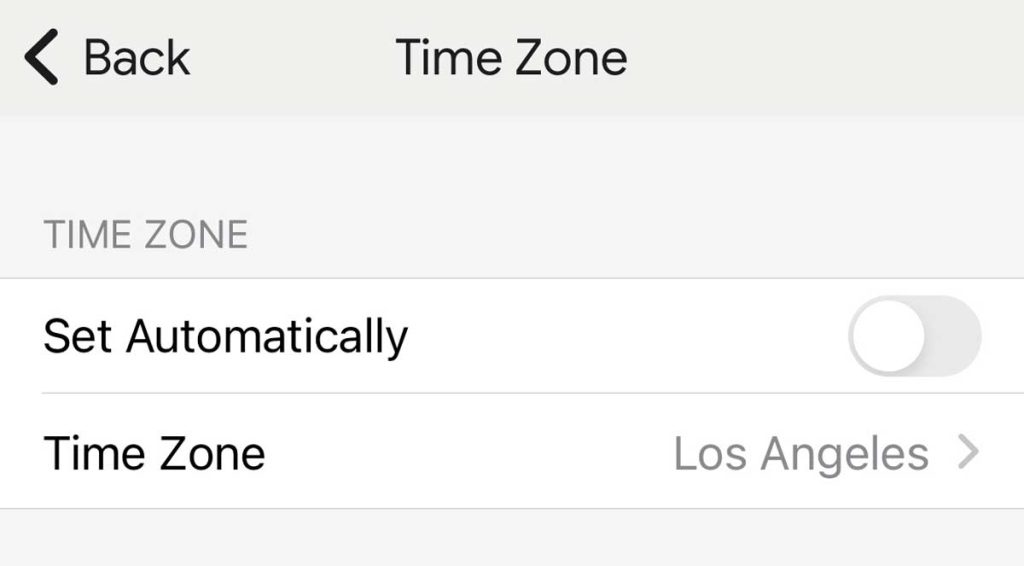
Traveling? Your Fitbit should update time zones automatically if settings are enabled.
Enable Auto Time Zone Detection
This ensures your Fitbit clock adjusts when you cross time zones.
Steps:
- Open the Google Health app or Fitbit app.
- Tap your profile picture at the top left.
- Go to App Settings > Date, time & units > Time Zone.
- Turn ON Set Automatically.
- Sync your device.
Now your Fitbit uses your phone’s location to detect your time zone and updates accordingly.
Warning: If “Set Automatically” is off, your Fitbit stays locked in an old time zone, even if your phone updates correctly.
Manually Set Time Zone When Auto Fails
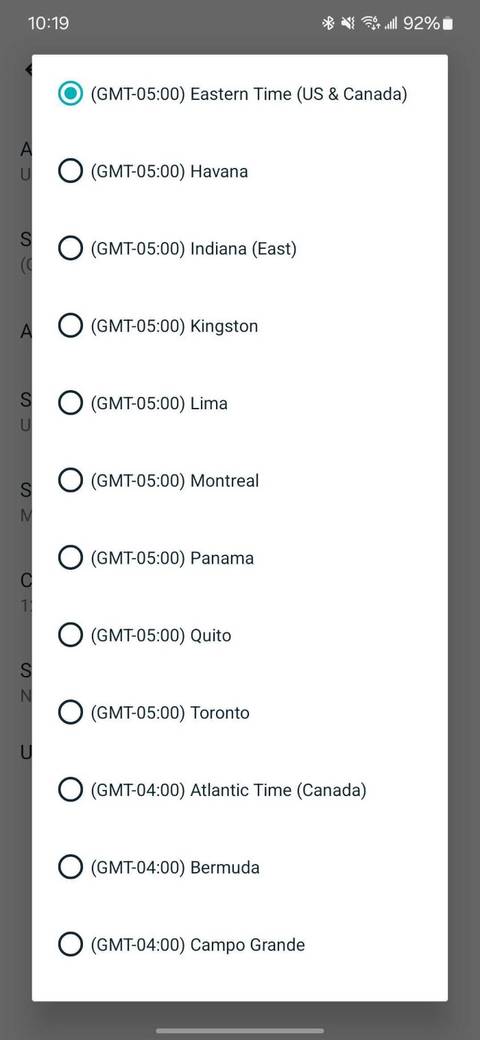
If automatic detection fails, set the time zone manually. This is ideal for remote areas or GPS errors.
Select Correct Time Zone Manually
Steps:
- Open the app and go to Profile > App Settings.
- Tap Date, time & units > Time Zone.
- Toggle OFF Set Automatically.
- Scroll and select your current time zone (e.g., Pacific Time, Central European Time).
- Tap Back, then Sync Now.
Your Fitbit clock will update within seconds.
Expert Note: After manual selection, you can re-enable “Set Automatically” once you return home. Just sync again after re-enabling.
Change 12-Hour to 24-Hour Clock Format
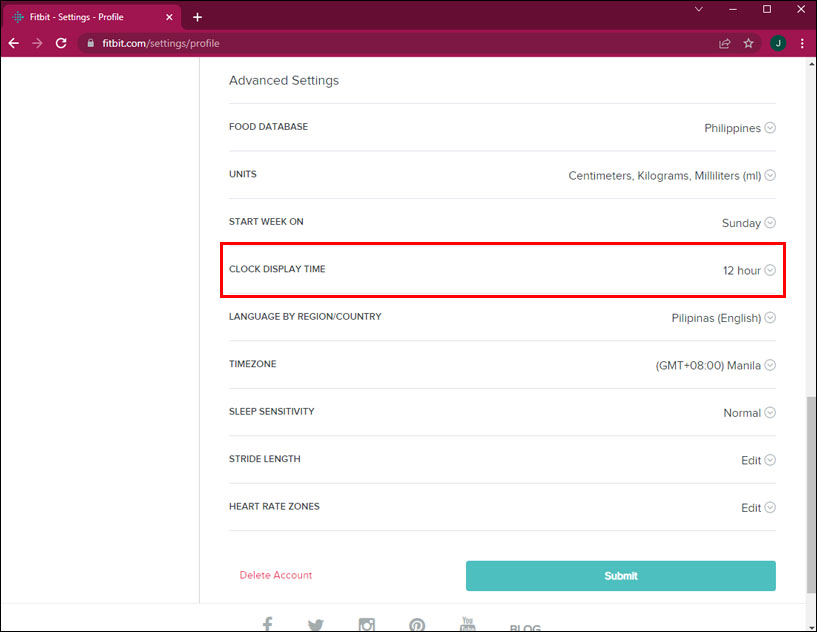
Prefer military time? You can switch formats directly in the app.
Switch Clock Display Format
Steps:
- Open the Google Health app or Fitbit app.
- Tap profile picture > App Settings.
- Go to Date, time & units > Clock Display Time.
- Choose 12 hour or 24 hour.
- Sync your Fitbit.
The change appears immediately on your device’s clock face.
Common Mistake: Users often adjust the phone’s clock format but forget to change it in the Fitbit app. This setting is independent and must be changed separately.
Fix Clock Not Updating After Sync
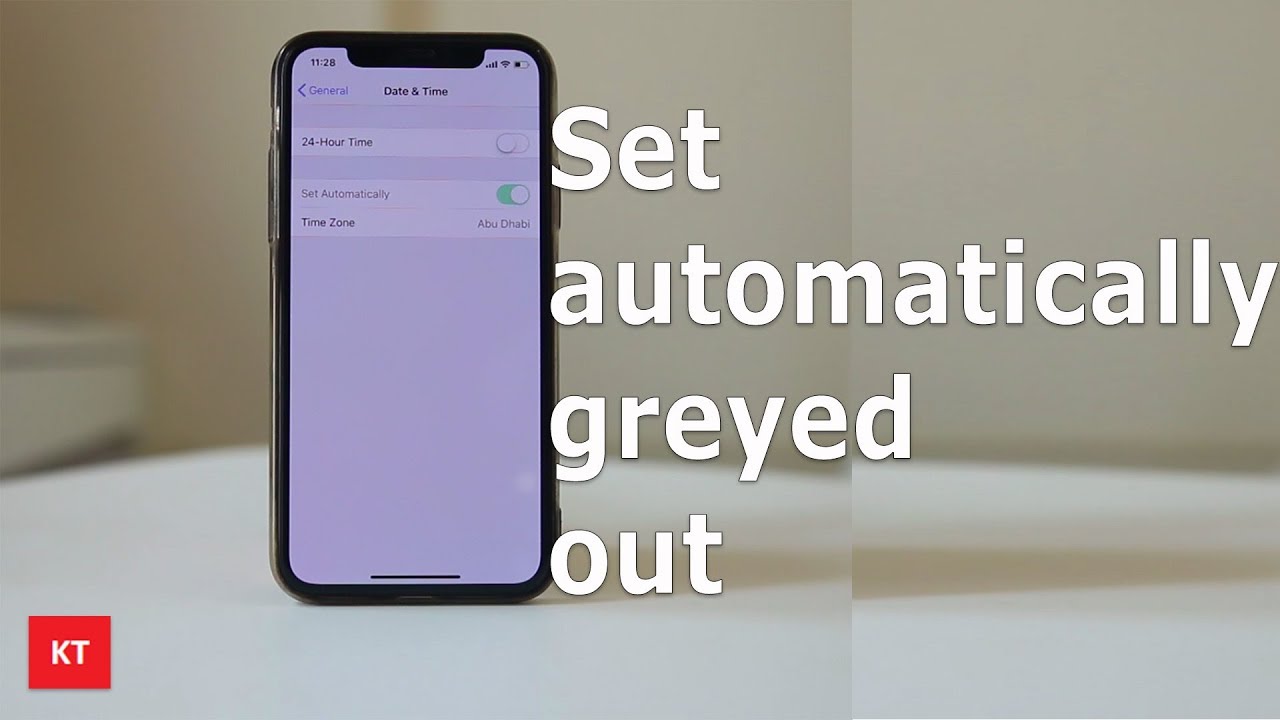
If the time stays wrong even after syncing, deeper issues may be at play.
Check Phone’s Time Settings First
Your Fitbit mirrors your phone. So if the source is wrong, the fix will not work.
Verify on iPhone:
- Go to Settings > General > Date & Time.
- Ensure Set Automatically is ON.
Verify on Android:
- Go to Settings > System > Date & Time.
- Turn on Automatic date and time and automatic time zone.
Then sync your Fitbit again.
Restart Fitbit to Clear Time Glitch
A soft reset clears cached data that may be holding an old time.
Perform a Soft Reset
Steps:
- Press and hold the side button for 10 seconds.
- Wait until the Fitbit logo appears.
- Release the button.
- Open the app and sync.
This often resolves stuck clocks, especially after software updates or failed syncs.
Model Note: For Fitbit Versa, Sense, or Charge 5, use the side button. For Inspire models, hold the button on the back or side for 10 seconds.
Re-Login to Refresh App Connection
Corrupted app sessions can block time updates.
Log Out and Back In
Steps:
- Open the Google Health or Fitbit app.
- Tap profile picture > Log Out.
- Close the app completely.
- Reopen and log in with your credentials.
- Sync your device.
This refreshes the connection between your phone and Fitbit, often fixing sync-related time issues.
Reinstall App for Persistent Errors
If the clock still will not update, the app itself may be corrupted.
Reinstall the Fitbit App
Steps:
- Uninstall the Google Health or Fitbit app from your phone.
- Restart your phone (optional but recommended).
- Download the app again from the App Store or Google Play.
- Log in and allow permissions.
- Sync your device.
Important: You do not need to re-pair your Fitbit in most cases. The app will recognize it automatically after reinstallation.
Why Fitbit Clocks Do Not Set Manually
You cannot set the time directly on the device, and there is a good reason for this.
No Manual Time Input on Device
Fitbit does not allow manual time entry because:
- It prevents user error and inconsistent health logs.
- Health and sleep data rely on accurate timestamps.
- Syncing ensures all data aligns with your phone’s calendar and alarms.
All time changes must go through the app. No exceptions.
User Myth Busted: Some think you can adjust time via clock face settings on the device. This is false. Format changes are app-only.
Fix DST Time Changes Automatically
Daylight Saving Time should update without user action, but sometimes it fails.
Ensure DST Adjusts Correctly
Requirements:
- Phone set to automatic time.
- Fitbit app has auto time zone enabled.
- Device synced within 24 hours of the change.
If time does not shift:
- Confirm your phone updated correctly.
- Open Fitbit app and force a sync.
- If still wrong, restart Fitbit and sync again.
Pro Tip: Sync your Fitbit the night before and the morning of DST changes to avoid gaps.
Troubleshoot No Sync Despite Connection
Sometimes the app says “syncing” but fails, blocking time updates.
Fix Sync Failures
Common Causes:
- Bluetooth interference: Turn off nearby wireless devices. Toggle Bluetooth off and on.
- App in background: Close and reopen the app.
- Low battery: Charge Fitbit to at least 20% before syncing.
- Out of range: Bring device within 3 feet of phone.
- Software bug: Update the app and phone OS.
After fixing any issues, sync immediately.
Final Fix: Reset and Re-Pair
If nothing works, a full reset may be needed.
Factory Reset Your Fitbit
Steps:
- Open the app > Profile > Devices.
- Select your Fitbit > Remove Device.
- On the Fitbit: Settings > About > Factory Reset.
- After reset, re-pair via the app.
- Set up and sync.
Warning: This erases all data on the device. Only use if all other solutions fail.
Frequently Asked Questions About Fixing Clock on Fitbit
Why is my Fitbit showing the wrong time?
Your Fitbit mirrors your phone’s time. Verify your phone’s date and time settings are correct and that “Set Automatically” is enabled. Then open the Fitbit app and tap “Sync Now.”
How do I change the time zone manually on my Fitbit?
Open the app, go to Profile > App Settings > Date, time & units > Time Zone. Turn OFF “Set Automatically,” select your correct time zone, and sync your device.
Can I set the time directly on my Fitbit watch?
No. Fitbit devices do not have a native interface for direct time entry. All changes must be propagated through the mobile application sync process.
Why won’t the time update after syncing?
Execute the troubleshooting steps in order. First, log out and back into the app. Second, restart your Fitbit by holding the side button for 10 seconds. Third, reinstall the app if needed.
How do I switch between 12-hour and 24-hour format?
Open the app, tap your profile, go to App Settings > Date, time & units > Clock Display Time. Choose your preferred format, then sync your Fitbit.
What should I do if my Fitbit clock is still wrong after trying everything?
Perform a factory reset as a last resort. Remove the device from the app, reset it through the device settings, then re-pair and set it up again. This resolves most persistent issues.
Key Takeaways for Fixing Your Fitbit Clock
The key to fixing the clock on your Fitbit is understanding it is not a standalone clock. It is a mirror of your phone’s time, filtered through the app. By syncing properly, checking phone settings, and using the app’s time zone and format tools, you can resolve nearly every clock issue in under 10 minutes.
For ongoing accuracy, keep auto-sync and auto-time zone enabled, and open the app at least once daily. If problems persist, a simple app reinstall or device restart almost always restores normal function. Remember that all time changes must go through the mobile app, since Fitbit devices cannot set time independently.



