
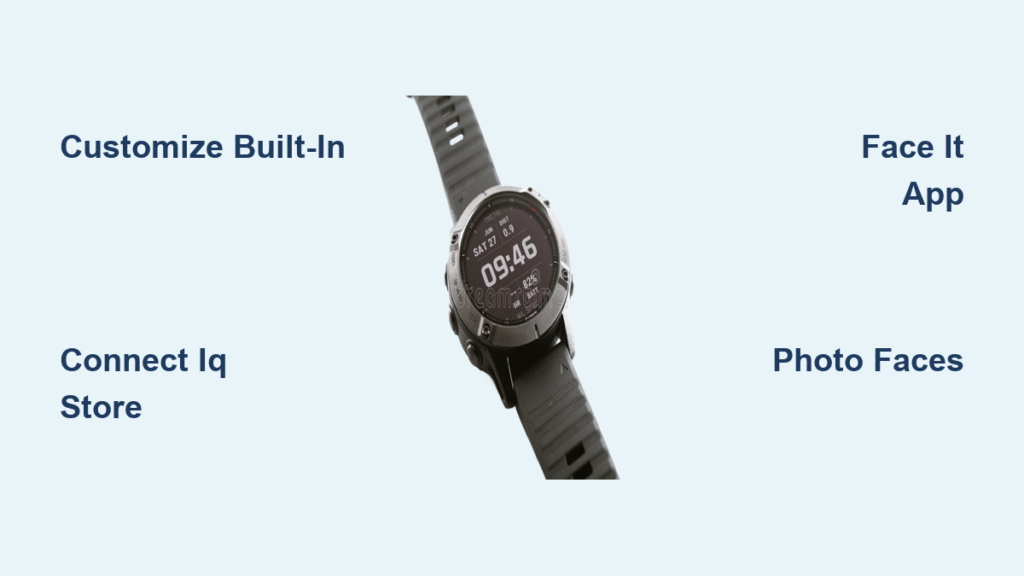
If you’re wondering how to get more Garmin watch faces, you’re not alone. Many users want to personalize their devices beyond the default options, whether to track key health metrics at a glance, showcase favorite photos, or simply refresh the look of their watch. The good news is that Garmin makes it easy to expand your watch face collection in multiple powerful ways. From customizing built-in designs to downloading community-created themes and turning personal photos into functional watch faces, there’s no shortage of options. In this guide, you’ll learn every method available to unlock new watch faces, step-by-step, so you can tailor your Garmin device exactly how you want it.
Customize Built-In Watch Faces on Your Garmin
Every Garmin watch comes with preloaded watch faces that can be fully customized. This is the fastest way to create a unique look without downloading anything.
Access the Watch Face Menu
To begin customizing how to get more Garmin watch faces through built-in options:
- Most models: Press and hold the middle-left button for 2 seconds.
- Venu 4 series: Press the top button.
- 2-button devices: Long-press the bottom button.
This opens the Watch Face menu, where all installed faces appear.
Switch or Edit a Default Face
Once in the menu:
- Swipe up/down or use physical buttons to scroll through faces.
- Press the top-right button to apply a face instantly.
- Tap “Customize” or “Data” to modify layout and metrics.
You can also add a new blank face by scrolling to the top or bottom and selecting “Add New.”
Configure Layout and Data Fields
After choosing a base design:
- Select a layout (minimalist, fitness-focused, multi-data).
- Assign each data slot to display heart rate, steps, battery level, weather, stress or sleep score, or activity duration.
To edit a field:
- Navigate to the highlighted section.
- Press the button or tap the screen.
- Scroll to choose a metric.
- Confirm and repeat.
Touchscreen models let you tap directly on a field for faster editing.
Change Colors and Visual Style on Garmin Watch Faces
Personalization goes beyond data. Your watch face can match your mood, outfit, or environment with color adjustments.
Set Accent and Data Colors
In the customization menu:
- Tap “Accent Color” to change icon tints (time indicators, battery bar).
- Choose from vibrant hues like red, blue, green, or purple.
- Then select “Data Color” to adjust text and metric colors.
Some models allow per-field color control, while others apply changes globally.
Improve Readability and Aesthetics
- Use high-contrast colors for better visibility in sunlight.
- Pick dark themes for nighttime use to reduce glare.
- Match your band or bezel color for a cohesive style.
Pro Tip: Avoid bright white backgrounds on AMOLED screens (like Venu or Epix) to minimize battery drain and burn-in risk.
Install New Watch Faces via Connect IQ Store
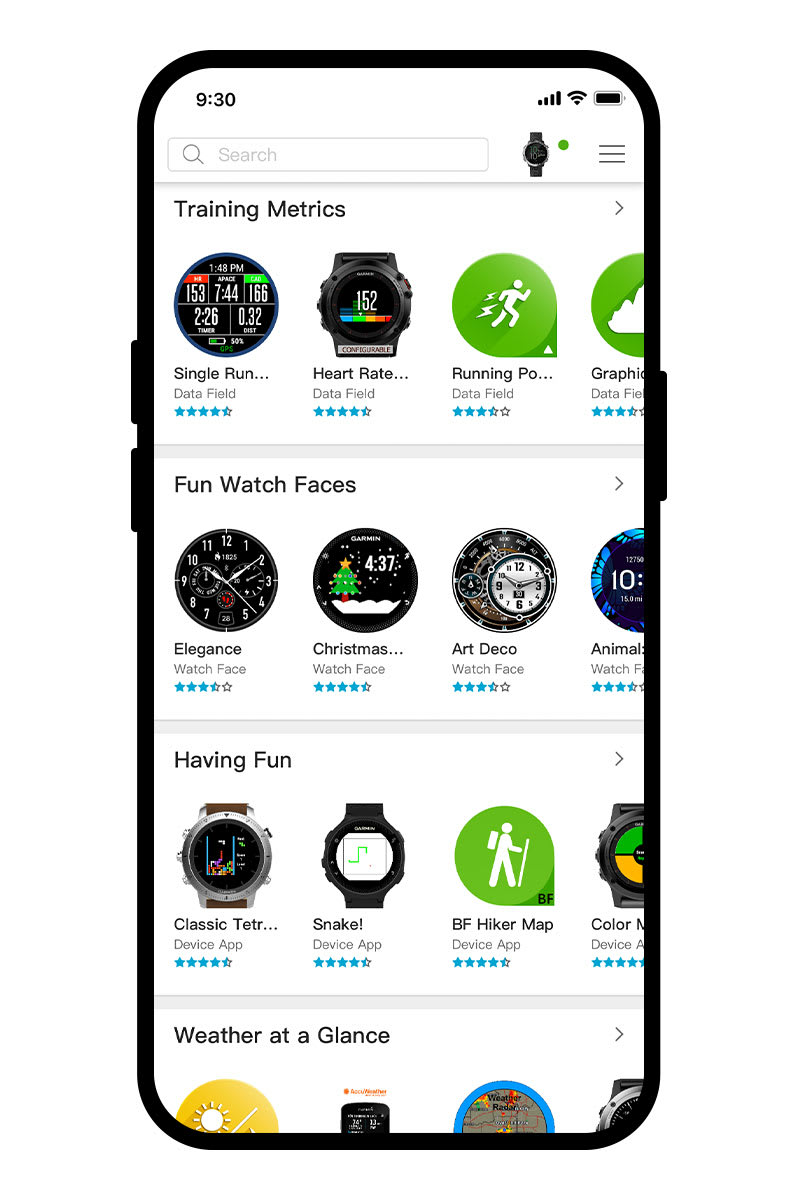
The Connect IQ Store unlocks thousands of additional watch faces designed by Garmin and independent creators.
Open Connect IQ in Garmin App
- Launch the Garmin Connect app on your phone.
- Tap the menu icon (≡) > “Connect IQ.”
- Select “Watch Faces.”
Ensure your watch is powered on and connected via Bluetooth.
Browse and Install a Face
In the store:
- Search for keywords like “minimalist,” “Marvel,” or “photo.”
- Filter by device compatibility, category, rating, or popularity.
- Tap a face to preview it.
Then:
- Tap “Install.”
- Confirm installation.
- Wait for automatic sync to your watch.
The new face appears in your Watch Face list within minutes.
Types of Available Watch Faces
- Analog/Digital: Classic clock styles with customizable hands or numerals.
- Fitness-Focused: Real-time stats like pace, cadence, or heart rate zones.
- Minimalist: Clean designs with only time and date.
- Themed Designs: Official Disney, Marvel, and Star Wars collections.
- Community-Created: Unique, feature-rich faces from developers.
Some premium faces are free, while others require purchase. Always check reviews and developer ratings before installing.
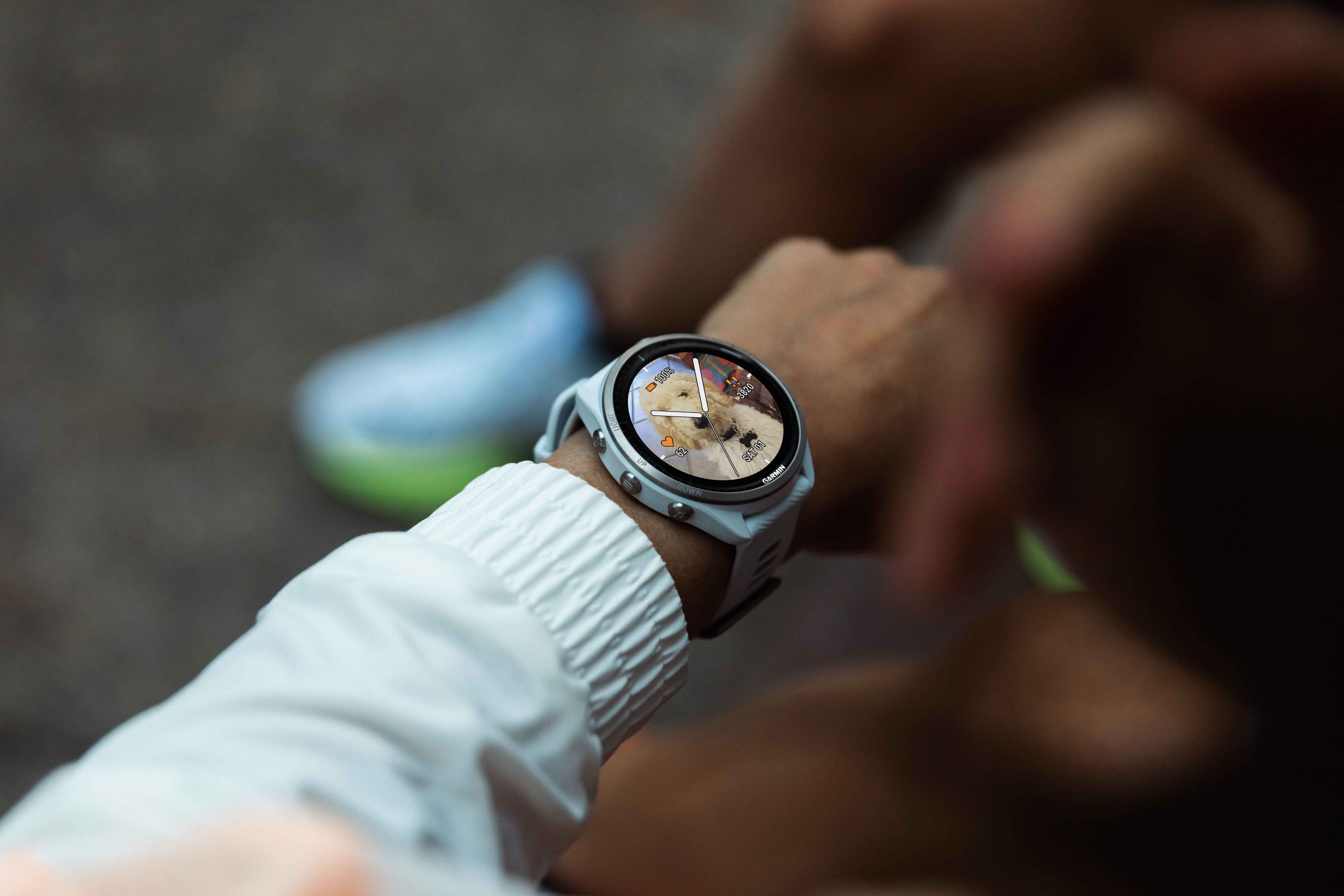
Create Photo-Based Faces with Face It App
Turn any photo into a custom watch face using the Face It app, perfect for motivation, memories, or personal flair.
Download and Set Up Face It
- Install Face It from the App Store (iOS) or Google Play (Android).
- Open the app and sign in with your Garmin account.
- Ensure your watch is paired via Bluetooth.
Design Your Custom Face
Steps:
- Tap “Create New Face.”
- Select a photo from your gallery.
- Adjust cropping to fit your watch screen.
- Choose data field positions (top, center, bottom).
- Pick font style, size, and color for time and metrics.
- Set accent color for icons.
- Preview the design on a virtual watch.
Then tap “Apply” or “Send to Watch.”
The face syncs automatically and appears in your watch’s face list.
Optimize Photo Quality
For best results:
- Use high-resolution images (minimum 240×240 pixels for round watches, 280×280 for larger models).
- Avoid heavily zoomed or blurry photos.
- Choose dark backgrounds to save battery on AMOLED displays.
User Tip: Use a family photo, scenic landscape, or motivational quote to keep you inspired during workouts.
Check Device Compatibility for Garmin Watch Faces
Not all features work on every model. Make sure your device supports the tools you want to use.
Supported Features by Model
| Feature | Supported Devices |
|---|---|
| Connect IQ Store | Forerunner 245/265/945/955, Venu 2/3/4, Fenix 6/7, Epix Gen 2/3, Instinct 2 |
| Face It App | Venu series, Forerunner 245+, Fenix 6+, Epix Gen 2+, Instinct 2 Touch |
| Touchscreen Editing | Venu, Epix, Forerunner 945/955, Instinct 2 Touch |
| Photo Faces | Color display models with sufficient memory |
| Advanced Data Fields | High-end models (Fenix, Epix, Forerunner 900 series) |
Always verify compatibility before downloading from Connect IQ.
Optimize Performance and Battery Life
More features mean more power use. Use these tips to keep your watch running smoothly.
Reduce Battery Drain
- Limit data fields to 3-5 essential metrics.
- Use dark-mode faces on AMOLED screens.
- Avoid animated or overly bright designs.
- Rotate faces based on activity (simple face for sleep tracking).
Maintain Watch Health
- Restart your watch weekly to clear glitches.
- Update firmware regularly for bug fixes and new features.
- Reinstall faces after software updates if they disappear.
Pro Tip: Install three go-to faces: one for training, one for work, and one for casual wear.
Troubleshoot Common Garmin Watch Face Issues
Even with seamless integration, problems can occur. Here’s how to fix them fast.
Watch Face Not Appearing After Install
Fix:
- Restart both your phone and watch.
- Reopen the Garmin Connect app.
- Go back to Connect IQ > Watch Faces.
- Reinstall the face.
Ensure Bluetooth is connected and your watch is awake.
Sync Failure Between Phone and Watch
Solutions:
- Update the Garmin Connect app to the latest version.
- Check your internet connection (Wi-Fi or cellular).
- Unpair and re-pair the device if sync issues persist.
Blurry Photos in Face It
Causes:
- Low-resolution image
- Excessive zoom during cropping
Fix:
- Use photos with at least 240×240 pixels (round) or 280×280 (square).
- Avoid digital zoom; use full-frame images.
Colors Display Differently Than Expected
Some watches have limited color palettes. Test combinations in the Face It preview mode before sending.
If colors look off:
- Try different font and background contrasts.
- Use predefined accent colors instead of custom picks.
Face Disappears After Firmware Update
This is common. Simply:
- Open Connect IQ Store.
- Reinstall your favorite faces.
- They’ll sync again automatically.
Note: Always back up your preferred faces by noting their names or developers.
Explore Themed and Premium Watch Faces
Want something fun or professional? The Connect IQ Store offers officially licensed and premium designs.
Try Licensed Themes
Popular collections include:
- Disney characters and park icons
- Marvel superheroes with dynamic dials
- Star Wars themes with sound effects on supported models
These are often free to download, though some include in-app upgrades.
Consider Paid or Premium Faces
Some developers offer enhanced functionality for a small fee:
- Animated backgrounds
- Advanced weather integration
- Customizable complications
- Multi-sport data views
Check user reviews and update frequency to ensure quality and ongoing support.
Warning: Free third-party faces may stop working after updates or lack customer support.
Key Takeaways for Getting More Garmin Watch Faces
You now have all the tools to get more Garmin watch faces and make your device truly yours. By combining built-in customization, third-party downloads, and photo personalization, you can rotate through dozens of unique looks, each tailored to your daily needs. Remember to optimize for battery life by using dark themes and limiting data fields, and always verify device compatibility before installing new faces. With a little exploration, your Garmin watch can become more than a fitness tracker; it can be a reflection of who you are.
Frequently Asked Questions About Garmin Watch Faces
Can I get more Garmin watch faces for free?
Yes. The Connect IQ Store offers thousands of free watch faces created by Garmin and independent developers. You can also customize built-in faces at no cost. Some premium faces require purchase, but free options are abundant.
Why is my watch face not syncing from Connect IQ?
Sync failures usually occur due to Bluetooth disconnection, outdated Garmin Connect app, or weak internet connection. Restart both your phone and watch, ensure Bluetooth is enabled, update the app, and try reinstalling the face.
Does Face It work on all Garmin watches?
No. Face It is compatible with Venu series, Forerunner 245+, Fenix 6+, Epix Gen 2+, and Instinct 2 Touch models. Check the app store listing for your specific model before downloading.
How do I get more data fields on my Garmin watch face?
Customize built-in faces by selecting “Customize” or “Data” in the watch face menu. Assign metrics like heart rate, steps, weather, stress score, or battery level to available data slots. The number of fields depends on your chosen layout.
Can I use my own photo as a watch face on Garmin?
Yes. Use the Face It app to upload any photo from your gallery, adjust cropping, add data fields, and send it to your watch. Use high-resolution images (240×240 pixels minimum) for best results.
Do watch faces disappear after Garmin firmware updates?
Sometimes. If a face disappears after a firmware update, simply reinstall it from the Connect IQ Store. To prevent this, bookmark your favorite faces and check for updates regularly.



