

You just unboxed your new Amazfit smartwatch and want it up and running with your phone. But tapping through apps and settings only leads to confusion: Why won’t it connect? Is the app right? Did you miss a step? You’re not alone. Thousands of users hit snags during setup, often due to outdated guides or missed permissions.
The truth is, pairing an Amazfit watch to your phone is simple if you follow the correct, updated process. Since 2021, all Amazfit devices require the Zepp app, not the old Amazfit app. Skip this, and nothing works. Even with the right app, missing a single permission or leaving Bluetooth active on an old phone can block pairing.
In this guide, you’ll learn the exact steps to pair any Amazfit watch to Android or iOS, avoid the most common setup traps, switch phones seamlessly, and fix connection issues in seconds.
Power On the Amazfit Watch Before Pairing
Before pairing, your watch must be powered on and responsive. If the screen is dark or frozen, it won’t appear in the app.
Press and Hold the Side Button
Locate the side power button, usually on the right edge. Press and hold it for 3 to 5 seconds until the Amazfit logo appears. On models like the Active 2, the upper red button performs this function.
If the watch doesn’t turn on:
• Connect it to the magnetic USB-C charging cable
• Wait 3 to 5 minutes, even a brief charge may revive a drained battery
• Try powering on again
Some models flash the screen or show a low-battery animation when charging starts. If nothing happens, check the charging dock for debris or poor contact.
Wake the Watch Fully
Once powered, swipe up or down from the clock face to wake the device fully. A frozen or unresponsive screen often just needs a wake-up gesture.
Install the Zepp App Correctly
Using the wrong app is the number one reason pairing fails. The Amazfit app is deprecated. Only the Zepp app works with current models.
Download from Official Stores
For Android, open Google Play Store. For iOS, open App Store. Search for “Zepp,” not “Amazfit.” Confirm the developer is Zepp Health Corporation. Install the app.
Never install the old Amazfit app. It won’t detect newer watches and may conflict with Zepp.
Sign In or Create Your Zepp Account
After installation, open the app and sign in or create an account. Choose Create Account with a valid email and strong password, or Sign In with Google on Android. A 6-digit verification code will be sent to your email. Enter it in the app to verify.
Accept the Privacy Policy, Terms of Service, and Data Usage Consent when prompted. Logging in with the same account on a new phone restores all your workout history, sleep data, and settings automatically.
Enter Your Personal Profile Details
The app will prompt you to set up a personal profile. This data improves the accuracy of fitness and health tracking.
Fill in Required Information
Provide your full name, date of birth, gender, height, and weight. Optionally add fitness level and daily activity goals. Tap Save or Next. Skipping optional fields won’t break core functionality, but your wellness scores may be less accurate.
Grant Essential App Permissions
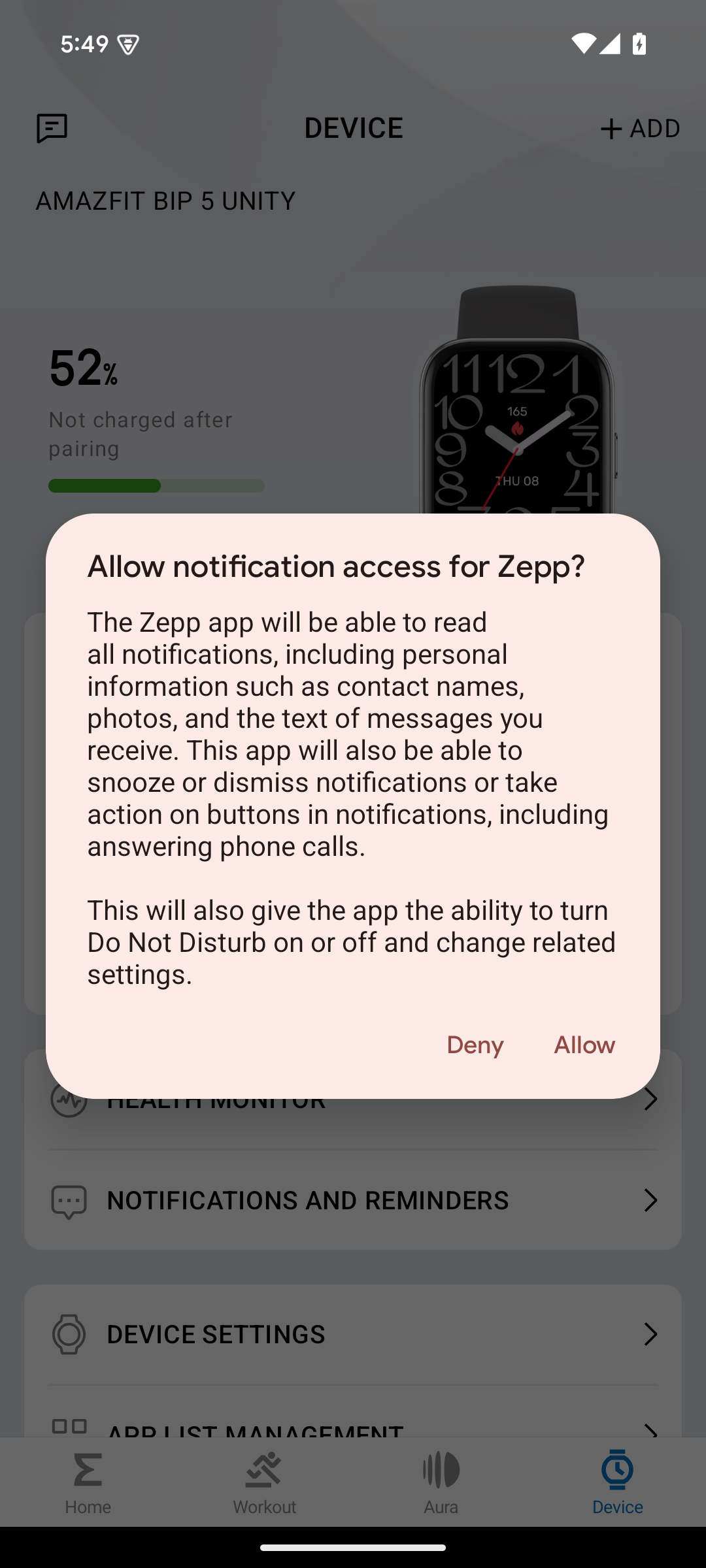
Without proper permissions, your watch won’t receive notifications, track heart rate, or sync data.
Android Permission Setup
Go to your phone’s Settings, then Apps, then Zepp, then Permissions. Allow these critical permissions:
• Bluetooth for device communication
• Location for GPS and Bluetooth scanning
• Notifications to mirror phone alerts
• Contacts and Calendar for caller ID and event reminders
• Body Sensors for heart rate, SpO2, and sleep tracking
• Camera for scanning QR code
Disable Battery Optimization on Android
This is critical on Android. If the system kills Zepp in the background, syncing stops. Go to Settings, then Battery, then Battery Optimization. Tap All apps, select Zepp, and choose “Don’t optimize.”
This step is especially common on Xiaomi, Samsung, and Motorola devices. Failure here causes missed notifications and sync drops.
iOS Permission Configuration
On iPhone, go to Settings and configure these permissions:
• Notifications for Zepp, enable alerts
• Motion and Fitness, turn on
• Location Services for Zepp, set to “While Using the App”
• Background App Refresh, enable for Zepp
Check after pairing to verify all toggles are green. Missed location access breaks GPS syncing during workouts.
Pair Your Amazfit Watch Using QR Code
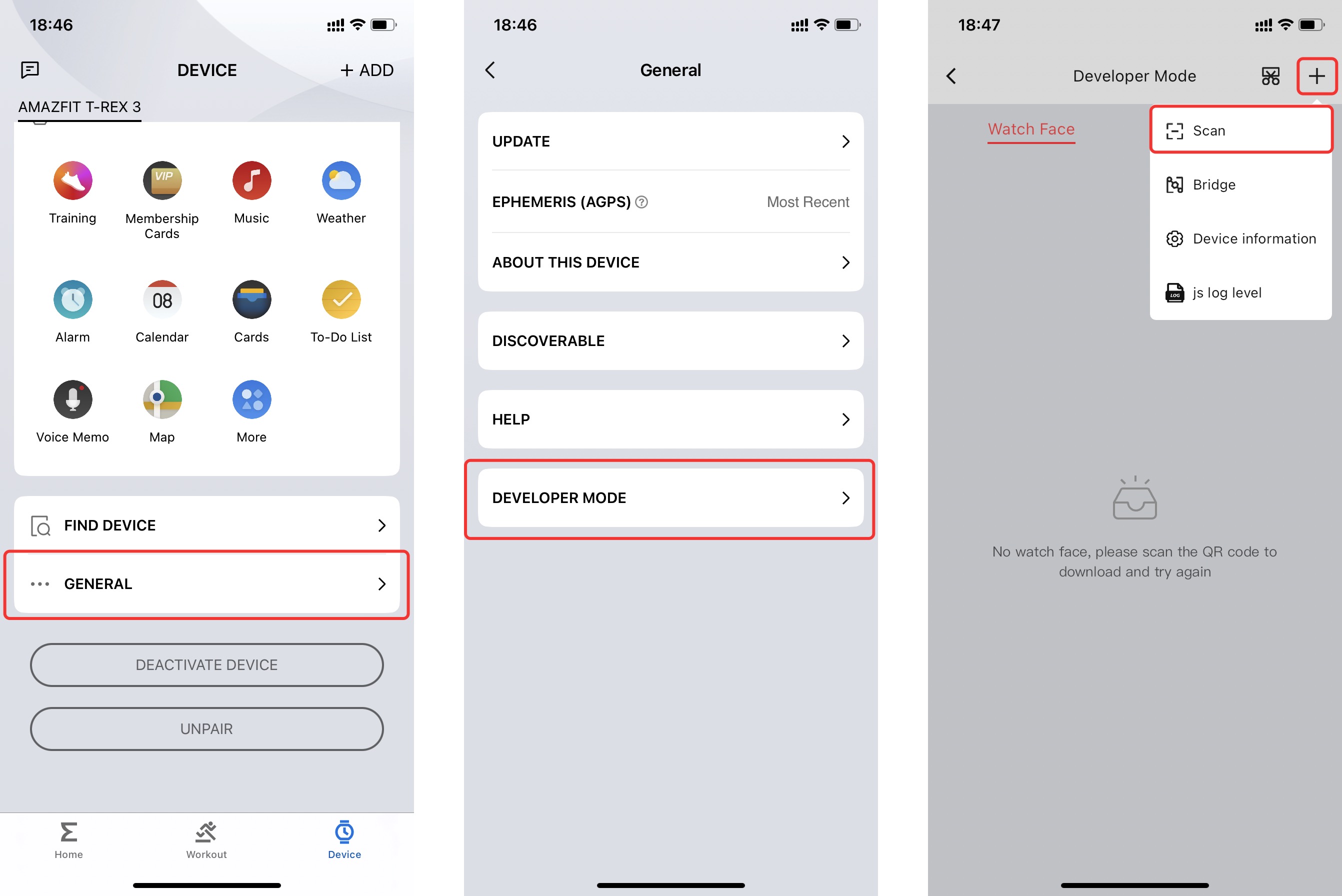
Most Amazfit models use QR code pairing, the fastest and most reliable method.
Open Add Device in Zepp App
In the Zepp app, tap Profile at the bottom right or top left. Select “Add Device” or “Select devices to pair.” Choose your Amazfit model from the list.
Display QR Code on Watch
On your watch, press and hold the side button until a QR code appears. Or swipe up from the watch face on BIP 6 and GTS 2 Mini models. Ensure the screen is clean and well-lit. Low contrast or smudges can prevent scanning.
Scan the QR Code
Use your phone’s camera through the Zepp app to scan the watch’s QR code. If scanning fails, clean both the watch screen and phone camera lens. Increase room lighting. Hold the phone closer, about 5 to 10 centimeters, and keep it steady. Try again, sometimes one retry is all it takes.
Confirm Matching Pairing Code
After scanning, a 6-digit code appears on both devices. Verify the numbers match exactly. Tap “Pair” on your phone and confirm with a tap or checkmark on the watch. Wait 10 to 30 seconds. A success message confirms connection.
Use Direct Bluetooth Pairing When Needed
Some models like the Amazfit Balance may allow pairing through your phone’s Bluetooth settings.
Pair Through Phone Settings
On your phone, go to Settings, then Bluetooth. On the watch, open Settings, then Bluetooth, and turn it on. Tap Headphones or Pair New Device on the watch. Wait for your Amazfit model to appear in the phone’s Bluetooth list. Select it and confirm the matching code on both screens.
This only creates a basic Bluetooth link. Full features require completing setup in the Zepp app.
Complete Final Setup Steps
After pairing, finalize preferences to customize your experience.
Customize Watch Settings
In the Zepp app, set your wrist position to left or right. Adjust font size and choose a default watch face. Tap the checkmark on the watch to proceed.
Enable Notification Mirroring
Go to Device Settings, then Notifications in the Zepp app. Select which apps can send alerts to your wrist, such as messages, calls, email, and social media. Start with a few key apps. Too many notifications drain battery and create distraction.
Trigger Firmware Update Automatically
Most watches initiate a firmware update right after pairing.
Monitor the Update Process
Open Zepp app, then Profile, then your device, then Firmware Update. If an update is available, tap Download and Install. Keep the watch within 10 centimeters of the phone. Ensure battery is above 50 percent. Keep Bluetooth stable. Do not press the power button, use the side button only to wake the screen.
Wait 3 to 10 minutes. The watch may reboot. Never interrupt the update. Doing so may cause boot loops or frozen screens. After completion, tap Check in the app to confirm sync and view battery level.
Unpair Watch When Switching Devices
Need to disconnect? Always unpair through the app, not Bluetooth settings.
Remove Device Safely
Open Zepp app, then Profile, then your connected device. Scroll down and tap “Unpair.” Confirm the prompts. Your health data stays in the cloud. Only the active connection is removed. The watch keeps local settings unless you factory reset.
Switch to a New Phone Without Resetting
You don’t need to factory reset your watch to change phones. Just use the same Zepp account.
Transfer in Under a Minute
On the new phone, install the Zepp app. Log in with the same email and password. Turn off Bluetooth on the old phone to prevent conflicts. Open Zepp app. Your watch should appear with a “Pair this device?” prompt. Confirm on both devices. All workouts, sleep logs, and settings sync from the cloud automatically.
Avoid Factory Reset Unless Necessary
Resetting erases custom watch faces, button configuration, notification preferences, and gesture settings. Only factory reset if you’re selling the watch or experiencing severe, unfixable bugs.
How to Factory Reset
On the watch, swipe up on QR code screen. Go to Settings, then System, then Factory Reset. Confirm. After reset, repeat the full pairing process.
Troubleshoot Common Pairing Issues
Even with perfect steps, hiccups happen. Here’s how to fix them fast.
QR Code Won’t Scan
Causes include dirty screen, poor lighting, or camera obstruction. Clean both screens. Increase room light. Hold phone closer. Try manual pairing if issues persist.
Pairing Fails Repeatedly
Causes include interference, cached data, or outdated app. Restart both devices. Uninstall and reinstall Zepp app. Disable nearby Bluetooth devices.
No Pairing Prompt on New Phone
The old phone is likely still connected via Bluetooth. Turn off Bluetooth on old phone. Log in with same Zepp account. Force-close and reopen Zepp app.
Firmware Update Stuck
Causes include low battery, button press, or disconnection. Keep watch charged and near phone. Do not press power button. Wait up to 10 minutes, some updates pause briefly.
Notifications Not Syncing
Cause is missing permissions or battery optimization. Re-grant notification access. Whitelist Zepp from battery saver on Android. Restart both devices.
Watch Not Appearing in Bluetooth List
Cause is Clock mode or Bluetooth off. Long-press side button to wake. Swipe down to enable Bluetooth on watch. Ensure watch is awake and responsive.
Maintain Long-Term Sync Reliability
A smooth initial setup means nothing if syncing fails later.
Monthly Maintenance Tips
Check for firmware updates in Zepp app weekly. Reboot your phone regularly. Whitelist Zepp from battery optimization. Avoid deep battery discharges, charge before dropping below 20 percent.
All health and fitness records are stored in the Zepp cloud. Even if you lose your phone, your data survives.
Unlock Full Features After Pairing
Once connected, your Amazfit watch becomes a powerful wellness hub.
Health and Fitness Tracking
Access continuous heart rate, blood oxygen, sleep stage analysis, stress monitoring, and menstrual cycle tracking.
Workout Modes
Choose from 120 plus sports modes. Use auto-detect for running, cycling, and swimming. Get GPS route mapping when phone is present.
AI Wellness Tools
Use Zepp Flow for daily activity scores and Aura for mental well-being guidance.
Key Takeaways for Pairing Your Amazfit Watch

Use only the Zepp app, never the old Amazfit app. QR code pairing is fastest for models like GTS 2 Mini, Active 2, T-Rex 3 Pro, and BIP 6. Log in with the same Zepp account to keep all data when switching phones. Turn off Bluetooth on old phone to avoid connection conflicts. Grant all permissions, especially battery optimization exemption on Android. Do not interrupt firmware updates, wait them out. Avoid factory reset unless absolutely necessary. Fix most issues by reinstalling Zepp app or whitelisting from battery saver.
Your Amazfit watch is now fully paired, updated, and ready to track every step, beat, and breath, with all data safely synced to your phone and cloud.
Frequently Asked Questions About Pairing Amazfit Watch to Phone
Why won’t my Amazfit watch connect to my phone?
The most common cause is using the wrong app. All Amazfit watches released after 2021 require the Zepp app, not the legacy Amazfit app. Make sure Bluetooth is enabled on your phone and the watch is powered on. Check that you’ve granted all required permissions, especially location and battery optimization on Android.
How do I switch my Amazfit watch to a new phone?
Install the Zepp app on your new phone. Log in with the same Zepp account you used before. Turn off Bluetooth on your old phone. Open the Zepp app on the new phone and confirm the pairing prompt. Your data syncs automatically from the cloud.
What should I do if the QR code won’t scan?
Clean both your watch screen and phone camera lens. Increase the room lighting. Hold your phone closer to the watch, about 5 to 10 centimeters. Keep the phone steady while scanning. If it still fails, try manual Bluetooth pairing instead.
Does factory resetting my watch delete all data?
Factory reset erases local settings like custom watch faces, button configuration, and notification preferences. Your health data remains stored in your Zepp cloud account and syncs back when you re-pair. Only factory reset if selling the device or facing severe, unfixable bugs.
Why are my notifications not showing up on the watch?
Missing permissions are the usual culprit. Re-grant notification access in your phone’s settings. On Android, whitelist Zepp from battery optimization. Restart both devices after making changes. Check that notification mirroring is enabled in the Zepp app under Device Settings.
How long does the firmware update take after pairing?
Firmware updates typically take 3 to 10 minutes. Keep the watch within 10 centimeters of your phone. Ensure battery is above 50 percent. Do not press the power button during the process. The watch may reboot automatically when complete.



