
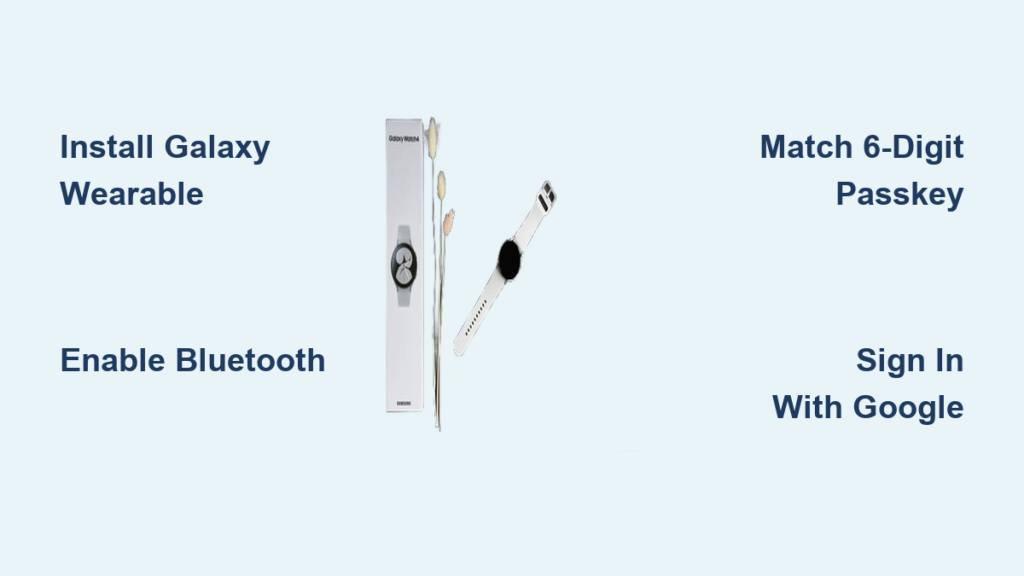
If you’ve just unboxed your Samsung Galaxy Watch and are ready to connect it to your Samsung phone, you’re in the right place. Pairing a Samsung watch to a Samsung phone unlocks full functionality, including synced notifications, health tracking, app control, and seamless integration across both devices. Whether you have a Galaxy Watch 6, Watch 5, or an older model, this guide walks you through every step. No guesswork. No dead ends. Just clear, actionable steps that work.
Let’s get your watch and phone talking.
Start with the Galaxy Wearable App
Before pairing begins, the Galaxy Wearable app is your control center. It manages setup, syncs data, and unlocks advanced features on your watch.
Install or Open the App
On your Samsung phone, locate Galaxy Wearable. If it’s missing, download it from the Galaxy Store (recommended for Samsung devices) or Google Play Store. Open the app and tap Start.
Grant all permissions when prompted. Bluetooth, location, and notifications are essential for device detection and successful pairing.
Pro Tip: Keeping the Galaxy Wearable app updated ensures compatibility with the latest watch models and Wear OS versions.
Enable Bluetooth and Permissions
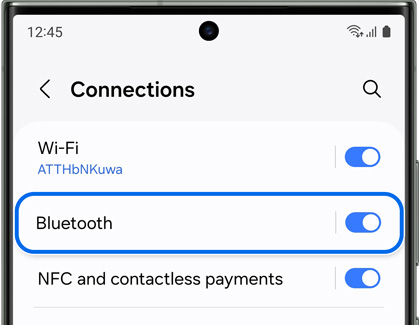
Both devices must be ready to communicate. Proper Bluetooth settings and permissions are the foundation of a successful connection.
Turn On Bluetooth
Go to Phone Settings, then Connections, then Bluetooth. Ensure Bluetooth is turned on. Keep Airplane Mode off throughout the pairing process.
Allow Device Discovery
When Galaxy Wearable launches, tap Allow to let it scan for nearby devices. The app will automatically search for your Galaxy Watch.
Make sure your watch is powered on and showing the setup screen (Samsung logo or gear icon). This ensures it’s in pairing mode and visible to your phone.
Select and Confirm Your Watch
Once your watch appears in the app, you need to verify and confirm the connection on both devices.
Choose the Correct Device
When your Galaxy Watch appears in the app, tap its name. A pairing request will pop up on the watch screen. Tap Allow on the watch to confirm.
Match the 6-Digit Passkey
A passkey will display on both screens. Verify the numbers match exactly, then tap Continue on the phone.
Security Note: This step prevents unauthorized connections and ensures encrypted pairing between your devices.
Update Software Automatically
The phone may download software updates for the watch during pairing. This ensures compatibility and enables all features.
Wait for Firmware Sync
Do not close the app or move devices apart during this process. The update may take 5 to 15 minutes depending on update size and internet speed.
Warning: Interrupting this process can cause pairing failure or unstable performance. Ensure a stable connection throughout.
Accept Terms and Sign In
You’ll need to review and accept several agreements to proceed with full functionality.
Review Agreements
You will see prompts for Samsung Terms and Conditions, Privacy Policy, and Google Services Agreement. Tap I Agree or Continue after reviewing each one.
Sign In with Google Account
Enter your Google account credentials. Use the same account linked to your phone for full sync.
This enables Google Play Store, Google Assistant, app sync, and OTA updates on the watch.
Grant Watch Manager Permissions
Android will prompt for permissions that allow the watch to access essential phone functions.
Allow Data Access
Grant permissions for notifications, call logs, SMS messages, app data, and device settings. Tap Allow for each prompt.
Common Mistake: Skipping permissions blocks notification sync and remote features. If missed, go to Settings, then Apps, then Watch Manager, then Permissions to enable manually later.
Set Up Google Assistant
Google Assistant adds voice control functionality to your watch.
Enable Voice Control
Follow on-screen steps to activate Google Assistant. Choose your activation method: say “Hey Google” or press and hold the Home button.
Pro Tip: Test by saying “Hey Google, what’s the weather?” on your watch to confirm it’s working.
Install Recommended Apps
The app may suggest installing apps already on your phone or downloading top Wear OS apps from Google Play.
Sync Phone Apps to Watch
Select the apps you want and tap Install. App availability depends on your watch model and Wear OS version.
Time-Saver: Skip non-essential apps now and add them later via Galaxy Wearable or directly on the watch.
Enable Smart Switch Backup
Smart Switch provides automatic backup of your watch settings and data.
Turn On Automatic Backup
Review the terms and tap Allow twice. Backup includes watch faces, Wi-Fi networks, app preferences, and health data if synced.
Benefit: This enables quick restoration if you switch phones or reset the watch in the future.
Customize Wearing Preferences
Setting your wearing preferences adjusts the interface for comfortable navigation.
Choose Wrist and Button Position
Select whether you wear the watch on your Left or Right wrist. Then define if the Home button is on the left or right side of the screen. This adjusts swipe direction and button layout.
Why It Matters: Incorrect settings make navigation awkward and counterintuitive.
Assign Quick Button Function
Tap the dropdown to choose a shortcut for the Home button. Options include launching Workout, opening Samsung Pay, playing Music, or activating Voice Assistant.
Pro Tip: Pick your most-used feature for one-tap access.
Review Health and Safety Features
Explore built-in health monitoring features available on your model.
Explore Built-In Sensors
You’ll see options for heart rate monitoring, sleep tracking, stress level detection, and blood oxygen (SpO2) on supported models. Tap Next to continue.
Activate Emergency Features (Watch 4+)
Galaxy Watch 4, 5, and 6 models include advanced safety features.
Enable SOS and Fall Detection
Emergency SOS auto-calls emergency services after a hard fall. Hard Fall Detection sends an alert with your location to emergency contacts. The Siren feature triggers a loud alarm for emergencies.
Setup Tip: Add emergency contacts in Galaxy Wearable under Safety, then Emergency Information.
Finalize and Restart
The watch will restart automatically after setup completes.
Complete Setup
Wait for the boot sequence to finish. Galaxy Wearable app will confirm successful pairing.
Walk Through On-Screen Tutorial
Learn how to navigate with touch and bezel, manage notifications, open apps, and use voice commands. Tap Next to finish.
Alternative: Manual Bluetooth Pairing
Use this if the Galaxy Wearable app doesn’t detect your watch.
Pair via Phone Settings
Go to Phone Settings, then Connections, then Bluetooth. Wait for Galaxy Watch to appear, then tap the device name. Confirm the passkey match on both screens.
Limitation: This creates a basic link only. Full features require Galaxy Wearable app setup afterward. After pairing, open Galaxy Wearable to complete configuration.
Reconnect to a New Samsung Phone
Switching phones requires transferring your watch safely to the new device.
Back Up Watch Data
On your old phone, open Galaxy Wearable. Go to Watch Settings, then Account and Backup, then Backup settings. Tap Back up to save your data.
Reset the Galaxy Watch
Choose a reset method. For a soft reset, go to Settings on the watch, then General, then Reset. For a hard reset without a phone, turn off the watch, press and hold Home and Back buttons for 10 seconds, then press Home twice to enter Recovery Mode.
Pair with New Phone
On the watch, go to Settings, then General, then Connect to new phone. On the new phone, open Galaxy Wearable and tap Start. When detected, tap Galaxy Watch, then Pair, then sign in. Tap Continue, then Allow, then Agree. When prompted, tap Next, then Restore to recover your data.
Troubleshoot Common Issues
Watch not detected or stuck connecting? Try these fixes.
Fix Detection Problems
Ensure Bluetooth is on. Disable Battery Optimization for Galaxy Wearable in Settings, then Apps, then Battery. Turn off Wi-Fi Scanning and Location Scanning temporarily. Keep devices within 30 cm (1 foot) of each other.
User-Verified Fix: Install Samsung Accessories Service and Watch Plugin from the Galaxy Store.
Break the “Connecting” Loop
Restart both devices. Move away from wireless interference like routers and microwaves. Use stable Wi-Fi or mobile data. Close and reopen Galaxy Wearable app.
Pro Tip: Pair in a quiet room with no other Bluetooth devices active.
Resolve Login Failures
Check your internet connection. Verify your email and password are correct. Sign in to Google from a browser first to clear security flags. Try a different Google account to test.
Clear Old Connections
On the phone, go to Settings, then Bluetooth. Under Paired Devices, find and forget the Galaxy Watch. Restart both phone and watch, then retry pairing via Galaxy Wearable.
Break Old Link
On the old phone, go to Bluetooth and forget the device. On the watch, perform a factory reset via Settings, then General, then Reset. Retry pairing with the new phone.
Expert Tips for Success
Install essential plugins from the Galaxy Store, including Samsung Accessories Service and Watch Plugin. These improve background sync and stability.
Galaxy Watches are optimized for Samsung phones. Non-Samsung Android devices may have limited features or pairing issues.
Galaxy Watch 4 and later models do not work with iPhones. Older models like Watch 3 can pair via the Galaxy Watch app on the App Store, but with reduced functionality.
Factory reset as a last resort. If nothing works, factory reset both devices and start pairing fresh.
Verify Full Pairing Success
Check these signs of a healthy connection. Notifications appear on the watch (texts, calls, apps). Samsung Health syncs steps, heart rate, and sleep. Music control works from the watch. Find My Phone rings your device. Camera Remote lets you take photos from the watch. “Hey Google” responds correctly.
Final Check: Open Galaxy Wearable app. Status should show Connected.
Frequently Asked Questions About Pairing Samsung Watch to Samsung Phone
Why won’t my Samsung watch pair to my Samsung phone?
Common causes include Bluetooth being off, battery optimization blocking the app, or residual pairing data causing conflicts. Ensure Bluetooth is enabled on both devices, disable battery optimization for Galaxy Wearable, and forget any old watch connections in your phone’s Bluetooth settings before retrying.
Do I need the Galaxy Wearable app to pair my watch?
Yes, the Galaxy Wearable app is required for full functionality. While you can manually pair via Bluetooth settings, the app is needed to complete setup, sync data, and access all smartwatch features.
How long does pairing take?
The initial pairing process typically takes 10 to 20 minutes, including software updates, account sign-ins, and configuration. Time varies based on whether firmware updates are needed and your internet connection speed.
Can I pair my Galaxy Watch 4 or 5 to an iPhone?
No, Galaxy Watch 4 and later models do not support iOS pairing due to Wear OS 3+ incompatibility. Older models like Galaxy Watch 3 can pair with iPhones using the Samsung Galaxy Watch app, but with reduced functionality.
What should I do if the passkey doesn’t match?
If the passkeys don’t match, restart the pairing process. Make sure you’re connecting to the correct watch and that no other devices are attempting to pair simultaneously. Restart both devices if the issue persists.
How do I transfer my watch to a new Samsung phone?
Back up your watch data using Galaxy Wearable, then reset the watch. On the new phone, open Galaxy Wearable, tap Start, and when the watch is detected, tap Pair. Sign in and restore from your backup when prompted.
Key Takeaways for Pairing Your Samsung Watch
Pairing your Samsung watch to a Samsung phone should be smooth when the right steps are followed. With the Galaxy Wearable app as your guide, proper permissions granted, and a stable internet connection, you’ll have full smartwatch functionality in under 20 minutes.
Remember the critical requirements: install Galaxy Wearable from the Galaxy Store, enable Bluetooth on both devices, keep the watch close during pairing, and sign in with your Google account for full features. If issues arise, use the troubleshooting fixes, most problems resolve with a simple restart or permission adjustment.
Now that your devices are paired, explore Samsung Health, customize watch faces, and take control of your digital life from your wrist.



