

Setting up a Gabb Watch 3e gives your child a safe, parent-controlled smartwatch designed for kids ages 6-12. This device lets kids make calls, send texts, and share their location while you manage everything through the MyGab app. Whether you just purchased the watch or are preparing to activate it, this guide walks you through every step to get it fully operational.
The setup process involves activating the device online, downloading the MyGab app, pairing the watch, and configuring safety features like Safe Zones and emergency contacts. By the end of this guide, your child will have a fully functional device with approved contacts, location tracking, and parental controls customized to your family’s needs.
Activate Your Gabb Watch 3e Online
The activation process begins at gabb.com and must be completed before using the watch. This step links your device to your Gabb account and prepares it for cellular connectivity.
Start Activation at Gabb.com/activate
Open a web browser on your phone or computer and navigate to gabb.com/activate. Log in with your Gabb account credentials or create a new account if you do not already have one. Follow the on-screen prompts to register your device and enter the required information.
After completing the activation, you will receive a confirmation email indicating that your watch is ready for setup. Only watches purchased directly from gabb.com are confirmed to activate through this method.
Confirm Your Service Plan
Your Gabb Watch 3e requires an active Gabb Wireless subscription to function. Plans start at $14.99 per month and include talk, text, and data. There are no contracts, so you can cancel anytime.
Verify that your service plan is active before proceeding to the app setup. Without an active plan, the watch cannot connect to cellular networks or share location data.
Download and Set Up the MyGab App
The MyGab app serves as your control center for managing the Gabb Watch 3e. Download it from the Apple App Store or Google Play Store by searching for “MyGab.” Confirm that you are downloading the official app published by Gabb Wireless.
Sign In With Your Gabb Account
Open the MyGab app and tap “Sign In.” Enter the same email and password you used during online activation. Using a different account will cause pairing errors and prevent the app from detecting your device.
After logging in, look for the “Set Up Now” banner that appears when your activated watch is ready for pairing.
Pair Your Watch With the MyGab App
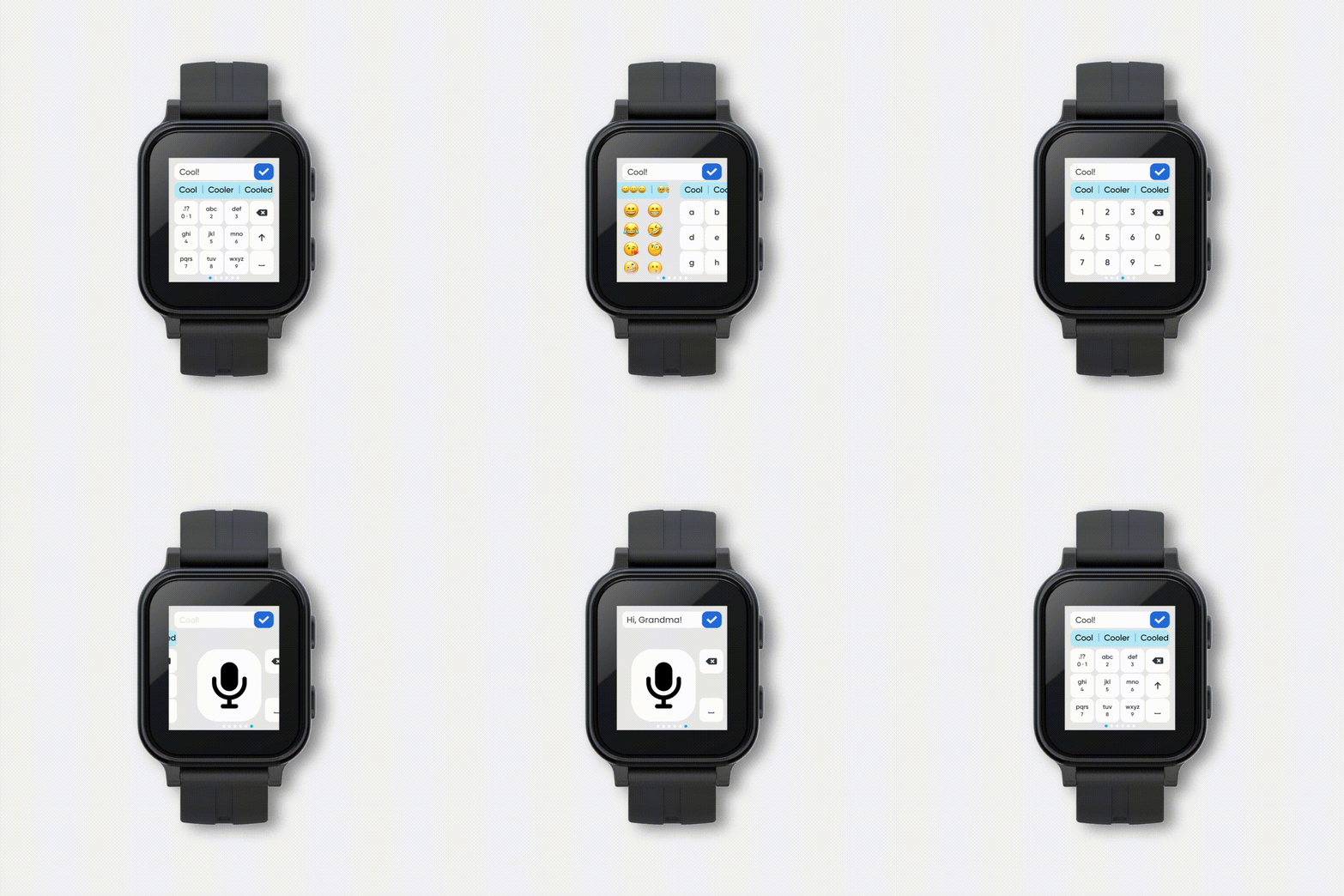
With the app open and your account logged in, tap the “Set Up Now” banner to launch the guided setup wizard. This process links your child’s watch to your parental dashboard.
Power On the Watch
Press and hold the side power button for 3 seconds to turn on the Gabb Watch 3e. Wait for the Gabb logo to appear on the screen. The watch will automatically attempt to connect to the Gabb network if it has been activated.
Confirm Device Detection
The MyGab app detects your watch within seconds. Verify the device model shown in the app and tap “Continue” to proceed. You now have full access to manage settings, contacts, and safety features.
Add Approved Contacts for Safe Communication
The Gabb Watch 3e only allows communication with contacts you explicitly approve. This prevents strangers from reaching your child.
Add Contacts Through the App
Open the MyGab app and navigate to Manage, then Contacts. Tap the plus icon and enter the contact’s full name, phone number, and an optional photo or note. Tap Save to add the contact.
Your child can now call or text this contact directly from their watch. You can add as many contacts as needed, including family members, caregivers, teachers, and close friends.
Edit or Remove Contacts Anytime
Tap any contact in the list to edit their details or delete them entirely. Changes sync instantly to the watch, so updates take effect immediately.
Set Up Safe Zones for Location Tracking

Safe Zones create virtual boundaries around important locations like home, school, or a friend’s house. You receive alerts when your child enters or leaves these areas.
Create a Safe Zone
In the MyGab app, tap Safe Zones and then the blue plus button on the map. Search for an address or drag the map to the desired location. Adjust the zone radius to fit your needs and assign a name such as “School” or “Grandma’s House.” Tap Save to create the zone.
Configure Location Alerts
The watch sends location updates every 15 minutes by default. You will receive instant notifications when your child enters or exits a Safe Zone, even if the MyGab app is closed. Use the “Get Location” button in the app anytime to request an immediate location check.
Configure Emergency Contact Settings
Every Gabb Watch 3e requires one primary emergency contact. This contact receives priority access during urgent situations.
Set the Emergency Contact
Go to MyGab, then Emergency Settings. Select a saved contact or add a new one, then confirm your selection. This contact will be the first person your child reaches in an emergency.
How Kids Use Emergency Features
On the watch, your child can swipe to the Emergency screen and tap to call the emergency contact or send a prewritten help message. Two taps are required to prevent accidental activation, ensuring false alarms are minimized.
Customize Focus Mode for School Hours
Focus Mode restricts non-essential functions during specific times, helping your child stay focused at school or during homework.
Schedule Focus Mode
Open MyGab and tap Focus Mode. Choose between scheduling specific times or manually turning it on and off. Select which contacts are allowed during Focus Mode, such as parents only, and tap Save.
When active, messaging and calling are limited to your approved contacts while apps like the calculator and stopwatch remain available. You can override Focus Mode remotely at any time.
Set Up Text Presets for Quick Replies
Text presets let your child send pre-written messages with one tap, eliminating the need for typing.
Customize Message Templates
In the MyGab app, go to Messages, then Text Presets. Edit default messages like “I’m on my way home” or “I’m at school now.” Add custom messages as needed and tap Save.
These messages appear on the watch under the Messages app, allowing your child to respond quickly during pickup or other situations.
Enable Notifications for Real-Time Alerts
Push notifications keep you informed about important events, including Safe Zone activity and emergency alerts.
Enable Notifications on iPhone
Go to Settings, then Notifications, and select MyGab. Toggle on Allow Notifications and enable Sounds, Badges, and Banners.
Enable Notifications on Android
Open Settings, then Apps, then MyGab, and select Notifications. Turn on all notification types to ensure you receive every alert.
Without notifications enabled, you may miss critical safety alerts about your child’s location or emergency situations.
Complete Final Setup Checklist
Use this checklist to ensure every essential step has been completed.
Activate your device at gabb.com/activate and install the MyGab app. Log in with the same account used for activation. Pair the watch in the app and add at least three approved contacts. Set your emergency contact and create two or more Safe Zones. Enable app notifications and configure Focus Mode. Finally, charge the watch fully before giving it to your child.
Frequently Asked Questions About Setting Up Gabb Watch
How do I activate my Gabb Watch 3e for the first time?
Activation begins at gabb.com/activate using your Gabb account. Follow the on-screen prompts to register your device and prepare it for setup. This step is required before you can pair the watch with the MyGab app.
Why won’t my Gabb Watch pair with the MyGab app?
Ensure you are using the same Gabb account credentials for both online activation and the app. Confirm the watch is powered on and connected to the network. Restart the MyGab app and try again. If the problem persists, contact Gabb Support.
Can I use my Gabb Watch with a different carrier?
No, the Gabb Watch 3e operates on the Gabb Wireless network and requires an active Gabb Wireless subscription plan. The device cannot be used with other carriers.
How do I set up Safe Zones on my child’s watch?
Open the MyGab app and tap Safe Zones. Tap the blue plus button, search for an address or drag the map to your desired location. Adjust the radius, name the zone, and tap Save. You will receive alerts when your child enters or exits the area.
What should I do if Safe Zone alerts are not working?
Verify that push notifications are enabled on your smartphone. Confirm the zone is saved and active in the app. Ensure the watch has cellular signal and sufficient battery. Test the zone by walking in and out of it with your phone nearby.
How long does the battery last on Gabb Watch 3e?
Under normal use, the battery lasts up to 48 hours on a single charge. Charging takes approximately 2 hours using the included magnetic cable. Charge the watch nightly to avoid service interruptions.
Key Takeaways for Setting Up Your Gabb Watch 3e
Setting up your Gabb Watch 3e involves activating the device online, downloading the MyGab app, and configuring essential safety features. The process takes under 30 minutes when you follow each step in order. Key features like Safe Zones, approved contacts, and emergency settings must be configured through the app to ensure your child stays safe and connected.
Once setup is complete, the watch provides reliable location tracking, safe communication with pre-approved contacts, and parental controls like Focus Mode. Regularly check for software updates through the MyGab app to keep the device running smoothly and securely. Visit gabb.com/support if you need additional help during setup or long-term use.



