
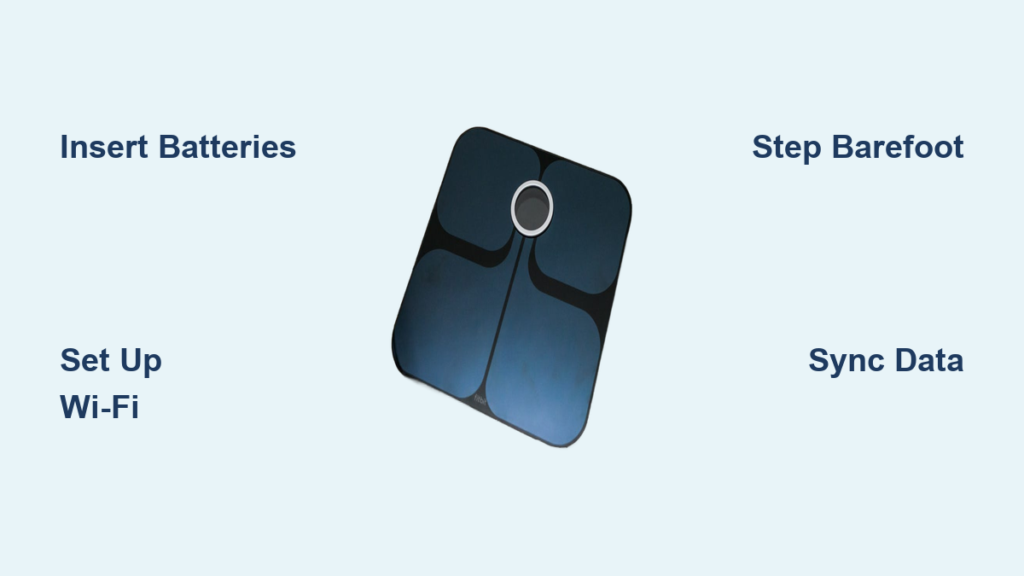
If you’re wondering how to use a Fitbit scale, especially the Fitbit Aria Wi-Fi Smart Scale, you’re not alone. Millions of people use Fitbit scales to track weight, body fat percentage, and progress toward fitness goals. The good news is that it’s simple, intuitive, and works seamlessly with your smartphone. Whether you’re new to smart scales or upgrading from a basic model, this guide walks you through every step.
You’ll learn how the scale identifies users automatically, syncs data in real time, and keeps your health metrics organized in the Fitbit app. Let’s get started.
Unbox and Prepare the Fitbit Scale
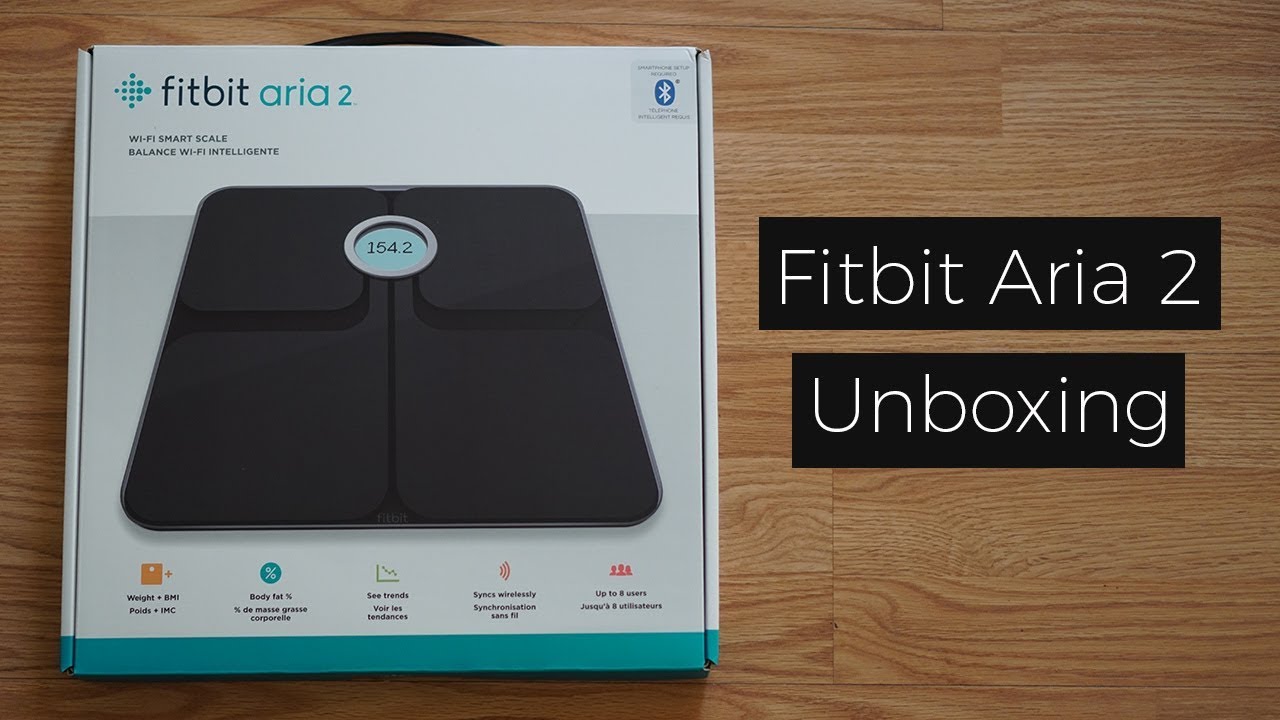
Before stepping on the scale, proper preparation ensures smooth setup and accurate readings.
Insert Batteries Correctly
The Fitbit Aria runs on four AAA batteries. Flip the scale over carefully and remove the battery compartment cover. Insert the batteries one at a time, matching the polarity symbols inside the compartment. Once installed, replace the cover securely.
Pro Tip: Use alkaline batteries for longer life. Avoid rechargeable batteries because they often operate at lower voltages and may cause connectivity issues.
Place on a Hard, Flat Surface
Set the scale on a hard floor such as tile, wood, or laminate. Avoid carpet, rugs, or uneven surfaces because these can distort weight readings. Make sure the surface is level and free of debris.
Visual Cue: The scale should sit flush with the floor with no rocking or tilting.
Activate Setup Mode for First Use
Since the Fitbit Aria has no buttons, it relies on internal sensors and mobile or web setup. You need to activate setup mode before connecting.
Trigger Setup Mode
Remove one battery, wait 10 seconds, then reinsert it. This resets the scale and activates setup mode. The display will flash or show a setup symbol such as a Wi-Fi icon or gear.
Warning: Do not skip this step because your scale will not connect to Wi-Fi without being in setup mode.
Connect to Wi-Fi via the Fitbit App
Now it’s time to link your scale to your home network and Fitbit account.
Open the Fitbit Website or App
Go to fitbit.com/setup/aria on your phone or computer. Make sure your device is connected to your home Wi-Fi network.
Note: While the web browser method works, using the Fitbit app on iOS or Android offers a smoother experience.
Follow On-Screen Instructions
Enter your Wi-Fi password and follow the prompts to pair the scale. The process takes about 2 to 3 minutes. The scale will beep and display a checkmark when successfully connected.
Security Note: The scale uses WPA2 encryption. It does not support public networks, guest networks, or 5GHz-only networks.
Add User Profiles
During setup, you’ll add yourself and any other household members. Each user needs a name, date of birth, height, gender, and an email address linked to their Fitbit account.
Why This Matters: The scale uses this data to calculate body fat percentage and automatically recognizes users based on weight range.
Step On and Track Your Progress

Once set up, daily use is effortless.
Stand Barefoot for Best Results
For accurate body fat readings measured via bioelectrical impedance, stand barefoot on the scale. Socks, shoes, or wet feet interfere with the small electrical signal used to estimate body composition.
Timing Tip: Weigh yourself at the same time each day, preferably in the morning after using the bathroom but before eating, for consistent results.
Wait for Sync Confirmation
When you step on, the display shows your weight, then body fat percentage, and finally a checkmark. Stay still until the checkmark appears, which usually happens within 15 seconds.
Sync Status: A flashing checkmark means syncing is in progress. A solid checkmark means the sync is complete.
View Results in the Fitbit App
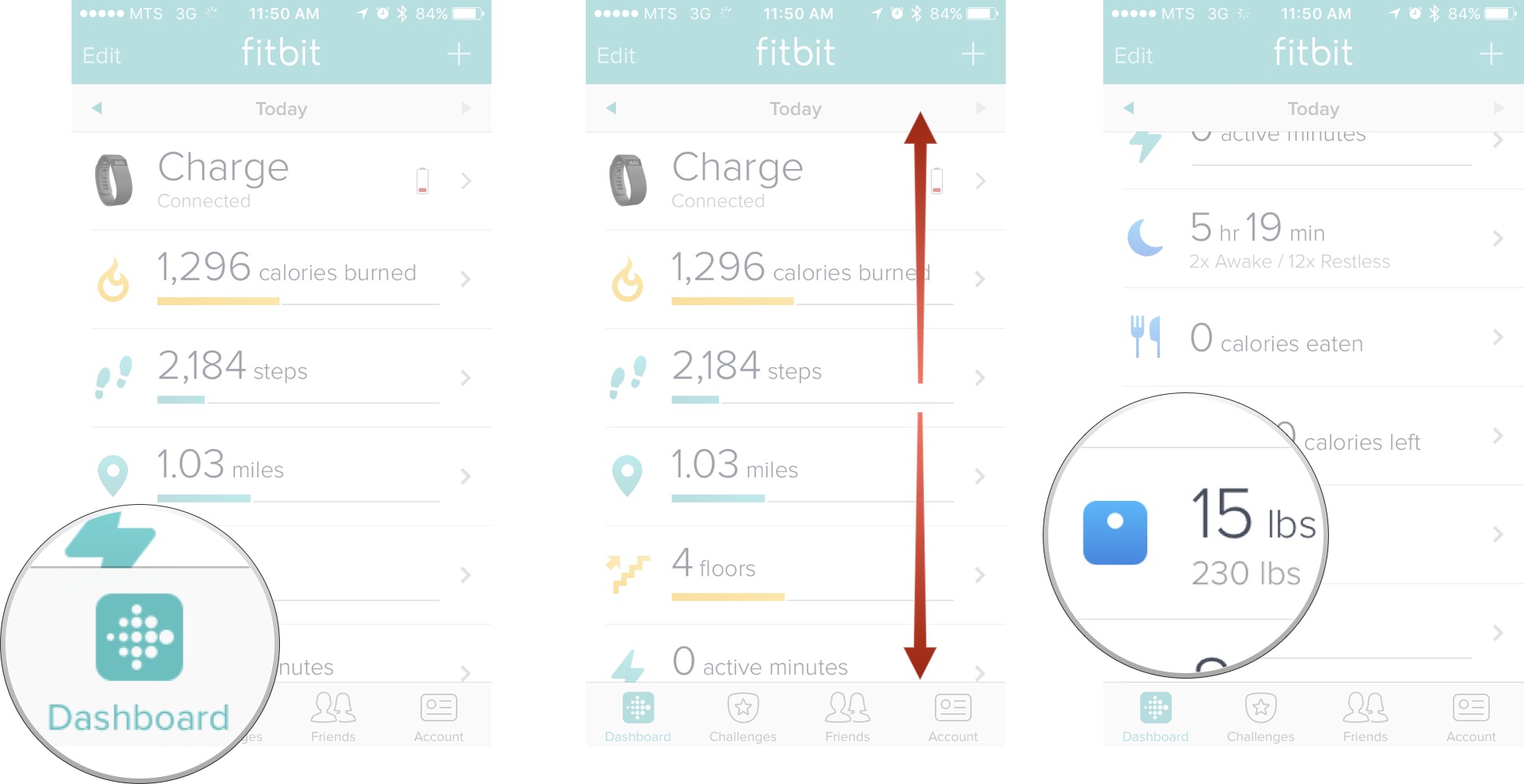
All your data goes straight to the Fitbit app with no manual logging needed.
Check Today’s Reading
Open the app and look at the dashboard. Your latest weight and body fat percentage appear under the Weight tile. Tap it to see your current weight, body fat percentage, trend arrow showing up, down, or stable, and the change from your last weigh-in.
Access Historical Data
To see past results, tap Account which is the profile icon, select Aria, and choose Recent Weigh-ins. You’ll see a list of all measurements sorted by date and time.
Limitation: The app does not show individual user history cleanly by default. If multiple users share the scale, you must filter manually.
Enable Auto-Recognize Feature
The Fitbit Aria identifies users automatically based on weight range and profile settings. To ensure accuracy, maintain at least a 4 to 5 pound difference between users, step on firmly with both feet, and do not switch foot positions between weigh-ins.
Works Best When: Each user has a unique weight range and consistent stance.
Troubleshoot Common Issues
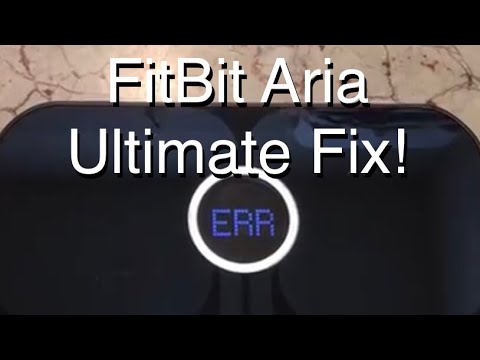
Even well-set-up scales can run into problems. Here’s how to fix the most frequent ones.
Scale Won’t Connect to Wi-Fi
This is the most common issue. Try these steps.
Reboot Router and Scale:
- Power cycle your router by unplugging it for 30 seconds.
- Put the scale back into setup mode by removing and reinserting a battery.
- Retry the setup process.
Confirm Network Compatibility: The Fitbit Aria only works with 2.4 GHz Wi-Fi networks, WPA or WPA2 security, and private home networks.
Does NOT Work With: 5 GHz networks, open or public Wi-Fi, enterprise networks, or Wi-Fi extenders without proper bridging.
User Not Recognized
If the scale misidentifies you or shows Unknown User, try recalibrating your user profiles.
Recalibrate User Profiles:
- Open the Fitbit app.
- Go to Account, then Devices, then Aria.
- Tap Edit User Order.
- Drag your name to the top of the list if you’re the primary user.
Double-Check Weight Ranges: Ensure your current weight falls within the range set during profile creation. Update height, weight, or age if needed.
Inconsistent Body Fat Readings
Bioelectrical impedance can vary due to hydration, time of day, or skin contact.
Improve Measurement Consistency:
- Weigh first thing in the morning.
- Use the same foot position each time.
- Dry your feet completely.
- Avoid measuring after exercise or drinking water.
Pro Insight: Body fat percentage is an estimate. Focus on trends over time rather than daily fluctuations.
Maintain and Care for Your Scale
Keep your Fitbit scale accurate and looking new with basic care.
Clean the Glass Surface
Wipe the glass surface weekly with a soft, slightly damp cloth. Do not use harsh cleaners, alcohol, or submerge the scale in water.
Do This: Use a microfiber cloth to prevent scratches.
Replace Batteries Promptly
Low batteries cause sync failures. Replace them when the display dims, syncing takes longer than usual, or the scale fails to turn on.
Battery Life: Expect 6 to 12 months depending on usage.
Maximize Accuracy and Long-Term Use
Smart scales are tools for tracking trends, not instant truth. Use these tips to get the most from your Fitbit Aria.
Weigh Weekly, Not Daily
Daily weight fluctuates due to water retention, food intake, and hormones. For meaningful progress, weigh 2 to 3 times per week, track the weekly average, and look for downward trends over 4 or more weeks.
Combine with Other Health Data
Pair your scale data with step count from your Fitbit wearable, sleep tracking, and calorie intake via the Fitbit app logging.
Big Picture: Weight loss is not just about the number. It is about habits, activity, and consistency.
Key Takeaways for Using Your Fitbit Scale

The Fitbit Aria delivers accurate weight tracking, seamless syncing, and multi-user convenience. Using a Fitbit scale removes the guesswork from weight management. With no buttons to press and no apps to open before weighing, it fits effortlessly into daily life.
The auto-recognize feature makes it ideal for households, and the body fat percentage readings help you understand more than just weight. While the app could improve how it displays historical data, the core functionality is solid.
Whether you’re tracking fitness goals, managing health conditions, or staying motivated, the Fitbit Aria makes it easy to stay informed. One step at a time, you’ll build a clearer picture of your health.
Frequently Asked Questions About How to Use Fitbit Scale
How do I set up my Fitbit Aria scale for the first time?
To set up your Fitbit Aria, insert four AAA batteries, then visit fitbit.com/setup/aria on your phone or computer. Remove and reinsert one battery to activate setup mode, then follow the on-screen instructions to connect to Wi-Fi and create user profiles.
Why won’t my Fitbit scale connect to Wi-Fi?
The Fitbit Aria only works with 2.4 GHz networks using WPA or WPA2 security. It does not support 5 GHz networks, public Wi-Fi, or guest networks. Try rebooting your router and placing the scale back in setup mode.
How does the Fitbit scale recognize different users?
The scale automatically identifies users based on their weight range and profile settings. For best results, maintain at least a 4 to 5 pound difference between users and step on with both feet in a consistent position.
Can I use the Fitbit scale without the app?
You can view your weight on the scale’s display, but the app is required to see historical data, body fat trends, and to set up the scale initially. All data syncs automatically to the Fitbit app after each weigh-in.
How accurate is the body fat percentage on Fitbit scales?
Body fat percentage is measured using bioelectrical impedance and is an estimate. Results vary based on hydration levels, time of day, and skin contact. Focus on tracking trends over weeks and months rather than daily fluctuations.



