
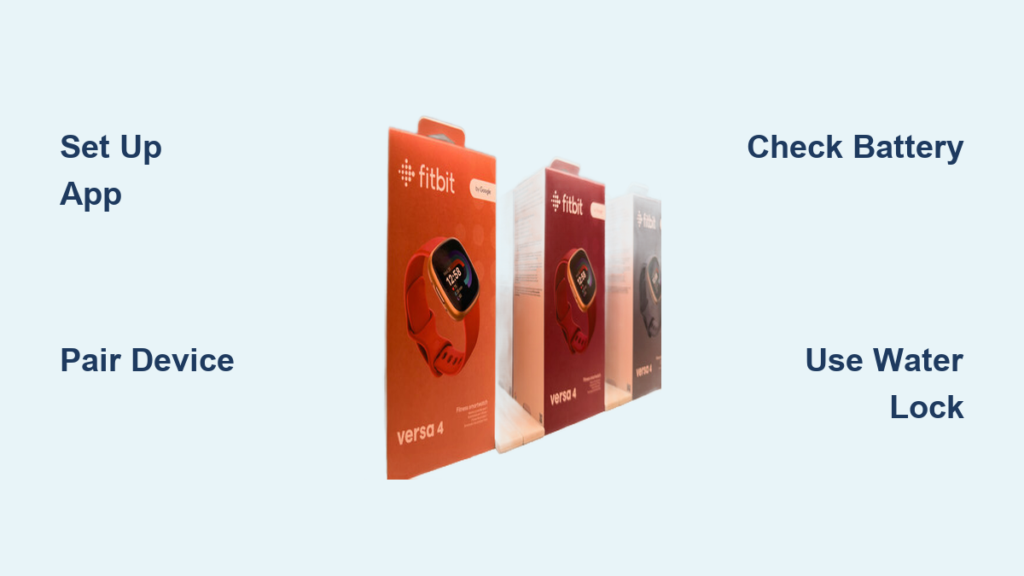
You just got a new Fitbit watch and want to start tracking your steps, sleep, and heart rate, but the buttons and menus feel confusing. Whether you have an Inspire, Charge, Luxe, or Ace model, learning how to use a Fitbit watch is essential to get the most from your fitness tracker. From setting up the app and syncing your device to navigating menus and customizing notifications, each model has unique controls that work differently.
This guide walks you through everything you need to know to use your Fitbit watch with confidence. You will learn how to set up your account, navigate by model type, customize settings, extend battery life, and maintain your device for years of accurate tracking.
Set Up Your Fitbit Account and Pair Your Device
Download the App and Create Your Account
Start by downloading the Fitbit app from the App Store or Google Play. Newer Fitbit devices are now integrated with Google services, so you may see Google branding during setup. Open the app and tap Join Fitbit to create a free account. You do not need to own a device yet to explore the app interface, but full features unlock after pairing.
Once registered, follow the on-screen prompts to pair your Fitbit watch via Bluetooth. Make sure your phone’s location services are enabled, as this helps with GPS syncing and device detection. The app will search for nearby Fitbit devices automatically.
Enter Personal Data for Accurate Tracking
During setup, the app asks for your height, weight, age, and gender. This information calculates your Basal Metabolic Rate, which powers accurate calorie burn estimates and fitness insights. All data is private by default. You can adjust visibility later under Settings in the app.
If you already use fitness apps like Strava, Weight Watchers, or MapMyRun, link them now to sync workout logs and nutrition data. The Fitbit app supports multiple third-party integrations for a unified health dashboard.
Pair and Activate Your Device
After syncing, your first use counts as the activation date, which starts your warranty period. Confirm this later by going to Settings on your watch and checking Device Info. If you upgrade models, the app lets you replace your old tracker with the new one seamlessly.
You can pair multiple Fitbits to one account, but only one can be set as primary. This device syncs first and appears in daily stats. This is ideal for users who rotate devices between workouts and sleep tracking.
Navigate Your Fitbit by Model Type
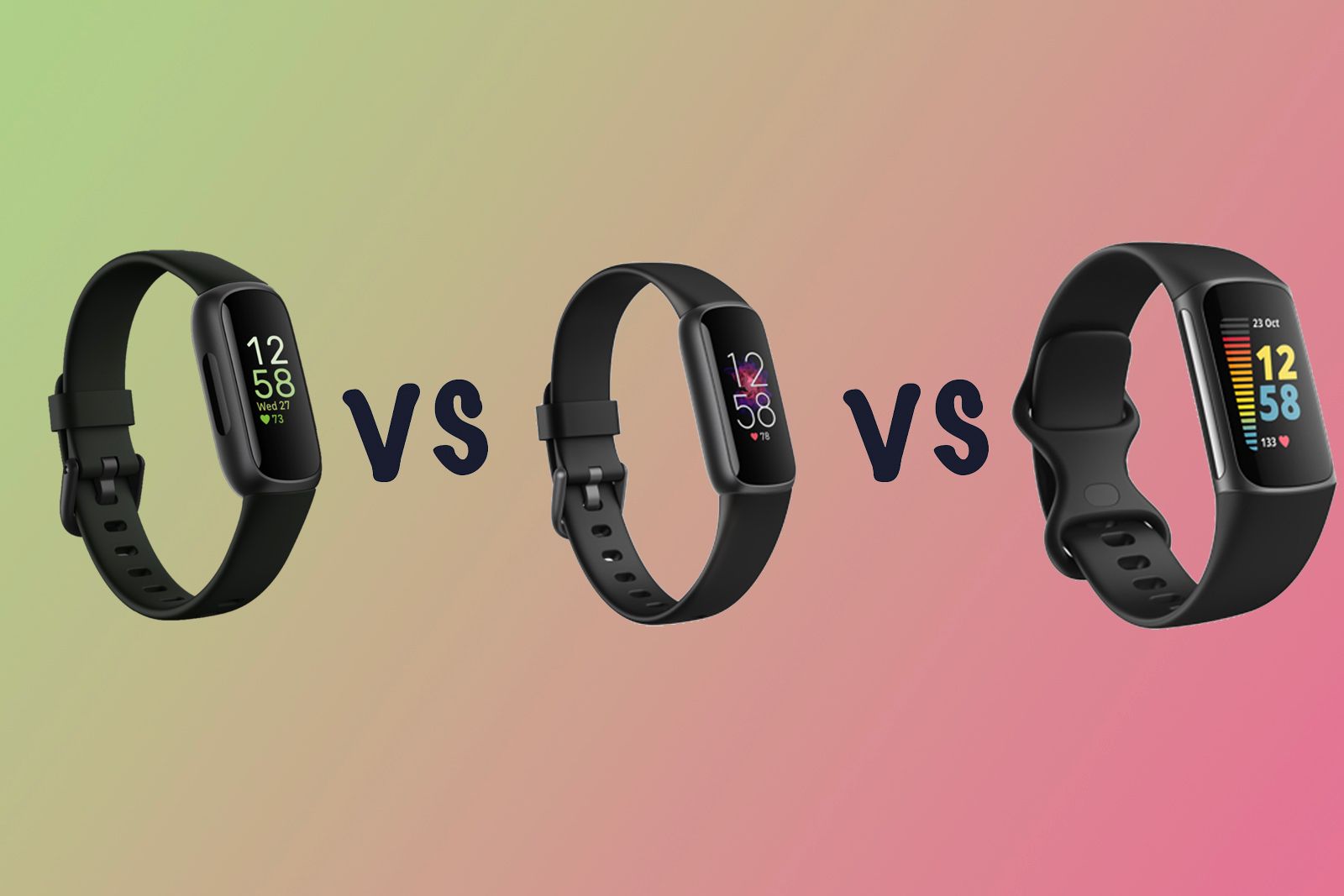
Ace, Alta, and Alta HR: Tap to Scroll
These older models use a non-touch OLED screen that wakes when you turn your wrist or double-tap the display. To scroll through stats like steps, heart rate, and time, single-tap the screen. Swipe gestures do not work on these models.
Since there is no touchscreen, all input relies on taps. You will need to use the app for deeper settings and customization. This keeps navigation simple but limits quick adjustments directly on the device.
Ace 2, Inspire, and Inspire HR: Touch Plus Button Control
These models add an OLED touchscreen with swipe navigation. Swipe down from the clock face to open apps, and swipe up to view daily stats like steps and calories. A single physical button handles the rest of your navigation.
Press the button once to go back or select an item. Press and hold to access Quick Settings, which includes DND, battery saver, and other toggles. Check your battery level by pressing and holding the button, as the percentage appears at the top of the screen.
Ace 3, Inspire 2, and Inspire 3: Dual Buttons and Touch
These models feature PMOLED or AMOLED touchscreens with two physical buttons. Navigation combines taps, swipes, and button presses. Swipe down to access apps and swipe up to view daily stats. Press either button to return to the clock face.
The Inspire 2 and 3 let you switch between On Wrist and On Clip mode in settings. Clip mode disables heart rate tracking and Active Zone Minutes, which is perfect for clipping to your clothes during non-wrist wear. Enable Button Lock to prevent accidental presses when the screen is off, though this may increase battery drain slightly.
Charge 3 and Charge 4: Touchscreen with One Button
These models support full swipe navigation on a touchscreen. Swipe left to access apps, swipe up to view daily stats, and swipe down to check notifications. The single button handles menus and Quick Settings.
Press and hold the button to open Quick Settings, then swipe left to toggle modes. Charge 4 adds GPS Settings and Heart Zone Minutes alerts in the app menu. Check your battery by swiping up from the clock face, where the icon appears in the top left corner.
Charge 5, Charge 6, and Luxe: Full Touch Gestures
These premium models feature color AMOLED screens with complete gesture-based navigation. Swipe down to access Quick Settings, the Settings app, Google Wallet, and Find Phone. Swipe left or right to navigate through your app carousel.
Swipe up to see daily stats and swipe right to go back to the clock face. Firmly double-tap the screen to return to the clock face from any app. Charge 6 includes a physical button for Power Off, Google Assistant, or Find Phone. It also shows status indicators at the top of the clock for three seconds, including DND, Sleep Mode, low battery, or disconnection.
Triple-tap to magnify the screen at 2x or 3x zoom, and single tap to exit. This feature is particularly useful for users who need larger text.
Customize Quick Settings and Notifications

Access Quick Settings
Quick Settings is available by swiping down on newer models or pressing and holding the button on older ones. Each setting appears as a toggle icon. A dimmed icon with a line means the setting is off, while a bright icon means it is on.
Use this menu to quickly enable Do Not Disturb, Sleep Mode, Water Lock, and Battery saver. The menu is designed for fast access without digging through multiple submenus.
Enable Do Not Disturb
Do Not Disturb silences all alerts, vibrations, and screen wakes. This is great for meetings or focused work sessions. On Charge 3 and 4, you can still receive heart zone alerts during workouts even if Do Not Disturb is on.
Note that Do Not Disturb and Sleep Mode cannot run at the same time. Activating one automatically turns off the other.
Schedule Sleep Mode
Sleep Mode dims the screen, mutes notifications, and disables wrist-raise wake. Instead, wake the device with a double-tap or button press. Set automatic schedules by going to Settings App, selecting Sleep Mode, choosing Schedule, and setting your start and end times.
Even if turned on manually, Sleep Mode will turn off at the scheduled end time. This ensures you do not forget to re-enable notifications when you wake up.
Use Water Lock During Water Activities
Prevent accidental taps when showering or swimming by enabling Water Lock. Activate it manually by swiping down to Quick Settings, tapping Water Lock, and firmly double-tapping the screen. It also starts automatically when you begin a Swim workout.
To unlock, double-tap firmly. The accelerometer detects force, so if Unlocked does not appear, tap harder. This intentional sensitivity prevents false unlocks. While locked, notifications appear visually but require unlocking to interact.
Adjust Screen Wake Behavior
Control how your screen turns on through Display Settings. Auto Wake lights the screen when you raise your wrist, while Manual Only requires a double-tap or button press. Disable Auto Wake to save battery.
Also adjust screen timeout, which controls how long the screen stays on. Some models like Charge 5, 6, Luxe, and Inspire 3 offer Always-On Display, showing the time faintly even when inactive. This is great for quick checks but reduces battery life significantly.
Optimize Battery Life on Your Fitbit

Check Battery Level Fast
Different models have different ways to check battery. On Ace 2, Inspire, and Inspire HR, press and hold the button. On Ace 3, Inspire 2, 3, Charge 4, 5, 6, and Luxe, swipe up from the clock face. On Charge 6, you can also see the battery icon in the top-left corner of the stats screen.
A critical battery icon appears when power drops below 10 percent. Charge your device before this warning to avoid unexpected shutdowns during workouts.
Extend Battery with Power-Saving Tips
Fitbit watches last five to seven days on average, but these settings help stretch battery life. Turn off Always-On Display, reduce screen brightness, and shorten screen timeout. Disable continuous heart rate tracking if you do not need it.
GPS use is the biggest battery drain. For casual walks, skip GPS and use Phone GPS instead of Built-in GPS during runs to save device power. On Inspire 2, Button Lock may actually increase battery drain, so disable it if not essential.
Maintain Your Fitbit for Daily Use
Clean Bands Regularly
Sweat and oils build up over time on your Fitbit band. For elastomer bands, wipe with water or rubbing alcohol. For metal or leather bands, use a dry or slightly damp lint-free cloth. Never soak leather or metal bands.
Clean your band after workouts to prevent skin irritation and extend the life of the material. Regular cleaning also helps maintain sensor accuracy.
Avoid Harsh Chemicals
Keep your Fitbit away from lotions, perfumes, sunscreen, insect repellent, and oils. These products can damage the casing and cause skin reactions. Apply these products before putting on your tracker to minimize contact.
Wear It Right
Fit your Fitbit snugly but not tight. Your tracker should move slightly on your wrist. Over-tightening causes chafing and pressure marks. Take breaks by removing it for an hour daily to let your skin breathe.
Know Water Resistance Limits
All modern Fitbits are water-resistant, making them safe for showers and swimming. They are not designed for diving or high-pressure water from jets, saunas, or hot tubs. Steam can damage sensors, so avoid wearing your Fitbit in saunas.
Always engage Water Lock before swimming to prevent accidental screen activations. This protects your touchscreen and ensures accurate workout tracking.
Troubleshoot Common Fitbit Issues
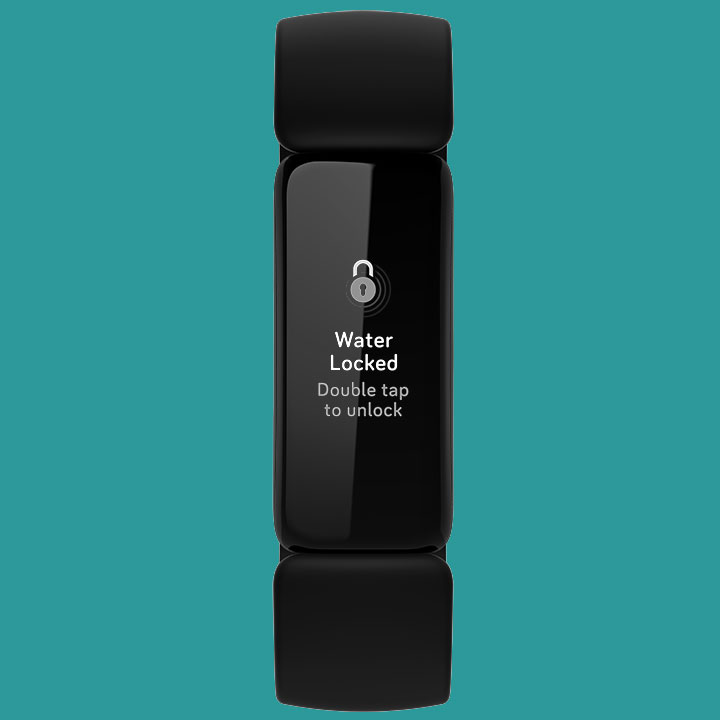
Fix Unresponsive Water Lock
If double-tapping does not unlock your device, tap harder. The accelerometer needs a firm impact to register the command. Ensure your fingers are dry and try restarting the device if problems persist.
This sensitivity is intentional, not a glitch. It prevents false unlocks when water splashes on your screen during swimming or showering.
Resolve Missing Step or Heart Rate Data
If your stats are not recording, check if On Clip mode is enabled, as this disables heart rate tracking. Ensure heart rate tracking is turned on in your settings and confirm the device is worn snugly, as a loose fit affects sensor accuracy.
For Charge models, make sure wrist placement is correct, below the wrist bone. Improper placement is the most common cause of inaccurate heart rate readings.
Fix Sync Problems
If data is not appearing in the app, ensure your phone’s Bluetooth is on. Restart both your phone and Fitbit. Check that your device is set as primary in the app if you have multiple devices paired.
Wait a few minutes after restarting, as syncing can take time after long periods offline. If problems continue, unpair and re-pair your device.
Frequently Asked Questions About Using Fitbit Watches
How do I set up my Fitbit watch for the first time?
Download the Fitbit app from the App Store or Google Play, create a free account, and follow the on-screen prompts to pair your device via Bluetooth. Enter your personal data like height, weight, age, and gender for accurate tracking. The app will guide you through the entire setup process.
How do I navigate my Fitbit watch menus?
Navigation depends on your model. Older models like Ace and Alta use tap-only controls. Newer models like Charge 5, 6, and Luxe use full swipe gestures. Swipe down for Quick Settings, swipe up for daily stats, and swipe left or right to navigate apps.
How do I check battery life on my Fitbit?
On most models, swipe up from the clock face to see your battery percentage. On older models like Ace 2 and Inspire, press and hold the button. Charge 6 displays the battery icon in the top-left corner of the stats screen.
How do I use Water Lock on my Fitbit?
Swipe down to access Quick Settings, tap Water Lock, and firmly double-tap the screen to activate. Double-tap firmly again to unlock. The feature uses accelerometer detection, so you may need to tap harder than expected.
Why is my Fitbit not tracking heart rate or steps?
Check if your device is in On Clip mode, which disables heart rate tracking. Ensure the tracker is worn snugly against your skin. Verify that heart rate tracking is enabled in your settings.
How long does Fitbit battery last?
Most Fitbit watches last five to seven days on a full charge. Battery life varies based on settings like Always-On Display, GPS usage, and heart rate tracking frequency. Reducing these features extends battery life significantly.
Key Takeaways for Using Your Fitbit Watch
Mastering how to use a Fitbit watch transforms it from a simple tracker into a powerful health companion. Start by setting up your account with accurate personal data, then learn your model’s specific navigation controls. Use Quick Settings to toggle Do Not Disturb, Sleep Mode, and Water Lock for different situations throughout your day.
Extend battery life by disabling Always-On Display and using Phone GPS instead of Built-in GPS for runs. Clean your bands regularly and avoid harsh chemicals to maintain your device. When issues arise, check your sync settings, ensure proper wrist placement, and use Button Lock to prevent accidental presses.
Now that you have mastered the basics, explore advanced features like Active Zone Minutes, GPS tracking, and Google Wallet on compatible models. Your Fitbit is ready to help you stay active, monitor your health, and achieve your fitness goals.



