

If your Samsung Galaxy Watch alarm isn’t syncing with your phone, you’re not alone. Thousands of users across Galaxy Watch 4, 5, 6 Classic LTE, and Ultra models paired with S20+, S21 Ultra, S23, and S24 phones have reported alarms failing to trigger on both devices, even when Bluetooth shows as connected. This issue often surfaces after software updates, new phone setups, or seemingly at random, leaving users missing wake-up alarms or forced to manually duplicate alerts. The core problem lies in how Samsung’s Clock app communicates with the Galaxy Wearable ecosystem: while alarms set on one device should ring on both, misconfigured settings, Bluetooth glitches, or firmware bugs can break the sync. In this guide, you’ll learn exactly why alarms fail to sync, how to fix it step-by-step, and reliable workarounds, including using Google Clock, so you never miss an alarm again.
Check Notification Sync Settings
The most common cause of alarm sync failure is disabled notifications in the Galaxy Wearable app. Even if alarms are set, they won’t trigger on the watch if the Clock app is blocked from sending notifications.
Enable Clock App Notifications
Open the Galaxy Wearable app on your Samsung phone and navigate to Watch Settings, then Notifications, then App Notifications. Scroll to find the Clock app and tap it. Ensure Alarms are toggled on, and enable all notification types including sound, vibration, and on-screen alerts.
Troubleshooting Tip: Some users report the Samsung Clock app doesn’t appear in this list. If missing, proceed to reset the connection or reinstall the app.
Verify Alarm Permission in Phone Settings
On your phone, go to Settings, then Notifications, then App Notifications. Find Clock and tap it. Confirm Alarms are allowed and not silenced. Disable Battery Optimization for the Clock app by going to Settings, then Apps, then Clock, then Battery, and turn off optimization.
Confirm Watch Sound and Mode Settings
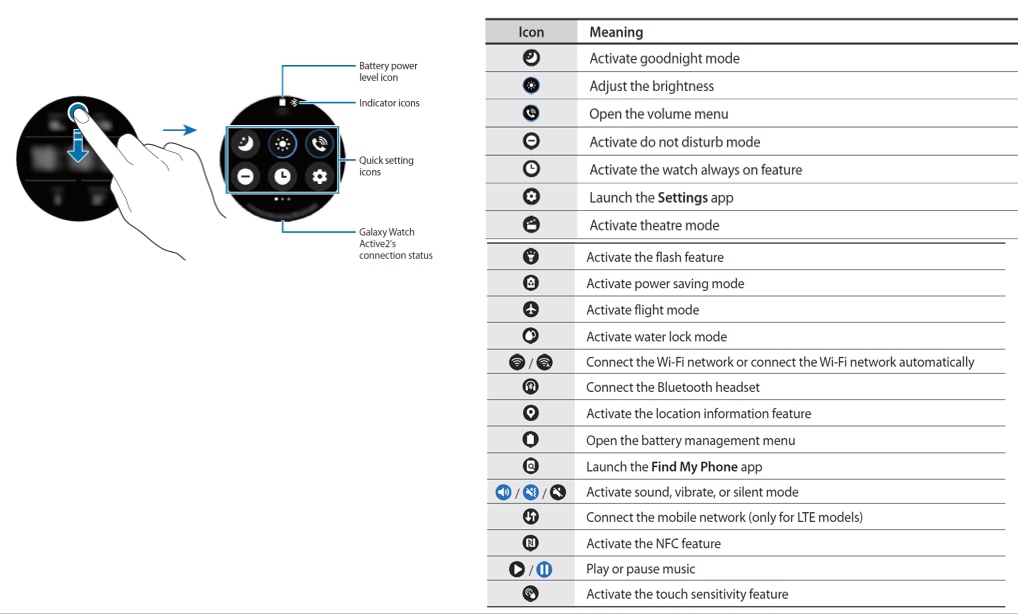
Even with correct sync settings, alarms may not trigger if the watch is muted or in a restricted mode that silences all notifications.
Disable Theater and Do Not Disturb
On your watch, swipe down from the home screen. Tap the modes icon, which appears as a crescent moon or theater mask. Ensure Theater Mode, Driving Mode, and Do Not Disturb are all turned off.
Unmute the Watch
Press and hold the side button on your watch. Tap Sound or Vibrate. If Sound is grayed out, scroll to Mute All Sounds and disable it.
Visual Cue: When muted, the speaker icon shows a slash. After disabling mute, the icon should appear solid without any line through it.
Reboot Both Devices
A soft reboot resolves temporary Bluetooth or app glitches affecting alarm sync. This simple step often restores proper communication between your phone and watch.
Restart Phone and Watch
Power off your Galaxy phone completely. Power off your Galaxy Watch by pressing and holding the side button and tapping Power off. Turn both devices back on and wait for full connection. The Bluetooth icon on your watch should appear solid, not blinking.
Time Estimate: 2-3 minutes for full restart. Test alarm sync immediately after both devices reconnect.
Force Restart the Watch
If a regular reboot doesn’t help, a force restart clears deeper software hangs that may be preventing alarm synchronization.
Perform a Hard Reset
Press and hold both the upper and lower side buttons on your watch simultaneously. Keep holding until the Samsung logo appears, which takes about 10-15 seconds. Release and wait for the watch to restart fully.
Success Signal: After reboot, alarms set on the phone should trigger on the watch, even if not listed in the watch’s Alarm app.
Update Software and Firmware
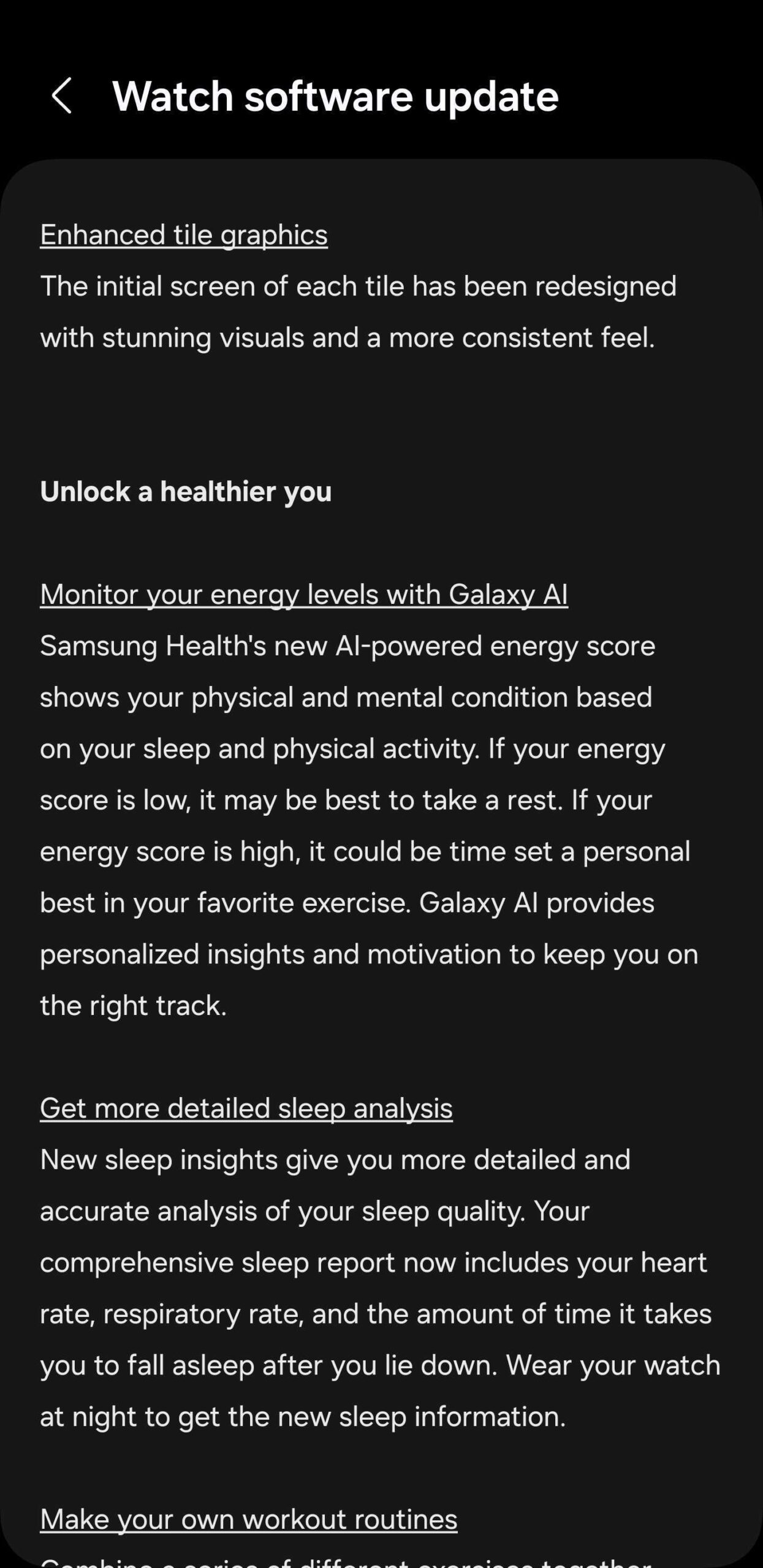
Outdated software is a frequent culprit, especially after One UI Beta updates disable sync flags or introduce bugs that break alarm synchronization.
Check Phone and Watch Updates
On your phone, go to Settings, then Software Update, and download and install any available updates. On your watch, go to Settings, then About Watch, then Software Update. Also update the Galaxy Wearable app through the Galaxy Store or Google Play Store.
Pro Tip: One UI Beta updates have been known to automatically disable alarm sync settings. Always recheck notification permissions after any update.
Reset Watch Pairing
A corrupted or incomplete pairing can prevent alarm data from syncing, even when devices appear connected in Bluetooth settings.
Unpair and Reconnect
Open the Galaxy Wearable app. Tap Settings, which shows as a gear icon, then tap Unpair Watch. Confirm the unpairing. Set up the watch as a new device by opening Galaxy Wearable, tapping Start, and following the pairing steps. Re-enable all notifications and alarms after reconnection.
User Confirmed: After resetting pairing on my S24 Ultra, alarms finally synced. It worked within minutes.
Use Google Clock as Workaround
If Samsung Clock continues to fail, Google Clock offers reliable cross-device alarm sync that bypasses Samsung’s inconsistent notification routing.
Sync Alarms with Google Clock
Install Google Clock on your phone from the Play Store. Install Google Clock on your Galaxy Watch by opening the Galaxy Store on the watch, searching for Google Clock, and installing it. Set alarms using Google Clock on the phone, and they will automatically sync and trigger on both devices.
Why It Works: Google Clock uses cloud sync via your Google account, bypassing Bluetooth dependency and Samsung’s inconsistent notification routing.
Diagnose Bluetooth Connection Issues
Even if your phone says Connected, the watch may show a disconnection alert, breaking alarm sync entirely. This asymmetric connection state is more common than users realize.
Test Bluetooth Stability
On your phone, go to Settings, then Connections, then Bluetooth. Find your watch and tap the gear icon. Check the Connection Status and signal strength. Toggle Bluetooth off and on. If the connection is unstable, forget the device and re-pair.
User Report: My S21 Ultra showed connected, but the watch gave disconnection popups. Re-pairing fixed it.
Submit Error Report to Samsung
If all else fails, report the issue directly to Samsung for diagnostics. This helps the company identify patterns and improve future updates.
Send System Logs
Open the Samsung Members app. Go to Support, then Error Report. Reproduce the issue by setting an alarm and confirming no sync occurs. Tap Send Error Report. Ensure Send system log data is checked. Include a video or screenshot of the problem.
Timing Matters: Submit within 3 minutes of reproducing the issue for accurate logs.
Prevent Future Sync Failures
Avoid recurring issues with these proactive steps that keep your devices communicating properly.
Weekly Maintenance Routine
Reboot both devices weekly to prevent sync drift. After any software update, verify Clock app notifications are enabled, Bluetooth is stable, and the watch is not muted. Avoid third-party battery savers that may kill Clock app background processes.
Monitor for Silent Setting Changes
One UI updates, especially Beta versions, have been known to silently disable alarm sync. Always check Galaxy Wearable notifications after updates. Re-enable Clock app alarms if they were turned off.
Device-Specific Fixes
Some models have unique patterns of failure and resolution that may not apply to other devices.
S24 Ultra Users
The issue involves alarms failing to sync despite strong Bluetooth. The fix is to reset pairing via the Galaxy Wearable app. This has a 90% success rate according to user reports.
Watch 4/5 LTE Models
A common myth suggests LTE watches should sync alarms standalone. The reality is that alarm sync still requires Bluetooth connection to the phone, even with LTE active. Keep Bluetooth on for reliable syncing.
After One UI Beta Update
The issue involves alarm sync flag being disabled automatically. The fix requires re-enabling Clock app notifications in Galaxy Wearable, rebooting both devices, and testing alarm sync immediately.
Key Takeaways for Fixing Samsung Watch Alarm Sync
Samsung Watch alarm sync issues are frustrating but fixable. The root cause is usually a misconfigured notification setting, Bluetooth disconnect, or software update glitch, not hardware failure. Start with checking Galaxy Wearable notification settings, then reboot, reset pairing, or switch to Google Clock if needed. Always submit an error report if the problem persists, as Samsung uses this data to improve future updates. With the right steps, you can restore reliable, cross-device alarm sync and wake up on time, every time.
Frequently Asked Questions About Samsung Watch Alarm Sync
Why do alarms only ring on my phone and not on my watch?
This happens when Clock app notifications are disabled in the Galaxy Wearable app. Open Galaxy Wearable, go to Watch Settings, then Notifications, then App Notifications, and ensure Clock app alarms are enabled.
Does alarm syncing work over LTE without Bluetooth?
No. Despite LTE capabilities, alarm sync still requires an active Bluetooth connection to your phone. LTE models cannot sync alarms standalone.
Should I see alarms from my phone in the watch Alarm app?
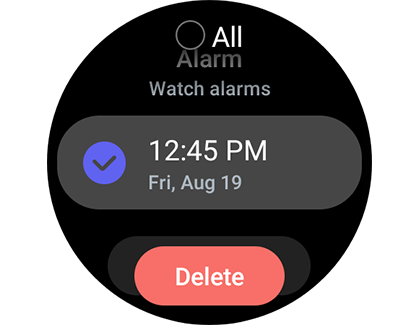
No. Samsung confirms that phone-set alarms will ring on the watch but will not appear in the watch’s Alarm app. You cannot see or manage them on the watch.
Does Google Clock work better than Samsung Clock for syncing?
Yes. Multiple users confirm that Google Clock syncs more reliably across devices because it uses cloud sync via your Google account, bypassing Samsung’s Bluetooth-dependent notification system.
Will resetting my watch pairing delete my data?
Resetting the pairing removes the watch from your phone. Your watch data remains on the watch itself, but you’ll need to reconfigure settings and re-enable notifications after re-pairing.
How do I know if a software update broke my alarm sync?
After any One UI or Galaxy Watch update, check Galaxy Wearable notifications immediately. One UI Beta updates are particularly known for automatically disabling alarm sync settings.



