
You just charged your Garmin watch, only to find the time is off by hours or even days. This is a common issue that many Garmin users face after battery drain, software glitches, or sync failures. The good news is that fixing it is usually quick and simple. This guide walks you through every step to change time on your specific Garmin model, whether you need to manually adjust it or rely on automatic sync.
Access Time Settings Menu on Your Garmin
Before changing the time, you need to navigate to the correct menu. While button layouts vary by model, most modern Garmin watches follow a consistent path.
Open the System Menu
Press and hold the Up button, which is typically located at the top-left on most models, to open the main menu. Use the side buttons or touchscreen to scroll to System and select it.
On Venu and Vivoactive models, press and hold the lower button for about 2 seconds from the watch face to jump directly to clock settings.
Once in System, tap or select Time. This menu controls all time-related functions including source, format, date, and daylight saving settings.
Switch to Manual Time Mode
If your model supports manual input, you must disable auto-sync first to gain access to time adjustment controls.
Enable Manual Time Setting
Inside the Time menu, select Set Time. You will see two options: Auto, which is the default, and Manual. Choose Manual to unlock user control over the time display.
Once enabled, the watch stops updating time via GPS or phone automatically. You are now responsible for future corrections. Leaving time in Manual mode can cause drift over days or weeks, so always return to Auto after making adjustments.
Set Time on Forerunner 265

The Forerunner 265 offers full manual control with touchscreen gestures.
Navigate to System > Time > Set Time. Switch from Auto to Manual. Swipe up or down to adjust the hours, then swipe again to move to minutes. If you are using 12-hour format, swipe to toggle AM or PM. Press the Start button twice to confirm your changes.
The time saves automatically when exiting the menu, so no extra save step is needed.
Set Time on Vivoactive 5 or Venu 3

These touchscreen models use a slightly different menu path.
Press and hold the lower button for about 2 seconds. Tap Clocks > Time > Time Source > Manual. Select Time and use the touchscreen to tap the hour and minute fields, then swipe to set values. Press the upper button to confirm each change.
You can also change the date and date format in the same menu on these models.
Set Time on Instinct Solar
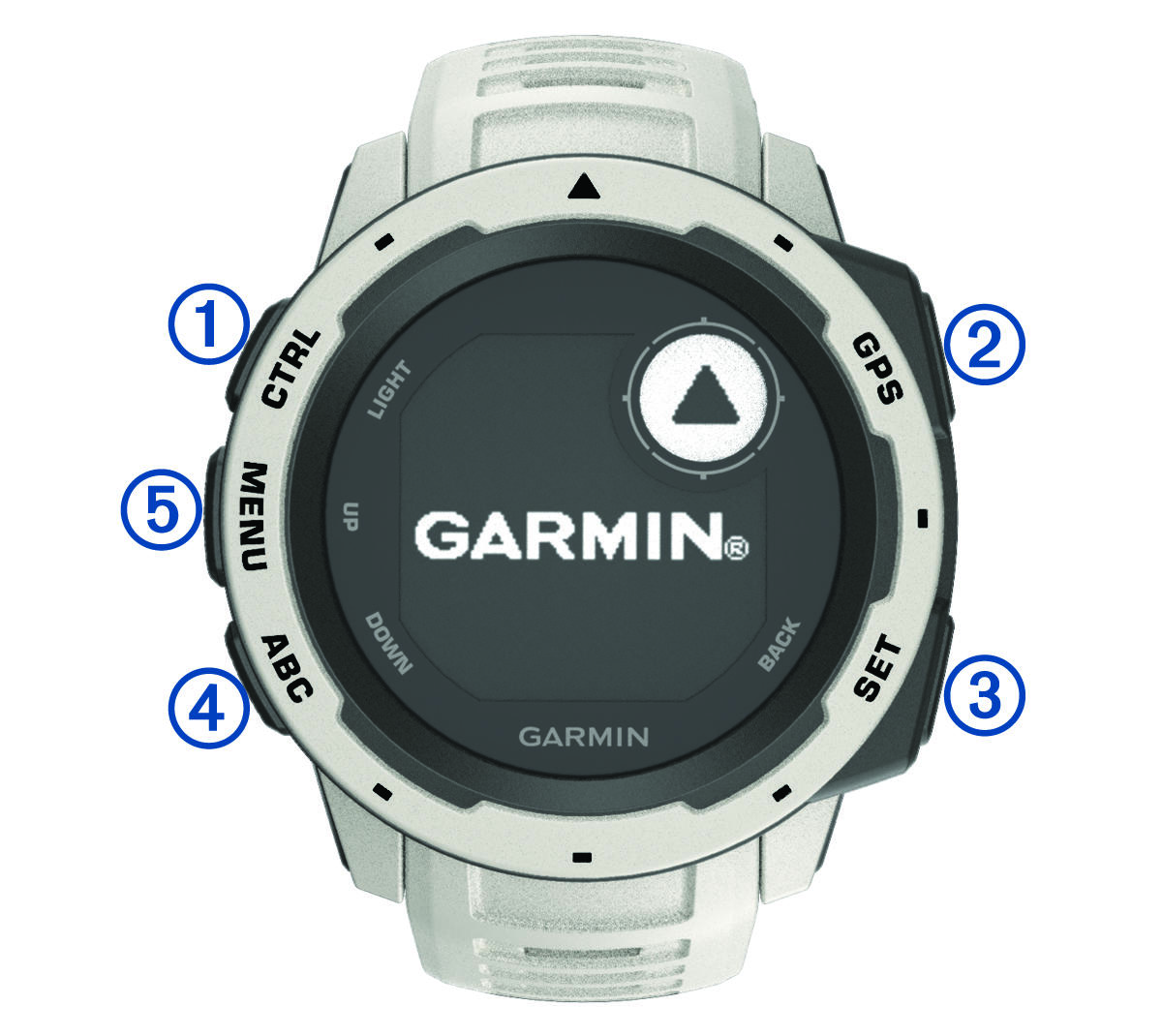
The Instinct Solar relies on physical buttons rather than a touchscreen.
Press and hold the Menu button on the left side of the watch. Navigate to System > Time > Set Time. Select Manual. Use the Up and Down buttons to adjust the hour, then the minute, and finally AM or PM if using 12-hour format. Press the GPS button at the top-right to confirm each field. Changes save automatically when you exit the menu.
Set Time on Fenix Series
Fenix watches follow the same logic as the Forerunner 265. Go to System > Time > Set Time > Manual. Adjust the time using buttons or touchscreen depending on your specific model. Confirm with the Start or OK button.
High-end Fenix models support all manual settings including military time and custom date formats.
Garmin Models Without Manual Time Setting
Some Garmin watches do not allow manual time entry at all. These models rely entirely on automatic syncing.
Forerunner 55 Requires GPS Sync
The Forerunner 55 has no Manual option in the Time menu. The time corrects only after acquiring a GPS signal. You must go outdoors and start any activity such as a walk to trigger the sync.
A user reported a 23-hour time error after full battery drain on a Forerunner 55. After a 5-minute outdoor walk, GPS synced and corrected the time instantly.
vivofit Series Syncs Only
The vivofit series cannot set time manually. It syncs time from either the Garmin Connect mobile app via Bluetooth or Garmin Express when connected to a computer. If sync fails, the time remains incorrect until a connection is restored.
Use Automatic Time Sync (Recommended)
For most users, Auto mode is the best choice because it ensures atomic-clock accuracy with zero effort.
Sync Time Using GPS
All GPS-enabled Garmins including Forerunner, Venu, Instinct, and Fenix models pull time from satellites. GPS satellites use atomic clocks, providing time accuracy of plus or minus 1 second per month.
The sync triggers when you start any outdoor activity or perform a full satellite acquisition. If your watch does not have a specific Time Sync option, simply start a 1-minute walk or run, and the time updates automatically during satellite acquisition.
Sync Time Using Your Smartphone
Connected watches sync time through the Garmin Connect app over Bluetooth. Your phone must have Bluetooth enabled, the Garmin Connect app running with background refresh on, and the phone’s time must be correct.
On Android and iOS, ensure the app has location and background permissions, otherwise sync fails silently.
Sync Time Using Computer
Non-GPS models like vivofit use computer sync. Connect the device to your computer with an ANT+ stick or USB cable. Open Garmin Express and press and hold the device button until SYNC appears. The time updates from your computer’s system clock.
Your computer must have the correct local time set for this to work properly.
Change Time Format (12-Hour vs 24-Hour)
You can switch between 12-hour and 24-hour display formats independently of the time source.
On Forerunner 265
Go to System > Time > Time Format. Choose 12-hour to show AM and PM indicators, or choose 24-hour, which is labeled as Military in some menus. The change applies instantly with no restart needed.
On Venu or Vivoactive 5
Press and hold the lower button. Navigate to Clocks > Time Format and toggle between 12 and 24-hour. The watch face updates immediately to reflect the new format.
Adjust Date and Date Format
Most mid-to-high-end Garmin models allow you to adjust the date and change how the date appears.
Set Date Manually
Manual date setting is only possible when Time Source is set to Manual. Navigate to System > Time > Date and adjust the month, day, and year using buttons or touchscreen.
Change Date Format
Available formats include MM/DD/YYYY for U.S. users, DD/MM/YYYY for international users, and YYYY/MM/DD for ISO format on limited models. Access this through System > Time > Date Format.
The vivofit and basic trackers inherit the date format from the paired device with no direct control available.
Handle Daylight Saving Time
Garmin watches handle daylight saving time automatically when in Auto mode. The watch applies forward and backward transitions based on GPS location or phone timezone without any user input.
If you use Manual mode, DST does not update automatically, and you must manually adjust the time when DST changes occur. The best practice is to keep Time Source set to Auto to avoid missing DST shifts.
Force Immediate Time Sync
Some models include a Time Sync option at the bottom of the Time menu for faster synchronization.
Go to System > Time and tap Time Sync. Wait for GPS lock, which requires a clear sky view. This method syncs in 30 to 60 seconds, which is faster than starting a full activity.
If this option is missing on your model, start any GPS activity such as a 1-minute walk, and the time corrects during satellite acquisition.
Troubleshoot Incorrect Time
Use this logic to fix persistent time issues on your Garmin watch.
Time Wrong After Charging
This is common after full battery drain because the internal clock resets. Take your watch outdoors and start a GPS activity such as a walk or run. Wait for the time to correct, which usually happens within 2 minutes. GPS sync resets the internal clock using satellite time.
Sync Failing Repeatedly
Check these common causes and solutions. If Bluetooth is turned off, turn it on and reconnect your watch to the phone. If the app is not running in the background, enable background refresh on your phone. If the phone time is incorrect, fix the phone clock first before syncing. If firmware is outdated, update via Garmin Connect. If the interface is frozen, perform a force restart on your watch.
Desktop Sync Not Working
The Garmin Connect desktop application does not support time sync for most users. Use the Garmin Connect mobile app instead. Reinstall Garmin Express if the sync icon is missing or unresponsive.
Maintenance Best Practices

Keep your watch accurate with minimal effort by following these recommendations.
Keep Time Source set to Auto for the most accurate time without any maintenance. Sync weekly even if using GPS. Update firmware every 2 to 3 months to fix bugs and DST rule changes. Charge regularly to avoid a full clock reset.
In terms of accuracy comparison, GPS in Auto mode provides plus or minus 1 second per month accuracy with no maintenance required. Phone sync offers plus or minus 10 seconds accuracy but requires daily Bluetooth connection. Manual mode drifts over time and requires weekly checks.
Frequently Asked Questions About Changing Time on Garmin Watch
Why is my Garmin watch time wrong after charging?
Your watch time may be wrong after charging because a full battery drain resets the internal clock. This is normal. Simply go outdoors and start a GPS activity to correct the time within a few minutes.
Can I manually set the time on any Garmin watch?
No, manual time setting is not available on all models. The Forerunner 55, vivofit series, and some older models do not have a Manual option. They rely entirely on GPS or phone sync to correct time.
How do I change from 12-hour to 24-hour format on my Garmin?
Navigate to System > Time > Time Format on most models. Select 12-hour or 24-hour. The change applies immediately to your watch face without needing to restart.
What do I do if my Garmin watch won’t sync time?
First, check that Bluetooth is enabled and the Garmin Connect app is running in the background. Make sure your phone’s time is correct. If problems persist, try reinstalling the Garmin Connect app or performing a force restart on your watch.
Does Garmin automatically handle daylight saving time?
Yes, Garmin watches in Auto mode automatically handle daylight saving time based on your GPS location or phone timezone. If you use Manual mode, you must adjust the time manually when DST changes occur.
How accurate is GPS time on Garmin watches?
GPS time is extremely accurate, typically within plus or minus 1 second per month, because it syncs with atomic clocks on GPS satellites.
Key Takeaways for Changing Time on Your Garmin Watch
The most important thing to remember is that most Garmin users should keep Time Source set to Auto for automatic GPS or phone sync. This provides the most accurate time with zero effort and handles daylight saving time automatically.
If your model supports manual time setting, use it only temporarily for specific needs like testing or traveling to GPS-denied areas. Always return to Auto mode afterward to prevent time drift.
For models without manual options such as Forerunner 55 or vivofit, go outdoors and start a GPS activity to correct the time after battery drain or sync failures. The GPS sync is the fastest and most reliable method for these devices.
Remember that the Garmin Connect mobile app is essential for Bluetooth time sync, while desktop software does not support this function. Keep your app updated and your firmware current for the best experience.



