

You’ve just purchased a Huawei Watch GT4 or Fit 4 and want to pair it with your Samsung Galaxy S24, but there’s a catch. Unlike Samsung’s own Galaxy Watches, Huawei devices don’t appear in the Galaxy Wearable app, and the Huawei Health app isn’t available on Google Play Store. This doesn’t mean it can’t work. Thousands of users successfully connect Huawei watches to Samsung phones every day, enjoying full access to fitness tracking, notifications, and health monitoring.
The key is knowing exactly how to install the right app, bypass ecosystem restrictions, and configure permissions properly. This guide walks you through a step-by-step process proven on Galaxy S23, S24, Z Fold, and A-series devices. You’ll learn how to install Huawei Health safely, pair your watch without Bluetooth hiccups, fix common connection issues, and unlock nearly all features on your Samsung phone.
Install Huawei Health on Samsung Phone

Before pairing your Huawei watch, you need the Huawei Health app, but it’s not available on Google Play. Samsung’s Galaxy Store is your best bet for a clean, secure installation.
Use Galaxy Store (Recommended)
- Open Galaxy Store on your Samsung phone.
- Tap the search bar and type “Huawei Health” or “Huawei Wellness.”
- Select the official app verified by Huawei Technologies Co., Ltd.
- Tap Install and wait for the download to complete.
- Once installed, open the app and proceed to login.
This method avoids security risks and works on S23, S24, and newer models as of 2024.
Install via AppGallery (Official Alternative)
If Galaxy Store doesn’t list the app:
- Download Huawei AppGallery APK from huawei.com/appgallery.
- Go to Settings > Apps > Special access > Install unknown apps.
- Allow your browser or file manager to install apps.
- Open Downloads, tap the APK, and install AppGallery.
- Launch AppGallery, search for HMS Core, and install it first.
- Then install Huawei Health from the same store.
Always enable “unknown sources” only temporarily and disable it after installation.
Direct APK Installation (Use with Caution)
If other methods fail:
- Visit APKMirror or Uptodown.
- Search for “Huawei Health latest version.”
- Download the APK file.
- Install via Downloads folder after enabling app installation.
- Revoke unknown app install permissions afterward.
Only use trusted sites. Malware-infected clones exist on shady download portals.
Create or Log In to Huawei ID
The Huawei Health app requires a Huawei ID for syncing, updates, and cloud backup.
Sign In or Create Account
- Open Huawei Health.
- Tap Me (bottom right) > Log in.
- Choose Sign in with existing Huawei ID or Register using email or phone number.
- Enter password, select region, and accept terms.
Use the same Huawei ID across devices to sync data seamlessly.
Why Huawei ID Is Mandatory
A Huawei ID enables cloud backup of sleep, heart rate, and workout data. It is required for over-the-air firmware updates and syncs contacts, music, and settings to your watch. Without a Huawei ID, pairing fails or features remain locked.
Pair Huawei Watch to Samsung Phone
Now that the app is ready, connect your watch to your Samsung phone.
Prepare the Watch
- Power on by pressing and holding the side button for 3 seconds.
- Swipe to select language and confirm.
- If previously paired, reset connection by swiping down > Settings > System > Disconnect.
- Wait for Bluetooth pairing screen (some models show a QR code).
Ensure watch battery is at least 30% (50% recommended for firmware updates).
Connect via Bluetooth Scan
- In Huawei Health, tap Devices tab > Add Device.
- Select Smartwatch.
- Choose your model (e.g., Watch GT3, Fit 4).
- Wait for detection and keep devices within 10 cm.
- When prompt appears, tap Pair on the watch screen.
This method works best on Fit series and newer GT models.
Use QR Code Pairing (If Scan Fails)
Some GT models require QR scanning:
- In Huawei Health, tap the three dots menu > Scan.
- On watch, swipe up from watch face to reveal pairing QR code.
- Align phone camera to scan the code.
- If scan fails, cancel and go to Add > Smartwatch > Show More to select model manually.
Clean camera lens, ensure good lighting, and disable QR scanner blockers.
Grant Essential Permissions
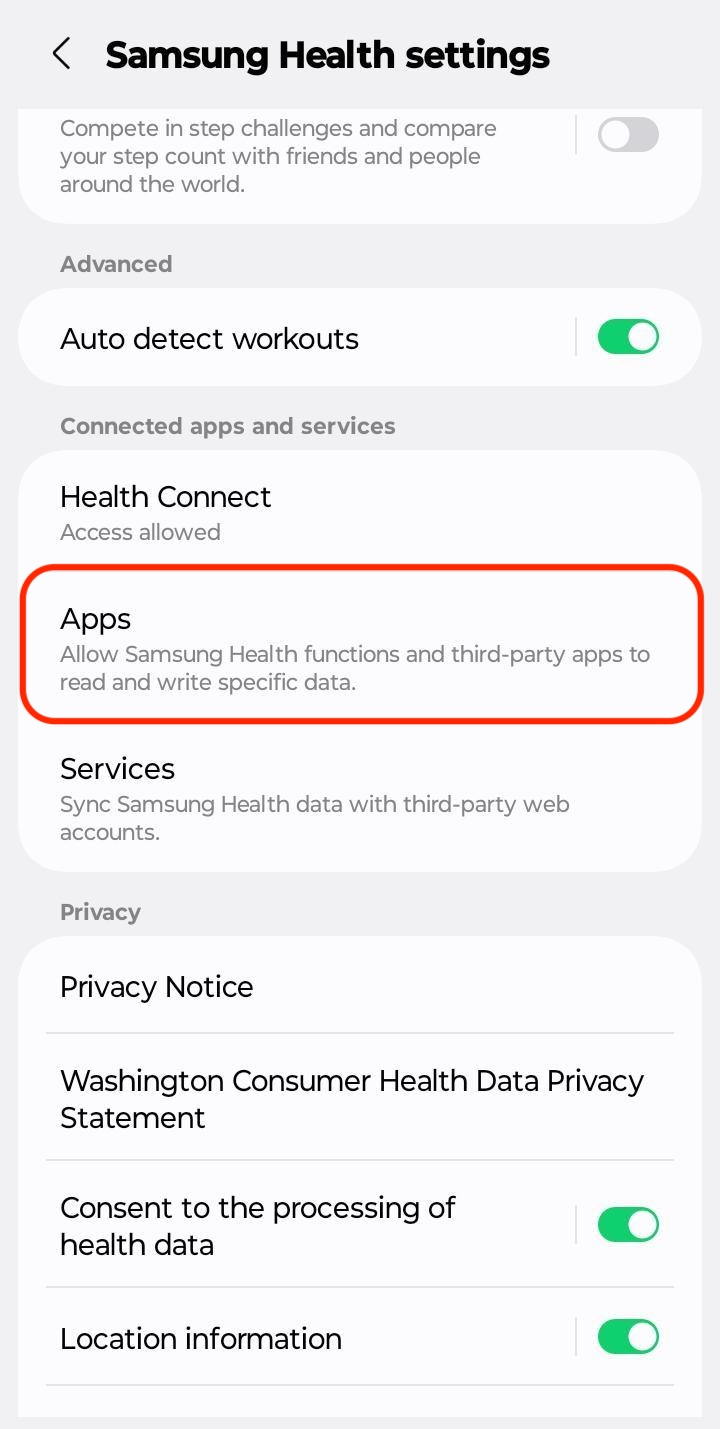
Samsung’s One UI often blocks background activity, a major cause of disconnections.
Enable Critical Permissions
Go to Settings > Apps > Huawei Health > Permissions and set:
| Permission | Setting |
|---|---|
| Location | Allow all the time (required for Bluetooth scanning) |
| Notifications | Enable all types |
| Contacts | Allow (for caller ID) |
| Phone | Allow (for call logs) |
| Storage | Allow (for music transfer) |
| Microphone | Allow (if using voice replies) |
Disable Battery Optimization
- Go to Settings > Battery > Background usage limits.
- Tap Ignore optimizations > Add apps.
- Find Huawei Health and tap Allow.
Without this, Samsung may kill the app in background, breaking sync. This fix prevents daily disconnections on S24 Ultra and Z Fold 5.
Enable Notifications and App Alerts
A smartwatch isn’t useful if it doesn’t alert you.
Turn On App Notifications
- Open Huawei Health > Devices > [Your Watch] > Notifications.
- Toggle on App Notifications.
- Select apps: WhatsApp, SMS, Gmail, Calendar, Phone, etc.
- Customize alerts per app (sound, vibration, pop-up display).
If notifications don’t appear, this step was likely skipped. Disable Do Not Disturb on both devices if alerts are missing.
Customize Watch After Pairing
Your watch is now connected. Time to make it yours.
Update Firmware
- Huawei Health will notify if an update is available.
- Ensure watch battery is above 50%, connected via Bluetooth, and phone has Wi-Fi.
- Do not interrupt the 5-15 minute process.
Firmware updates fix bugs, improve GPS accuracy, and add features.
Personalize Watch Faces
- In Huawei Health, go to Devices > [Your Watch] > Watch Faces.
- Choose from free digital/analog designs or premium themes.
- Upload custom images from your gallery (GT3/4/5, Fit 3/4 only).
Install Apps and Transfer Music
- Go to Apps section in Huawei Health.
- Install tools like Weather, Stopwatch, or Music control.
- For offline playback, connect watch to Wi-Fi and transfer MP3s via Music tab (GT3+, Fit 3+).
Music sync only works on select models with internal storage.
Troubleshoot Common Issues

Even with perfect setup, problems can arise. Here’s how to fix them fast.
Watch Not Detected During Pairing
Quick fixes include restarting both devices and turning off Bluetooth on nearby phones/tablets. Reset the watch via Settings > System > Disconnect. Try QR code method instead of scan. Keep devices within 10 cm. Interference from other Bluetooth devices is a top cause of detection failure.
Connection Drops Frequently
The root cause is Samsung’s aggressive battery management. Add Huawei Health to the ignore list in battery optimization. Set Location permission to Allow all the time. Disable Adaptive Battery or Put unused apps to sleep. Connection stays stable for days after these fixes.
QR Code Scan Fails
Why it happens: outdated app version, dirty camera lens, or security restrictions. Fixes include updating Huawei Health, cleaning phone lens, manually selecting model via Add > Smartwatch > Show More, and ensuring internet connection.
Notifications Not Appear
Check that Huawei Health has notification access enabled. Apps must be toggled on in Notifications menu. Do Not Disturb must be off. Third-party apps like Strava may block forwarding. Strava trail runs won’t sync unless recorded on phone simultaneously.
App Crashes or Sync Fails
Update Huawei Health first. Clear app cache via Settings > Apps > Huawei Health > Storage > Clear Cache. Reinstall app if crashes persist. Restart phone and watch. Ensure stable Wi-Fi/data during sync. Cache buildup causes 30% of sync issues after software updates.
Feature Support on Samsung Phones
Most features work, but some limitations exist due to OS differences.
| Feature | Works on Samsung? | Notes |
|---|---|---|
| Call & Message Alerts | Yes | Full caller ID and message preview |
| Text Reply (Speech-to-Text) | No on GT5 Pro + S24 | Blocked by One UI/EMUI incompatibility |
| Find My Phone | Yes | Triggers ring from watch |
| Music Transfer | Yes | GT3/4/5 and Fit 3/4 only |
| GPS Tracking | Yes | Uses phone GPS during runs |
| Heart Rate & Sleep Tracking | Yes | Accurate and fully synced |
| Strava Sync | Partial | Trail runs not recognized without phone recording |
| OTA Updates | Yes | Requires Wi-Fi and 50%+ battery |
Core health and fitness tracking remains 100% functional.
Frequently Asked Questions About Connecting Huawei Watch to Samsung Phone
Can I connect a Huawei Watch to a Samsung phone without using Google Play Store?
Yes. The Huawei Health app isn’t on Google Play, but you can install it from Samsung’s Galaxy Store, Huawei’s AppGallery, or trusted APK sources like APKMirror. The Galaxy Store method is safest and recommended for most users.
Why does my Huawei Watch keep disconnecting from my Samsung phone?
Disconnections typically happen because Samsung’s One UI aggressively optimizes battery usage. Add Huawei Health to the battery optimization ignore list and set Location permission to “Allow all the time” to prevent this.
Do all Huawei Watch models work with Samsung phones?
Most Huawei Watch models work with Samsung phones running Android 6.0+. This includes GT series (GT, GT2, GT3, GT4, GT5 Pro), Fit series (Fit, Fit 2, Fit 3, Fit 4), and Band series (Band 6, 7, 8). Minor feature limitations exist on some models.
Can I reply to messages from my Huawei Watch on a Samsung phone?
Text reply via speech-to-text is limited on newer combinations like GT5 Pro with S24 Ultra due to OS incompatibility. However, you can view message notifications and use quick replies if available on your specific model.
Does Huawei Health work with Samsung Galaxy Watch features?
Huawei Health provides core smartwatch functionality including fitness tracking, heart rate monitoring, sleep tracking, notifications, and music transfer. Some Samsung-specific features like Bixby or Samsung Health integration won’t work, but the Huawei Health app handles most essential features.
Key Takeaways for Connecting Huawei Watch to Samsung Phone
Successfully connecting a Huawei watch to a Samsung phone requires installing the Huawei Health app from Galaxy Store, AppGallery, or a trusted APK source. You must create a Huawei ID for cloud sync and firmware updates. Pairing involves Bluetooth scanning or QR code method, with devices kept within 10 cm during setup.
Grant all essential permissions including Location, Notifications, Contacts, and Phone access. Disable battery optimization for Huawei Health to prevent connection drops. Most features work fully, including health tracking, notifications, and music transfer. Some limitations exist for speech-to-text replies on newer device combinations.
The setup takes 10-15 minutes, but the payoff is a powerful cross-ecosystem wearable with reliable fitness tracking, timely alerts, and long battery life that outlasts most competitors.



