

You just unboxed your new smart watch and can not wait to get it working with your Android phone. Whether it is a Xiaomi, Fitpro, Samsung, or Wear OS model, pairing should be simple if you know the right steps. But if Bluetooth will not connect, the app will not detect your watch, or notifications are not syncing, frustration kicks in fast. This guide cuts through the confusion with a universal, step by step process that works across brands. You will learn how to install the correct app, enable essential permissions, complete pairing, and troubleshoot common issues so your smart watch starts working smoothly, fast.
Let us get your devices connected and synced in minutes.
Prepare Your Smart Watch for Pairing
Before touching your phone, make sure your watch is ready to pair. Taking a few minutes to prepare prevents most common pairing failures.
Power On and Charge Your Watch
Long press the power button or side crown until the screen lights up. If it is the first startup, select your language. Do not skip charging because a low battery can disrupt pairing or firmware sync. Plug in the watch for at least 30 minutes before setup.
Pro Tip: Some models like the Redmi Watch 4 or Fitpro Y68 automatically enter pairing mode on first boot.
Reset if Previously Paired
If the watch was used before, it might still be linked to another phone. To avoid connection conflicts, perform a factory reset.
- On the watch, go to Settings > System > Reset
- Confirm Factory Reset
- Wait for the device to restart
Now the watch is clean and ready for your Android phone.
Install the Correct Companion App
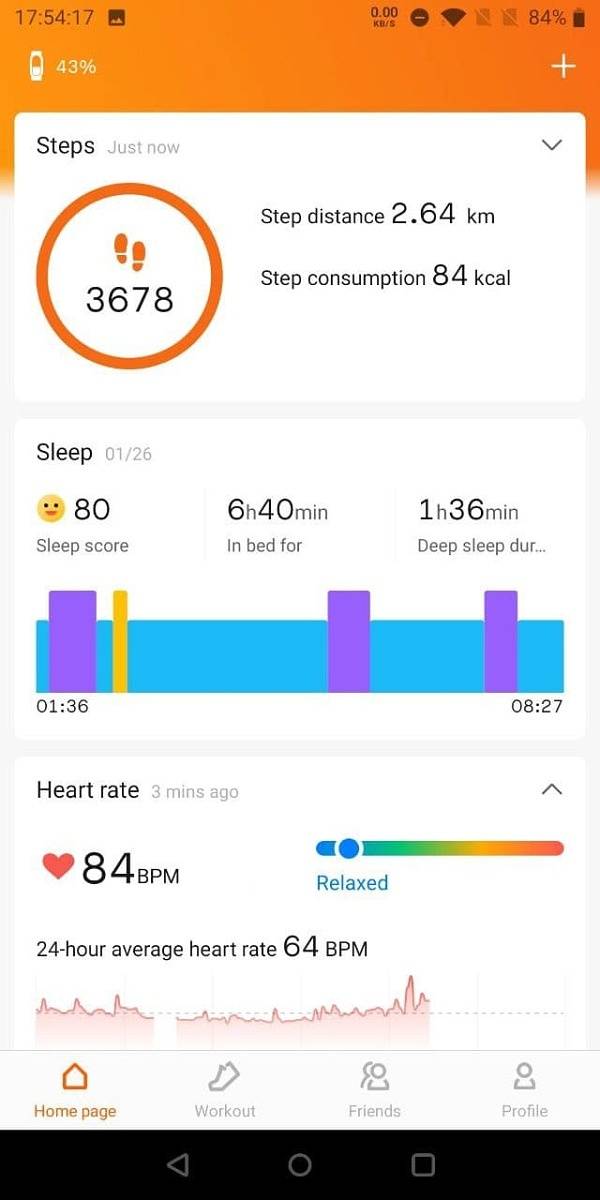
Every smart watch needs a dedicated app. Using the wrong one causes pairing failure. The app handles all configuration, syncing, and feature management.
Find the Right App by Brand
Use this table to identify the official app for your watch brand.
| Watch Brand | Companion App | Developer |
|---|---|---|
| Xiaomi / Redmi | Mi Fitness | Xiaomi Wear |
| Fitpro | Fitpro | Fitpro Health |
| Samsung Galaxy | Samsung Galaxy Wearable | Samsung Electronics |
| Wear OS (Google) | Wear OS by Google | Google LLC |
| Huawei | Huawei Health | Huawei Technologies |
| Amazfit | Zepp Life | Zepp Health |
| Realme | Realme Link | Realme Mobile |
| Oppo | Oppo Relax | Oppo Guangdong |
Warning: Always verify the developer name. Fake apps can steal data or brick your device.
Install the App
Option 1: Google Play Store
Open the Play Store, search for the app, and install the official version from the correct developer.
Option 2: Scan QR Code
On some watches, swipe up to reveal a QR code. Use your phone camera or the app scanner to scan it. This redirects you to the correct app automatically.
Option 3: Check the Manual
If unsure, refer to the box or user guide for the exact app name.
Key Rule: Never use third party apps. Only install the official companion app.
Enable Bluetooth and Location on Your Phone

Your Android phone must allow Bluetooth discovery and device scanning. Without these settings, your watch will not appear.
Turn On Bluetooth
Go to Settings > Connected Devices > Bluetooth and toggle it on. Keep it on during the entire setup process.
Enable Location Services
Android 10 and later require Location to be enabled for Bluetooth scanning, even if GPS is not actively used.
- Go to Settings > Location
- Toggle Location On
- Set mode to High Accuracy or Device Only
Why? Android uses location to improve Bluetooth detection. Without it, your watch may not appear.
Allow Nearby Device Access
On Android 12+, apps need explicit permission to detect nearby devices.
- Go to Settings > Apps > [Companion App] > Permissions
- Enable Nearby Devices
Skip this step and the app will not see your watch.
Grant App Permissions
The companion app needs full access to function properly. Without these permissions, pairing fails or features break.
Essential Permissions to Allow
- Bluetooth for connecting to the watch
- Location for scanning nearby devices
- Nearby Devices for detecting your watch
- Camera for scanning QR codes
- Gallery for uploading custom watch faces
- Notifications for mirroring alerts
How to Enable Permissions
- Long press the app icon
- Tap App Info > Permissions
- Toggle on all required permissions
Warning: Denying Bluetooth, Location, or Notification access blocks pairing or stops alerts from syncing.
Pair Your Watch Using the Companion App
Now launch the app and connect your watch. The exact steps vary slightly by brand.
For Xiaomi / Redmi (Mi Fitness)
- Open Mi Fitness and sign in with your Mi account
- Tap the + (plus) icon in the top right
- Select Scanner
- Grant camera permission when prompted
- Swipe up on the watch to show the QR code
- Scan it with your phone
- Allow Bluetooth access when prompted
- Confirm pairing on both devices
Success Signal: The app shows Device Connected and starts syncing.
For Fitpro and Generic Brands
- Open the Fitpro app
- Tap Set > Bind Devices
- Wait for your watch to appear in the list
- Tap it to select
- Accept the connection on both screens
Sync begins automatically. Time, date, and steps update right away.
For Wear OS and Samsung Watches
- Open Wear OS by Google or Samsung Galaxy Wearable
- Tap Add New Device or Pair New Watch
- Wait for the watch to appear
- Select it from the list
- Confirm the matching code on both screens
Universal Fix: If the watch does not show, restart both devices, disable and re-enable Bluetooth, or reset the watch.
Complete Initial Setup
After pairing, finish configuration to unlock all features.
Follow On Screen Prompts
Tap Next through Done. Let each screen load fully before proceeding.
Allow Firmware Updates
If prompted, install firmware updates. This takes 5 to 10 minutes.
Critical: Do not disconnect the watch or close the app during the update.
Sign In to Your Account
Some apps require login. Create one if needed. It backs up your health data and settings.
Sync Notifications to Your Watch
Get alerts from calls, messages, and apps directly on your wrist.
Enable Notification Access
- Open phone Settings > Apps > [Companion App] > Notifications
- Toggle on Allow Notifications
- Tap Notification Access and enable it
Choose Which Apps to Mirror
In the companion app, go to Notifications or Message Push and toggle on apps like WhatsApp, Gmail, and SMS.
Note: Banking and password apps often block notifications for security reasons.
Fix Missing Alerts
If notifications do not appear, re grant notification access, restart the companion app, or re pair the watch.
Customize Your Watch Face
Make your watch personal with a custom image.
Upload a Photo
- In the app, go to Dial Market, Watch Face, or Custom Dial
- Tap Custom Image or Upload Photo
- Pick a photo from your Gallery
- Crop and adjust layout
- Tap Install or Sync
Best Practices for Watch Faces
- Use high contrast images for readability
- Avoid busy backgrounds because text becomes unreadable
- Keep the watch close during sync because Bluetooth must stay connected
Pro Tip: Some apps limit custom face uploads to premium users.
Troubleshoot Common Pairing Issues

Even with perfect prep, problems happen. Here is how to fix them.
Watch Not Detected
Causes: Bluetooth off, wrong app, or no pairing mode.
Solutions:
- Ensure Bluetooth and Location are on
- Install the correct app
- Restart both devices
- Factory reset the watch
Test: Can your phone see other Bluetooth devices? If not, restart Bluetooth.
Pairing Request Does Not Appear
Cause: Watch already paired with another phone.
Fix:
- Unpair it from the old phone
- Reset the watch via Settings > System > Reset
- Clear Bluetooth cache by going to Settings > Apps > Show system apps > Bluetooth > Storage > Clear Cache
Connection Drops Frequently
Causes: Interference, software bugs, or distance.
Fixes:
- Keep devices within 10 meters (33 feet)
- Turn off other Bluetooth devices nearby
- Update the companion app and phone OS
- Re pair the watch
Test: Does the issue persist with another phone? If yes, the watch may have hardware issues.
Notifications Not Showing
Cause: Notification access denied.
Fix:
- Go to Phone Settings > Apps > [Companion App]
- Enable Notification Access
- In the app, re enable message push
Check: Is Do Not Disturb or Battery Saver mode on? Disable both.
App Crashes or Freezes
Cause: Corrupted data or outdated version.
Fix:
- Update the app via Play Store
- Clear data by going to Settings > Apps > [App] > Storage > Clear Data
- Reinstall the app if needed
Warning: Clearing data removes settings. Re pair the watch afterward.
Maintain Optimal Smart Watch Performance
Once paired, keep your setup reliable with these practices.
Keep Software Updated
- Update the companion app monthly
- Install phone OS updates
- Allow watch firmware updates when prompted
New updates fix bugs, improve battery life, and add features.
Maintain Close Proximity
Bluetooth range is 10 meters in ideal conditions. Walls, metal, and WiFi routers reduce it. Keep your phone nearby for stable connection.
Avoid Dual Pairing
Never pair the same watch with two phones. It causes sync conflicts and drains battery.
Monitor Battery Usage
Features like 24/7 heart rate, GPS, and SpO2 monitoring drain the watch quickly. Disable what you do not use.
Back Up Your Data
Sign in to your cloud account. This saves workout history, sleep data, and custom settings. If you lose or replace the watch, your data stays safe.
Frequently Asked Questions About Pairing a Smart Watch with Android
How do I know if my smart watch is in pairing mode?
Most watches enter pairing mode automatically on first boot. If not, go to Settings > System > Pair or look for a Bluetooth icon flashing on the screen. The watch name appears in your phone Bluetooth settings when ready.
Why does my phone not find my smart watch?
This usually happens because Bluetooth or Location is turned off, the wrong app is installed, or the watch is already paired with another device. Enable both settings, install the correct companion app, and reset the watch if needed.
Can I pair multiple smart watches to one Android phone?
Yes, but it depends on the app. Some apps support multiple devices while others limit you to one. Check your app settings. Note that running several watches simultaneously drains battery faster.
Do I need WiFi to pair my smart watch?
WiFi is not required for initial Bluetooth pairing, but it helps for downloading the companion app, installing firmware updates, and signing into your account. A mobile data connection works too.
Why are my notifications not showing on the watch after pairing?
Notification access is likely denied. Go to Phone Settings > Apps > [Companion App] > Notifications and enable both Allow Notifications and Notification Access. Also check that the app is not blocked by Do Not Disturb or Battery Saver mode.
Can I pair a Samsung watch with a non Samsung Android phone?
Yes. Samsung Galaxy watches work with any Android phone running Android 7.0 or later. Download the Galaxy Wearable app from the Play Store and follow the standard pairing steps.
Final Thoughts on Pairing Your Smart Watch with Android
Pairing a smart watch with an Android phone is simple when you follow the right steps. Install the correct companion app, enable Bluetooth and permissions, scan or select your device, and complete the setup wizard. If issues arise, use the troubleshooting tips to quickly identify and fix the problem.
Once connected, your smart watch becomes a seamless extension of your phone, delivering alerts, fitness insights, and convenience at a glance. Keep your software updated and maintain close proximity for the best experience.
Now tap Start on your watch and begin your smarter day.



