

Is your Pixel Watch 2 frozen, unresponsive, or acting sluggish? Many users encounter temporary software hiccups after updates or during heavy app use. The good news is that most issues can be resolved with a simple restart. Knowing how to restart Pixel Watch 2 properly, whether it’s working normally or completely frozen, is the first step to restoring smooth performance.
This guide covers every method to restart or reset your Pixel Watch 2, from a standard reboot to advanced recovery options. Whether you’re troubleshooting a glitch, preparing to sell your watch, or locked out due to a crash, you’ll find the exact steps here.
Restart Pixel Watch 2 When It’s Working Normally
Use this method when your Pixel Watch 2 is responsive but needs a refresh after a software update, unusual behavior, or routine maintenance.
Use the Power Menu
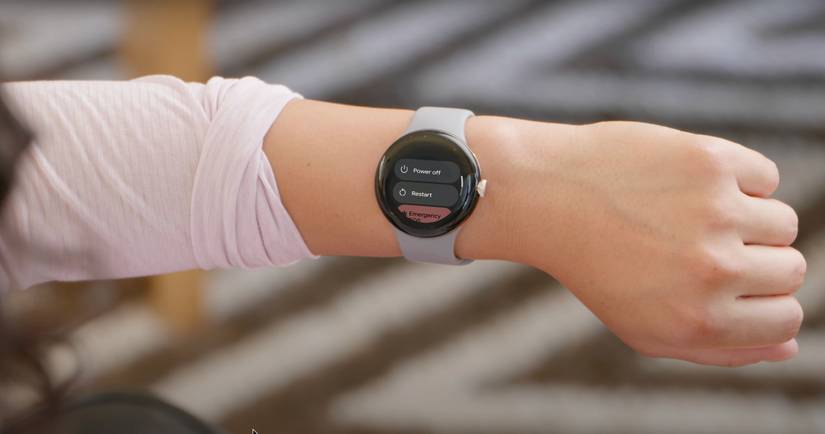
- Press and hold the Digital Crown until the power menu appears on screen.
- Tap “Restart” from the options displayed.
- Confirm the action if prompted.
- Wait 20 to 30 seconds for the watch to reboot.
This process clears temporary system caches and reloads the operating system without deleting any data, apps, or settings.
No data is lost during this process. Your workouts, health data, and preferences remain intact.
Restart Through Settings Menu
If you prefer navigating menus over button presses:
- Press the Digital Crown to open the app launcher.
- Tap Settings.
- Tap System.
- Tap Restart.
- Confirm the restart.
This path is ideal if you’re already troubleshooting and exploring system options. Use this method when testing software changes or after installing new apps.
Force Restart a Frozen Pixel Watch 2
When the screen is unresponsive, apps won’t open, or the watch is stuck in a boot loop, a force restart is your best first step. This method reloads the Wear OS kernel and clears software glitches.
Dual Button Reset (Official Method)
This is Google’s recommended way to recover an unresponsive Pixel Watch 2.
- Simultaneously press and hold the Digital Crown and the side button (below the crown).
- Hold both buttons for 10 to 20 seconds. Do not release at the first sign of screen flickering or dimming.
- Wait for the screen to go black, then the Google logo to appear.
- Release both buttons immediately when the logo shows.
- Let the watch boot fully, which may take up to 30 seconds.
Many users fail because they release the buttons too soon. Hold until the Google logo appears. This fixes approximately 90% of freezing issues.
Long-Press Crown Only (Fallback Method)
If the side button is damaged or hard to press, try this alternative.
- Remove the watch from your wrist.
- Press and hold the Digital Crown alone for 10 to 15 seconds.
- Watch for the screen to go blank and then display the Google logo.
- Release the crown once the logo appears.
- Allow the device to boot fully.
This method works inconsistently across firmware versions. It works best when suspected side button failure or partial responsiveness exists.
Factory Reset Pixel Watch 2 and Erase All Data
A factory reset deletes everything: accounts, apps, settings, and personal data. Use only when selling the watch, locked out, or after repeated crashes.
On-Watch Reset When Touchscreen Works
Use this when the Pixel Watch 2 UI is functional.
- Open Settings from the app launcher.
- Tap System.
- Select Delete all data.
- Confirm the action when prompted.
- Wait for the process to complete.
This is the safest method when the device responds to touch. It’s ideal for preparing to sell or trade in your watch.
Reset Using Pixel Watch App
Reset from your paired Android phone.
- Open the Pixel Watch app on your phone.
- Go to System.
- Scroll to the bottom and tap Disconnect and reset watch.
- Confirm on both phone and watch.
The watch must be powered on and able to display the confirmation prompt. This method fails if the screen is unresponsive.
Remote Reset via Find My Device
Wipe your watch remotely if it’s lost, stolen, or unresponsive but online.
- Visit google.com/android/find on any device.
- Sign in with your Google account.
- Select your Pixel Watch 2.
- Tap Erase device and confirm.
This works without screen access as long as the watch is online. It fails if the watch is offline, powered off, or disconnected.
Pre-Boot Recovery Reset (Advanced)

For watches that boot to Google logo but freeze seconds later, often due to app conflicts or UI corruption.
- Force restart using dual buttons (Crown plus side button).
- As soon as the Google logo appears, press and hold both buttons again.
- Keep holding until the recovery menu appears.
- Use the Digital Crown to navigate to Recovery mode.
- Select Wipe data/factory reset.
- Confirm and wait for completion.
The screen must briefly function to display the recovery menu. This method is most effective for post-boot crashes caused by third-party apps or system glitches.
Troubleshooting Tips for Pixel Watch 2 Restart Issues
Check Battery First
Low battery can mimic freezing. Charge your watch before attempting resets. Some users report max charge at 95%, which is normal due to battery calibration.
Fix Connectivity Issues
Try these steps when sync problems persist.
Toggle Bluetooth on your phone.
Restart your phone and re-pair the watch.
Use Pixel Watch app, go to System, then Restart watch if sync issues persist.
Diagnose Hardware vs. Software Problems
If the screen responds briefly after a reboot, it’s likely a software crash, not hardware failure. Repeated failures after multiple force restarts suggest hardware issues like moisture, display connector problems, or internal damage.
The touch screen working briefly after a hard reset does not necessarily mean the hardware is okay.
Restart and Reset Methods Comparison
| Method | Use Case | Data Lost | Screen Needed | Remote |
|---|---|---|---|---|
| Standard Restart | Normal reboot | No | Yes | No |
| Force Restart (Dual Button) | Frozen device | No | No | No |
| Long-Press Crown | Side button issue | No | No | No |
| On-Watch Reset | Functional UI | Yes | Yes | No |
| Phone App Reset | Paired device | Yes | Partial | No |
| Find My Device Reset | Lost watch | Yes | No | Yes |
| Pre-Boot Recovery | Boots then freezes | Yes | Briefly | No |
Expert Recommendations for Pixel Watch 2 Restart
Start with force restart (Crown plus side button) for any unresponsiveness.
If the watch boots but crashes seconds later, try pre-boot recovery immediately after the Google logo appears.
For lost or stolen watches, use Find My Device to erase remotely.
Keep software updated. Many bugs are fixed in OS updates.
If all methods fail, contact Google Support or visit an authorized service center. Consider hardware repair for moisture, impact, or display issues.
Key Technical Notes About Pixel Watch 2 Restart

Boot time is longer than the original Pixel Watch. Expect up to 20 seconds for the Google logo to appear after releasing buttons.
The Digital Crown and side button are engineered for simultaneous press actions during resets.
Force restart has no impact on battery or hardware. It’s safe to use repeatedly.
This action terminates all active processes, reloads the Wear OS kernel, and restores normal system operation.
Final Thoughts on Restarting Pixel Watch 2
Knowing how to restart Pixel Watch 2 properly can save you time, frustration, and unnecessary service visits. From a quick reboot to full factory reset, every method described here is officially supported by Google and proven by real-world use.
If your watch is responsive, use Settings or power menu. If the screen is frozen, force restart with dual buttons. If locked out or stuck after boot, try pre-boot recovery. If selling or lost, use Find My Device for remote wipe.
No cables, apps, or tools are needed for most resets. Just the right button combination at the right time. If your watch still won’t respond after multiple attempts, it may be time for professional diagnostics.
Frequently Asked Questions About Restarting Pixel Watch 2
How do I force restart a frozen Pixel Watch 2?
Simultaneously press and hold the Digital Crown and the side button for 10 to 20 seconds. Wait for the screen to go black and the Google logo to appear, then release both buttons. This is the most reliable method for frozen devices.
Does force restart delete my data on Pixel Watch 2?
No. A force restart (soft reset) clears temporary software glitches but does not erase any data, apps, or settings. Only factory reset options delete your data.
How long does Pixel Watch 2 take to restart?
A standard restart takes 20 to 30 seconds. A force restart may take longer because the boot sequence takes up to 20 seconds after releasing the buttons.
Can I restart Pixel Watch 2 from my phone?
Yes. Open the Pixel Watch app, go to System, scroll to the bottom, and tap Restart watch. This requires the watch to be connected and responsive.
What if my Pixel Watch 2 gets stuck on the Google logo?
Try the pre-boot recovery method. Force restart, then press and hold both buttons again as soon as the Google logo appears. Navigate to Recovery mode and select Wipe data/factory reset.
How do I reset Pixel Watch 2 if it’s lost or stolen?
Use Find My Device at google.com/android/find. Sign in with your Google account, select your watch, and tap Erase device. This only works if the watch is online.



