
You’ve just unboxed your new Fitbit and want to get the most accurate health data possible. Knowing how to use a Fitbit bracelet correctly is essential for tracking steps, monitoring heart rate, and improving sleep quality. Many users make simple mistakes in fit, placement, or setup that undermine their results. This guide walks you through everything from identifying your model to wearing it properly and troubleshooting common issues, so you get the most out of your device.
Identify Your Fitbit Model
Before using your Fitbit, confirm which model you own. Setup steps and features vary significantly between devices.
Check Device Compatibility
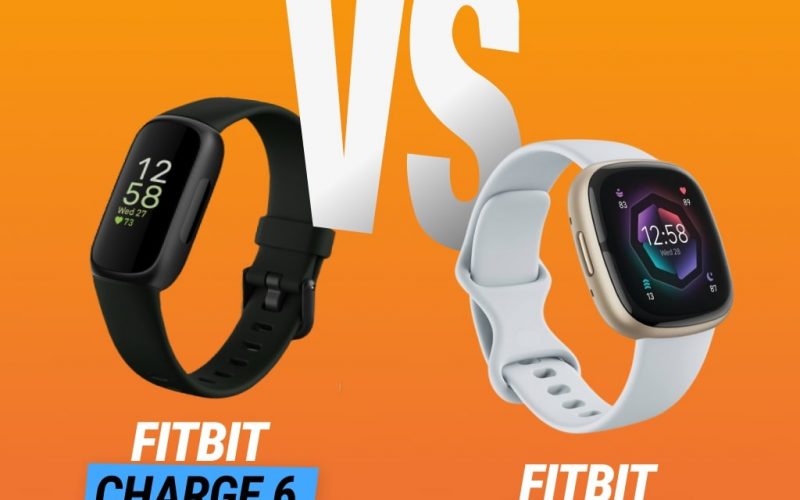
Fitbit offers multiple tracker types, each with unique capabilities. Current models include the Fitbit Charge 6, Sense 2, and Inspire 3, while legacy options like the Charge 3, Versa 2, or Alta HR still function but may lack newer features. Locate your model number on the back of the device or in the packaging. Using the correct manual ensures proper setup and access to all functions.
Access the Right User Manual
Visit the official Fitbit support site and search for your model user manual. For example, the Fitbit Charge 6 offers full GPS, ECG, and Google apps, while the Inspire 3 provides core health tracking in a slim design. If your model is not listed, check the Previous Versions archives. Special features like irregular rhythm alerts or skin temperature sensing may require country-specific settings and app configuration.
Install the Fitbit App
The Fitbit app is your central hub for setup, data tracking, and device management.
Download and Create Account
Install the Fitbit app from your phone app store on iOS or Android. Open it and tap Join Fitbit to create an account. Enter your email, age, height, weight, and activity level. This information personalizes your fitness goals and calorie estimates.
Pair Your Device
Ensure your phone Bluetooth is on. In the app, tap the plus icon and select Set up a Device. Choose your Fitbit model when prompted. Follow on-screen instructions to sync. Most devices will display a pairing code. Confirm it matches the one in the app.
Pro Tip: Charge your Fitbit fully before pairing. A low battery can interrupt setup.
Put On Your Fitbit Correctly

Wearing your Fitbit the right way ensures comfort and accurate tracking.
Position the Tracker on Your Wrist
Slide the band around your wrist. Place the display on the outside for easy viewing. However, optimal sensor performance often requires the back of the device to rest firmly against the inner wrist skin, especially during workouts or sleep tracking.
Fasten the Clasp Securely
Press the release tab to open the clasp. Wrap the band around your wrist and insert the end into the clasp. Push until you hear a click, confirming it is locked. Avoid forcing it. Misalignment can damage the mechanism.
Choose the Best Wrist for Accuracy

Your choice of wrist affects data quality.
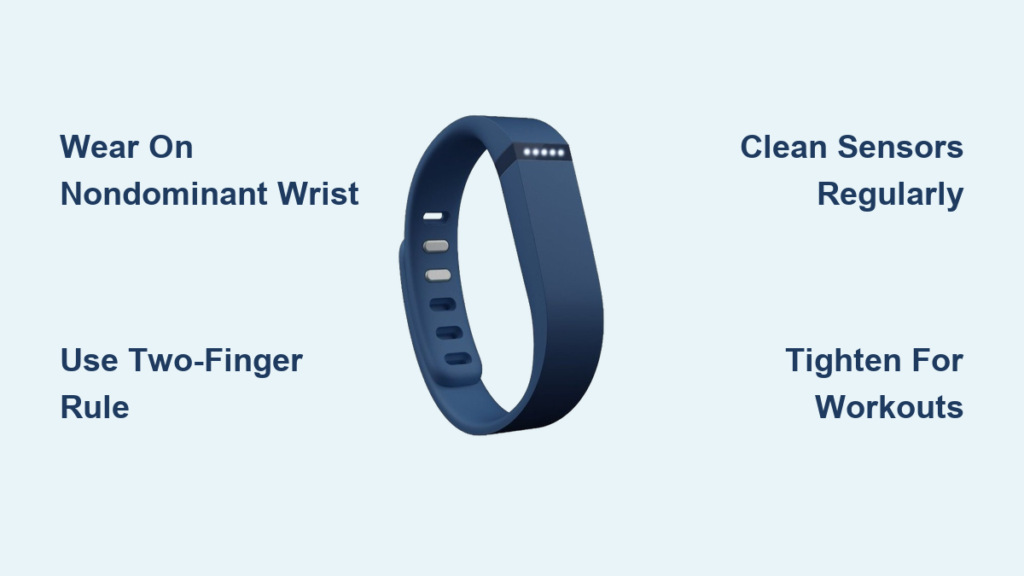
Wear on Nondominant Wrist
For best results, wear your Fitbit on your nondominant wrist. This is your left wrist if you are right-handed. The nondominant wrist reduces false step counts from daily gestures like writing or typing. It also improves heart rate and sleep data by minimizing unnecessary motion noise.
Switching Wrists? Recalibrate
If you move the device to your dominant hand, open the Fitbit app. Go to Today, Profile, Devices, Your Fitbit, and update Wrist Dominance. Without recalibration, step and activity data may be inaccurate.
Adjust Fit for Performance and Comfort

A proper fit balances accuracy and wearability.
Apply the Two-Finger Rule
After fastening, check fit by sliding two fingers under the band. If only one fits, it is too tight. If more than two fit easily, it is too loose. The ideal fit keeps sensors in constant contact with your skin without restricting blood flow.
Tighten for Workouts, Loosen for Sleep
Use a snug fit during exercise to prevent slipping and ensure heart rate accuracy. At night or during rest, loosen slightly for comfort and airflow, especially if you have sensitive skin.
Optimize Sensor Contact and Placement
.jpg?w=1600&h=1600)
Where you place the device on your wrist impacts tracking precision.
Align Over the Ulnar Artery
Position the back of the Fitbit just below the wrist bone, where the ulnar artery runs close to the surface. This spot provides the clearest heart rate signal. Avoid placing it directly on bony areas or tendons.
Prevent Motion Artifacts
During intense movement, a loose band causes the device to bounce, creating noise in heart rate data. If you see erratic spikes, reposition the tracker higher on the forearm or tighten the band slightly.
Select the Right Band Material
Your strap choice affects both comfort and performance.
Use Silicone for Active Wear
Silicone bands are ideal for workouts. They are sweat-resistant, lightweight, and hold a secure fit. However, they can trap moisture. Clean daily if worn during exercise.
Choose Nylon or Leather for All-Day Wear
Nylon and leather offer breathability and a looser, more comfortable fit for office or casual use. These materials reduce skin irritation but may absorb odors over time. Hand-wash with mild soap and air dry.
Clean Your Fitbit Regularly
Hygiene prevents irritation and keeps sensors working.
Daily Wipe With Dry Cloth
After removing your Fitbit, wipe the band and back of the device with a dry, soft cloth. This removes surface sweat and oils.
Deep Clean Weekly
Once a week, remove the tracker from the band if detachable. Use mild soap and water on a cloth. Do not submerge unless your waterproof rating allows. Clean the sensor area thoroughly. Dried sweat blocks optical readings. Dry completely before reassembling.
Warning: Avoid alcohol, bleach, or abrasive cleaners. They can damage the screen and seals.
Troubleshoot Common Problems
Fix issues fast with these proven solutions.
Fix Inaccurate Heart Rate Readings
If your heart rate jumps unexpectedly or flatlines, try these steps. Tighten the band using the two-finger rule. Clean the sensors on the back of the device. Reposition the tracker one to two inches up your forearm. Update firmware via the Fitbit app under Device Settings.
Stop Skin Irritation
Redness or itching usually comes from trapped moisture or dirty bands. Loosen the fit slightly. Switch to a breathable band like woven nylon or leather. Clean the band daily and let your skin breathe for a few hours each day. If irritation persists, consider a hypoallergenic band.
Prevent Device Slipping
If your Fitbit slides during activity, use a smaller adjustment hole. Try a performance band with anti-slip backing. Consider a wrist sizing kit if your wrist is very small or large.
Maximize Battery Life
Get the most from each charge.
Charge Before First Use
Plug the charging cable into USB power and connect the magnetic pins to the back of your Fitbit. A full charge typically takes one to two hours. Most models last five to seven days. Some last up to ten days.
Extend Battery Longevity
Turn off Always-On Display if not needed. Limit notifications and GPS use. Disable frequent heart rate monitoring during low-activity periods.
Sync and Review Your Data
Stay on track by reviewing your progress.
Automatic vs Manual Sync
Most Fitbits sync automatically when near your phone. To force a sync, open the app and pull down on the dashboard. If syncing fails, restart Bluetooth or reboot your phone.
Understand Key Metrics
In the app, check your steps for daily movement goals, heart rate zones for fat burn and cardio time, sleep score for duration and quality, and active minutes for moderate to vigorous activity. Tap any metric to see trends over time.
Customize Settings and Features
Personalize your Fitbit for better engagement.
Set Goals and Alerts
In the app, go to Account, Goals to adjust step count, sleep schedule, or weight targets. Enable reminders to move every hour to stay active.
Add Clock Faces and Apps
Long-press the display to change clock faces. In the app, visit Today, Clock Faces to download new designs. Install apps like Weather, Spotify, or Google Maps on supported models for added functionality.
Maintain Long-Term Use
Keep your Fitbit accurate and comfortable over time.
Recalibrate After Software Updates
Occasionally, updates change motion algorithms. If tracking seems off, recalibrate by opening the Fitbit app. Go to Devices, Your Fitbit, Recalibrate. Walk 200 steps with your phone in your pocket.
Replace Bands and Clean Sensors Monthly
Even with regular cleaning, bands wear out. Replace silicone bands every six to twelve months. Inspect the sensor lens monthly for scratches or grime that could block readings.
Key Takeaways for Using Your Fitbit Bracelet

Knowing how to use a Fitbit bracelet properly transforms it from a simple step counter into a powerful health companion. Always wear your device on the nondominant wrist with a snug but comfortable fit using the two-finger rule. Keep the sensors clean and positioned over the ulnar artery for accurate heart rate data. Adjust tightness based on activity, tighter during workouts and looser for sleep or sensitive skin. Following these guidelines helps you avoid common mistakes, extend device life, and stay motivated on your fitness journey.
Frequently Asked Questions About Using a Fitbit Bracelet
How do I know if my Fitbit is too tight or too loose?
Use the two-finger rule. Slide two fingers under the band after fastening. If only one finger fits, the band is too tight. If more than two fingers fit easily, it is too loose. Both conditions affect tracking accuracy and comfort.
Can I wear my Fitbit on my dominant wrist?
Yes, but it may cause inaccurate step counts due to arm movement from daily activities. For best tracking accuracy, wear it on your nondominant wrist. If you switch wrists, update the setting in your Fitbit app.
How often should I clean my Fitbit bracelet?
Wipe your Fitbit with a dry cloth daily after removal. Perform a deeper clean with mild soap and water once a week. Always dry thoroughly before reassembling. Clean the sensor area more frequently if you exercise heavily.
Why is my Fitbit heart rate reading inaccurate?
This usually happens when the band is too loose, sensors are dirty, or the device is positioned over bone or tendon rather than muscle. Tighten the band, clean the sensors, and try repositioning the tracker one to two inches up your forearm.
What is the best band material for sensitive skin?
Nylon and leather bands offer better breathability and are gentler on sensitive skin. They allow more airflow and reduce moisture buildup compared to silicone. Consider hypoallergenic bands if irritation persists.
How long does a Fitbit battery last on a single charge?
Most Fitbit models last five to seven days on a full charge. Some newer models can last up to ten days. Battery life varies depending on settings like Always-On Display, notifications, and GPS usage.



