
If you’re a beginner runner or someone focused on health and recovery, your Fitbit can be a powerful companion. But if you’re training for a 5K, half marathon, or just want to improve your pace and form, simply pressing “Start Run” won’t cut it. The real power of Fitbit for running comes from smart settings, third-party app integration, and understanding how to interpret its unique metrics.
Unlike dedicated running watches from Garmin or COROS, Fitbit doesn’t offer native audio coaching or structured training plans. Instead, it excels at tracking health, recovery, and heart rate trends. When combined with apps like Runna or Runkeeper, your Fitbit transforms into a performance tool. In this guide, you’ll learn how to set up your device for accurate runs, sync it with coaching apps, decode heart rate zones, and use advanced analytics to run smarter.
Set Up Your Fitbit for Accurate Runs

Before you lace up, ensure your device is configured to track your run correctly. Misconfigured settings lead to inaccurate distance, pace, or heart rate data.
Enable GPS and Heart Rate Tracking
For outdoor runs, GPS must be turned on. Without it, your Fitbit estimates distance using step count, which is highly inaccurate for running.
Steps to enable GPS:
- Open the Fitbit app on your phone.
- Tap your device icon at the top.
- Go to Exercise and select Outdoor Run.
- Toggle GPS to On.
Also enable continuous heart rate tracking during workouts. This gives you real-time feedback and post-run zone analysis.
Pro Tip: Let your Fitbit connect to GPS before you start running. Stand still for 30 to 60 seconds after launching the workout to ensure satellite lock.
Choose the Right Exercise Mode
Fitbit offers multiple running modes for different scenarios:
- Outdoor Run: Best for road or trail runs with GPS enabled.
- Indoor Run: For treadmills; uses stride sensors rather than GPS.
- Custom Workout: Ideal for mixed events like HYROX or obstacle races.
Using the wrong mode skews data significantly. For example, an outdoor run setting on a treadmill will misreport pace and distance.
Disable Auto-Detection for Race Days
Fitbit’s Auto-Workout Detection can trigger false runs during non-running movements like walking to the start line. Disable it before races or complex workouts to avoid fragmented data in your activity history.
Understand Fitbit’s Heart Rate Zones

Fitbit uses a 3-zone system, which differs from the standard 5-zone model used in most training plans. This can cause confusion, but with the right approach, you can still train effectively.
Fitbit’s 3-Zone System Explained
| Zone | Intensity | Purpose |
|---|---|---|
| Fat Burn | 50 to 69% max HR | Easy runs, recovery |
| Cardio | 70 to 84% max HR | Tempo runs, aerobic base |
| Peak | 85 to 100% max HR | Sprints, intervals |
Most training plans use 5 zones. To align them with Fitbit’s system:
- Fitbit Fat Burn equals Zones 1 and 2 (Easy to Moderate)
- Fitbit Cardio equals Zones 3 and 4 (Tempo to Threshold)
- Fitbit Peak equals Zone 5 (Max Effort)
Warning: Don’t rely solely on Fitbit’s zone labels. Use your perceived effort or a third-party app that calculates standard zones from raw heart rate data.
Track Active Zone Minutes
Fitbit rewards Active Zone Minutes (AZM), a metric that counts minutes spent in Cardio or Peak zones. It’s a great way to quantify effort, especially for interval training.
For example:
- 10 minutes in Cardio equals 10 AZM
- 5 minutes in Peak equals 10 AZM (double value)
Use AZM to balance weekly intensity and avoid overtraining.
Sync Fitbit with Runna for Training Plans
/Homepage/Runna_Phone_Screens_Watch.webp)
Fitbit doesn’t offer built-in training plans. To follow a structured 5K or marathon program, integrate with Runna, a top-tier running coach app that syncs with Fitbit.
Why Use Runna
Runna offers several benefits for Fitbit users:
- Personalized plans for 5K to ultramarathon distances
- Interval, tempo, and long run guidance
- Strength workouts specifically designed for runners
- Automatic sync with Fitbit data
While Runna cannot push workouts to your Fitbit watch, it uses your run data to adapt future training loads based on your actual performance.
How to Connect Runna to Fitbit
- Open the Runna app and go to your Profile.
- Tap Connected Apps on the Week Overview screen.
- Select Fitbit and toggle it On.
- Log in to your Fitbit account and grant all permissions.
- Confirm the sync is active.
Now, every run recorded on your Fitbit will automatically upload to Runna, marking your plan as complete.
Note: You’ll need your phone during runs for audio cues. The Fitbit watch only tracks; it doesn’t guide your workout.
Use Runkeeper for Two-Way Syncing
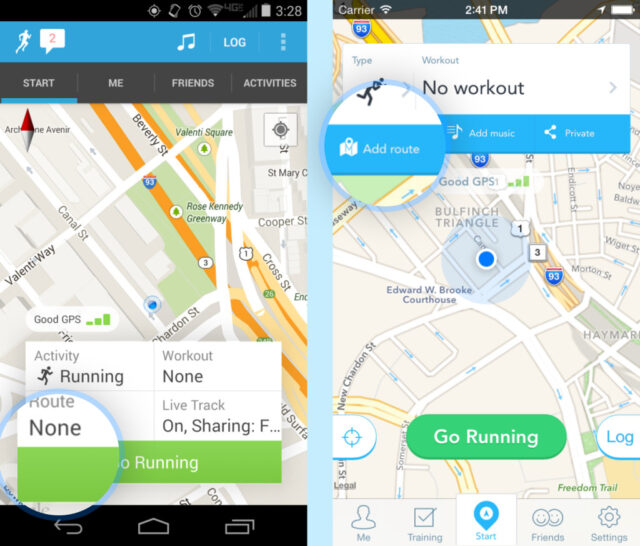
For runners who want seamless activity logging and route mapping, Runkeeper offers stronger two-way integration than Runna.
Benefits of Runkeeper Plus Fitbit
- Runs sync automatically from Fitbit to Runkeeper
- Route maps, pace charts, and splits available in Runkeeper
- Web and mobile access to all your data
- Community features and goal tracking
Unlike Runna, Runkeeper can display Fitbit step data on its web dashboard, which is useful for tracking daily load alongside running volume.
How to Connect Runkeeper to Fitbit
Via Mobile App:
- Tap the Settings gear next to your profile picture.
- Go to Apps and Devices.
- Under Services, tap Fitbit.
- Sign in with your Fitbit credentials and grant access.
Via Web:
- Log in to Runkeeper.com.
- Go to Settings and click Apps.
- Click Connect to Fitbit and follow the prompts.
Important: Only manually started runs sync. SmartTracked (auto-detected) activities do not transfer to Runkeeper.
Use Fitbit Premium for Form Analysis
With a Fitbit Premium subscription, you unlock advanced running metrics that help improve efficiency and prevent injury.
View Running Form Metrics
After six months of consistent runs, Fitbit analyzes your biomechanics using these metrics:
- Stride Length: Meters covered per step
- Step Cadence: Steps per minute
- Ground Contact Time: Milliseconds your foot stays on the ground
- Vertical Oscillation: Bounce in centimeters
- Vertical Ratio: Percentage of energy wasted upward
These appear in the Health Metrics tab under Running Fitness.
Ideal Targets:
– Cadence: 160 to 180 steps per minute
– Ground Contact Time: Under 250 milliseconds
– Vertical Oscillation: Under 8 centimeters
Compare Charts to Improve Efficiency
Use Compare Charts post-run to overlay multiple metrics:
- Pace versus Heart Rate
- Heart Rate versus Stride Length
- Cadence versus Elevation
If your heart rate spikes while pace drops, your form may be breaking down. Adjusting cadence or stride can help conserve energy on long runs.
Get AI Coaching with Gemini
Fitbit integrates with Google Gemini for conversational insights about your runs.
After a run:
- Share your workout to Gemini.
- Tap Talk Live about this.
- Ask questions like “Summarize this run,” “How should I recover,” or “What was my most efficient mile.”
Gemini may ask reflective questions like “Which mile felt easiest,” adding mental and emotional context to your quantitative data.
Optimize for Race Day and Mixed Events
For races involving multiple modalities like HYROX, Spartan, or CrossFit, standard running modes fall short. Use custom settings to maintain data accuracy.
Use Custom Workout Mode
Instead of Outdoor Run, select Custom Workout for mixed modal events. This prevents Fitbit from mislabeling non-running efforts as running segments.
During transitions (sled pushes, rowing, kettlebell swings), pause the run or manually log the activity. This keeps your running data clean and reflective of true performance.
Manually Log Non-Running Segments
Post-race, manually add non-running portions in the Fitbit app:
- Tap the plus icon to add an activity.
- Select “Other” or “Strength Training.”
- Enter duration and calories burned.
This maintains data integrity across your training history.
Troubleshoot Common Running Issues
Even with perfect setup, problems arise. Here’s how to fix the most common issues.
Fix Inaccurate Distance Tracking
If your run distance is off by half a mile or more:
- Ensure GPS was enabled before starting the workout
- Wait for satellite lock (your watch vibrates or shows location)
- Avoid running near tall buildings or dense tree cover
- Enable GLONASS in settings if available on your model
Note: Treadmill runs are less accurate. Calibrate using known distances on your gym’s treadmill.
Resolve Sync Failures with Runna or Runkeeper
If runs don’t appear in third-party apps:
- Confirm the activity was manually started, not SmartTracked
- Check your internet connection on your phone
- Reconnect the app in your Fitbit settings
- Restart both your phone and watch
Decode Heart Rate Zone Confusion
When following a 5-zone training plan:
- Use Runna or Runkeeper to interpret heart rate data
- Ignore Fitbit’s Fat Burn, Cardio, and Peak labels during runs
- Focus on actual BPM and compare to your plan’s zone ranges
For example, if your Zone 3 is 155 to 165 BPM, stay in that range regardless of what Fitbit displays.
Maximize Battery Life on Long Runs
Continuous GPS and heart rate tracking drain battery quickly. Here’s how to extend runtime for marathons and ultras.
Battery Estimates for Charge 6
- With GPS enabled: approximately 7 days (not per run)
- During an active GPS run: approximately 5 hours
Battery Saving Tips
For long events:
- Start with 100% battery charge
- Turn off notifications and always-on display
- Avoid using music controls or Spotify
- Consider carrying a portable charger for multi-day events
Key Takeaways for Using Fitbit Running Features

Your Fitbit is more than a step counter. When used correctly, it becomes a gateway to smarter training.
Check Your Readiness Score Daily
Check your Readiness Score each morning before deciding on workout intensity:
- Green (80 to 100): Ready for hard effort
- Yellow (50 to 79): Moderate activity or rest recommended
- Red (under 50): Rest or light recovery only
This prevents overtraining, which is especially crucial for new runners chasing runner’s high.
Combine Health Data for Recovery
Use these metrics to optimize recovery between runs:
- Sleep Score: Aim for 7 to 9 hours of quality sleep
- HRV (Heart Rate Variability): Higher values indicate better recovery readiness
- Stress Management Score: High stress correlates with lower performance
If your Readiness Score is low, swap a hard run for yoga or easy walking.
Consider Upgrading to Premium
While basic tracking is free, Fitbit Premium ($9.99 per month) unlocks:
- Running form metrics like vertical oscillation and ground contact time
- Compare Charts for analyzing multiple data points
- AI coaching with Gemini
- Advanced sleep and stress insights
For runners aiming to improve pace and efficiency, the investment pays off in injury prevention and performance gains.
Frequently Asked Questions About Using Fitbit for Running
Can Fitbit track running distance accurately?
Fitbit can track running distance when GPS is enabled. However, some users report discrepancies of half a mile or more in certain conditions. For best results, wait for satellite lock before starting and avoid areas with tall buildings or dense tree cover.
Does Fitbit have training plans like Garmin?
No, Fitbit does not offer native structured training plans. You need to integrate with third-party apps like Runna or Runkeeper to follow structured programs for 5K, half marathon, or full marathon training.
Can I get audio coaching on my Fitbit watch during runs?
No, Fitbit watches cannot receive workout uploads from third-party coaching apps and do not provide audio prompts. You must use your phone for audio guidance while the Fitbit tracks your metrics.
How do Fitbit heart rate zones compare to standard 5-zone systems?
Fitbit uses a 3-zone system (Fat Burn, Cardio, Peak). Fitbit’s Fat Burn equals Zones 1 and 2, Cardio equals Zones 3 and 4, and Peak equals Zone 5 in standard training systems.
Does Fitbit Premium help running performance?
Yes, Fitbit Premium provides advanced running form analysis including stride length, cadence, ground contact time, and vertical oscillation. These metrics help identify inefficiencies and prevent injury.
Why won’t my runs sync to Runna or Runkeeper?
Only manually started runs sync to third-party apps. SmartTracked (auto-detected) activities do not transfer. Ensure you actively start each run on your Fitbit rather than relying on auto-detection.
Final Thoughts on Using Fitbit for Running
Fitbit isn’t a Garmin, but it doesn’t need to be. For health-focused runners, beginners, or those who value recovery data over advanced coaching, it’s an excellent tool. By syncing with Runna or Runkeeper, enabling GPS, and learning to interpret heart rate zones, you transform your Fitbit into a comprehensive running companion. Start simple, track consistently, and let the data guide your progress one stride at a time.



