
You just unboxed your new Fitbit, but now what? Whether it’s an Inspire 3, Charge 6, or Versa 4, getting the most out of your fitness tracker starts with knowing how to work a Fitbit watch. From setup to daily use, navigation, and customization, this guide walks you through every essential step in plain, actionable language.
No more guessing how to swipe, track workouts, or answer calls from your wrist. You’ll learn exactly how to power on, pair, navigate, set goals, receive notifications, and even pay with your Fitbit. Let’s get your device working like a pro.
Unbox and Power On Your Fitbit
Before you start tracking, you need to turn your Fitbit on and charge it if needed. The setup process takes about 10 minutes from start to finish.
Check What’s in the Box
Open the clean, Google-branded Fitbit box and confirm you have these items:
• The Fitbit device with default band attached
• A magnetic USB charging cable
• A quick-release band for select models
• Quick start guide and legal information
No extra tools are needed. Everything starts with the charger.
Charge and Activate the Device
Follow these steps to power on your Fitbit:
- Plug the USB end into a computer or wall adapter.
- Snap the magnetic charger onto the back of your Fitbit, ensuring the metal contacts align properly.
- Wait for the screen to light up with a pulse animation.
If the screen stays blank, press the button if available, or ensure the magnets are connected correctly. The device powers on automatically when charging begins.
Install the App and Pair Your Device
Your Fitbit is only as smart as the app it connects to. Setting this up correctly ensures you get all features from day one.
Download the Fitbit App
Search for “Fitbit” in these stores:
• Apple App Store for iOS devices
• Google Play Store for Android devices
Install the free app, then open it. Tap the menu icon in the top-left corner and select Add Device.
Enter Your Personal Information
To personalize your tracking, the app needs your details:
• Name and birth date
• Gender
• Height and weight
These details help calibrate step count, calories burned, and heart rate accuracy for your body.
Grant Key Permissions
When prompted during setup, allow these permissions:
• Location access set to “While Using” – this is required for GPS tracking and Find My Phone
• Decide whether to opt in to marketing emails
• You can skip the Fitbit Premium trial if you prefer to try it later
Without location permissions, GPS workouts and phone-finding features will not work.
Complete Device Pairing
- Your Fitbit screen displays a pairing code – either 4 digits or 6 digits depending on your model.
- Enter that code in the app exactly as shown.
- Wait for the sync animation on your Fitbit.
- The screen shows the time once pairing is complete.
Your watch now syncs data, receives notifications, and tracks activity in real time.
Navigate Your Fitbit by Model
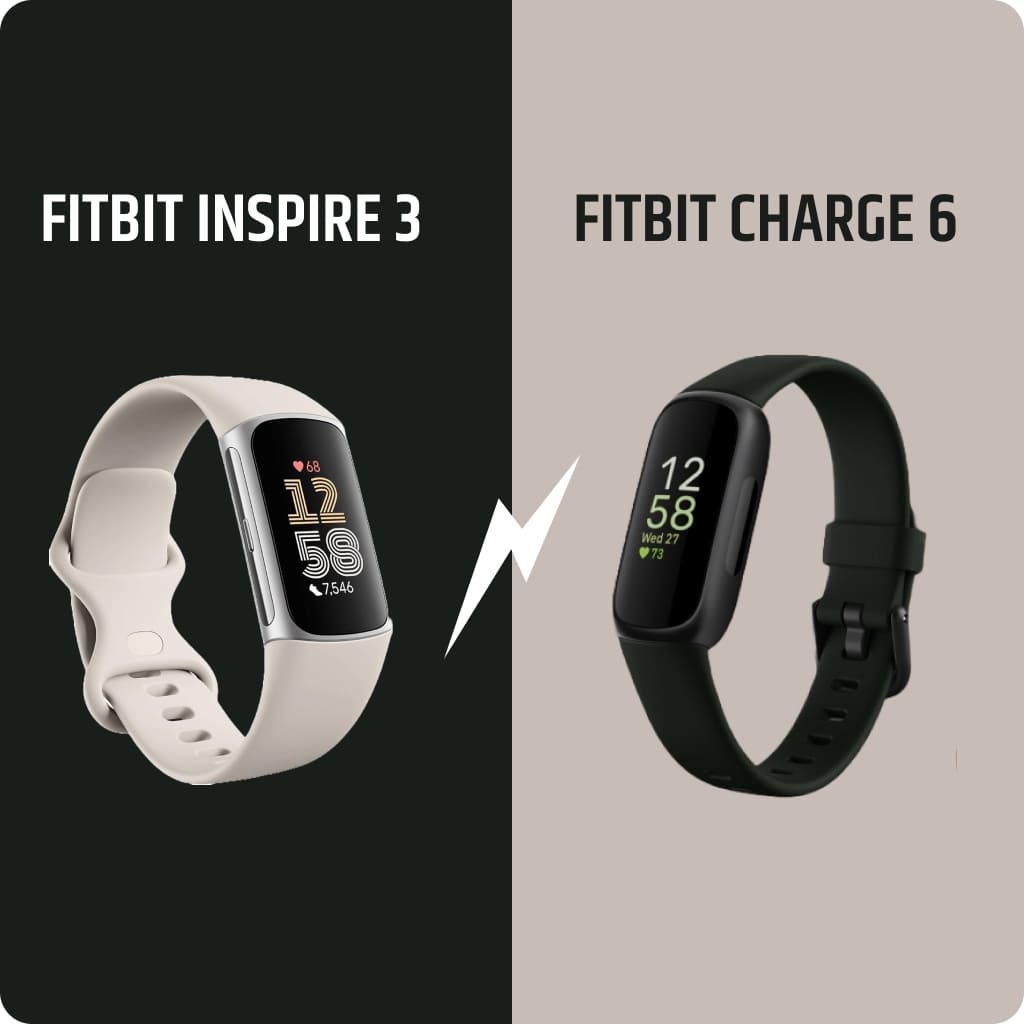
Swipe, tap, or press. Navigation varies significantly between Fitbit models. Here’s how to move around no matter which one you have.
Entry-Level Models (Inspire, Alta, Ace)
These older models use simple tap controls:
• Wake the screen by turning your wrist or double-tapping the display
• Single tap advances through each stat screen
• No swipe gestures are supported
Use taps to cycle through steps, heart rate, and calories.
Mid-Range Models (Inspire 2, Charge 3/4)
These touch models offer more flexibility:
• Swipe up to view daily stats like steps, heart rate, and calories
• Swipe down to open apps including notifications and timer
• Swipe left or right to move between active apps
• Press the button to go back or open quick settings
On Inspire 2, ensure “On Wrist” mode is selected. “On Clip” mode disables heart rate and auto-exercise tracking.
Advanced Models (Charge 5/6, Inspire 3, Luxe)
These AMOLED touchscreen models use full gesture control. Master these movements to navigate quickly.
Wake the Screen
• Press the side button
• Double-tap the screen firmly
• Turn your wrist if Screen Wake is enabled in settings
Swipe Controls
• Swipe down to open Quick Settings including DND, Sleep Mode, and Water Lock
• Swipe up to see daily stats at a glance
• Swipe left or right to browse apps like Exercise, Alarm, and Music
• Swipe right from the edge to return to the clock face
Triple-Tap Zoom on Charge 6
• Triple-tap to magnify text at 2x or 3x zoom
• Tap once to zoom back out
This feature helps read small text during workouts.
Versa 4 Navigation
The Versa 4 uses a single side button with multiple press patterns:
• One tap wakes the screen or opens recent apps
• Double tap instantly launches Amazon Alexa
• Long press opens a customizable shortcut menu
Swipe right to access Tiles – custom screens showing heart rate, sleep, weather, and more.
Access and Use Quick Settings
Swipe down from the clock face to control key functions fast. This menu appears on almost all modern Fitbit models.
Toggle Do Not Disturb
• Mutes all notifications, reminders, and goal celebrations
• The screen will not light up for alerts
• Cannot run at the same time as Sleep Mode
Enable Sleep Mode
This feature dims the screen, disables wrist wake, and mutes notifications. You can schedule it automatically:
- Open app, go to Devices, then Settings
- Tap Sleep Mode
- Set start and end times
- Choose which days it applies
Ideal for uninterrupted sleep tracking.
Turn On Water Lock
Prevents accidental taps when swimming or showering:
- Swipe down from the clock face
- Tap Water Lock
- Double-tap the screen firmly
- “Locked” appears when active
To unlock, double-tap firmly again. If it does not respond, tap harder. Water Lock automatically activates when you start a swim workout.
Use Find Phone
Swipe down and tap Find Phone. Your smartphone rings even if set to silent. This works within Bluetooth range.
Adjust Brightness and HR on Equipment
• Brightness uses a manual slider from Dim to Max
• HR on Equipment syncs heart rate to compatible gym machines via Bluetooth
Configure Deep Settings in the App

Go beyond quick toggles with full device customization through the settings menu.
Manage Display Settings
In the Fitbit app settings, adjust these options:
• Brightness: Auto, Dim, Normal, or Max
• Screen Timeout: Short, Medium, or Long before auto-sleep
• Always-On Display: Keeps clock visible but uses more battery
Always-On is often disabled by default between 10 PM and 6 AM.
Schedule Sleep Mode
Automate quiet hours so your Fitbit dims and silences itself:
- Open app, go to Devices, then Settings
- Tap Sleep Mode
- Set start and end times
- Choose specific days like weekdays only
Control Heart Rate and GPS Settings
• Heart Rate: Toggle continuous tracking. Turning it off saves battery but stops all heart-related metrics.
• GPS on Charge 4/5/6 and Versa 4: Choose Connected GPS (uses phone), Built-in GPS (device only), or Dynamic GPS (switches between both).
Built-in GPS drains battery faster but works without your phone.
Restart or Lock the Button
• Restart Device fixes glitches through the Settings app
• Button Lock prevents button presses when the screen is off
Enable Button Lock for swimming or if wearing the band loosely.
Use Core Features Daily
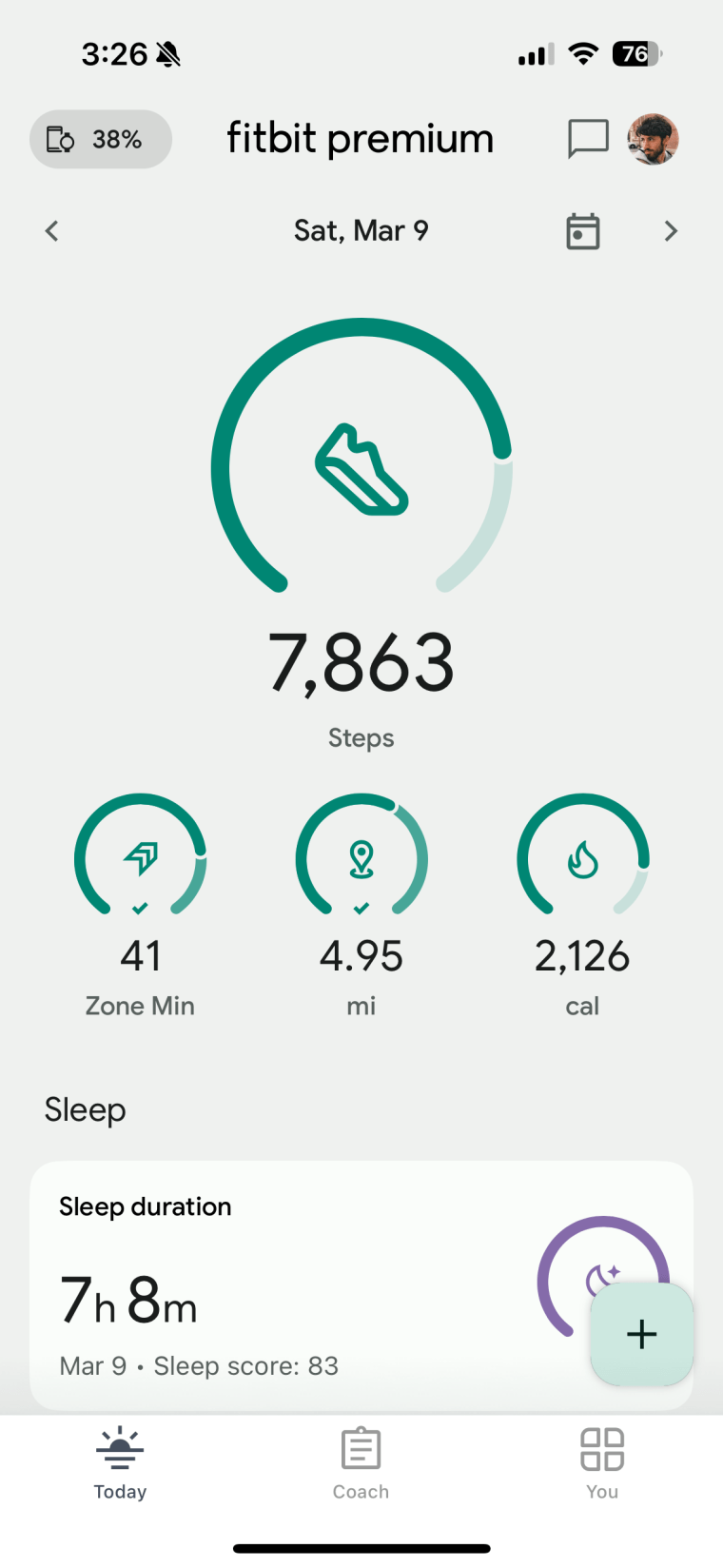
Now that it’s set up, use your Fitbit to track health and stay connected throughout the day.
Track Steps and Daily Stats
Swipe up from the clock face to see these metrics:
• Steps taken
• Distance traveled
• Calories burned
• Active Zone Minutes
Active Zone Minutes count time spent in fat burn, cardio, or peak heart rate zones. This replaces the older Active Minutes metric.
Start a Workout
- Swipe left from the clock and tap Exercise
- Select your activity such as Running, Cycling, Swimming, or Yoga
- Tap play to begin
During workouts, you see real-time stats including heart rate, pace, and duration. Tap to pause or resume. Swipe to switch between data fields.
Auto-Detect recognizes walks or runs automatically if enabled in settings.
Monitor Sleep Automatically
Just wear your Fitbit to bed. No manual setup needed.
When you wake, the app shows:
• Sleep Score from 0 to 100
• Time in Bed versus actual sleep time
• Sleep Stages including Light, Deep, and REM
• Restlessness indicators
Use this data to improve your bedtime routines.
Receive and Manage Notifications
Sync calls, texts, and app alerts to your wrist so you never miss important messages.
Enable Notifications
In the app:
• Go to Settings, then Notifications
• Choose to mirror all alerts or select specific apps like Gmail, WhatsApp, or Calendar
Answer Calls on Your Wrist
• On Inspire 3, swipe down to answer an incoming call
• On Versa 4, tap the green button to answer
• Swipe up or tap red to decline
Quick Replies let you send preset messages like “I’m busy” or “Call later.” Customize these in the app settings.
Customize Your Fitbit
Make your device reflect your personal style and priorities.
Change the Clock Face
- Open Fitbit app, tap Profile, then your Device
- Go to Gallery, then Clocks
- Browse free and premium designs
- Tap Install on your favorite face
It syncs automatically to your watch.
Customize on the Watch
On many clock faces:
• Swipe up or down to change colors or data layouts
• Tap the screen to cycle through displayed metrics like steps, heart rate, or battery
• Hold the clock face to switch to your next favorite
Save up to five favorites for quick swapping.
Swap Bands in Seconds
All modern Fitbits use quick-release pins. No tools needed.
To change your band:
- Press the release lever on the band
- Pull the band out
- Slide the new band in until it clicks
Try silicone, leather, or metal bands to match your style.
Set and Adjust Goals
In the app:
• Tap Goals
• Choose your primary metric: Steps, Distance, Calories, or Active Minutes
• Set your target such as 7,500, 10,000, or 15,000 steps
Add secondary goals for bedtime reminders, water intake, exercise frequency, or weight tracking. Your Fitbit sends nudges when you’re on track or falling behind.
Use Google Wallet for Payments
Leave your wallet behind. Fitbit supports contactless payments on compatible models.
Set Up Google Wallet
- Ensure your phone has a screen lock like PIN, fingerprint, or face unlock
- Open Fitbit app and go to Wallet
- Create a 4-digit Fitbit PIN
- Add your credit or debit card details
- Verify through SMS or your bank
You can add multiple cards and switch between them.
Make a Purchase
- Double-tap the side button on Versa 4, or swipe down to access Google Wallet on Charge 6
- Enter your 4-digit PIN
- Hold your wrist near a contactless terminal
Works at most stores, transit systems, and cafes worldwide.
Maintain Battery and Clean Your Device
Keep your Fitbit running smoothly with simple care habits.
Charge Efficiently
• Use the magnetic charging cable included in the box
• Attach it to the back contacts of your device
• Look for the pulse or battery icon indicating charging has started
Consider a charging cradle for convenient bedside charging.
Extend Battery Life
Disable these features to save power:
• Always-On Display
• Screen Wake (use button instead)
• Continuous Heart Rate tracking
• Built-in GPS (use connected GPS when possible)
Battery typically lasts 5 to 7 days on Inspire 3, and 7 plus days on Charge 6 with typical use.
Clean and Protect
• Wipe with a damp cloth and mild soap
• Dry completely after swimming or sweating
• Remove the device every 1 to 2 days to prevent skin irritation
• Apply a screen protector to avoid scratches
Avoid perfumes, lotions, or harsh chemicals on your Fitbit.
Fix Common Problems Fast
Run into issues? Try these quick fixes before contacting support.
Screen Not Responding
• Check if Water Lock is on – double-tap firmly to unlock
• Restart through Settings, then Restart Device
• Ensure the screen is dry and clean
Won’t Sync with Phone
• Confirm Bluetooth is turned on
• Check location permissions in the app
• Bring your Fitbit within 20 feet of your phone
• Restart both devices
Accidental Taps or Inputs
• Enable Button Lock
• Wear the band snugly but not too tight
• Disable Screen Wake if arm movements trigger it
Software Updates
The app may prompt a firmware update. Allow it to keep your device secure and add new features. Update overnight while charging.
Upgrade to Fitbit Premium (Optional)
The free version does a lot, but Premium adds deeper insights for serious tracking.
What You Get
• Daily Readiness Score tells you when to push or rest
• Sleep Profile shows monthly trends and sleep animal types
• Stress Management Score tracks EDA and HRV
• Guided Programs include meditation and fitness videos
• Wellness Reports create shareable PDFs for your doctor
Pricing and Trial
• $9.99 per month or $79.99 per year
• New devices often include a 6-month free trial
Try it first and cancel anytime if it’s not worth it for you.
Review Data and Track Progress

Your Fitbit app is a health dashboard. Use it to improve your wellness over time.
Understand Key Metrics
• Steps: Aim for 7,500 to 10,000 daily
• Active Zone Minutes: 22 minutes per day recommended
• Sleep Score: 80 or higher is excellent
• Resting Heart Rate: Lower generally indicates better fitness
Check trends over days, weeks, and months.
View Long-Term Trends
The app graphs these measurements:
• Resting Heart Rate
• Heart Rate Variability
• Breathing Rate
• Skin Temperature
Spot improvements or catch early signs of illness.
Use the Timeline View
See hourly activity patterns showing when you move most, sedentary periods, and sleep consistency. Adjust your habits based on real data.
Frequently Asked Questions About Using a Fitbit Watch
How do I turn on my Fitbit for the first time?
Connect the magnetic charger to a USB port and snap it onto the back of your Fitbit. The screen lights up with a pulse animation when it starts charging. Once charged, the device powers on automatically.
Why won’t my Fitbit sync with my phone?
Ensure Bluetooth is enabled on your phone and location permissions are granted in the Fitbit app. Keep the devices within 20 feet of each other and try restarting both your phone and Fitbit.
Can I answer calls on my Fitbit?
Yes. Swipe down on Inspire 3 or tap the green button on Versa 4 to answer incoming calls. You can also decline calls with a swipe up or red button. Quick Replies let you send preset text responses.
How do I change the clock face on my Fitbit?
Open the Fitbit app, go to your device, tap Gallery, then Clocks. Browse available faces and tap Install on your choice. It syncs automatically to your watch.
Is Fitbit Premium worth it?
Fitbit Premium offers deeper insights like Daily Readiness Score, detailed Sleep Profile, and Stress Management Score. The free version covers basic tracking well, so try it first before subscribing.
How long does the Fitbit battery last?
Battery life varies by model and settings. Inspire 3 typically lasts 5 to 7 days. Charge 6 lasts 7 plus days with typical use. Using Always-On Display, GPS, and continuous heart rate tracking reduces battery life significantly.
Key Takeaways for Using Your Fitbit Watch
Mastering how to work a Fitbit watch unlocks powerful health insights and daily convenience. From initial setup and navigation to notifications, payments, and sleep tracking, your device does far more than count steps. It actively guides your wellness journey.
Remember these essential points: Take time to customize your goals, clock face, and notification settings during the first week. Keep your Fitbit charged every few days and clean it regularly to prevent skin irritation. Use the app daily to review your metrics and spot trends.
Whether you’re a beginner tracking your first steps or a power user leveraging GPS workouts and payments, this guide ensures you’re getting every feature from your Fitbit. Wear it consistently, explore the settings, and let your data drive better health decisions.



