
You glance at your wrist expecting to see the time, your heart rate, or your daily step count, but the screen is completely black. No tap, swipe, or button press brings it back. Your Fitbit seems dead. Before you assume the worst, know this: a black screen on a Fitbit is often fixable, and usually not a sign of permanent hardware failure. From water lock mode to software glitches and simple battery drain, many issues can mimic a broken screen.
The good news? Most solutions are quick, free, and can be done at home. Whether you own a Fitbit Inspire, Charge, or Sense, this guide walks you through proven steps to fix a black screen on your Fitbit. By the end, you will know how to revive your device, prevent future issues, and when it is time to contact support.
Check Water Lock Mode First
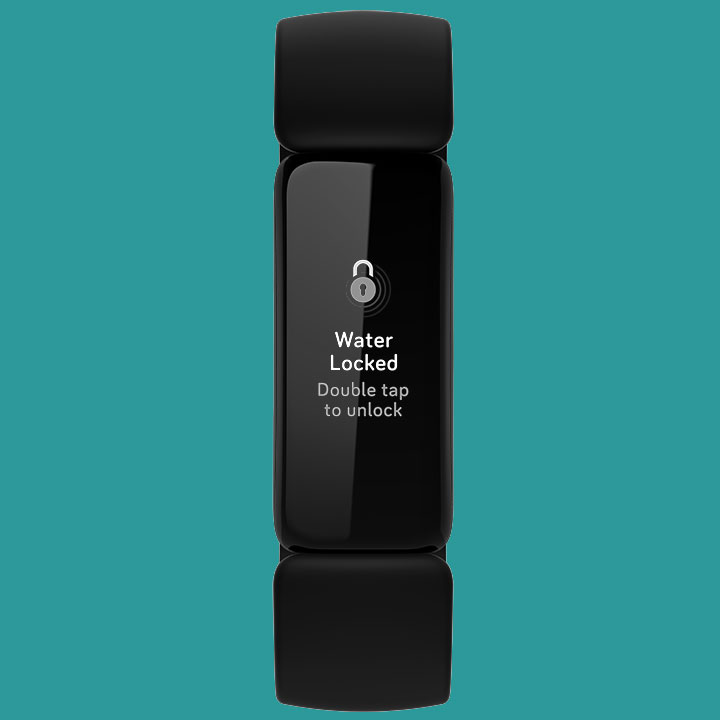
If your Fitbit went underwater recently, the screen may be locked intentionally. Water lock mode disables touch and display to prevent accidental inputs during swimming or showers. While the screen appears black, the device is still on.
Double-Tap to Unlock Screen
The solution is simple, and skipping this step leads many users to unnecessarily replace their device.
• Action: Double-tap the screen firmly and rapidly several times
• Tip: Ensure the device is completely dry before trying, as moisture can block touch sensitivity
• Outcome: The Fitbit logo or clock should reappear if water lock was the issue
Do not restart or charge yet. This simple tap could save you hours of unnecessary troubleshooting.
Remove Cases and Screen Protectors
Accessories can block sensors and trick your Fitbit into staying dark. A small black dot on the side of your Fitbit is the ambient light sensor. If covered, the device thinks it is in total darkness and turns off the display.
Unblock the Ambient Light Sensor
Removing accessories is one of the most overlooked causes of a black screen fix.
• Fix: Remove all third-party cases, bumpers, or screen protectors
• Test: Try using the Fitbit without any accessories
• Pro Tip: Cover the sensor with your finger. The screen should dim. Uncover it, and the screen should brighten. If not, the sensor is obstructed or faulty
Charge for at Least 30 Minutes
A fully drained battery mimics a dead device, even if the charger light turns on. Computer USB ports often do not deliver enough power to revive a deeply discharged Fitbit.
Use a Wall Outlet, Not USB
Wall outlets provide superior power delivery, which is crucial for reviving a deeply discharged battery.
• Best Practice: Plug the charger into a wall adapter, not a laptop
• Charge Time: Wait at least 30 minutes, but up to 60 minutes for devices stored unused
• What to Expect: The screen may stay black until enough charge builds to power the display
Clean Charging Contacts First
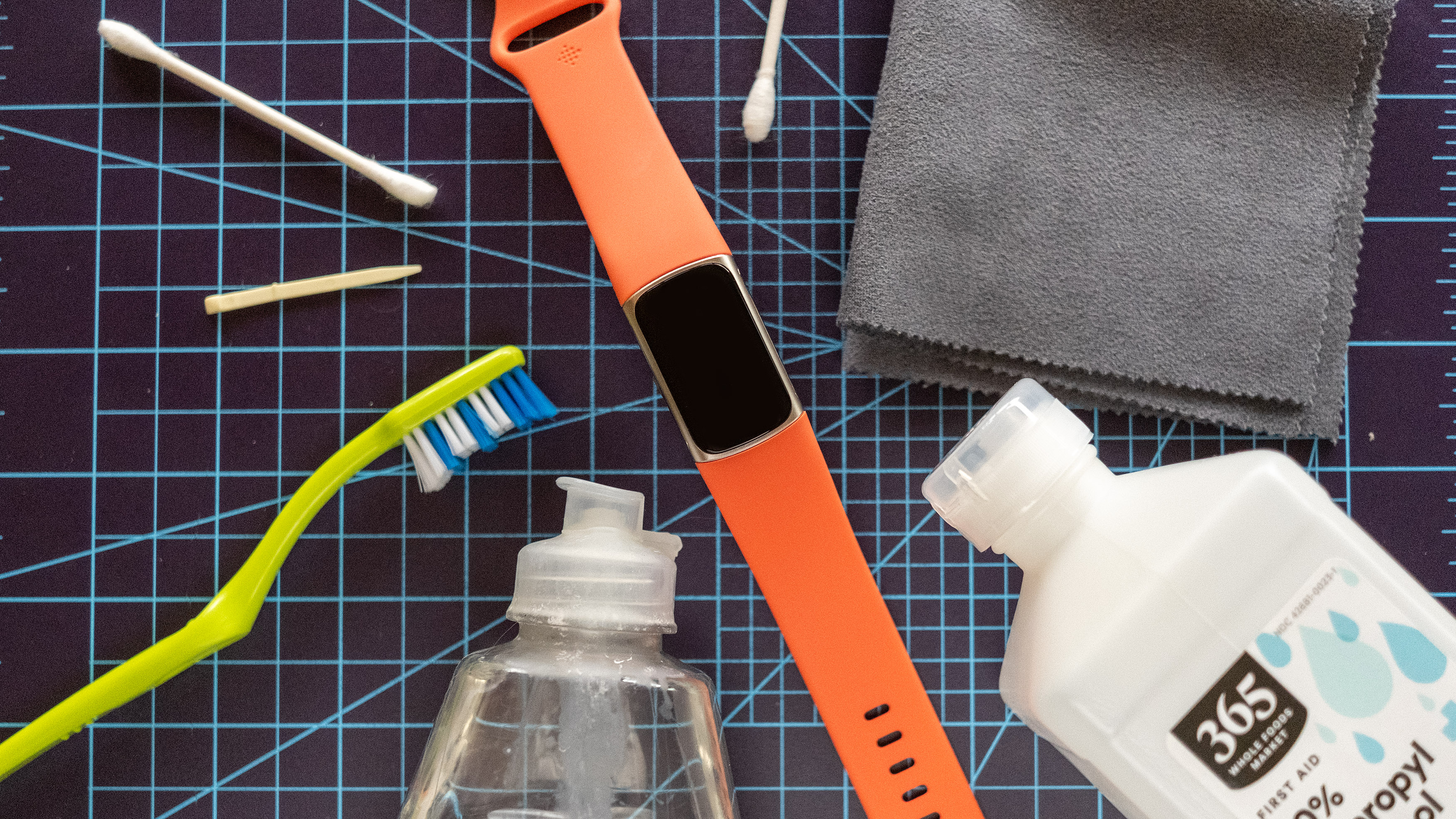
Dirt or corrosion on the charging pins prevents proper connection, resulting in a dead battery and black screen.
• Device Contacts (Back): Gently scrub with a damp toothbrush, then dry thoroughly
• Cable Pins: Wipe with a cotton swab dipped in rubbing alcohol
• Warning: Never use metal objects to scrape the contacts, as this damages the plating and accelerates corrosion
Critical: Ensure no cotton fibers stick to the charger pins after cleaning.
Test Screen Brightness in the Dark

Your Fitbit might be on but too dim to see. Low brightness settings can make the screen appear black in bright light.
Look in a Dark Room
This simple test can save you from unnecessary repairs.
• Test: Turn off the lights and hold your Fitbit close
• Look For: Faint backlight or the Fitbit logo glowing slightly
Adjust Brightness via App
If the device syncs, change the brightness remotely to prevent accidental dimming in daylight.
- Open the Google Health app
- Go to Connections > Your Device > Display
- Increase screen brightness and adjust timeout
Force Restart Your Fitbit
A frozen system can cause a black screen, even with battery and no hardware damage. A forced restart resolves temporary software hangs without erasing user data.
Inspire Series: Hold Both Buttons
For Fitbit Inspire, Inspire 2, and Inspire 3, the button combination is specific.
• Press and hold the side button and bottom button together
• Hold for 10 to 15 seconds
• Release when the Fitbit logo appears
Other Models: Check Specific Combo
Button layouts vary across models.
• Charge 5: Press and hold the left and right buttons
• Sense/Sense 2: Hold the top button for 15 seconds
• Versa/Inspire Luxe: Use the left and right buttons
Always refer to your model is manual if unsure.
Sync and Update Firmware
Software bugs often cause display glitches, even leading to black or flickering screens. Updating the device firmware is the first line of defense for software-related screen issues.
Ensure Google Health App Is Updated
An outdated app cannot push critical firmware updates.
• Open your phone is app store
• Search for Google Health
• Update if available
Start a Manual Sync
Force your Fitbit to communicate with the app to fix display bugs.
- Open Google Health app
- Go to the Today tab
- Pull down on the screen to sync
Or, tap Connections (top left), select your device, and tap Sync.
Install a New Clock Face Remotely
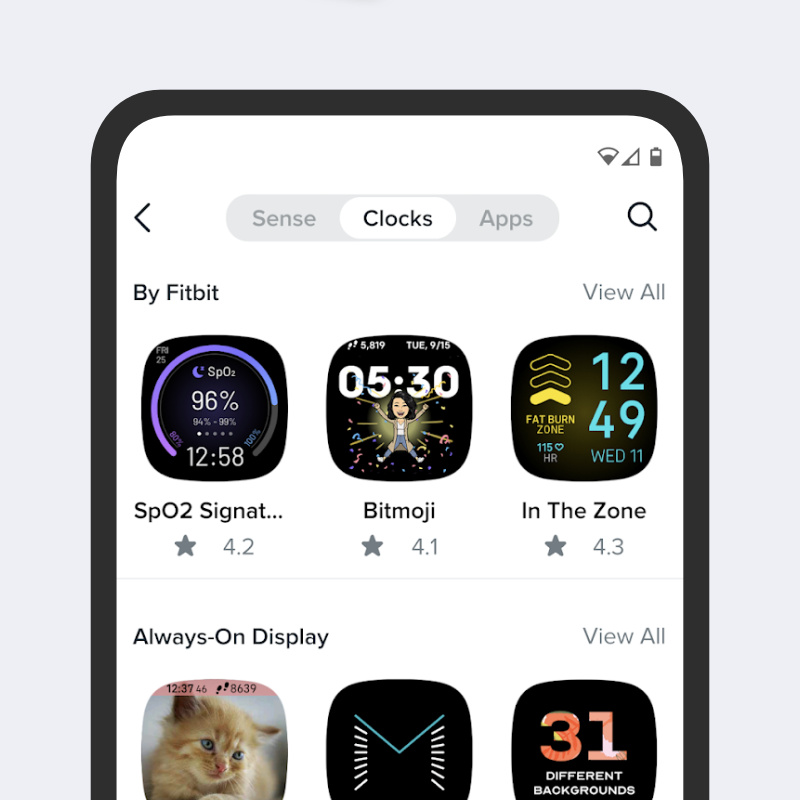
One of the most effective but least-known fixes: changing the clock face can revive a black screen. Switching clock faces forces the display driver to reset, often clearing frozen graphics processes.
Why This Works
User reports confirm this method has resolved black screen issues where other methods failed.
How to Change Clock Face
- Open the Google Health app
- Tap Connections > Your Device > Watch faces
- Browse the Clocks tab
- Pick a new face and tap Install
Even if your Fitbit screen is black, the command will sync once the device powers on.
Perform a Factory Reset
When nothing else works, reset the device, but this erases all data. Only do this if charged, as your Fitbit must have power to accept the reset command.
Steps by Model (General)
• Inspire/Charge: Hold both buttons for 10 to 15 seconds until logo appears, then immediately go to Settings > About > Reset
• Versa/Sense: Swipe down > Settings > System > Reset
• Via App: Some models allow reset through Google Health > Device Settings > Factory Reset
After Reset
• Re-pair your Fitbit with the app
• Restore data from backup if available
• Reinstall preferred clock face
If the screen remains black after a reset, hardware failure is likely.
Inspect for Physical Damage

Some issues cannot be fixed with software or cleaning. A visual inspection is required to rule out catastrophic hardware failure.
Look for These Signs
• Cracks on the screen or casing
• Fog or moisture under the glass
• Dents or impacts on the back or edges
Avoid These Mistakes
• Do not poke the altimeter hole (small dot on back). It is pressure-sensitive and easily damaged.
• Do not use compressed air. Moisture can get trapped inside.
If damage is visible, contact support. Do not attempt further fixes.
When to Contact Fitbit Support
If you have tried all steps and the screen stays black, it is time for professional help. Fitbit customer service has a history of sending replacements to users experiencing persistent screen issues.
Prepare Before You Call
• Model number (e.g., Fitbit Inspire 3, Sense 2)
• Serial number (found in Google Health app under device settings)
• Purchase date (for warranty claims)
Warranty and Replacement
• Fitbit often sends free replacements even for out-of-warranty units with screen issues
• Support may ask you to repeat troubleshooting. Have your steps documented.
• Tip: Mention “persistent black screen after full troubleshooting” to escalate the case.
Prevent Future Black Screen Issues
Keep your Fitbit running smoothly with simple habits. Regular maintenance prevents most black screen issues before they start.
Weekly Maintenance
• Wipe the screen with a dry, lint-free cloth after workouts
• Clean charging contacts every 2 to 4 weeks
• Avoid wearing during high-heat saunas. Extreme heat affects display performance.
Charging Best Practices
• Use only Fitbit-approved chargers
• Charge in a dry, room-temperature environment
• Do not leave on charger longer than 3 hours regularly
Software Routine
• Check for firmware updates monthly
• Allow background app refresh for Google Health
• Restart your Fitbit once a week to clear cache
Key Takeaways for Fixing Your Fitbit Black Screen
A black screen on your Fitbit is not the end. In most cases, it is a simple fix: a drained battery, blocked sensor, or frozen software. Start with the basics: dry it, clean it, charge it, tap it. Then move to sync, restart, and update. Do not skip the clock face trick. It is saved countless devices from premature replacement.
If all else fails, Fitbit support is often willing to help, especially with persistent display issues. Your data is backed up in the cloud, so a reset will not mean starting from zero. Now go revive that screen and get back to tracking.
Frequently Asked Questions About Fixing Black Screen on Fitbit
Why does my Fitbit screen suddenly go black?
The most common causes are water lock mode activation, a drained battery, software glitches, or a blocked ambient light sensor. Physical damage is less common but possible.
How long does it take to charge a dead Fitbit?
Charge for at least 30 minutes, though leaving it for 60 minutes is recommended if the battery has been depleted for an extended period. Use a wall outlet, not a computer USB port.
Does a factory reset delete all my data?
Yes, a factory reset erases all data on the device. Only perform this as a last resort after trying all other troubleshooting steps.
Can I fix a cracked Fitbit screen at home?
No. Cracked screens indicate physical damage that requires professional replacement. Contact Fitbit support for warranty or replacement options.
Will my step count be lost if I factory reset?
Your data is backed up in the Google Health app cloud. After resetting and re-pairing your device, you can restore your data from the backup.
What is the ambient light sensor, and where is it located?
The ambient light sensor is a small black dot on the side of your Fitbit. When blocked by a case or protector, the device thinks it is in darkness and turns off the display to save battery.



