
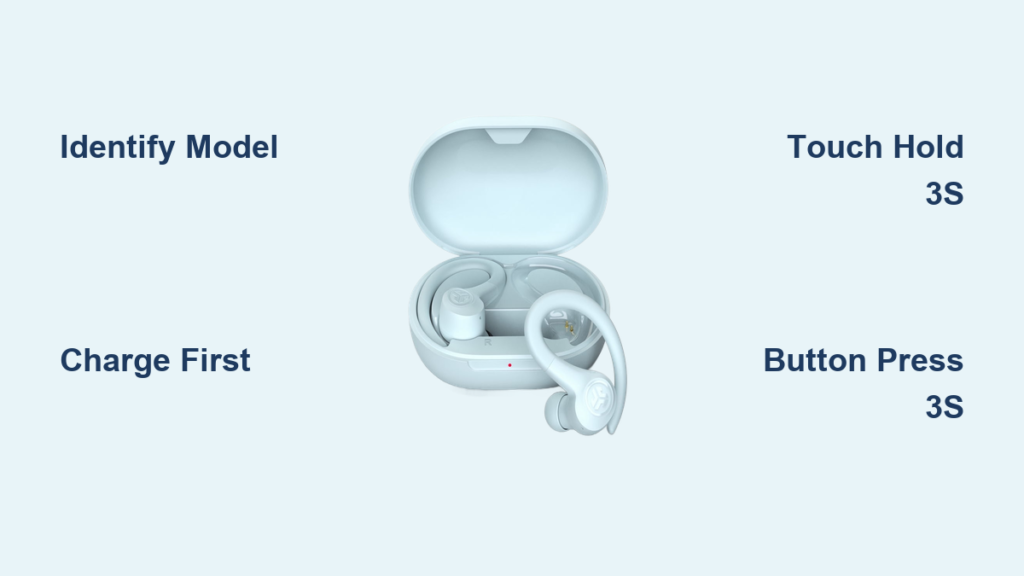
If your JLab GO Sport earbuds refuse to power on, you’re not alone. Many users struggle because JLab sells several models under similar names, and each one has a different power-on method. Whether you own the GO Air Sport, JBuds Air Sport, or the legacy button model, the correct sequence matters. This guide walks you through identifying your model, powering it on correctly, and fixing common issues in under five minutes.
Below, you’ll learn how to turn on JLab GO Sport earbuds using the right method for your specific variant, plus troubleshooting steps for dead batteries, failed pairing, and unresponsive touch sensors.
Identify Your JLab GO Sport Model First

Before you try any power-on method, you must confirm which model you own. JLab markets multiple versions with similar branding, but only three core types exist. Using the wrong method is the number one reason earbuds fail to turn on.
Check the Bluetooth Name
Open your phone’s Bluetooth settings and look for the device name:
- “JLab GO Air Sport” or “JLab GO Sport Plus” → Touch sensor with auto-on
- “JLab JBuds Air Sport” → Touch sensor with manual activation
- “JLab GO SPORT” → Physical button on the stem
Inspect the Earbud Design
Look at your earbuds closely:
- Touch Models (GO Air Sport or JBuds Air Sport): Smooth surface with no visible button. LED sits near the base.
- Button Model (Legacy GO SPORT): Small physical button on the earbud stem.
Automatic Power-On for GO Air Sport and GO Sport Plus
These models turn on automatically the moment you remove them from the charging case. No button press is needed.
Open the Case and Remove Both Earbuds
- Open the charging case lid.
- Take out both earbuds at the same time.
- They power on instantly and enter pairing mode.
Pro Tip: Always remove both earbuds together. Pulling one out first can delay sync or cause one side to fail.
Confirm Power With LED Lights
After removal, check the LED indicators:
- Right Earbud: Blinking blue and white = powered on and ready to pair
- Left Earbud: Solid white = synced and connected
If no lights appear, the battery is likely drained. Charge for at least 30 minutes before retrying.
Manual Touch Activation for JBuds Air Sport
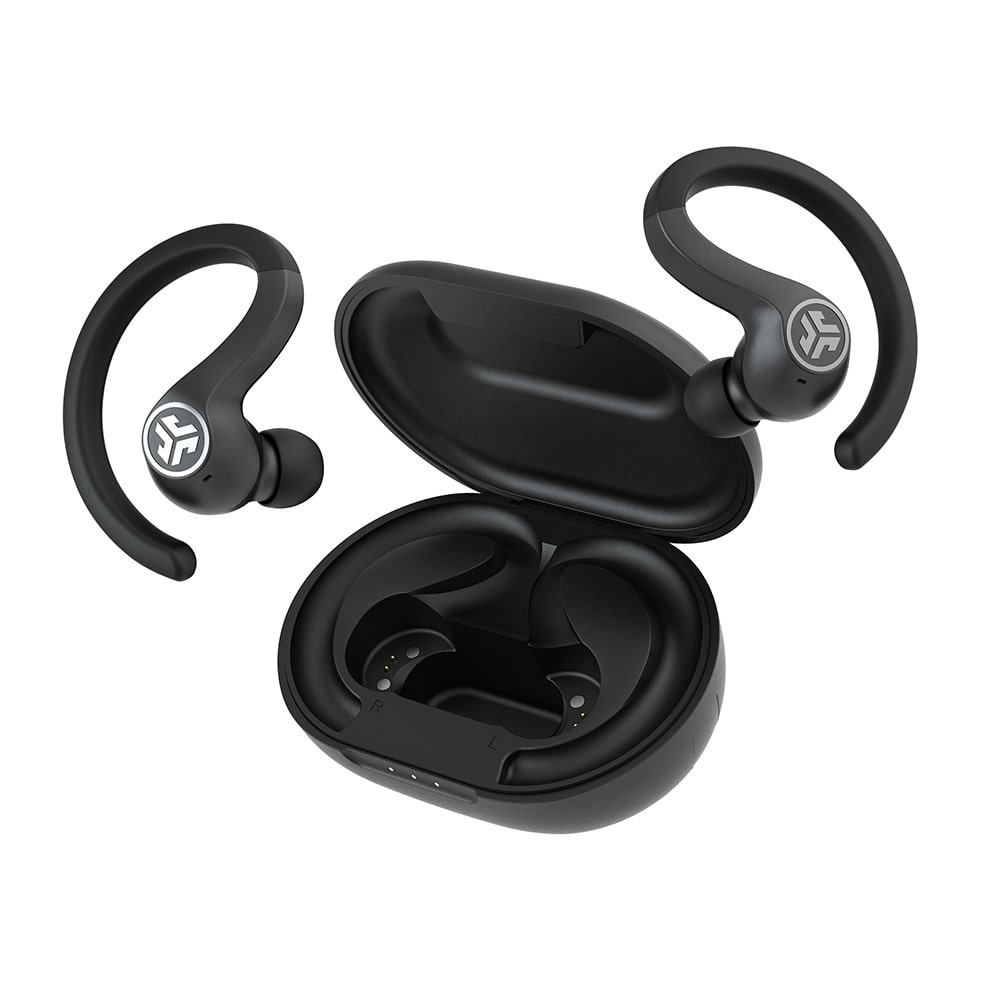
Some JBuds Air Sport models don’t auto-power when removed. Use this manual method instead.
Press and Hold Both Touch Sensors
- Remove both earbuds from the case.
- Locate the touch sensor on each earbud.
- Press and hold both sensors simultaneously for 3 seconds.
Visual Feedback After Activation:
- Right Earbud: Blinking blue and white
- Left Earbud: Solid white
Common Mistake: Tapping instead of holding. A single tap controls volume or playback and will not power on the earbuds.
Physical Button Start for Legacy GO SPORT
If your earbuds have a physical button on the stem, this is the correct power-on method.
Press and Hold the Multifunction Button
- Locate the button on one earbud (usually the right side).
- Press and hold for 3 to 5 seconds.
- Watch for the LED to flash blue.
A flashing blue light confirms the earbuds are powered on and in pairing mode. If no light appears, the battery is dead. Charge for 30 minutes before retrying.
Charge Your Earbuds Before First Use

Even with the correct method, dead batteries mean no response. Always start with a full charge.
Remove Protective Stickers First
New earbuds ship with clear stickers covering the gold charging pins. Peel these off before charging. Leaving them in place blocks charging and interferes with the touch sensor.
Charge the Case and Earbuds
- Plug the case into a wall adapter using the correct cable:
– Micro-USB for older models
– USB-C for GO Sport Plus and newer versions - Place the earbuds inside and close the lid.
- Wait for the case light to pulse.
Charging Time: Approximately 1.5 hours for a full charge.
Case LED Guide:
- Pulsing white or blue: Charging in progress
- Solid white or blue: Fully charged
Warning: Only use a 5V 1A wall adapter. Fast chargers or laptop USB ports can damage the battery.
Pair Your Earbuds With a Device
Once powered on, connect via Bluetooth in your phone’s settings.
Enter Pairing Mode
Make sure one earbud is blinking blue and white. If not:
- Place both earbuds back in the case
- Remove them again for auto-on models
- Or repeat the 3-second touch or button hold
Connect via Phone Settings
- Open Bluetooth settings on your phone.
- Turn Bluetooth on.
- Select your model from the list:
– “JLab GO Air Sport”
– “JLab JBuds Air Sport”
– “JLab GO SPORT”
Success Signs:
- Voice prompt says “Bluetooth connected”
- Both earbuds show solid white lights
Pro Tip: Turn off Bluetooth on old devices to prevent auto-reconnect to the wrong phone.
Fix No Power or No Lights

If your earbuds show zero lights, follow this troubleshooting checklist.
Clean the Charging Contacts
- Use a dry, soft cloth or cotton swab.
- Wipe the gold pins on the earbuds and inside the case.
- Dirt or residue blocks the charging signal.
Charge for 30 Minutes
Use a 5V 1A wall adapter. Plug in the case with the earbuds inside and wait. After 30 minutes, retry the power-on method for your model.
Reset the Case Logic
- Place earbuds in the case.
- Close the lid.
- Wait 30 seconds.
- Open the lid and remove the earbuds.
This resets the case’s charging signal and often restores power.
Re-Sync Earbuds When One Side Stops Working
If only one earbud plays audio, the stereo link is broken. Fix it fast with this re-sync method.
Forget Device and Re-Pair
- On your phone, select “Forget” next to your JLab model.
- Place both earbuds in the case.
- Quickly tap the touch sensor 4 times on each earbud.
– The light blinks blue 4 times, then turns solid blue. - Remove both earbuds at the same time.
- Wait for:
– Left: Solid white
– Right: Blinking blue and white - Reconnect via Bluetooth settings.
Note: 4 taps re-syncs the pair. 7 taps performs a full factory reset.
Factory Reset as a Last Resort
If nothing else works, perform a full factory reset to clear stored connection data.
Touch Sensor Reset (7-Tap Method)
- Place earbuds in the case.
- Quickly tap one earbud 7 times. The light blinks blue 4 times.
- Quickly tap the other earbud 7 times.
- Remove both earbuds and re-pair as new.
Button Model Reset
- Close the case with earbuds inside.
- Wait 30 seconds.
- Open the lid and remove the earbuds.
This clears stored connection data and resets the pairing logic.
Use the JLab App for Advanced Features
The JLab App unlocks extra controls for GO Sport Plus and JBuds Air Sport users.
Download and Pair Through the App
- Install the JLab App on iOS or Android.
- Create an account with your email.
- Select “Sport Plus” in the app.
- Open the case near your phone to begin setup.
Features Unlocked:
- Custom EQ profiles (Bass Boost, Signature, or your own mix)
- Be Aware Mode for ambient sound
- Firmware updates
- Touch control customization
Pro Tip: Rename your earbuds in the app to avoid confusion with other nearby devices.
Touch and Button Controls After Powering On
Once connected, use these controls for playback and calls.
Touch Controls (GO Air Sport and JBuds Air Sport)
Left Earbud:
- Single tap: Volume down
- Double tap: Activate voice assistant
- Triple tap: Cycle EQ mode
- Hold 1 second: Previous track
Right Earbud:
- Single tap: Volume up or answer call
- Double tap: Play or pause
- Triple tap: Toggle voice assistant
- Hold 1 second: Next track or reject call
Single Earbud Use
Only the right earbud works alone. It provides full audio and controls. The left earbud cannot operate solo.
Battery and Performance Tips
Maximize Playtime
- Single charge: Up to 8 to 9 hours
- With case: Up to 24 to 35 hours
- Fast charge: 10 minutes gives roughly 1 hour of playtime
Auto-Off Feature
The earbuds automatically power off after 3 minutes of inactivity to save battery.
Sweat and Weather Resistance
- IPX5 Rating: Resists sweat and rain, but do not submerge
- IP55 Rating (GO Sport Plus): Also dust-resistant
- Never wash or soak the earbuds
Frequently Asked Questions About JLab GO Sport Earbuds
Why won’t my JLab GO Sport earbuds turn on?
The most common cause is a dead battery. Charge the case and earbuds for at least 30 minutes using a 5V 1A wall adapter. Also check that you removed the protective stickers covering the gold charging pins. If the issue persists, clean the contacts and perform a factory reset.
How do I know which JLab GO Sport model I have?
Check the Bluetooth name in your phone’s settings. “JLab GO Air Sport” or “JLab GO Sport Plus” means touch sensor with auto-on. “JLab JBuds Air Sport” means touch sensor with manual activation. “JLab GO SPORT” means a physical button on the stem.
Do JLab GO Sport earbuds turn on automatically?
Only the GO Air Sport and GO Sport Plus models turn on automatically when removed from the case. The JBuds Air Sport requires a 3-second touch hold. The legacy GO SPORT requires pressing the physical button for 3 to 5 seconds.
What do the LED light patterns mean?
A blinking blue and white light means powered on and in pairing mode. A solid white light means synced and connected. A pulsing light on the case means charging in progress. A solid light on the case means fully charged.
How do I fix one earbud not working?
Forget the device in your phone’s Bluetooth settings. Place both earbuds in the case and tap each touch sensor 4 times quickly. Remove both at the same time and wait for the left to show solid white and the right to blink blue and white. Reconnect via Bluetooth.
Can I use JLab GO Sport earbuds in the rain?
Yes, the IPX5 rating resists sweat and light rain. The GO Sport Plus has an IP55 rating that also resists dust. However, never submerge the earbuds or case in water, as this causes permanent damage.
Key Takeaways for Turning On Your JLab GO Sport Earbuds
The power-on method depends entirely on your model. Use auto-on for GO Air Sport and GO Sport Plus, a 3-second touch hold for JBuds Air Sport, and a 3 to 5 second button press for the legacy GO SPORT. Always charge first, remove protective stickers, and clean the gold contacts before troubleshooting. If one side stops working, perform a 4-tap re-sync. If nothing responds, do a 7-tap factory reset. With the right steps, your earbuds will power up reliably every time. For advanced controls, download the JLab app and customize your sound today.



