
You just pulled your Bose Open Sport Earbuds out of the box and want them paired fast. Whether you’re heading out for a run, hitting the gym, or just stepping outside for a walk, these open-ear earbuds are designed to stay secure while keeping you aware of your surroundings. But first, you need to get them connected.
The setup is straightforward, though it varies slightly between the Bose Sport Open Earbuds and the newer Bose Ultra Open Earbuds. You can pair through the Bose Music app or directly via your phone’s Bluetooth. This guide covers every step, from first power-on to switching between devices, so you can start moving without delay.
Power On Your Bose Open Sport Earbuds
Before pairing, you need to wake up the earbuds for the first time.
Activate for First-Time Use
For the Bose Sport Open Earbuds, follow this exact sequence:
1. Press the button on the left earbud.
2. Immediately press the button on the right earbud.
Visual confirmation: Status lights blink white twice, then show Bluetooth indicators.
⚠️ Pro Tip: Press one button at a time, quickly. Do not press both at once.
If you own the Bose Ultra Open Earbuds, simply open the case. The earbuds power on automatically. If they don’t enter pairing mode, press and hold the button on the back of the case for 2 seconds.
Enter Pairing Mode on Your Bose Open Sport Earbuds
To connect to a new device, your earbuds must be in Bluetooth pairing mode.
Sport Model: Manual Pairing
For the Bose Sport Open Earbuds:
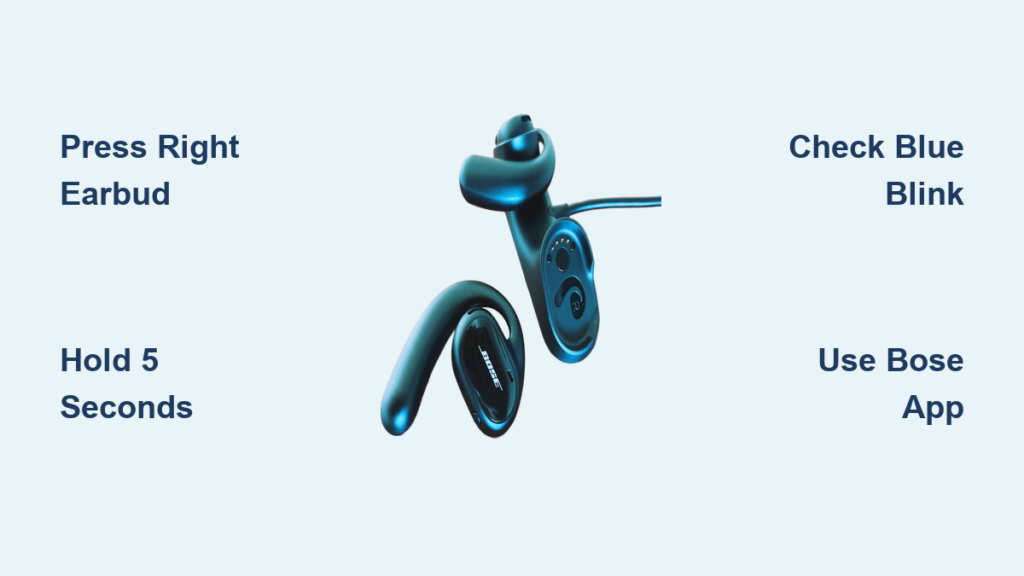
1. Press and hold the button on the right earbud for 5 seconds.
2. Listen for the voice prompt: “Ready to connect.”
3. Watch for slow blue blinking lights, which confirm pairing mode.
Ultra Model: Case-Controlled Pairing
For the Bose Ultra Open Earbuds:
1. Open the charging case.
2. Check the LED status:
– Solid white: Powered on, not pairing
– Slow blue blink: Already in pairing mode
3. If the light is solid white, press and hold the case button for 2 seconds until it blinks blue.
✅ The earbuds enter pairing mode automatically the first time you remove them from the case.
Connect Bose Open Sport Earbuds via the Bose Music App
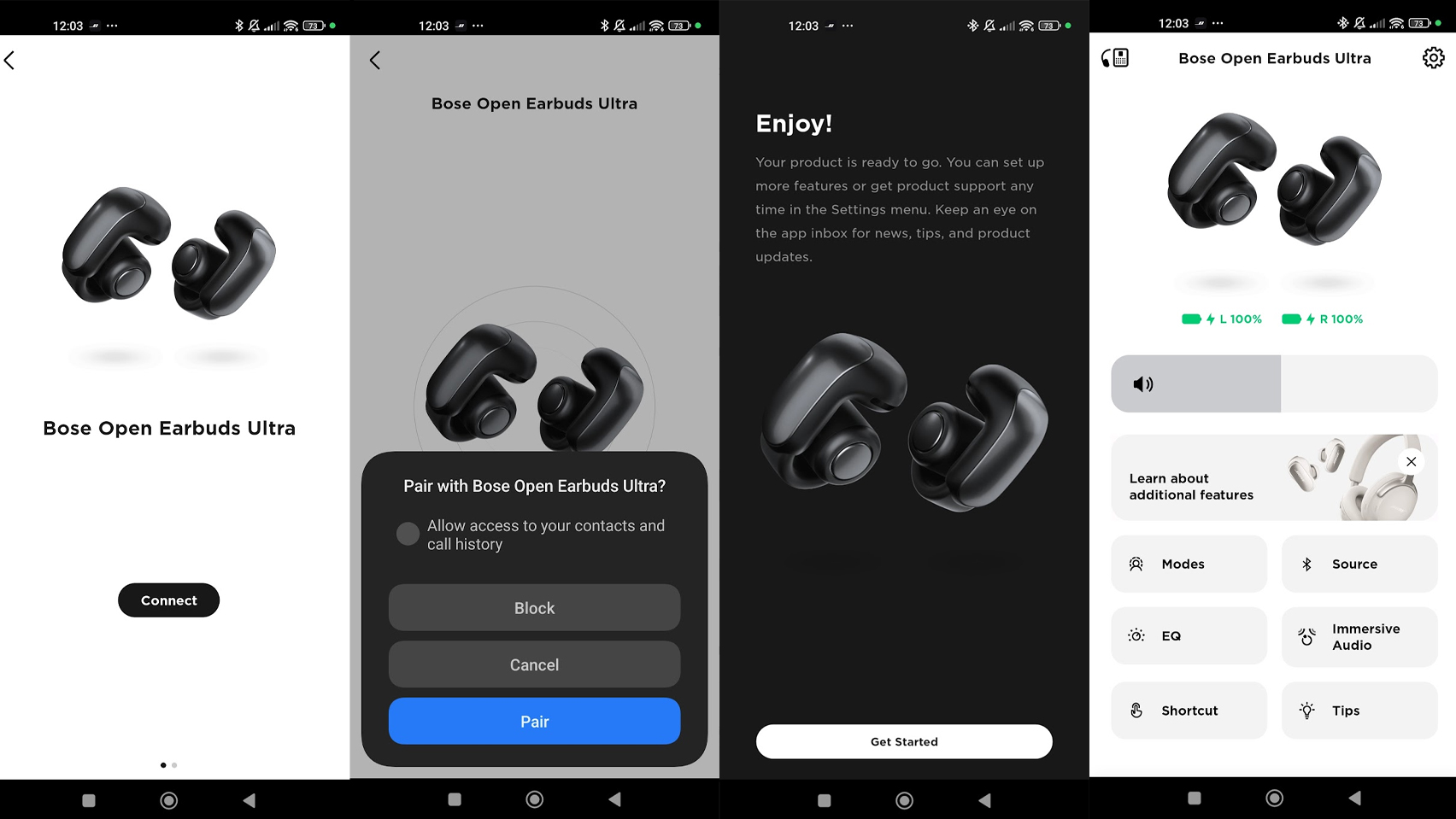
For full features like firmware updates, EQ settings, and battery monitoring, use the Bose Music App.
Step-by-Step App Setup
- Download the app from the Apple App Store or Google Play.
- Create an account or sign in to your existing “My Bose” account.
- Enable Bluetooth on your phone.
- Tap the + button on the “My Bose” screen.
- Select Set Up a New Product > Headphones & Frames.
- Wait for your earbuds to appear in the list.
- Tap the model name and follow the on-screen prompts.
- Wait for confirmation: A voice announces the connected device, and lights turn solid blue.
💡 Why use the app? You unlock firmware updates, customizable controls, and battery tracking that native Bluetooth pairing doesn’t provide.
Pair Bose Open Sport Earbuds via Native Bluetooth
No app? You can still connect directly through your device’s Bluetooth settings.
For Android Devices
Works with Samsung Galaxy, Pixel, and other Android phones:
1. Turn on Bluetooth in Settings.
2. Tap the search or refresh icon.
3. Wait for “Bose Ultra Open Earbuds” or “Bose Sport Open Earbuds” to appear.
4. Tap the name to pair.
5. Confirm any pop-up that appears.
Audio plays automatically once connected.
For iPhone Users
Apple devices use a streamlined process:
1. Ensure earbuds are in pairing mode (slow blue blink).
2. Open Settings > Bluetooth.
3. Under Other Devices, tap “Bose Ultra Open Earbuds”.
4. Connection happens instantly with no confirmation prompt.
📱 Tip: If you don’t see them, toggle Bluetooth off and on, or restart the earbuds.
Enable Automatic Reconnection
Once paired, your earbuds remember your devices for instant reconnection.
Instant Reconnection Steps
- Take the earbuds out of the case and put them on.
- They automatically reconnect to the last used device within range.
- No need to open Bluetooth settings or the app.
This works whether you used the Bose app or native pairing.
⏱️ Reconnect Time: Usually under 3 seconds.
Set Up Multi-Device Pairing

Switching between phone and laptop is easy. The earbuds support dual-device pairing.
Connect Two Devices at Once
- Pair with Device A (e.g., iPhone).
- Pair with Device B (e.g., Samsung Galaxy or MacBook).
- Both devices stay remembered.
Audio Switching Logic
- If Device A plays music, audio routes from it.
- When you start playback on Device B, audio instantly switches.
- No manual disconnecting or re-pairing needed.
❗ Only one audio stream plays at a time. You cannot hear both devices simultaneously.
Manually Switch Between Devices
Want to force a switch? Here’s how.
Switch to a Second Device
- On the current device, pause playback or disconnect Bluetooth.
- On the new device, go to Bluetooth settings.
- Select “Bose Sport Open Earbuds” from the list.
- If not connected, put earbuds in pairing mode first.
For Ultra model: Open case and hold the case button until the light blinks blue.
For Sport model: Hold the right earbud button for 5 seconds.
Charge and Maintain Battery Life
Keep your earbuds ready with proper charging habits.
Sport Model Charging Steps
- Use the included base with the attached USB-A cable.
- Plug into a USB-A power source (wall adapter or computer).
- Place earbuds in the case, aligning the L and R markers.
- The magnetic snap ensures correct placement.
Battery Status Light Guide
- Blinking white: Charging in progress
- Solid white: Fully charged
- Solid blue (Sport): Connected via the app
🔋 Note: The Sport model base requires the cable. Wireless charging is not supported.
Optimize Fit and Wear
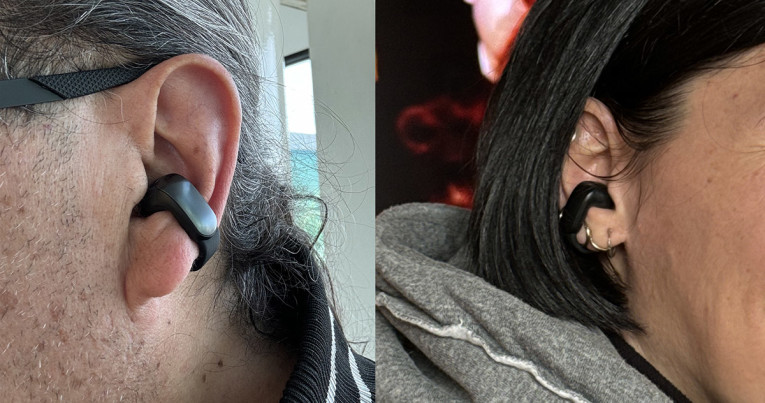
These aren’t in-ear buds. They’re open-ear, designed for comfort and awareness.
Correct Placement Steps
- Rest the speaker unit on your outer ear.
- Position the barrel behind your ear at a 45-degree angle.
- Adjust until snug but comfortable.
✅ Benefit: No ear fatigue, even during long workouts.
They stay secure during runs, jumps, and gym sessions when positioned correctly.
Update Firmware on Your Bose Open Sport Earbuds
Outdated firmware can cause connection drops or audio issues.
Check for Updates
- Open the Bose Music App.
- Tap the gear icon to access Earbud Settings.
- Look for “Firmware Update”.
- Install if available.
🔄 Best Practice: Check monthly. Updates improve battery life, sound quality, and connection stability.
Troubleshoot Connection Issues
Having trouble connecting? Try these fixes.
No Lights on the Case?
- Ensure the USB-A cable is plugged into power.
- Try a different wall adapter or USB port.
- Clean the charging contacts on the earbuds and case.
Not Entering Pairing Mode?
- For Sport model: Hold the right earbud button for 5 full seconds.
- For Ultra model: Hold the case button until the LED blinks blue.
- If lights are solid white, the earbuds are powered but not in pairing mode.
Pairing Fails on Phone?
- Forget the device in your phone’s Bluetooth settings.
- Reset earbuds: Enter pairing mode, then wait 30 seconds without connecting.
- Try pairing again.
🛠️ If issues persist, visit the Bose Support website or contact customer service.
Frequently Asked Questions About Bose Open Sport Earbuds
How do I put my Bose Open Sport Earbuds in pairing mode?
Press and hold the button on the right earbud for 5 seconds. Listen for the voice prompt “Ready to connect” and watch for slow blue blinking lights. For the Ultra model, open the case and hold the rear button for 2 seconds until the LED blinks blue.
Why won’t my Bose Open Sport Earbuds connect to Bluetooth?
Check that the earbuds are in pairing mode with a slow blue blinking light. If the light is solid white, manually activate pairing. Forget the device in your phone’s Bluetooth settings, then try pairing again. Updating firmware through the Bose Music App can also resolve connection issues.
Can I connect Bose Open Sport Earbuds to two devices at once?
Yes, the earbuds support dual-device pairing with up to two devices remembered. Audio switches automatically when you start playback on a different device. However, only one audio stream can play at a time.
Do I need the Bose Music app to connect my earbuds?
No, you can pair directly through your phone’s Bluetooth settings. The app unlocks extra features like firmware updates, EQ adjustments, customizable controls, and detailed battery monitoring that native pairing doesn’t offer.
How long does it take to pair Bose Open Sport Earbuds?
Initial pairing usually takes under a minute. After setup, automatic reconnection to the last used device happens in about 3 seconds when you put the earbuds on.
What do the lights on my Bose Open Sport Earbuds mean?
Blinking white means charging is in progress. Solid white means fully charged. Slow blue blinking means pairing mode is active. Solid blue on the Sport model confirms a successful app connection.
Final Takeaways for Connecting Your Bose Open Sport Earbuds

Connecting your Bose Open Sport Earbuds is quick once you know the steps. Use the Bose Music App for full control, or pair natively via Bluetooth for speed. With dual-device memory, automatic reconnection, and a secure open-ear fit, these earbuds are built for active lifestyles.
Key Points to Remember:
– Use the right earbud button (5 sec) to enter pairing mode on the Sport model.
– Use the case button (2 sec) for the Ultra model.
– The Bose Music App unlocks firmware, EQ, and battery tools.
– Two devices can pair simultaneously, and audio switches automatically.
– Always align L/R when placing earbuds in the charging case.
Now that your earbuds are connected, hit play and keep moving.



