

Few things are more frustrating than pulling out your earbuds only to find your Bose Sport Earbuds not connecting to your phone. Whether the device list shows nothing, audio cuts in and out, or only one bud plays sound, the problem usually traces back to a corrupted Bluetooth pairing list, outdated firmware, or low battery. The good news is that most connection failures are fixable in minutes without replacing your hardware.
This guide walks you through proven troubleshooting steps pulled directly from official Bose support protocols. You will learn how to perform a proper factory reset, force pairing mode manually, update firmware through the Bose Music app, and resolve stubborn sync issues. Whether you pair with iPhone, Android, Windows, or Mac, these fixes work across all platforms and typically take less than five minutes to complete.
Perform a Full Factory Reset on Your Earbuds

A factory reset wipes every paired device from your earbuds’ memory and returns them to default settings. This single action resolves the majority of Bose Sport Earbuds not connecting issues, especially when the earbuds refuse to appear in your Bluetooth list.
Locate the Right Earbud Button
The entire reset process runs through the multi-function button on the right earbud only. This button handles all pairing and reset functions for the Sport model.
- Remove both earbuds from the charging case.
- Open the case lid to power on the earbuds.
- Hold the right earbud close to your ear so you can hear voice prompts clearly.
- Press and hold the multi-function button.
Wait for the Audio Prompts
Do not release the button early. The full sequence takes 10 to 15 seconds and requires patience to complete correctly.
- First, the earbud announces the current battery level.
- Next, you hear “Ready to connect.” Keep holding the button at this stage.
- Finally, the earbud says “Bluetooth device list is cleared.” Only now should you release.
Releasing the button at “Ready to connect” only places the earbuds in pairing mode. It does not reset them. You must hold until the final confirmation phrase plays.
Confirm the Reset Worked
Once you hear “Bluetooth device list is cleared,” the earbuds are wiped clean. They behave like brand-new devices and will not auto-connect to anything you have paired before.
Place the earbuds back in the case. When you remove them again, you will need to pair from scratch with your phone, tablet, or computer.
Force Pairing Mode Manually
After a reset, or whenever your earbuds simply need to reconnect, you must manually trigger pairing mode so they become visible to nearby devices.
Use the Right Earbud Button (5-Second Hold)
This is the primary pairing method for the Bose Sport Earbuds model.
- Take both earbuds out of the charging case.
- Press and hold the button on the right earbud.
- Hold for approximately 5 seconds.
- Listen for the voice prompt “Ready to connect.”
Once you hear this phrase, your earbuds are discoverable and ready to pair.
Try the Charging Case Button as an Alternative
Some users find better results using the Bluetooth button built into the charging case.
- Open the case lid.
- Locate the small Bluetooth button between the two earbud slots.
- Press and hold the button until the LED blinks slowly and steadily.
A slow, steady blink confirms pairing mode is active. A fast blink usually means the earbuds are resetting or updating firmware. If the light does not respond at all, confirm the case has charge and the earbuds are seated properly.
Reconnect to Your Device
With your earbuds reset and in pairing mode, you can now connect them to any compatible device.
Pair with iPhone or iPad
- Open Settings and tap Bluetooth.
- Make sure the Bluetooth toggle is on.
- Wait for “Bose Sport Earbuds” to appear under Other Devices.
- Tap the name to pair.
If the earbuds were paired before, forget the device first. Tap the info icon next to the earbuds, select Forget This Device, then re-pair.
Connect to an Android Phone
- Open Settings and tap Bluetooth.
- Turn Bluetooth on.
- Tap Pair New Device or Scan.
- Select “Bose Sport Earbuds” from the list.
If the name does not appear, forget the old connection, restart your phone, and try again with the earbuds in pairing mode.
Link to a Windows PC
- Click Start, then Settings, then Devices, then Bluetooth and other devices.
- Click Add Bluetooth or other device.
- Choose Bluetooth from the popup.
- Select “Bose Sport Earbuds” from the discovered list.
If your PC fails to detect them, delete any existing Bose entry, reboot the computer, and retry with the earbuds in pairing mode.
Pair with a Mac
- Click the Apple menu and open System Settings.
- Go to Bluetooth.
- Confirm Bluetooth is enabled.
- Click Connect next to “Bose Sport Earbuds” when it appears.
If the earbuds do not show up, remove old Bose entries, restart Bluetooth, and hold the right earbud button until “Ready to connect” plays.
Update Firmware Through the Bose Music App
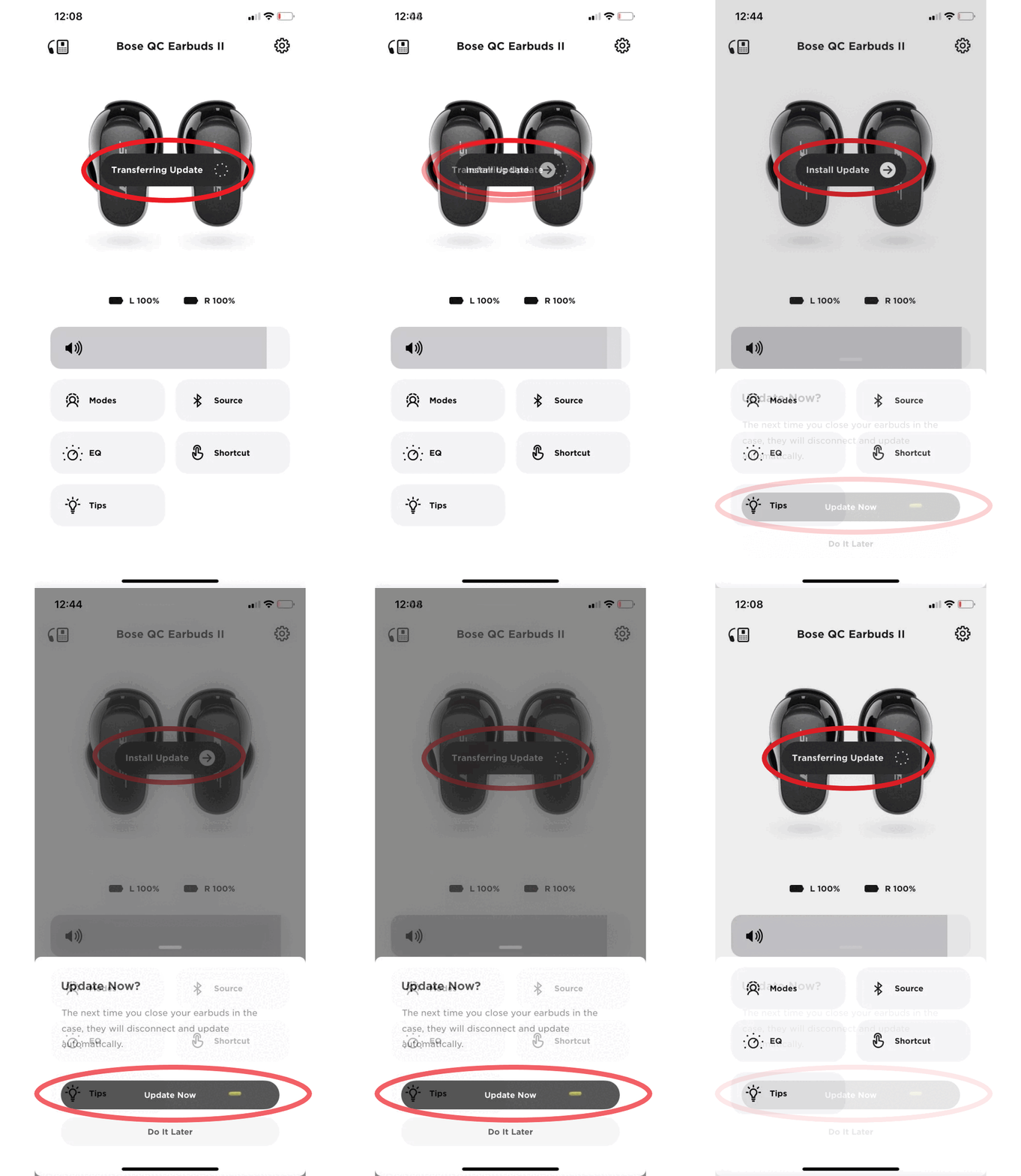
Outdated firmware causes connection instability, audio dropouts, and pairing failures. The Bose Music app is the only way to install firmware updates on these earbuds.
Install and Set Up the App
- Download Bose Music from the App Store or Google Play.
- Open the app and sign in or create a Bose account.
- Tap My Bose, then the plus icon, and select Bose Sport Earbuds.
- Follow the on-screen prompts to pair and register your device.
Check for Available Updates
Once your earbuds are connected to the app:
- Keep the earbuds near your phone.
- Leave them idle or in pairing mode.
- The app automatically checks for firmware updates.
- If an update is available, tap Update Now and wait without moving the earbuds.
Updates can take several minutes to complete. A successful update often resolves lingering connectivity bugs that cause your Bose Sport Earbuds to keep disconnecting.
Pro Tip: Check for firmware updates monthly if you use your earbuds daily. Bose regularly releases patches that improve Bluetooth stability.
Troubleshoot Common Connection Failures

Even after a reset, some issues persist. Use this targeted framework to diagnose and fix the most common problems.
Earbuds Do Not Appear in Your Device List
This usually means the earbuds are not in discoverable mode, or they are already connected to another nearby device.
Verify pairing mode:
– Hold the right earbud button for 5 seconds.
– Listen for “Ready to connect.”
– If you hear nothing, try the case button method instead.
– Confirm the earbuds are charged, since low power disables pairing.
Clear old connections on your phone:
– Open Bluetooth settings.
– Find “Bose Sport Earbuds.”
– Tap Forget or Remove to clear corrupted local data.
Only One Earbud Connects
When sound plays in only one ear, the left and right buds have lost sync with each other.
The right earbud acts as the master controller for the pair. To restore sync:
- Place both earbuds in the charging case.
- Perform a full factory reset using the right earbud button.
- Wait for “Bluetooth device list is cleared.”
- Remove both earbuds and trigger pairing mode again.
Visual Cue: Both earbuds should blink in sync when in pairing mode. Mismatched blinking confirms a sync issue.
Audio Cuts Out or Drops Intermittently
Sound that cuts in and out during calls or music usually points to interference or outdated software.
Update firmware first:
– Use the Bose Music app to install the latest version.
Reduce Bluetooth interference:
– Move away from Wi-Fi routers, microwaves, and USB 3.0 devices.
– Keep other Bluetooth gadgets, especially older ones, turned off.
– Stay within 3 feet (1 meter) of your phone during pairing and playback.
Charging Case Button Does Not Respond
If the case button does nothing when pressed, the issue is likely power-related.
Check the case charge:
– Plug the case into a USB-C cable.
– Wait at least 10 minutes, then try the button again.
– Look for any LED activity, which confirms charging is underway.
Clean the charging contacts:
– Use a dry cotton swab to gently clean the metal contacts on each earbud stem.
– Clean the contact points inside the case as well.
After cleaning, charge the case fully before attempting another reset.
Prevent Future Connection Problems
Once you fix the issue, these habits keep your earbuds running smoothly long-term.
Limit the Number of Paired Devices
Bose Sport Earbuds store pairing data for up to 8 devices. When that limit fills up, new connections fail or cause conflicts.
If you use multiple phones or tablets:
– Forget the earbuds on devices you no longer use.
– Avoid pairing on shared devices like gym equipment.
– Reset periodically if you switch between many gadgets.
Reboot Your Devices Weekly
Phones and computers cache Bluetooth data that can corrupt over time. A simple weekly maintenance routine prevents most glitches:
- Turn Bluetooth off and back on.
- Restart your phone or PC.
- Remove and re-pair the earbuds if problems appear.
Use the Correct App
Stick with the Bose Music app, not the older Bose Connect app.
- Bose Music is required for Sport Earbuds released in 2020 or later. It handles firmware updates, EQ settings, and multi-device switching.
- Bose Connect supports older models like Quiet Control 30 and SoundSport Wireless. It is not compatible with Sport Earbuds firmware.
Using the wrong app can block updates and trigger pairing errors.
When to Contact Bose Support
If you have tried every fix above and your Bose Sport Earbuds still will not connect, the problem may be hardware-related.
Signs of Hardware Failure
- No voice prompts play at all, even with a full charge.
- One earbud never powers on.
- The case LED stays red or flashes abnormally.
- Earbuds charge inconsistently or not at all.
Warranty and Repair Information
- Bose offers a 1-year limited warranty that covers defects.
- Visit the official Bose Support site to start a repair or replacement request.
- Keep your purchase receipt, since you may need it for validation.
Note: Physical damage from water exposure or drops is typically not covered under warranty.
Frequently Asked Questions About Bose Sport Earbuds Connectivity
Why won’t my Bose Sport Earbuds connect to my phone?
The most common cause is a corrupted Bluetooth pairing list. Perform a factory reset by holding the right earbud button until you hear “Bluetooth device list is cleared.” Then forget the earbuds in your phone’s Bluetooth settings and re-pair them from scratch.
How do I reset my Bose Sport Earbuds?
Remove both earbuds from the case and press and hold the multi-function button on the right earbud. Continue holding through the battery announcement and the “Ready to connect” prompt. Release only when you hear “Bluetooth device list is cleared.” This confirms a full reset.
Why is only one Bose Sport Earbud working?
The right earbud acts as the master controller. When only one bud plays sound, the left and right have lost sync. Place both in the case, perform a factory reset on the right earbud, then remove both to re-establish the connection.
Do Bose Sport Earbuds require the Bose Music app?
Yes. The Bose Music app is required for firmware updates, custom EQ settings, and multi-device switching on Sport Earbuds released in 2020 or later. The older Bose Connect app does not support these models.
How many devices can Bose Sport Earbuds remember?
Up to 8 devices. When you reach this limit, new pairings fail or cause conflicts. Clear unused devices from your Bluetooth settings or perform a factory reset to start fresh.
Why do my Bose Sport Earbuds keep disconnecting during use?
Intermittent dropouts usually come from outdated firmware or Bluetooth interference. Install the latest firmware through the Bose Music app, stay within 3 feet of your phone, and move away from Wi-Fi routers, microwaves, or USB 3.0 devices.
Final Thoughts on Fixing Bose Sport Earbuds Connection Issues
Most Bose Sport Earbuds not connecting problems come down to software glitches or pairing conflicts, not hardware failure. A proper factory reset clears corrupted Bluetooth data, while the Bose Music app delivers firmware patches that fix known bugs. Together, these two steps resolve the majority of cases in under five minutes.
Keep the Bose Music app installed, forget unused devices regularly, and clean the charging contacts every few weeks. If the earbuds still fail to connect after every fix above, reach out to Bose Support to explore warranty repair options.



