
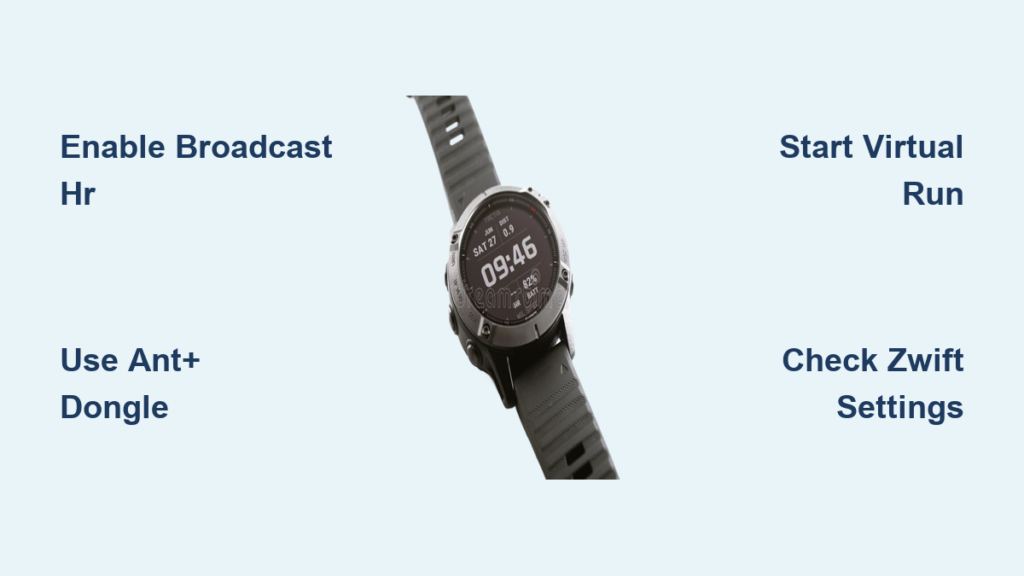
You’ve settled in for a solid indoor cycling session on Zwift, but your chest strap feels tight and uncomfortable. You glance at your Garmin watch already snug on your wrist, tracking your resting heart rate, and wonder: can I use this instead? The answer is yes, but with some fine print. Connecting your Garmin watch to Zwift for wrist-based heart rate monitoring is possible, though the setup varies significantly by model, platform, and wireless protocol. Without the right steps, you’ll likely see “No heart rate device connected” staring back at you on the pairing screen.
This guide cuts through the confusion and gives you a clear, step-by-step path to connect your Garmin watch to Zwift using only its optical heart rate sensor. Whether you’re on a Windows laptop, Apple TV, or Android tablet, we’ll show you exactly what works based on real user experiences and technical specs. You’ll learn which Garmin models support heart rate broadcasting, how to activate it properly, why ANT+ is usually better than Bluetooth, and what to do if Zwift won’t detect your watch.
Enable Heart Rate Broadcast on Garmin
Before Zwift can receive heart rate data, your Garmin watch must be actively broadcasting it. Many users miss this critical step, assuming the watch sends data automatically. It doesn’t. You must manually enable heart rate broadcast mode.
Activate Broadcast via Settings
On most compatible models (Fenix 6/7/8/9, Forerunner 245/255/265/965, epix Gen 2+, Venu 2), follow this path:
- Press the Menu button (lower-left)
- Go to Settings → Sensors & Accessories → Heart Rate → Wrist HR → Broadcast
- Tap Broadcast. The screen turns red, confirming transmission is live
To stop, tap again to exit broadcast mode and save battery.
Pro Tip: Broadcast resets after each session. If you forget to re-enable it, Zwift won’t see your watch. Assign Broadcast HR as a shortcut in your Controls Menu for one-tap access.
Alternative Activation Methods
Some models allow broadcast activation through activity profiles:
• Indoor Ride or Treadmill Mode: Enable Broadcast Heart Rate in the activity settings before starting
• Virtual Run Activity: Forces Bluetooth HR transmission even on watches that don’t normally support BLE OHR (like Vivoactive 4, Venu 2)
This workaround is essential for Apple TV and smartphone users relying on Bluetooth.
ANT+ vs Bluetooth: Choose the Right Protocol
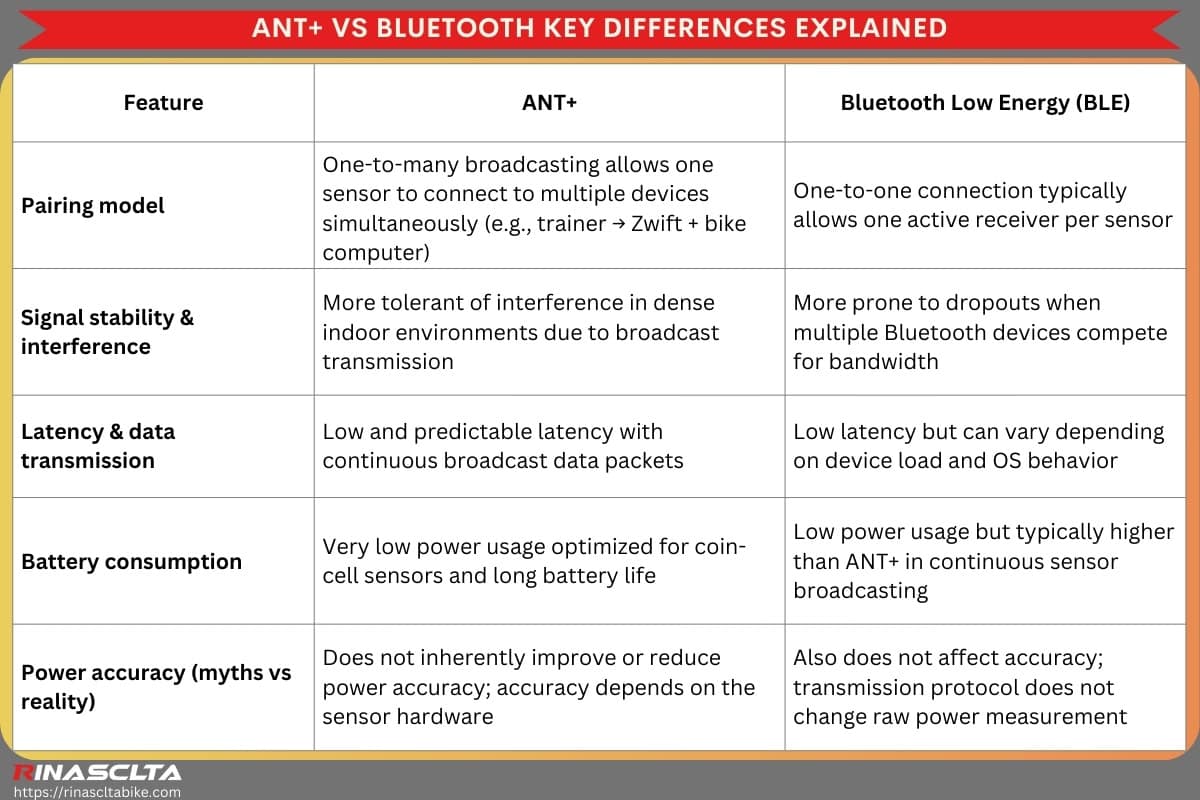
The connection success depends heavily on which wireless protocol your setup supports. Most Garmin watches default to ANT+ for heart rate broadcast, not Bluetooth.
Use ANT+ for Best Results
ANT+ is the gold standard for fitness sensor communication. It offers stable, low-latency connection and compatibility with Zwift on Windows and macOS.
Required Hardware:
• ANT+ USB Stick (Garmin, Wahoo, or Sigma) costs about $15
• Computer with USB port (Windows or Mac)
User Success: PixelBurnout paired a Garmin Venu to a MacBook using a $10 ANT+ adapter. Zwift recognized the watch as a standard HR monitor.
Limitation: Apple TV, smartphones, and tablets lack native ANT+ support, so this method won’t work unless you use a companion app or chest strap.
Bluetooth Workaround for Apple TV and Mobile
Most Garmin watches do not broadcast wrist HR over Bluetooth unless triggered by specific activities.
Solution: Start a Virtual Run
Even if you’re cycling, starting a Virtual Run activity forces the watch to broadcast HR via Bluetooth.
Steps:
- On your Garmin watch: Start activity → Select Virtual Run → Begin (no treadmill needed)
- Open Zwift → Pairing Screen → Heart Rate → Search
- Your watch appears as a Bluetooth heart rate monitor
- Pair and start your ride
Confirmed Use Cases: GRAHAMMACRAE uses Virtual Run when I ride on my indoor trainer. FlynnGoodger (Vivoactive 4) and Ben Gilg (Venu 2) report success with this method.
Why It Works: Virtual Run simulates a connected sensor scenario, enabling BLE HR transmission even on models that otherwise restrict it.
Platform-Specific Setup Guides
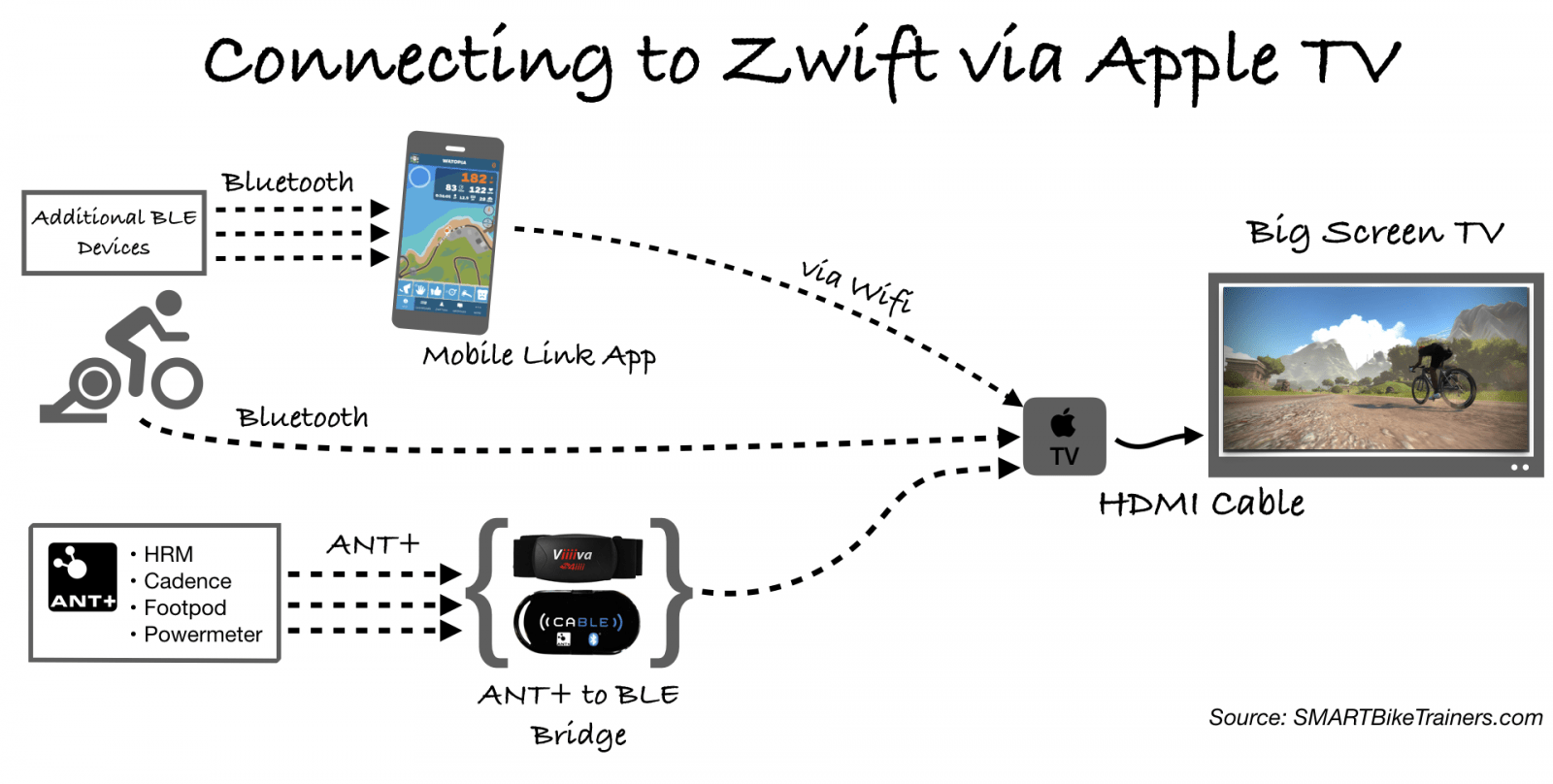
Your host device determines whether you can connect your Garmin watch and how.
Windows or macOS Computer
This is the best option for reliability.
Requirements:
• ANT+ USB dongle
• Latest Zwift app
• Fully charged Garmin watch
Steps:
- Plug in the ANT+ dongle
- Enable Heart Rate Broadcast on the watch
- Launch Zwift → Go to Pairing Screen
- Tap Heart Rate Monitor → Search
- Select your watch from the detected ANT+ devices
Troubleshoot: If not found, restart Zwift or check USB port functionality.
Apple TV: No Direct OHR Support
Apple TV has no ANT+ support and no USB ports, making direct Garmin OHR pairing nearly impossible unless your watch broadcasts over Bluetooth.
Workarounds:
• Use a chest strap (Garmin HRM-Dual, Wahoo TICKR) via Bluetooth
• Use Zwift Companion App on iPhone/iPad: Pair sensors to phone, then phone relays data to Apple TV over Wi-Fi
• Accept that wrist HR from most Garmins won’t connect directly
User Report: PaulFerguson couldn’t pair his Vivoactive 3 to Apple TV due to lack of ANT+.
Android Phones and Tablets
Most Android devices support Bluetooth but lack built-in ANT+ radios.
Challenges:
• Garmin watches rarely broadcast OHR via BLE outside of Virtual Run
• OTG plus ANT+ dongle possible but inconsistent
Best Approach: Use Virtual Run activity to enable Bluetooth HR, then launch Zwift and search for HR device.
Chromebooks: Limited but Possible
Chromebooks run the Android version of Zwift and often support Bluetooth.
User Test: spatulador used a Lenovo Duet Chromebook. They paired smart trainer via Bluetooth and used USB-C OTG adapter plus ANT+ dongle, but the watch still went undetected until switching to laptop.
Recommendation: Use full desktop OS (Windows/macOS) for stable results.
Zwift Hub: BLE Detection Issues
The Zwift Hub supports Bluetooth and detected a Fenix 7 initially (61 bpm), but HR failed to update during the ride despite correct readings on the watch.
Diagnosis: BLE instability, Zwift-side data processing bug, or watch broadcast timed out.
Fix: Ensure broadcast remains active and monitor sensor status in Zwift.
Step-by-Step: Connect Garmin to Zwift (Two Proven Methods)
Method 1: ANT+ Connection (Recommended)
Ideal for: Windows, Mac, Linux users
What You Need:
• Compatible Garmin watch (Fenix 7, Forerunner 265, etc.)
• ANT+ USB dongle
• Computer with Zwift installed
Steps:
- Update firmware on your watch
- Enable Broadcast HR in Settings
- Plug in ANT+ dongle
- Launch Zwift → Pairing Screen
- Under Heart Rate Monitor, tap Search
- Select your watch when it appears
- Confirm HR data displays in-game
Success Rate: High
Time to Pair: Under 2 minutes
Must Re-enable Broadcast Each Time
Method 2: Virtual Run Bluetooth Workaround
Ideal for: Apple TV, smartphones, tablets
Compatible Watches:
• Vivoactive 4
• Venu / Venu 2
• Forerunner 245/255/265
• Fenix 6X/7/8/9
• epix Gen 2+
Steps:
- On Garmin watch: Start → Virtual Run → Begin activity
- Open Zwift → Pairing Screen
- Tap Heart Rate Monitor → Search
- Wait for watch to appear as Bluetooth HR device
- Pair and start workout
Key Insight: This trick works even for cycling. Zwift receives only HR. Cadence and speed come from other sensors or estimation.
Record Workout Locally While Streaming HR
Want to ensure your data isn’t lost if Zwift crashes? Use this dual-recording method.
Best Practice Workflow:
- Start an Indoor Ride activity on your Garmin watch
- In activity settings, enable Broadcast Heart Rate
- Begin the activity
- Launch Zwift and pair the watch as HR source
- After workout: Save in Zwift, discard duplicate activity on watch to avoid clutter in Garmin Connect
Benefits:
• Workout saved locally on watch
• HR streamed to Zwift
• Protection against app crashes or power loss
• Accurate post-ride analysis
Note: Zwift may estimate cadence and speed using motion sensors if no external sensors are paired.
What Data Gets Transmitted?
When connected, Zwift receives limited metrics from your Garmin watch.
| Metric | Transmitted? | Source |
|---|---|---|
| Heart Rate | Yes | Optical HR sensor |
| Cadence | No (estimated) | Accelerometer or external sensor |
| Speed | No (estimated) | Motion or wheel sensor |
| Power | No | Smart trainer only |
| GPS | No | Not available indoors |
Important: Zwift treats the watch as a motion plus HR sensor, enabling basic movement tracking even without external sensors.
Accuracy: Wrist HR vs Chest Strap
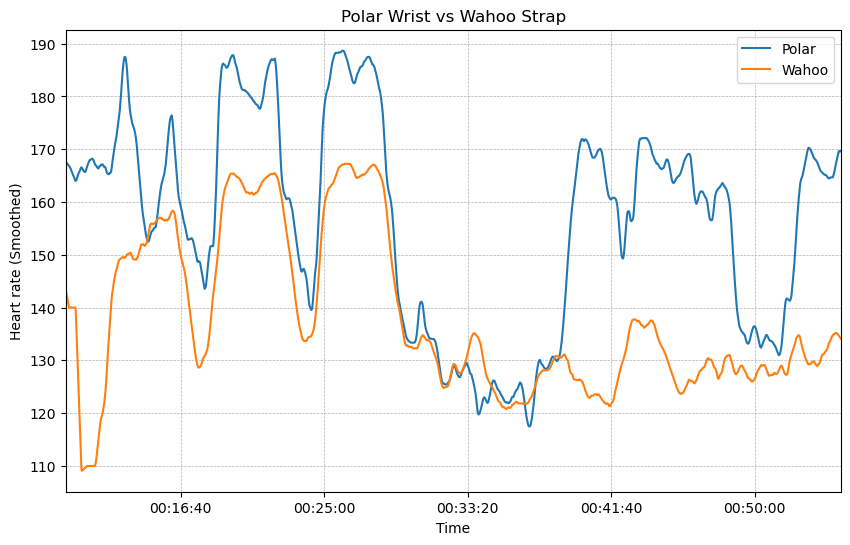
Is wrist-based HR good enough?
Real User Feedback
• AleksyPasternak (Fenix 5X Plus): Wrist HR reads were very inaccurate. Chest strap is a must.
• Twoshihtzu (Fenix 5): Tons of data drops. I bought a chest strap.
• RaptrosRule247 (Forerunner 245): Works flawlessly (positive outlier)
Factors Affecting Accuracy
• Watch fit: Too loose means poor signal
• Skin tone and tattoos: Can interfere with optical sensor
• Off-saddle efforts: Motion artifacts reduce accuracy
• Cold hands: Reduced blood flow affects readings
Verdict: Wrist HR is acceptable for general monitoring, but chest straps are superior for zone training, intervals, and races.
Troubleshoot Common Connection Issues
Watch Not Detected in Zwift
Cause: Missing ANT+ dongle or inactive broadcast
Fix: Use dongle or start Virtual Run to enable Bluetooth
Intermittent HR Signal
Cause: Loose band, low battery, arm motion
Fix: Tighten watch, recharge, minimize movement
Broadcast Setting Missing
Cause: Model doesn’t support feature (older Vivoactive models)
Fix: Update firmware or use chest strap
Static HR (like 61 bpm)
Cause: Connection dropped
Fix: Restart broadcast and check Zwift sensor status
Expert Tip: Monitor Zwift’s sensor menu during the ride to confirm connection stability.
Better Alternatives to Wrist HR
If reliability matters, consider these options.
1. Garmin HRM-Dual Chest Strap
• Dual-band (ANT+/Bluetooth)
• Higher accuracy
• Costs $60–$80 (discounts common)
User: shoberm says I caved and bought the Garmin HRM dual.
2. Zwift Companion App as Bridge
• Pair sensors to phone
• Phone relays data to computer or Apple TV
• Requires same Wi-Fi network
3. Skip the Watch Entirely
• Pair smart trainer and cadence sensor directly
• Use chest strap for HR
• Keep watch in airplane mode to save battery
Simpler Setup: GRAHAMMACRAE recommends leaving the watch out of the sensor chain.
Sync Zwift Workouts to Garmin Connect
Want your indoor rides in one place? Enable two-way sync.
Steps:
- Install Zwift Companion App (blue icon)
- Open → Menu → Settings → Connections
- Tap plus → Garmin Connect
- Log in and choose sync preferences
- Tap Agree
Result: Activities appear in Garmin Connect within 1–2 minutes.
Benefit: Unified dashboard for all workouts.
Final Checklist: Best Practices
• Enable Broadcast HR before every session
• Use Indoor Ride activity to record locally
• Verify connection in Zwift sensor menu
• Keep broadcast screen active during ride
• Stop broadcast afterward to save battery
• Sync to Garmin Connect via Companion App
• Discard duplicate activity on watch
• Update firmware and apps regularly
The Bottom Line
Yes, you can connect a Garmin watch to Zwift for heart rate, but with important caveats.
Works well via ANT+ on computers. Bluetooth requires Virtual Run trick. Not viable on Apple TV without chest strap. Accuracy lags behind chest straps.
Best setup: Windows or Mac plus ANT+ dongle, broadcast enabled, watch properly fitted.
User Consensus: It works, but not perfectly. A chest strap is more reliable.
If you’re committed to wrist-based HR, stick with Fenix 7/8/9, Forerunner 255/265/965, or epix Gen 2+. For everyone else, a $60 chest strap may save more frustration than it costs.
And if you’re tired of workarounds, join the call: Ask Garmin to add Virtual Cycle mode and enable Bluetooth OHR broadcast on all models.
Frequently Asked Questions About Connecting Garmin Watch to Zwift Heart Rate
Can I connect my Garmin watch to Zwift without a chest strap?
Yes, you can use your Garmin watch’s optical heart rate sensor to stream HR data to Zwift. However, you need to enable Heart Rate Broadcast mode on the watch and use either an ANT+ USB dongle (for computers) or the Virtual Run activity workaround (for Apple TV and mobile devices).
Why won’t Zwift detect my Garmin watch?
Most likely causes include not enabling Heart Rate Broadcast on the watch, using a platform that doesn’t support ANT+ (like Apple TV), or having a model that doesn’t broadcast over Bluetooth. Try enabling broadcast in Settings, or use the Virtual Run activity to force Bluetooth HR transmission.
Does Virtual Run work for cycling on Zwift?
Yes. Starting a Virtual Run activity on your Garmin watch forces it to broadcast heart rate via Bluetooth, even if you’re actually cycling on Zwift. This workaround works on models like Vivoactive 4, Venu 2, and Forerunner 245/255/265.
Is wrist heart rate accurate enough for Zwift training?
Wrist-based HR is acceptable for general monitoring but less accurate than chest straps, especially during high-intensity efforts. Users report data drops and inaccuracies during intervals and races. For serious zone training, a chest strap is recommended.
Which Garmin models work best with Zwift?
The most reliable models include Fenix 7/8/9, Forerunner 255/265/965, and epix Gen 2+. These support both ANT+ and Bluetooth HR broadcasting. Older models like Vivoactive 4 require the Virtual Run workaround to enable Bluetooth.
Do I need an ANT+ dongle to connect my Garmin watch to Zwift?
For Windows and Mac computers, yes. An ANT+ USB dongle is required because most Garmin watches default to ANT+ for heart rate broadcast. For mobile devices and Apple TV, you can use Bluetooth with the Virtual Run workaround.



