
Your Garmin watch isn’t turning on, keeps rebooting, or crashes when you start a run. You’re not alone. Thousands of users have faced the same issue, especially after a global GPS crash event in early 2025 that hit dozens of Garmin models. The good news? Most dead-looking Garmin watches aren’t broken. They’re suffering from a software glitch that’s fixable in minutes.
The root problem often lies in a corrupted satellite data file that causes GPS-dependent functions to trigger system crashes or boot loops. Other times, it’s a power failure, sync error, or firmware bug. Whether your device shows no lights, freezes on the Garmin logo, or dies mid-workout, this guide covers every verified fix across Forerunner, Fenix, Venu, Epix, Instinct, and more.
Decode the Symptoms First
Before diving into fixes, identify what kind of failure you’re dealing with. The solution depends on what your watch is or isn’t doing.
Black Screen but Vibrates?
A black screen with haptic feedback doesn’t mean hardware failure. The system is running but stuck in a crash loop. This is common after corrupted GPS file loads.
Action: Try a hard reset while charging.
Boot Loop: Garmin Logo Repeats?
If your watch shows the Garmin logo repeatedly but never reaches the home screen, it’s likely caught in a firmware crash, often triggered by GPS activation. The cause is typically a corrupted GPE.bin file, which contains satellite prediction data. The solution is to force sync via mobile app or delete GPE.bin manually.
Unresponsive After Charging?
No reaction to button presses, even after hours on the charger, suggests either a dead battery state, faulty cable or charging port, or deep system hang. Try the power-cycle protocol with the original charger.
Partial Functionality?
Time displays, notifications arrive, music controls work, but GPS fails or apps crash. This points to software corruption, not hardware failure. A sync or reset usually restores full function.
Fix 1: Sync via Garmin Connect App
Best for: Devices that power on but crash during GPS use.
This is the fastest and safest fix. A sync pushes a clean GPE.bin file from Garmin’s updated servers, replacing the corrupted one.
How to Force Sync
- Open Garmin Connect on your phone.
- Tap More, then Garmin Devices, then select your watch.
- Tap the Sync icon (circular arrow).
- Wait 20 to 30 seconds for full sync.
- Test by opening a GPS sport like Run.
Success Rate: About 60 percent
Time: Under 1 minute
Data Safe: Yes
Tip: If it fails, repeat 2 to 3 times. Some watches need multiple sync attempts to purge bad data.
Fix 2: Hard Reset + Re-Sync
Best for: Boot loops or unresponsive watches that still power on.
A hard reset clears temporary memory and forces the GPS module to reinitialize.
Reset Steps by Model
Touchscreen Models (Venu, Forerunner, Fenix):
Hold the upper-left button for 30 to 60 seconds until screen goes dark.
Button-Only Models (Instinct, Edge):
Hold the power button (usually top-left) for the same duration.
Then wait 5 seconds, press power to turn on, and immediately sync via Garmin Connect.
Special Case: Some Forerunner 965 users report needing to drain battery to about 3 percent first to break the loop.
Success Rate: About 80 percent when combined with sync
Time: 2 to 3 minutes
Data Safe: Yes
Fix 3: Delete GPE.bin File Manually
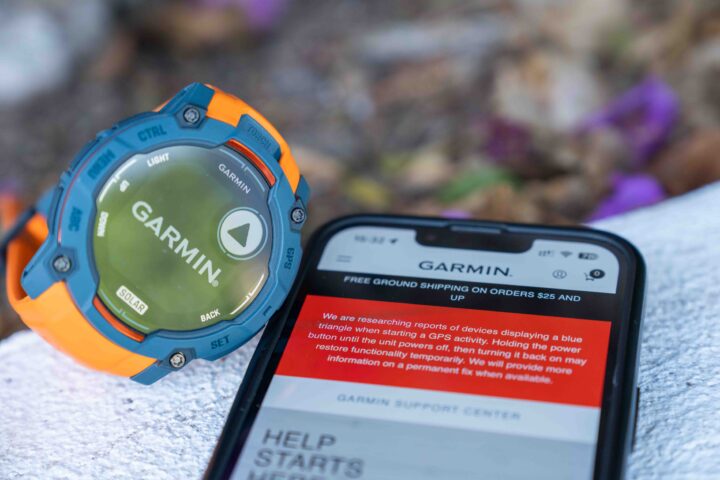
Best for: Persistent boot loops after failed syncs.
This advanced method removes the corrupted GPS cache file directly from your watch’s storage.
What You Need
A computer (Windows or Mac), USB cable, and file access tool (Windows Explorer or OpenMTP for Mac).
Step-by-Step Deletion
- Power off the watch.
- Hold the upper-left button, then connect to computer via USB.
- Watch appears as a removable drive.
- Open drive and go to Garmin\RemoteSW\
- Delete the file named GPE.bin.
- Eject safely, disconnect, and power on.
- Sync immediately via Garmin Connect.
Mac Users: Use OpenMTP (free) if Android File Transfer doesn’t work. Close Garmin Express and camera apps first, as they can block access.
Troubleshooting: If file won’t delete, restart computer and try again. If it reappears, repeat after full reboot.
Success Rate: About 90 percent
Time: 5 to 10 minutes
Data Safe: Yes (user data unaffected)
Fix 4: Factory Reset (Last Resort)
Best for: Total failure, no response, no sync, stuck in loop.
Only use this if all else fails. It wipes local settings but preserves cloud-backed data.
How to Reset
- Power off the watch.
- Hold multiple buttons during startup:
Fenix/Venu/Forerunner: Upper-left + lower-left + lower-right.
Instinct: Power + Start/Stop + Lap/Reset. - Release when reset screen appears.
- Follow setup prompts.
- Re-pair and sync.
Post-Reset Behavior: Activity history stays safe in Garmin Connect cloud. Watch faces, widgets, and notifications must be reconfigured.
Success Rate: About 98 percent
Time: 15 to 30 minutes
Data Loss: Local settings only
Pro Tip: After reset, enable Wi-Fi sync to prevent future Bluetooth hiccups.
Use Garmin Express on Desktop
Best for: Mobile sync failures or unstable connections.
Garmin Express offers a more stable, direct USB-based sync path.
Steps
- Download Garmin Express from garmin.com.
- Install and launch.
- Connect watch via USB.
- Wait for detection.
- Click Sync or Check for Updates.
- Let it run (up to 2 minutes).
- Disconnect and test GPS.
Advantages: Bypasses phone app bugs, forces firmware updates, and is more reliable than Bluetooth.
Power Failure: Won’t Turn On?
If your watch shows zero signs of life, follow this recovery sequence.
Step-by-Step Recovery
| Step | Action | Purpose |
|---|---|---|
| 1 | Hold power button 30 seconds | Ensures full reset |
| 2 | Charge for 5 to 10 minutes | Provides boot power |
| 3 | Try alternate outlet or laptop USB | Rules out power source |
| 4 | Swap charging cable | Eliminates cable fault |
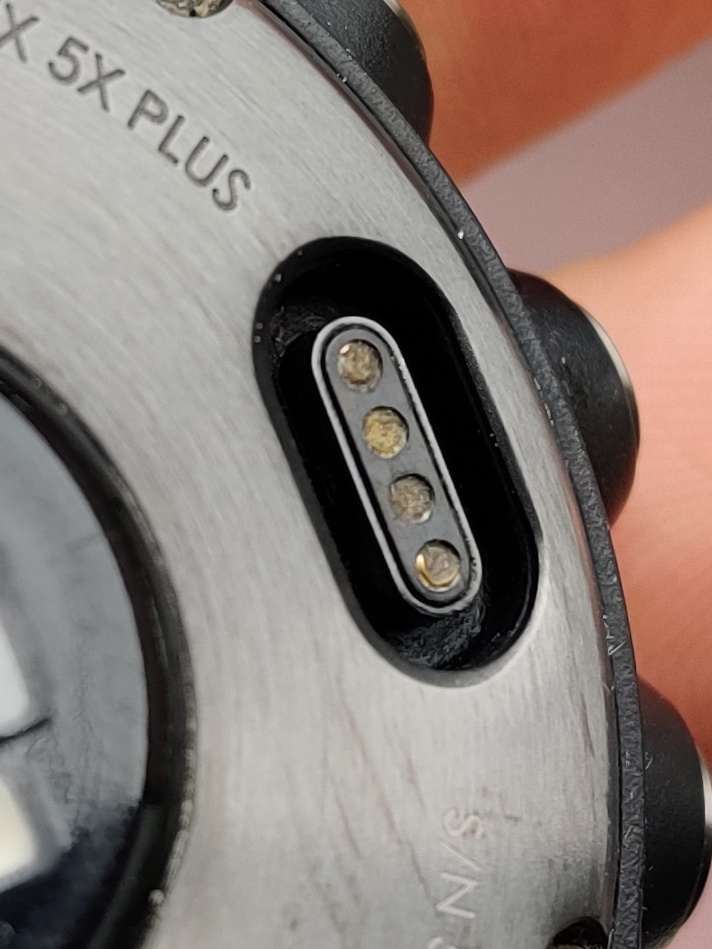
| 5 | Clean pogo pins with dry swab | Removes sweat/dirt blockage |
| 6 | Reset while charging | Boosts recovery chance |
Repeat if no response.
Charging Protocol for Deep Sleep Mode
Some watches enter a low-power hibernation when drained too long.
- Connect to original charger and known-good power source.
- Let charge for 5 to 10 minutes.
- While still connected, hold power button 30 seconds.
- Release, then press once to boot.
This jumpstarts the system capacitor and often revives dead units.
Check Charging Accessories
Faulty cables or dirty contacts cause many false dead watch diagnoses.
Verify Your Setup
Test outlets: Use a different wall adapter or powered USB hub.
Try another cable: Non-Garmin cables may lack proper voltage.
Clean contacts: Use a dry cotton swab on both watch back and charger pins.
Visual Cue: Look for a charging animation or LED glow. Even faint ones indicate power is getting through.
Firmware Update Issues? Try This
Recent updates have caused distance under-recording, heart rate inaccuracies, active minutes not counting, and battery drain spikes.
Common Problem Models
| Model | Issue |
|---|---|
| Vivoactive 5 | Inaccurate distance, HR lag |
| Instinct 2x | Excessive battery drain |
| Forerunner 955 | GPS drift, sync failure |
| Epix Pro 2 | Workouts not uploading |
Fixes
Reboot and reconnect sensors. Clear app cache (Android: Settings, Apps, Garmin Connect, Clear Cache). Reinstall Garmin Connect app. Delay updates until stability confirmed.
User Insight: Firmware 11.16 is reported stable. Avoid newer unstable builds if accuracy is critical.
Software vs Hardware Failure: Spot the Difference
Software Failure Signs
- Boots but freezes at logo
- GPS crashes or reboots
- Sync fails or duplicates data
- Touchscreen lags or locks
- Battery drains fast after update
Fixable: Reset, sync, or file deletion.
Hardware Failure Signs
- No response ever, even after charging
- Charging light never illuminates
- Device gets hot during charge
- Physical damage (cracked screen, bent case)
- Persistent black screen despite full charge
Solution: Contact Garmin Support for RMA.
Real Case: Watch Died After Charging
Toni Moriston (February 2024) reported that their watch showed wrong time after overnight charge. Later it rebooted into logo loop, becoming unresponsive. They tried reset, re-pair, and re-sync, all of which failed. Contacting Garmin Support diagnosed hardware failure, and they received a replacement unit under warranty.
Lesson: Brief operation after charge doesn’t rule out deep failure. If software fixes fail, escalate to support.
User Feedback: What Actually Worked?
From Reddit, forums, and support logs:
- Sync fixed it in under a minute. Thought my Venu 3 was bricked.
- Only deleting GPE.bin worked. OpenMTP saved me on Mac.
- Hard reset brought it back. Black screen but still buzzing.
- Factory reset was painful but necessary. Glad my runs were in the cloud.
A small group (less than 5 percent) report reoccurrence, suggesting incomplete file cleanup.
Prevent Future Crashes
Best Practices
- Sync regularly: Prevents outdated or corrupted EPO files.
- Update firmware cautiously: Wait for user reports before updating primary devices.
- Avoid 0% battery: Don’t let it die completely often.
- Full charge cycle monthly: Recalibrates battery gauge.
- Clean contacts weekly: Prevents charging issues.
- Rinse after saltwater exposure: Protects seals and connectors.
Pro Tip: Enable Wi-Fi sync to reduce Bluetooth dependency.
When to Contact Garmin Support
Reach out if watch remains unresponsive after all fixes, charging light never turns on, or device overheats while charging.
What to Provide
- Model and serial number
- Firmware version (if accessible)
- Detailed symptom description
- Steps already tried
- Photos or videos if possible
Warranty: 1-year coverage. Out-of-warranty repair costs $150 to $300. May issue refurbished unit without return.
Bottom Line
A non-working Garmin watch is rarely dead. The January 2025 GPS crash affected thousands of devices, but nearly all were recovered using simple syncs or file deletions. The culprit is a single corrupted GPE.bin file.
You can fix most issues in under 10 minutes without losing your workout history. Cloud backups make data loss unlikely. Hardware failures are rare.
Stick to the sequence: Sync, reset, delete GPE.bin, factory reset, then support. Your Garmin is probably just waiting for a clean signal to wake up.
Frequently Asked Questions About Garmin Watch Not Working
Why does my Garmin watch keep rebooting when I open GPS apps?
Your watch is likely dealing with a corrupted satellite data file called GPE.bin. This file contains predicted orbital data for GPS satellites. When corrupted, it triggers a fatal firmware exception whenever GPS functions are accessed, forcing a reboot. Force syncing via Garmin Connect or deleting the file manually usually resolves this.
How do I know if my Garmin watch has a hardware failure or software issue?
Software issues typically show these signs: the device boots but freezes at the logo, GPS crashes or reboots, sync fails, or battery drains fast after an update. Hardware failures show as no response ever (even after charging), charging light never illuminates, device gets hot during charge, or physical damage is present. Try software fixes first before assuming hardware failure.
Will I lose my workout data if I factory reset my Garmin watch?
No, your activity history is preserved in Garmin Connect cloud. A factory reset only erases local settings like watch faces, widgets, and notification configurations. After resetting, re-pair your watch with Garmin Connect, and your workout history will sync back down.
Can a corrupted charging cable make my Garmin watch appear dead?
Yes. Faulty or non-Garmin cables may lack proper voltage to charge the watch adequately. Try swapping the charging cable with a known-good original cable. Also test different power sources like wall outlets and laptop USB ports to rule out power delivery issues.
How often should I sync my Garmin watch to prevent issues?
Sync your Garmin watch at least once every few days, or ideally daily if using it for regular workouts. Regular syncing ensures the EPO (Extended Prediction Orbit) satellite data stays current, preventing the corrupted file issues that caused the January 2025 global crash event.
What should I do if my Garmin watch won’t turn on at all?
Follow this recovery sequence: hold the power button for 30 seconds, charge for 5 to 10 minutes, try an alternate outlet or laptop USB, swap the charging cable, clean the charging contacts with a dry swab, and attempt a reset while charging. If nothing works, contact Garmin Support for potential hardware failure evaluation.
Key Takeaways for Fixing Your Garmin Watch Not Working
Most Garmin watch problems stem from software corruption rather than hardware failure. The January 2025 global GPS crash demonstrated how a single corrupted satellite data file (GPE.bin) can disable thousands of devices. The good news is that nearly all of these cases recover with simple troubleshooting steps.
Start with the easiest fix first. Force syncing via Garmin Connect pushes a clean EPO file to your watch and resolves about 60 percent of cases. If that fails, try a hard reset combined with another sync, which raises success to roughly 80 percent. For persistent boot loops, manually deleting the corrupted GPE.bin file achieves about 90 percent success. Only resort to factory reset if everything else fails.
Your workout data remains safe because Garmin automatically backs up activities to the cloud. Local settings may be lost during a factory reset, but your training history, routes, and metrics are preserved. Hardware failures are rare and typically show as complete unresponsiveness even after multiple recovery attempts.
Prevent future issues by syncing regularly, avoiding complete battery discharge, keeping charging contacts clean, and being cautious with firmware updates. Enable Wi-Fi sync for more stable data transfers. If all fixes fail, Garmin’s support team can diagnose hardware issues and may provide a replacement under warranty.



