
If your Garmin watch is showing a blue triangle and won’t boot past it, you’re not alone. This widespread issue, first reported on January 27, 2025, affects multiple Garmin smartwatches and fitness devices. The blue triangle is not a normal feature, it’s a system crash indicator typically triggered by a corrupted firmware update or a backend software glitch from Garmin. Thousands of users saw their Forerunner, Fenix, Instinct, and Edge devices freeze on this screen, rendering them unusable.
Garmin has since confirmed and resolved the root server-side issue as of January 29, 2025. However, affected devices still require manual recovery, no automatic fix was pushed. This guide walks you through every verified fix, step by step, so you can get your Garmin watch back online fast.
Decode the Blue Triangle Error
The blue triangle is not a Do Not Disturb mode or user-enabled setting. Despite misinformation circulating on social media, a solid blue triangle during startup signals a boot failure. This error locks the device in a boot loop or frozen state, with the screen displaying only the triangle, buttons unresponsive, and no access to settings.
The issue is caused by corrupted firmware update, failed sync with Garmin Express or Connect, glitch in the CPE module, or backend OTA update conflict. This is a failure state, not a feature.
Affected Garmin Models
The issue spans multiple product lines across fitness, outdoor, and multisport categories:
• Forerunner: 245, 255, 265, 955
• Fenix: 7, 8
• Instinct: 3 (including 50mm AMOLED)
• Venu, Vivoactive, Epix
• Edge cycling computers
• Descent dive computers
Garmin confirmed the issue impacts some devices across these series, with recovery varying by model.
Immediate Fix: Force Restart Your Device
This is the fastest first step. Many users report success with a simple forced shutdown. Try this method first before moving to more advanced solutions.
Power Cycle the Watch
Applicable to: Fenix 8, Instinct 3, Venu, most newer models
Steps:
- Press and hold the power button for 25 to 30 seconds
- Wait until the screen goes completely black
- Wait 10 seconds
- Press the power button again to restart
Pro Tip: One user fixed a V3 Music model by holding the button for exactly 25 seconds. Timing matters.
If the watch boots normally, immediately sync with Garmin Connect or Garmin Express to restore stability and prevent the issue from recurring.
Forerunner 245/255: Perform Unprompted Reset

When the device won’t respond to touch or buttons, this method forces a factory reset even without menu access. Use this as a second-line solution if power cycling fails.
Force Factory Reset (Data Loss Warning)
Applicable to: Forerunner 245, 255, and similar models stuck on the triangle
⚠️ Warning: This erases all data including workouts, settings, and pairings. You will need to re-pair with Garmin Connect.
Steps:
- Ensure the watch is powered off (hold LIGHT or power button for 30 seconds if frozen)
- Press and hold BACK and START/STOP buttons
- While holding them, press LIGHT to power on
- After the first beep, release START/STOP
- After the second beep, release the remaining buttons
- The watch will reboot and enter initial setup mode
After reset, place the watch outside with clear sky view for 20 or more minutes to reacquire GPS satellites. Complete setup and sync via Garmin Connect.
This method has restored functionality for many Forerunner 255 users who were stuck on the blue triangle screen.
Edge, Fenix, Instinct: Delete CPE.bin File
If your device is not recognized by a computer, a corrupted CPE.bin file may be blocking communication. Deleting it forces the watch to generate a clean version.
Fix Corrupted Communication File
Applicable to: Edge, Fenix 7, Instinct 3, Enduro 2
Steps:
- Connect your Garmin to a computer using a USB cable
- If recognized, open Garmin Express and try to re-add the device
- If not recognized, proceed manually
- Open File Explorer (Windows) or Finder (Mac)
- Locate the Garmin as a removable drive
- Open the Garmin folder
- Find and delete the file named CPE.bin
- Safely eject the device
- Restart the watch
Success Signal: After restart, the device should power on normally and sync.
Pro Tips: Use a charging-only USB cable if data cables cause interference. Try a wall charger instead of PC USB for more stable power during reset.
This fix has worked for Edge cycling computers and older Fenix models when standard resets failed.
Diagnose With Forced Test Mode
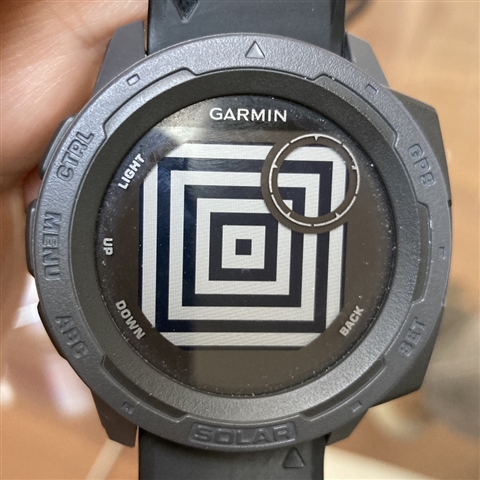
If your watch responds partially, enter Forced Test Mode to check internal status. This doesn’t fix the blue triangle but confirms the device is still alive internally before attempting further recovery steps.
Access Hidden Diagnostic Tools
Enter Test Mode:
- Ensure the device is completely off
- Press and hold the power button to turn it on
- Immediately after the screen lights up, press and hold the designated button (varies by model)
- Wait for three vibrations (note: long pause between second and third)
- Release the button
You will enter a diagnostic loop showing display test, sensor status, memory info, and communication logs. Press the button multiple times to cycle through screens.
Exit Test Mode:
- Press the button 5 times
- When prompted: “Press and hold the power button to disable forced test mode”
- Hold power until the Garmin logo appears
Use Case: This confirms the device is still functional internally, helpful before contacting Garmin support.
User-Tested Workarounds That Work
Try these if standard fixes fail. Several community members found success through alternative approaches when standard procedures did not work.
Battery Drain Method
One user (Carl-GM, USA) reported success by letting the battery drain completely until the device shut off, then charging it fully using a wall charger, and restarting. The device booted normally afterward.
Use Wall Charger Over PC USB
Several users found that PC USB ports failed to power the reset, but a 5V wall adapter provided stable voltage to trigger recovery. Computer USB ports can sometimes deliver insufficient power for recovery operations.
Avoid Data Cables
Data USB cables can interfere with recovery. Use a charging-only cable to prevent sync conflicts during reset attempts. This simple switch has resolved the issue for multiple users.
When to Contact Garmin Support
If you have tried all fixes and the triangle remains, it may require hardware evaluation or replacement. This is the final step after exhausting all software-based recovery methods.
Persistent Blue Triangle? Escalate Now
Contact Garmin if the device does not power on, PC does not recognize USB connection, or there is no response to button combinations.
Garmin Support Response: Representatives have advised users to contact regional support. Devices over 3 years old may not qualify for free replacement unless under warranty. No global recall or extended warranty has been announced.
One UK user reported the issue lasting over four weeks on a 3-year-old device before support eventually approved replacement. If software fixes fail, Garmin may offer exchange or repair.
Debunking Myths: Blue Triangle ≠ Do Not Disturb
Common misconceptions about this error have spread across social media and forums. Understanding the truth helps you avoid wasting time on irrelevant troubleshooting steps.
Common Misconceptions
❌ Myth: The blue triangle means Do Not Disturb mode is on.
✅ Truth: Do Not Disturb shows a crescent moon icon, not a solid blue triangle.
The confusion likely stems from software glitches overlaying icons incorrectly, poor screen visibility in sunlight, and misinformation on Facebook and forums. Garmin has not documented the blue triangle as a user-accessible mode. It is a failure state, not a feature.
Prevent Future Crashes
Once your watch is fixed, avoid recurrence with these best practices. Prevention is simpler than recovery.
Best Practices After Recovery
1. Keep Firmware Updated
Enable auto-updates in Garmin Connect. Check for updates monthly via Garmin Express for the most stable experience.
2. Avoid Interrupted Syncs
Do not disconnect during updates. Use stable Wi-Fi or direct USB connection rather than mobile data.
3. Backup Your Data
Export workouts via Garmin Connect Web regularly. Use third-party tools like GCStar or GoldenCheetah for long-term backup.
4. Use Garmin Express for Major Updates
Garmin Express provides more stable connection and better error handling than the mobile app. This is especially important for firmware updates.
Frequently Asked Questions About Garmin Blue Triangle Issue
What does the blue triangle mean on my Garmin watch?
The blue triangle is a system crash or boot failure indicator, not a user mode. It signals that the device failed to start properly due to corrupted firmware, failed updates, or a backend software glitch.
Which Garmin models are affected by the blue triangle issue?
The issue affects multiple series including Forerunner (245, 255, 265, 955), Fenix (7, 8), Instinct 3, Venu, Vivoactive, Epix, Edge cycling computers, and Descent dive computers.
How do I fix my Garmin watch stuck on the blue triangle?
Start with a 30-second power cycle (hold power button until screen goes black, wait 10 seconds, restart). If that fails, try model-specific fixes like the unprompted reset for Forerunner models or deleting the CPE.bin file for Edge and Fenix devices.
Does the blue triangle mean Do Not Disturb is on?
No. Do Not Disturb displays a crescent moon icon, not a solid blue triangle. The blue triangle is a failure state indicating a boot problem, not a user setting.
Will Garmin replace my watch if the blue triangle won’t go away?
If software fixes fail, Garmin may offer exchange or repair. Devices over 3 years old may not qualify for free replacement unless under warranty. Contact regional support for evaluation.
How do I prevent the blue triangle from happening again?
Keep firmware updated via Garmin Express, avoid interrupting sync sessions, regularly back up your data, and use stable connections during updates.
Key Takeaways for Fixing Your Garmin Watch
The blue triangle on your Garmin watch is a system crash indicator, not a feature or setting. Garmin resolved the backend cause as of January 29, 2025, but affected devices still require manual recovery. Start with a 30-second power cycle, then try model-specific solutions like the unprompted reset for Forerunner devices or deleting the CPE.bin file for Edge and Fenix models. Sync immediately after recovery to prevent recurrence. If all DIY fixes fail, contact Garmin support for potential hardware replacement. Your watch is not broken, it just needs a reset.



