
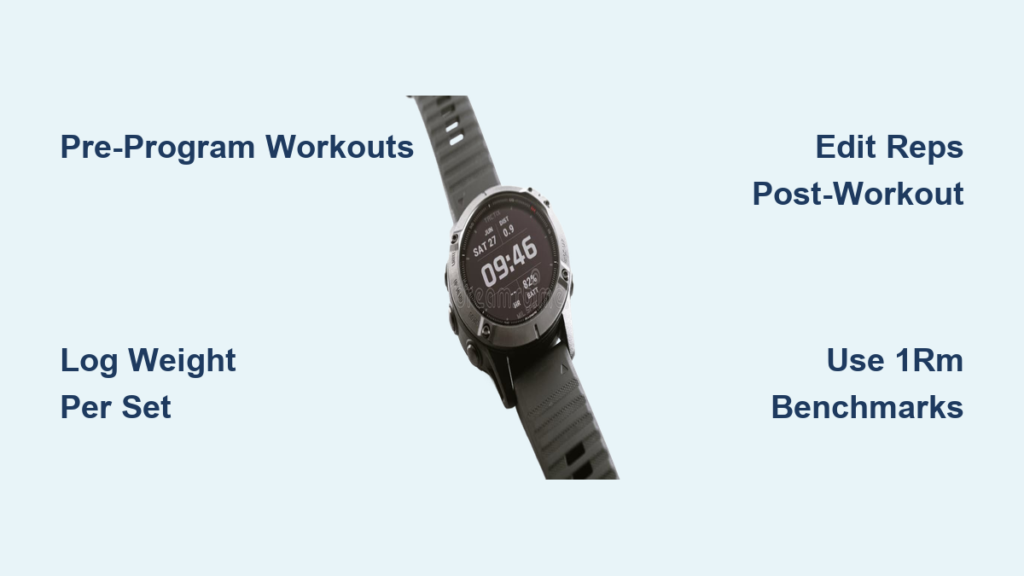
If you’re using a Garmin watch for strength training, you’re not alone. Thousands of lifters rely on these devices to track workouts, monitor recovery, and measure long-term progress. While Garmin watches aren’t perfect for weightlifting out of the box, they offer powerful tools when you know how to use them correctly. From real-time rep logging to pre-programmed workouts and 1RM-based planning, your watch can become a digital gym journal that evolves with your strength.
But here’s the catch: you need to know how to work with and around its limitations. Automatic rep counting can misfire, heart rate data may look suspicious during heavy sets, and entering weights mid-set takes practice. This guide covers every method, tip, and workaround to help you use your Garmin watch effectively in the weight room.
Starting a Strength Workout on Your Garmin
Navigate to the Activities menu on your watch and select Strength. You will have two main options to choose from depending on your workout style.
Choosing Free or Pre-Loaded Mode
Free Strength Mode works best for unstructured or spontaneous workouts. The watch will attempt to auto-detect exercises and count reps based on motion. Pre-Programmed Workout is ideal for planned sessions like 5×5, hypertrophy blocks, or split routines. These must be created in advance via Garmin Connect. Once started, the watch tracks duration, heart rate, calories, and Training Load even if you do not log individual sets.
Enabling Rep and Weight Logging
After selecting an exercise such as Bench Press, complete your set and press LAP or tap the screen. The watch prompts you to confirm or adjust reps. Tap Edit Weight to enter your load such as 135 lb. A rest timer appears and you can tap Start when ready for the next set.
Touchscreen watches like Venu, Fenix, and Epix models are faster for real-time edits. Non-touch models like Forerunner 265 require button navigation which can feel slow under time pressure.
Creating Custom Workouts in Garmin Connect

For structured lifting, skip guessing at the gym by planning ahead in the Garmin Connect app or desktop site.
Building Workouts Step by Step
Open Garmin Connect and go to More, then Training and Planning, then Workouts, and select Create Workout. Choose Strength as the activity type. Click Add Exercise and search the Exercise Library which contains over 1,400 options. For each exercise, you can set the number of sets, target reps, target weight, and rest time between sets. Save the workout and sync it to your watch.
Following On-Screen Cues at the Gym
Select the pre-loaded routine on your watch. The watch guides you step-by-step through each exercise. Press LAP to finish a set and the watch automatically advances to the next exercise in your programmed routine.
Using the desktop version of Garmin Connect makes drag-and-drop editing and bulk changes much easier compared to the mobile app.
Fixing Rep Counting Issues
Garmin uses wrist motion to estimate reps. Understanding why it sometimes fails helps you work around the limitation.
Why Auto-Rep Detection Fails
The watch works well for exercises with clear arm movement but struggles when the wrist stays stable such as during bench press or squats. Movement that is full-body like deadlifts or power cleans also causes issues. Accuracy ranges from 80 to 90 percent and works best on dumbbell curls, shoulder presses, and cable pull-downs.
Correcting Reps During or After Workout
After pressing LAP, the watch shows detected reps. Use the UP or DOWN buttons to correct immediately. If you miss corrections during your session, sync to Garmin Connect and tap Edit to adjust reps and weight per set after the workout. Most lifters spend under three minutes post-workout fixing data, which is worth it for accurate tracking.
Logging Weight and Tracking Progressive Overload
Always input weight after each set to get the most from your Garmin watch.
Entering Load Per Set
After completing a set, press LAP. Tap Edit Weight and enter your value such as 20 kg or 135 lb. This data appears in Garmin Connect for progress analysis over time.
Tracking Progressive Overload
Garmin does not auto-update target weights in workout templates. To track your progress, manually increase target weight in Garmin Connect after hitting new PRs. Use 1RM benchmarks to auto-calculate future loads based on your strength improvements.
Increasing weight during a session only logs that one workout and does not update the original plan for future sessions.
Using 1RM Benchmarks for Smart Load Planning
Input your max lifts to enable percentage-based programming that supports structured strength gains.
Inputting Max Lifts
In Garmin Connect, go to Profile and then Benchmarks. Add a one-rep max or a multi-rep max like a 5RM. For example, a 5RM bench of 205 lb gives an estimated 1RM of approximately 230 lb. When programming workouts, the watch can now suggest weights based on percentages. For instance, 80 percent of 1RM equals approximately 184 lb, which is ideal for powerlifting cycles or periodized programs.
Updating Benchmarks Regularly
Re-test max lifts every six to eight weeks. Update your benchmarks and future workouts adapt automatically. This eliminates guesswork in load selection and supports consistent strength progression.
Handling Heart Rate Data During Lifting
Wrist-based heart rate sensors often show implausible values during lifting such as seven to twenty beats per minute due to isometric contractions, restricted blood flow, and arm positioning during exercises like overhead press or bench press.
Still Track Valuable Metrics
Even with imperfect heart rate data, continuous monitoring supports Training Load calculations, Body Battery recovery status, and recovery time estimates. Many lifters accept heart rate inaccuracies as a trade-off for having consistent session duration and load metrics. Focus on long-term trends rather than per-set accuracy.
Reviewing and Editing Your Workout Post-Session
After syncing, access full workout data to ensure your records stay accurate.
Accessing Activity Details
Open Garmin Connect and go to More, then Activities, then All Activities. Select your strength session to view total time, calories burned, heart rate zones, muscle groups worked with a visual diagram, and per-set details including reps, weight, and rest times.
Editing Exercise Names and Sets
Tap Edit to modify misidentified exercises. Use the Recent filter or filter by muscle group to find the correct movement. Rename exercises such as changing Shoulder Press to Lateral Raise. Adjust reps, weight, or add missing sets as needed.
Adding Notes and Photos
Enhance your record by adding notes like new 3RM on deadlift or felt fatigued. Add a self-rating of Easy, Moderate, or Hard. Specify gear used such as Smith Machine or hex dumbbells. Attach photos from your phone gallery such as gym selfies or whiteboard notes. Generate a link to share workout details with your coach or training partner.
Combining Warm-Up and Cool-Down in One Session
Run one continuous activity to merge all phases of your gym session.
Benefits of Continuous Tracking
Start Strength in Free mode and begin with a ten-minute treadmill walk for warm-up. Proceed to lifting and finish with stretching or light cardio. This approach gives you unified Training Load, accurate total calorie burn, and complete recovery impact. If you are not logging warm-up lifts, add a note explaining what you did such as warm-up with three sets of air squats and band work.
Optimizing Your Watch Display for the Gym
Customize what appears on your watch during workouts to reduce distractions and speed up data entry.
Customizing On-Watch Metrics
Edit which fields appear during your workout including rep count, weight, rest timer, heart rate, and elapsed time. Use minimalist watch faces to reduce visual clutter. Enable Do Not Disturb during lifting to avoid interruptions.
Using Touchscreen Models for Speed
Non-touch watches like Forerunner 255 require multiple button presses to edit reps and weight, which is slower under time pressure. Recommended models for frequent lifters include Venu 3, Fenix 7, Epix Gen 2, and Instinct 2X Solar. Faster input leads to more consistent logging throughout your workout.
Best Practices for Garmin Strength Training
Follow these core strategies to get the most from your watch in the weight room.
Pre-plan your workouts by creating structured strength routines in Garmin Connect before hitting the gym. This saves time, reduces errors, and keeps you on track. Log reps and weight immediately after each set because memory fades fast. Use the Exercise Library to search by muscle group or keyword and pick the closest match even if not perfect. Review and edit weekly by spending five to ten minutes cleaning up logs to ensure accurate long-term progress tracking. Leverage 1RM benchmarks by inputting max lifts to enable percentage-based programming ideal for strength cycles. Track recovery not just reps by using Body Battery and Training Load to help avoid overtraining. Consider combining with other apps by pairing Garmin with Strong or Hevy for detailed lift tracking while using Garmin for recovery and load metrics.
Frequently Asked Questions About Using Garmin Watch for Strength Training
Does Garmin automatically count reps during strength training?
Garmin attempts to auto-detect reps using wrist motion sensors, but accuracy ranges from 80 to 90 percent depending on the exercise. It works best for movements with clear arm swing like dumbbell curls and shoulder presses. For exercises like squats, deadlifts, and bench press, manual entry is recommended.
Can I create custom strength workouts on my Garmin watch?
You create custom workouts in Garmin Connect on the app or desktop website, then sync them to your watch. Navigate to More, Training and Planning, Workouts, Create Workout, and select Strength. Add exercises, set reps, weight, and rest times, then save and sync.
How do I log weight during a workout on my Garmin?
After completing a set, press LAP or tap the screen. Tap Edit Weight and enter your load such as 135 lb. The watch then displays a rest timer. This data syncs to Garmin Connect for progress analysis.
Why does my Garmin show weird heart rate numbers during lifting?
Wrist-based heart rate sensors struggle during lifting due to isometric contractions, restricted blood flow, and arm positioning. Readings may show implausible values like seven to twenty beats per minute. Focus on trends over time rather than per-set accuracy.
Can I use my Garmin to track one-rep max and program percentages?
Yes. In Garmin Connect, go to Profile, Benchmarks, and add a 1RM or multi-rep max. The app estimates your 1RM and can suggest weights based on percentages for future workouts. Update benchmarks every six to eight weeks as you get stronger.
What should I do if rep counting is inaccurate?
Manually adjust reps after each set using the UP or DOWN buttons. Alternatively, make corrections in Garmin Connect after syncing. Most users report spending under three minutes post-workout to fix all data.
Key Takeaways for Using Your Garmin in the Weight Room
Your Garmin watch won’t replace a dedicated strength app, but used wisely, it becomes a powerful part of your fitness ecosystem. Pre-programming workouts in Garmin Connect saves time and reduces errors during your session. Correcting data post-session takes just a few minutes and ensures accurate long-term progress tracking. Focus on trends over perfection, especially with heart rate data during heavy lifts. Use 1RM benchmarks to enable smart percentage-based programming that supports structured strength gains. Whether you’re building muscle, training for sport, or just staying strong, your Garmin can be more than a tracker. With the right setup, it becomes your digital training partner that helps you lift smarter, recover better, and progress consistently.



