If you’ve ever wondered how your Fitbit tracks your morning run or cycling route, the answer lies in its GPS system. But not all Fitbits work the same way. Some devices have built-in GPS chips, while others rely on your smartphone to calculate location. Understanding how Fitbit GPS works helps you get accurate distance, pace, and route data during outdoor workouts. Whether you’re a casual walker or a dedicated runner, knowing the difference between GPS types and how to activate them can dramatically improve your training insights.
Built-in GPS vs Connected GPS: Key Differences
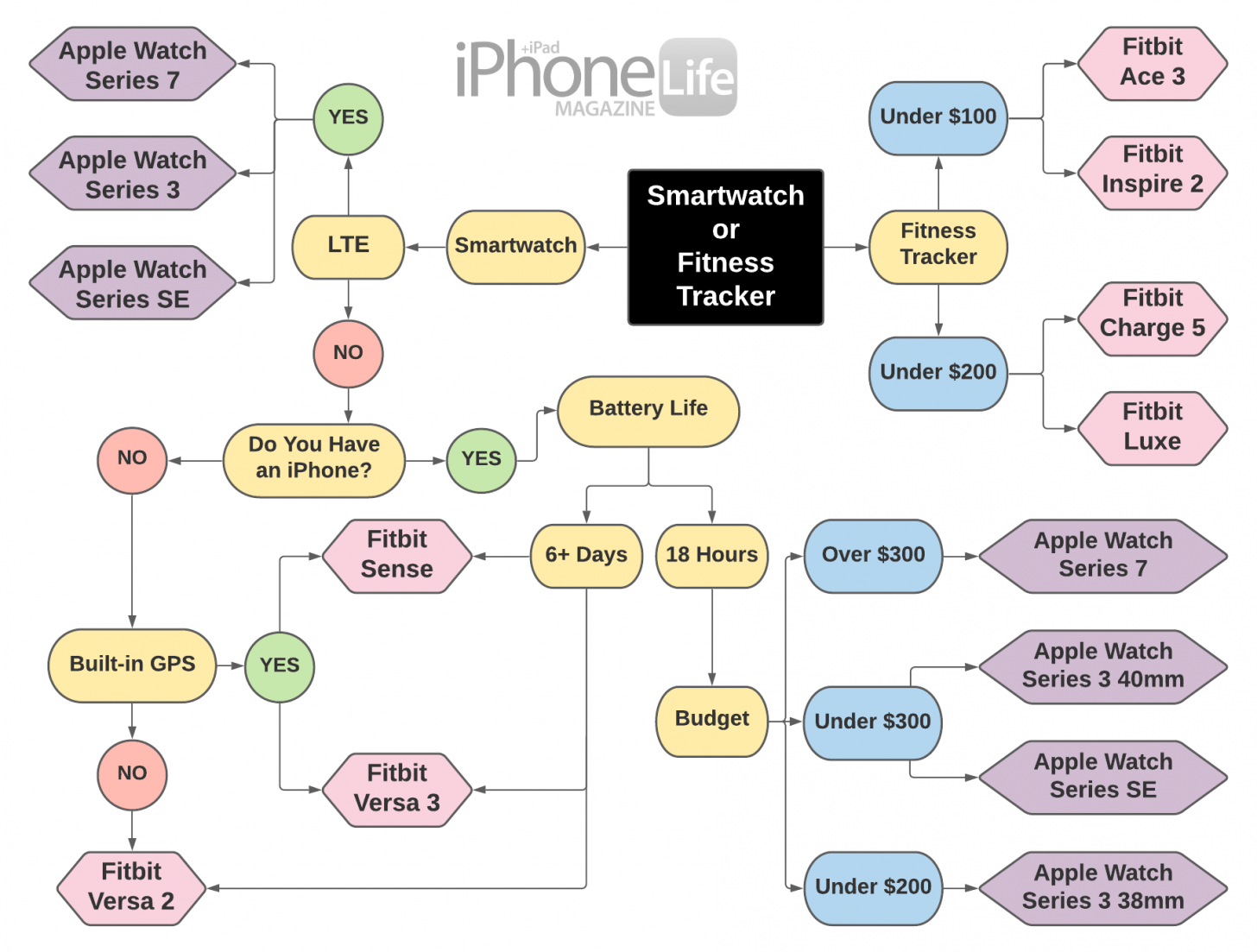
Fitbit devices use two different GPS architectures depending on the model. Understanding this distinction is essential for choosing the right device and getting accurate tracking data.
Devices With Built-in GPS
Certain Fitbit models have a GPS chip built directly into the device. These models can communicate with satellite networks to determine your location without needing your phone nearby.
The following devices feature built-in GPS:
- Fitbit Charge 5
- Fitbit Charge 4 (GPS version)
- Fitbit Sense and Sense 2
- Fitbit Versa 3 and Versa 4
- Fitbit Ionic
With built-in GPS, you can leave your phone at home and still get accurate route maps, distance, and pace tracking. The data stores locally on the watch and syncs to the Fitbit app when you reconnect.
How Connected GPS Works
Fitbits without internal GPS use Connected GPS, also known as Assisted GPS. Your smartphone’s GPS does the tracking work while your Fitbit displays the real-time stats.
For this to function properly, you need:
- Your phone must be with you during the workout
- Bluetooth must be active and connected
- The Fitbit app must be running in the background
If the Bluetooth connection drops during your workout, GPS tracking stops immediately. This defeats the purpose of a lightweight tracker for runners who want to go phone-free.
When Fitbit Estimates Distance Without GPS
If GPS isn’t available, either because your model lacks it or your phone is out of range, Fitbit estimates distance using your step count and stride length.
The formula is simple:
Distance = Step Count × Stride Length
However, this method has significant accuracy issues:
- Stride length changes with speed and terrain
- Arm movements can trigger false steps during non-locomotive activities
- No actual route mapping is possible
Distance data without GPS is considerably less reliable for performance tracking compared to satellite-derived data.
How to Enable GPS on Your Fitbit

Activating GPS correctly ensures you get accurate tracking data. The process varies slightly depending on your Fitbit model.
Enable GPS on Sense, Charge, and Versa Models
On devices like the Charge 5, Sense, or Versa 4:
- Open the Training app on your Fitbit
- Swipe up to reveal workout settings
- Toggle GPS to “On”
- Swipe down to return to the activity selection screen
- Select your activity (e.g., Run, Walk, Bike)
- Wait for the satellite icon to appear before starting your workout
Activate GPS on Ionic and Older Versa Models
For Ionic, Versa, or Versa 2:
- Open the Exercise app
- Tap your desired activity (e.g., Run)
- Tap the gear icon (Settings) for that activity
- Turn on GPS or Connect GPS
- Return to the activity start screen and begin your workout
Set Up Connected GPS for Inspire and Air Models
For devices relying on smartphone GPS:
- On your Fitbit, go to Settings
- Turn on Phone GPS
- Alternatively, in the Fitbit app:
– Tap the + to start a workout
– Select your activity
– Tap the gear icon
– Enable GPS
Prerequisites for GPS to Work
Before using GPS, ensure these conditions are met:
- Both the Fitbit app and device firmware are updated to the latest versions
- Your phone has location services enabled for the Fitbit app (set to “Always” or “While Using”)
- Bluetooth is active and your device is paired
- You wait for the satellite icon to appear before starting your timer
Why Fitbit GPS Fails and How to Fix It
GPS issues can frustrate users. Understanding common problems and their solutions helps maintain accurate tracking.
GPS Option Missing or Grayed Out
If you can’t turn on GPS or the option is unavailable:
- Restart your Fitbit completely and try again
- Re-pair it with your phone via Bluetooth
- Check that Fitbit app permissions are enabled in your phone settings
- On iPhone or Android, go to Settings > Apps > Fitbit > Location and set it to “Always” or “While Using”
No Route Map After Your Workout
This usually means GPS never successfully locked onto satellite signals.
Common causes include:
- Starting the timer before the satellite icon appeared
- Location services were disabled on your phone
- Phone was too far from the tracker (for Connected GPS)
Fix: Always wait for the satellite icon to appear before pressing start. This typically takes 10-20 seconds in optimal conditions.
Inaccurate or Skipped Tracking
If your route map shows gaps or missing sections, GPS signal dropped during your workout.
This skipping occurs due to:
- Tall buildings in urban areas (urban canyons)
- Heavy tree cover or dense forests
- Tunnels or underground passages
- Weak device battery
Running in open areas significantly improves accuracy. Historical data shows mapping errors of up to 23% when running under heavy tree cover.
GPS Turns Off Mid-Workout
Some users report GPS cutting out after 10-30 minutes, especially on older devices.
Possible fixes include:
- Update firmware on your Fitbit to the latest version
- Recalibrate the compass if your model supports it
- Reset GPS settings in the Fitbit app
- Check battery health as older batteries may struggle with GPS power demands
Battery Life and GPS: What to Expect

Using GPS significantly impacts your Fitbit’s battery life. Understanding this trade-off helps you plan your workouts.
GPS Drains Battery Quickly
Activating GPS can reduce your Fitbit’s battery life by 30-50% during a single workout.
For example:
- Fitbit Charge 5: Up to 7 days battery without GPS
- With GPS enabled: Approximately 5 hours of continuous tracking
The Fitbit Air, lacking GPS hardware, can last up to 7 days because it avoids this power draw entirely.
Save Battery With Smart Usage
To preserve battery life:
- Only enable GPS for outdoor runs, walks, or rides
- Turn it off for gym workouts or treadmill sessions
- Use Indoor mode when you don’t need location data
This extends usage between charges and reduces wear on the battery over time.
Viewing and Exporting Your GPS Data
After completing a GPS-tracked workout, your route and metrics are available in the Fitbit app.
See Your Route in the App
After your workout:
- Open the Fitbit app on your smartphone
- Tap the Activity tab
- Select your completed workout
- Scroll to view your route map, distance, pace splits, and elevation changes
The map shows your exact path using satellite data, not step estimates.
Export or Share Your Data
Want to analyze your run in other apps?
You can:
- Export GPS data via the Fitbit website (fitbit.com)
- Sync with Strava, MyFitnessPal, or Garmin Connect
- Download TCX or GPX files for third-party apps
Note that if GPS was inconsistent during your workout, you may need to manually verify distance before sharing data with other platforms.
Fitbit GPS vs Garmin and Phone Apps
How does Fitbit’s GPS compare to dedicated GPS watches and smartphone apps?
Fitbit vs Dedicated GPS Watches
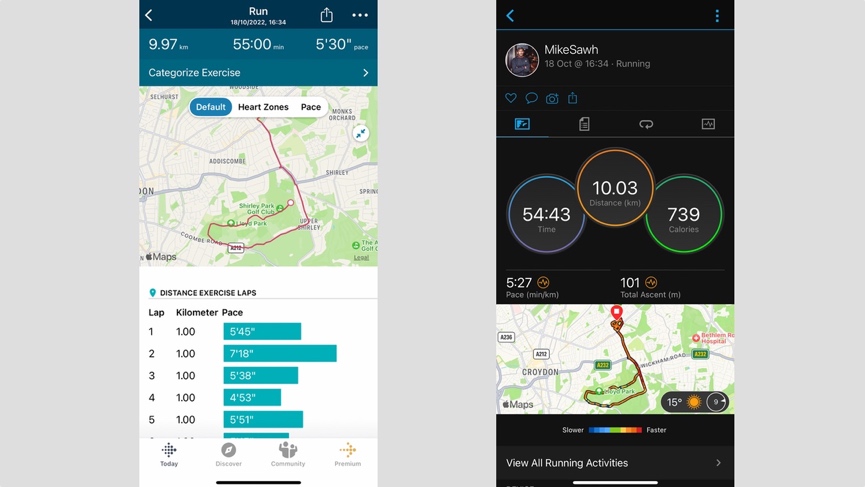
Sport-specific watches like Garmin are generally more reliable for continuous tracking. Fitbit GPS works well in open areas but is more prone to signal drops and mapping gaps.
Users often report:
- Fitbit skipping short segments of a route
- Garmin maintaining a smoother, more accurate path
- Fitbit pace data fluctuating more during signal loss
For casual use, Fitbit GPS is sufficient. For serious athletes, a Garmin or Apple Watch may offer better consistency.
Fitbit vs Smartphone Running Apps
Running apps like Strava or Nike Run Club use your phone’s GPS, which is often more powerful than a small wearable’s chip.
With Connected GPS, your Fitbit uses that same phone GPS, just displayed on your wrist. So accuracy depends on your phone, not the Fitbit.
With built-in GPS, the Fitbit’s own receiver determines location. It’s less powerful than a phone but more convenient for phone-free runs.
Which Fitbit Should You Choose for Running

The presence or absence of GPS significantly impacts running performance tracking.
The Fitbit Air Dilemma: No GPS, Big Trade-Off
The Fitbit Air is built for discretion and long battery life with a sleek, screenless design. It tracks heart rate, sleep, and steps effectively.
But it lacks built-in GPS.
This forces runners to carry their phone, undermining the lightweight appeal of a minimalist tracker.
Better Value: Fitbit Charge 6
The Fitbit Charge 6 includes built-in GPS, a screen, and full workout tracking for approximately $119.
For just $20 more than the Air, you get:
- Phone-free GPS tracking
- Real-time pace and distance
- Route mapping
- Better long-term training insights
For runners and cyclists, the Charge 6 offers significantly better value despite slightly shorter battery life.
Market Gap: No Screenless GPS Tracker
There is currently no screenless Fitbit with built-in GPS. This leaves a gap for users who want minimalism and accurate outdoor tracking. Until a true phone-free, screenless GPS tracker arrives, users must choose between form and function.
Long-Term GPS Reliability Concerns
Some users report GPS issues after extended use, raising durability questions.
GPS Fails Over Time
Some devices experience GPS problems after just 5 days to 6 months of use, especially on:
- Fitbit Versa 4
- Fitbit Charge 6
- Older Sense models
Symptoms include signal drops mid-run, incomplete maps, and the GPS option disappearing entirely.
Software Dependence
GPS performance depends on:
- App updates and device firmware
- Cloud syncing functionality
- Potential future changes to Fitbit Premium subscription requirements
Always back up your workouts and consider third-party export options to maintain access to your data.
Frequently Asked Questions About Fitbit GPS
Does Fitbit Charge 5 have built-in GPS?
Yes, the Fitbit Charge 5 has built-in GPS. You can track runs, rides, and walks without carrying your phone. The device communicates directly with satellite networks for accurate distance and route data.
Why is my Fitbit not tracking my route?
This usually happens when GPS didn’t lock onto signals before you started. Always wait for the satellite icon to appear before pressing start. Also check that location permissions are enabled on your phone for the Fitbit app.
Can I use Fitbit GPS without my phone?
Only if your Fitbit model has built-in GPS (Charge 5, Sense, Versa 3/4, Ionic). Models like the Inspire 2 or Fitbit Air require your phone nearby for Connected GPS to work.
How accurate is Fitbit GPS compared to Garmin?
Fitbit GPS is functional but generally less accurate than Garmin watches. Garmin devices maintain smoother tracking with fewer signal drops. For casual runners, Fitbit GPS is adequate. Serious athletes may prefer Garmin for more consistent data.
Does GPS drain battery on Fitbit significantly?
Yes, GPS can reduce battery life by 30-50% during a workout. A Charge 5 that lasts 7 days normally will only last about 5 hours with continuous GPS tracking. Enable GPS only for outdoor activities and use Indoor mode for gym workouts.
Key Takeaways for Using Fitbit GPS Effectively
Understanding how Fitbit GPS works depends on your specific model. Built-in GPS offers freedom and accuracy for phone-free runs, while Connected GPS requires your smartphone but works reliably when paired correctly. To get the most accurate data, always wait for the satellite icon to appear before starting your workout, and try to exercise in open areas away from tall buildings or dense tree cover.
GPS significantly impacts battery life, so enable it only for outdoor activities where you need route and distance tracking. For runners, hikers, and cyclists, GPS is essential for reliable training data. Choose a GPS-enabled Fitbit model like the Charge 5 or Charge 6 if outdoor tracking matters to you. If you prioritize minimalist design over accurate distance tracking, the Fitbit Air remains an option, though you’ll need to carry your phone for any meaningful route data.