

You’ve just received a replacement or secondhand Gizmo Watch, and you are ready to set it up. But when you open the Gizmo Hub app, the activation stalls. The watch won’t connect. Error messages tell you to call Verizon. What went wrong? You followed all the steps: charged it, scanned the barcode, signed in. Yet, nothing works.
The truth is, activating a replacement Gizmo Watch, especially a used one, is not always plug-and-play. Unlike new devices, pre-owned watches often carry hidden digital baggage: lingering eSIM profiles, prior account links, or unresolved service orders buried deep in Verizon’s system. These invisible blocks can halt activation even after a factory reset. And standard troubleshooting rarely addresses them.
This guide cuts through the confusion. We will walk you through the exact steps to activate a replacement Gizmo Watch, including how to bypass common carrier-level errors, clear eSIM conflicts, and when to escalate to in-store support. Whether you are a parent, caregiver, or tech-savvy buyer, you will get the watch working fast.
Power and Signal Setup
Before launching the app, ensure the device is ready for network registration.
Charge the Watch Fully
Plug the watch into its magnetic charger. Wait until the battery reaches at least 50%. Low power can disrupt eSIM syncing. A full charge, 100%, is recommended for used devices undergoing reset and activation.
Check Network Signal Strength
Activate the watch in an area with strong 4G LTE coverage. Avoid basements, rural zones, or metal-heavy buildings during setup. Weak signal is a top cause of failed eSIM provisioning.
Perform a Factory Reset (Used Devices Only)

If the watch is secondhand, reset it before pairing.
On the watch, go to Settings, then System, then Reset. Tap Erase All Content and Settings. Confirm and wait for the process to complete, which takes 2 to 5 minutes. The watch will restart to factory defaults.
Warning: A factory reset clears local data but does not remove carrier-level associations. The eSIM may still be tied to a previous Verizon account.
Activate via Gizmo Hub App
The Gizmo Hub app is the official tool for setup. Follow these steps precisely.
Install and Open Gizmo Hub
Download Gizmo Hub from the Google Play Store for Android or the App Store for iOS. Grant permissions for Location, Microphone, and Notifications when prompted.
Start Device Setup
Open the app and tap Get Started. When prompted, select Verizon as the carrier. Sign in to your Verizon account or create one with a valid email address.
Pro Tip: Use the same Verizon account linked to your mobile line for smoother verification.
Scan the Watch Barcode
Locate the barcode on the back of the watch or in the original box. Use your phone’s camera to scan it within the app. The app will search for the device and begin syncing.
Wait for Activation
Allow 2 to 5 minutes for the system to register the eSIM. If successful, you will see Device Activated and proceed to setup.
Handle Activation Failure
If the app stops and displays a message about having trouble activating your device, do this:
Power off the watch by holding the side button and selecting Power Off. Wait 30 seconds. Power it back on. Reopen Gizmo Hub and resume setup.
If it fails again, proceed to carrier support. Your issue is likely system-level, not user error.
Fix “Device Linked to Another Account” Error
This is the most common blocker for used Gizmo Watches.
Understand the Problem
Even after factory reset and seller deactivation, Verizon’s backend may still link the IMEI to a prior account. The eSIM profile has not been purged.
Symptoms include activation failing after barcode scan, the app redirecting to customer service, and no progress despite correct login.
Verify with Seller (If Applicable)
Ask the previous owner to confirm the device is fully deactivated. Ask them to confirm there is no outstanding balance. Ask them to confirm the line was removed from their account.
Note: Some sellers believe turning off the watch equals deactivation. It does not. True deactivation requires account-level action.
Resolve eSIM and Service Order Conflicts
When standard activation fails, deeper system issues are likely at play.
Check for Pending Service Orders
Verizon’s internal systems may show a ghost service order under another name. They may show a stuck activation request from a prior attempt. These prevent new activations, even with a clean IMEI.
How to Fix
Contact Verizon Support and request Tier 2 escalation. Provide the IMEI number, found in Settings, About, or on the back of the device. Provide proof of purchase, such as an eBay receipt. Provide seller confirmation of deactivation if available.
Agents can cancel pending orders. They can flush the old eSIM profile. They can re-provision the device.
Call Verizon Support: Tier 2 Escalation
Phone support is often necessary, but most frontline reps cannot fix eSIM residue.
Dial the Right Number
From a Verizon phone, dial 611. From any phone, call 1-800-922-0204.
Request Tier 2 or Gizmo Watch Support
Say: “I need to activate a replacement Gizmo Watch. It is failing due to eSIM or account residue. Please escalate to Tier 2 or the Gizmo Watch team.” Avoid general troubleshooting agents. They lack backend access.
Provide Critical Info
Have ready your IMEI, a 15-digit number on the watch back or in Settings. Have ready your Verizon account number or registered phone number. Have ready an activation failure screenshot if possible. Have ready proof of purchase.
Pro Tip: One user reported that after three 45-minute calls, a Tier 2 agent found a pending service order under a different name and canceled it, allowing immediate activation.
Visit a Verizon Corporate Store (Best Fix)
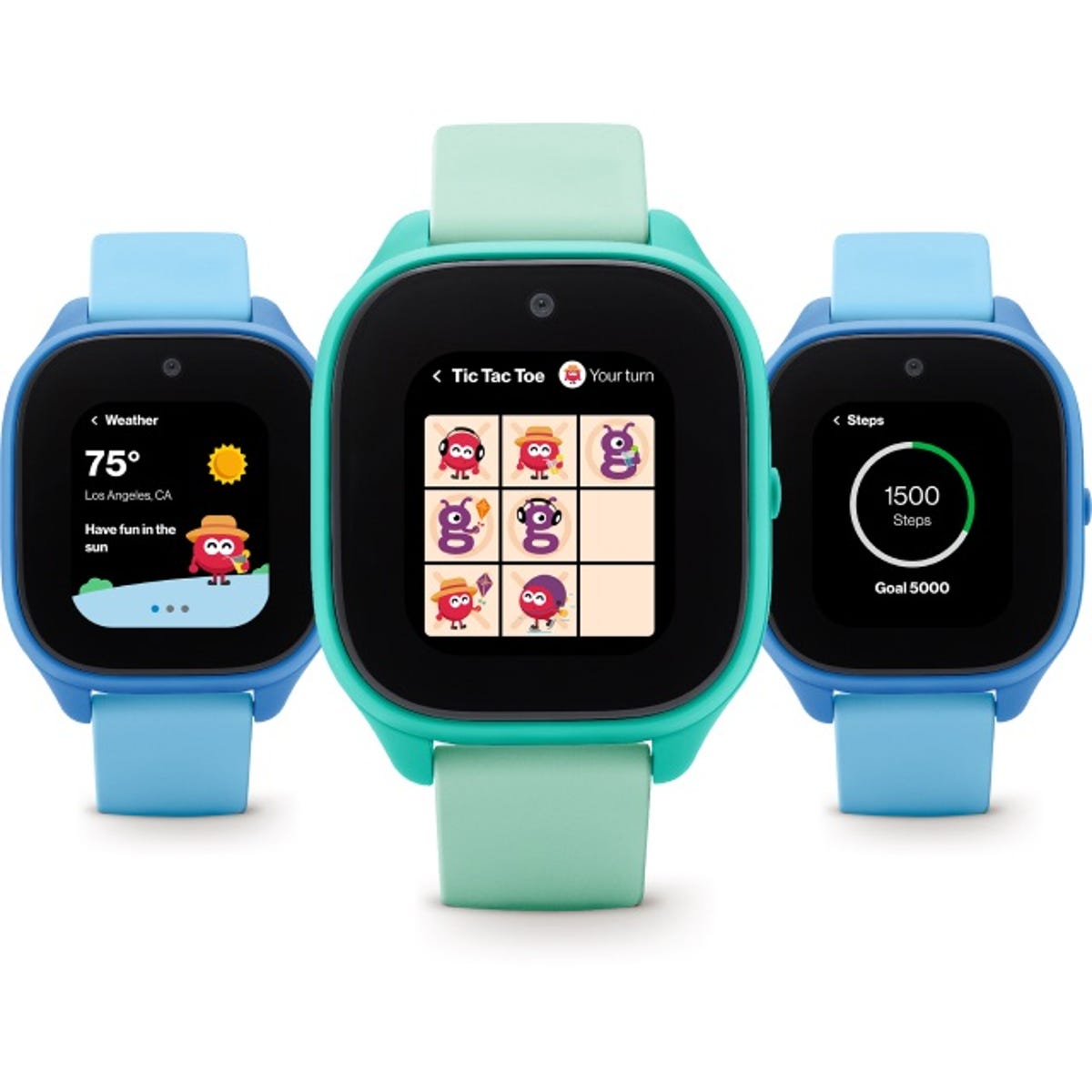
When remote support fails, in-person activation at a corporate store is the most reliable solution.
Why Corporate Stores Work
Technicians can activate the watch as a new line, bypassing old account links. They then perform a device-only swap to assign the desired number or family plan.
Step-by-Step Store Process
The technician powers on the watch. They open Gizmo Hub on a store tablet. They select Add New Line with the watch’s IMEI. They wait for full eSIM provisioning. Once active, they choose Change Device to move service to the existing number. They complete setup in the app.
User Result: After days of failed calls, the store fixed it in 15 minutes. They said the eSIM had old data that only a new-line activation could clear.
Find the Right Store
Use Verizon’s Store Locator. Filter for Corporate Store. Avoid authorized resellers. Call ahead and ask: “I need to activate a replacement Gizmo Watch. Can your technicians handle eSIM clearance?”
Complete Post-Activation Setup
Once the watch is live, finish configuration in the Gizmo Hub app.
Add Approved Contacts
Tap Contacts, then Add Contact. Choose from your phonebook or enter manually. The limit is 10 contacts. Contacts can call the watch. Others are blocked.
Set Up Geofencing
Go to Safe Zones, then Add Zone. Name it, such as Home or School. Adjust the radius between 50 and 1000 feet. Enable entry and exit alerts.
Enable PIN Protection
Navigate to Settings, then Security. Set a 4-digit PIN. This prevents your child from changing contacts or settings.
Test Key Functions
Test the voice call by calling the watch from your phone. Confirm it rings and answers. Test the app call by selecting a contact in Gizmo Hub and tapping the call icon. Verify two-way audio. Test the GPS location by opening the map view. Confirm real-time location updates within 1 to 2 minutes.
Avoid These Common Mistakes
Skipping factory reset on used devices leaves old data. Using weak signal areas delays eSIM sync. Assuming seller deactivation is enough: Verizon backend may still block. Giving up after one failed attempt: escalation is often needed. Going to reseller stores: they lack tools for eSIM clearance.
When to Consider Alternatives
If activation fails repeatedly, consider trying Apple Watch in Family Setup mode. Use an Apple Watch SE or Series 6 or newer in Family Setup mode. Pair with an iPhone. Add cellular without a separate carrier account. Get full parental controls via Apple’s Family Sharing.
Benefits include no carrier-specific activation issues. It works on any carrier. It offers more features: fall detection, SOS, apps.
But note: Apple Watch is more expensive and requires an iPhone for setup.
Key Activation Tips Summary
| Task | Why It Matters |
|---|---|
| Factory reset used watches | Clears local data before activation |
| Use strong 4G signal | Ensures reliable eSIM registration |
| Scan barcode accurately | Links device to correct IMEI in system |
| Escalate to Tier 2 support | Only they can clear eSIM residue |
| Visit corporate store | Most effective fix for stuck activations |
| Verify seller deactivation | Reduces risk of account conflict |
Final Checklist: Activate Replacement Gizmo Watch
Check that you have charged to 50% or higher. Check that you have performed a factory reset if the device is used. Check that you have strong 4G LTE signal. Check that you have installed the Gizmo Hub app. Check that you have scanned the barcode successfully. Check that you have signed in to your account.
If activation failed, call 611 and escalate to Tier 2. If it still fails, visit a Verizon corporate store.
Frequently Asked Questions About Activating a Replacement Gizmo Watch
Why does my replacement Gizmo Watch fail to activate even after a factory reset?
A factory reset clears local data from the watch, but it does not remove carrier-level associations. The eSIM profile may still be tied to the previous owner’s Verizon account. This residual link prevents new activation. You need Verizon support to flush the old eSIM profile.
Can I activate a used Gizmo Watch on my own Verizon account?
Yes, but you may encounter blocks. The watch must be fully deactivated by the previous owner, and you may still need Tier 2 support or in-store activation to clear eSIM residue. Do not expect the app process to work smoothly on the first try.
What information do I need when calling Verizon support?
Have your IMEI number ready, found on the back of the watch or in Settings. Have your Verizon account number or the phone number linked to your account. Have proof of purchase, such as a receipt. Have confirmation from the seller that the device was deactivated.
How long does activation take once the issue is resolved?
Once the eSIM conflict is cleared, activation typically takes 2 to 5 minutes through the Gizmo Hub app. In-store activation as a new line may take 15 to 20 minutes, including the device swap process.
Is it better to go to a Verizon store or call support first?
Call support first and request Tier 2 escalation. If that fails after multiple attempts, visit a Verizon corporate store. In-person activation as a new line is the most reliable method for clearing eSIM residue.
What should I do if the watch keeps saying “contact customer service”?
Power off the watch, wait 30 seconds, and power it back on. Try the Gizmo Hub app again. If it still fails, your issue is carrier-level. Call 611, escalate to Tier 2, or visit a corporate store. Do not spend hours trying the app repeatedly.
Final Thoughts on Activating Your Replacement Gizmo Watch
Activating a replacement Gizmo Watch often requires more than the app. The real fix lies in clearing carrier-level eSIM residue, something only Verizon support or a corporate store can do. Be persistent. Escalate early. Remember that in-person activation as a new line is the golden workaround.
Once it is working, you will have full access to GPS tracking, safe zones, and secure calling. This gives you peace of mind and your child a reliable connection. Do not give up after the first failure. The steps are straightforward once you know where the real blockage occurs.



