

Forgetting your Samsung Galaxy Watch password can feel like a digital dead end, especially when you are locked out of your fitness stats, messages, and apps. The good news is that you can reset a Samsung watch without a password using a hardware-based factory reset that bypasses the lock screen entirely. This method accesses Android Recovery Mode through precise physical button combinations, and it works on all Galaxy Watch models from the Watch 4 through the newest Watch 7 and Ultra.
In this guide, you will learn exactly how to force a reset even when the screen is locked. We will walk through the precise button sequences, timing tips, and post-reset setup steps so you can get your watch working again fast.
Access Recovery Mode When Locked Out
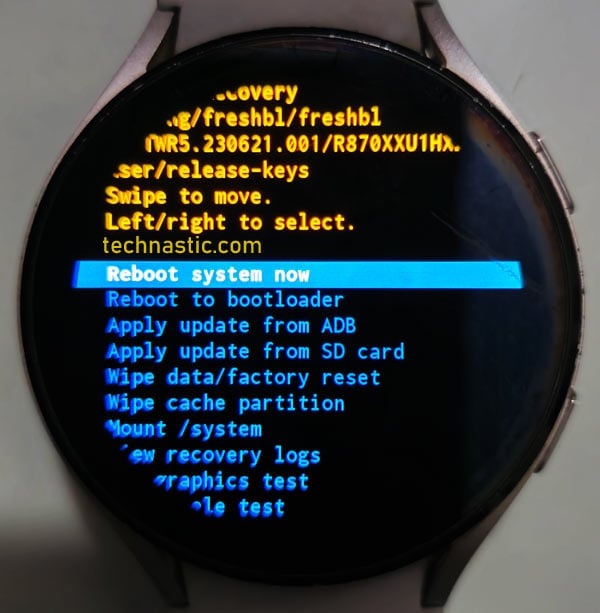
Use this method when you cannot unlock the watch because of a forgotten password, PIN, or pattern. It forces entry into recovery using only the side buttons.
Hold Both Buttons to Reboot
Press and hold both physical side buttons at the same time. On most models, this includes the top button (Power or Home) and the bottom button (Back). Hold them for 10 to 15 seconds until you see the “Rebooting” message or the Samsung logo appear. This confirms the device has registered the command.
Do not release too early. Wait for visual feedback before proceeding to the next step.
Tap Top Button Rapidly
As soon as the screen starts rebooting, release both buttons and immediately begin tapping the top button once per second. This triggers the boot menu, which displays options like Continue, Recovery, and Download mode.
Pro Tip: Too fast or too slow tapping will not work. Aim for a steady rhythm, like a metronome, at approximately one tap per second.
Select Recovery Mode
Once the boot menu appears, use the bottom button to scroll down to Recovery. Press and hold the top button for 3 to 10 seconds to select it. The screen will go black, then display an Android robot with a red exclamation mark, which is normal. Wait 5 to 10 seconds for the Recovery Mode menu to load with text options.
Perform Factory Data Reset
Now that you are in recovery mode, you can wipe all data including the forgotten password.
Navigate to Wipe Data Option
In Recovery Mode, use the bottom button to scroll to Wipe data / factory reset. Press and hold the top button to select it. This removes all user data, apps, settings, and lock screen credentials from the device.
Warning: This step cannot be undone. All local data is permanently erased.
Confirm the Reset
You will see a prompt asking “Wipe all user data?” Use the bottom button to highlight Yes, then press and hold the top button to confirm. The watch will begin erasing data, which takes 2 to 5 minutes depending on model and storage. A progress bar or status text will show “Formatting data” or “Data wipe complete.”
Reboot After Reset
Once the wipe finishes, the system returns to the Recovery menu.
Restart the Watch
Scroll to Reboot system now using the bottom button. Press and hold the top button to select it. The watch will restart and display the Samsung logo, followed by the initial setup wizard. You will see language selection and setup prompts with no password required.
Soft Reset If Watch Is Accessible
If you can still unlock the watch, use the software method instead. It is simpler and more reliable.
Open Settings Menu
Swipe up from the watch face to open the App Drawer. Tap Settings, then scroll to General and select Reset.
Confirm Factory Reset
Tap Reset, then confirm by tapping Reset again. Wait for the watch to reboot. This performs the same full wipe but avoids button timing issues. This method is best for users who want to reset before selling, gifting, or troubleshooting.
Button Functions by Model Reference

Samsung uses different names for buttons across models. Here is a quick reference table:
| Position | Common Names | Function in Recovery |
|---|---|---|
| Top Button | Power, Home (older), Back (newer) | Select or confirm with long press |
| Bottom Button | Back, Lower Button | Scroll through menu options |
| Both Buttons | Side Buttons | Hold together to initiate reboot |
Note: On Galaxy Watch 7 and newer, the top button may act as Back in recovery. Always rely on position rather than assumed function.
Post-Reset Setup Steps
After the reset, your watch is like new. Follow these steps to restore full functionality.
Sign In With Samsung Account
During setup, choose your language and region. Connect to Wi-Fi if supported, then sign in with your Samsung account. This replaces the old password. You must use the same Samsung account previously linked to the watch.
Re-Pair With Galaxy Wearable App
Open the Galaxy Wearable app on your phone. Tap Add device, then select Smartwatch. Follow the pairing prompts to reconnect. Unpair first to avoid sync conflicts.
Unpair Before Reset Recommended
Even if locked out, unpairing via your phone helps prevent issues after reset.
Remove Device From Phone
Open the Galaxy Wearable app. Tap your watch name or the three-dot menu. Select Unlink this Galaxy Watch or Remove, then confirm. This clears old Bluetooth pairings, cached data, and sync errors. This does not unlock the watch, only prepares for smoother re-pairing.
Data Loss What Gets Deleted
A factory reset permanently erases everything stored locally on the watch.
Erased Data Includes
Health and fitness history including steps, heart rate, and sleep data. Installed third-party apps. Messages and notifications. Custom watch faces. Saved passwords and logins. Bluetooth connections. System preferences and themes.
No recovery is possible after reset. Backup before lockout if possible.
Backup Tips Before You Are Locked Out
If you still have access, back up key data now.
Enable Auto Backup
Go to Settings, then Accounts and backup, then Backup and restore. Turn on Back up my data. Sync with Samsung Cloud or Galaxy Wearable app.
Export Health Data
Open Samsung Health on your phone. Tap More, then Settings, then Export data. Save to phone or cloud. Export monthly if you track health metrics long-term.
Troubleshoot Failed Resets
Sometimes the reset does not work the first time. Here is how to fix common issues.
Stuck on Samsung Logo
Cause: Failed to enter recovery mode. Fix: Repeat the button sequence and ensure both buttons are held long enough. Charge the watch to at least 30 percent before retrying.
Boots Normally Instead of Recovery
Cause: Tapped top button too late or too early. Fix: Release buttons only after “Rebooting” appears, then tap immediately. Timing is critical.
No Response From Buttons
Cause: Battery dead or buttons faulty. Fix: Charge for at least 30 minutes on the official charger. If buttons still do not respond, contact Samsung support for possible hardware issues.
Reset Freezes or Fails
Cause: Software corruption. Fix: Try again. If persistent, visit a Samsung Service Center where technicians can perform the same reset with diagnostic tools.
Why Samsung Account Is Required After Reset
After reset, the watch asks for your Samsung account during setup. This is part of reactivation lock, a security feature that prevents stolen devices from being reused. Even without a password, the original account is needed to activate the watch again. You are not locked out, you are protected.
Real-World Success Tips
Based on verified user reports and technical testing, the most common mistake is incorrect tap timing after releasing buttons. One user reported failing four times because they tapped too fast, and slowing down made it work on the Galaxy Watch 5.
Best practice: Practice the sequence once while unlocked. Count taps at 7 to 10 taps at one per second. Keep fingers dry and use firm pressure.
Warranty and Support Facts
Resetting your watch does not void warranty. Authorized Samsung centers can perform the same reset. No password recovery service exists for watches. If buttons are broken, repair may be needed first.
Unlike phones, Find My Mobile remote reset is not available for watches.
Final Checklist Before Reset
Before you begin, ensure the watch has at least 30 percent battery. You should know your Samsung account email and password. The Galaxy Wearable app must be installed on your phone. Attempt backup if the watch is accessible. Be ready to re-pair and reconfigure after the reset.
Frequently Asked Questions About Resetting a Samsung Watch Without Password
Can I reset my Samsung watch without a password if I am locked out?
Yes, you can reset a Samsung watch without a password by using the hardware-based factory reset through Android Recovery Mode. This method works even when the screen is locked, though it erases all data on the device.
What buttons do I press to enter recovery mode on a Samsung Galaxy Watch?
Hold both side buttons (top and bottom) for 10 to 15 seconds until the screen shows “Rebooting” or the Samsung logo. Release both buttons, then tap the top button rapidly once per second to access the boot menu. Select Recovery using the button combination described.
Will I lose all my data when I reset without a password?
Yes, a factory reset permanently erases all data on the watch, including health records, apps, messages, custom watch faces, and saved passwords. There is no way to recover this data after the reset.
Do I need my Samsung account after resetting the watch?
Yes, you must sign in with your Samsung account during the post-reset setup. This is required to activate the watch and functions as the new security gate replacing your forgotten password.
How long does the factory reset take on a Samsung watch?
The reset process takes approximately 2 to 5 minutes, depending on your model and storage capacity. The watch will display a progress bar or status text during the wipe.
What should I do if the button combination does not work?
Ensure the watch has at least 30 percent battery before trying. Practice the timing: hold both buttons until you see “Rebooting,” release immediately, then tap the top button at one tap per second. If buttons do not respond, charge the watch first or contact Samsung support.
Key Takeaways for Resetting Your Samsung Watch Without Password
Resetting a Samsung watch without a password is 100 percent possible using the hardware recovery method. The process requires precise button timing: hold both side buttons, tap the top button rapidly, select Recovery, and wipe all data. All local data will be erased permanently, so attempt a backup if the watch is still accessible. After the reset, you must sign in with your Samsung account and re-pair through the Galaxy Wearable app to restore full functionality. With the correct button sequence and timing, you can have your watch back in action within minutes.



