

Trying to activate your Fitbit Alta but stuck on pairing or charging? You’re not alone. Many users encounter issues during setup, especially with older models like the Fitbit Alta and Alta HR. The right steps matter: from charging correctly to entering the four-digit code that links your tracker to the app. Without proper activation, your device won’t sync, track steps, or display accurate time. This guide walks you through every stage, from preparation to troubleshooting, so you can get your Fitbit up and running fast.
Charge Your Fitbit Alta Before Setup

A fully charged device is essential before activation. A low battery can interrupt syncing or prevent the pairing screen from appearing. Never start activation with a weak battery, as a sudden shutdown during firmware sync can delay setup.
Confirm Charging Success
Plug the proprietary charging cable into a powered USB port. Attach it firmly to the back of the Fitbit Alta, aligning the metal pins with the contacts. When connected properly, you should see these indicators:
• A battery icon appears on the screen
• After 1 to 2 hours, the Fitbit logo displays, indicating sufficient charge
• The battery indicator reflects full status when charging is complete
If nothing shows on the screen, try these solutions:
• Clean debris from the charging port
• Try a different USB power source
• Ensure the cable clips securely, as loose connections are a top cause of charging failure
Install the Fitbit App and Sign In
The Fitbit app is your control center. Installing it correctly ensures smooth device registration and long-term functionality.
Download the Official App
Go to your device’s app store:
• Apple App Store for iPhone users
• Google Play Store for Android users
Search for “Fitbit” and install the app with the blue logo. Avoid third-party apps that mimic the real one, as only the official app works with your Alta tracker.
Create or Log Into Your Account
Open the app and choose your login method:
• Sign in with Google (required in most regions)
• Use an existing Fitbit account if you already have one
New users must enter personal details like height, weight, and age. These measurements help the Alta estimate calories burned and step distance accurately.
Pro Tip: If you have a legacy Fitbit account, you may be prompted to link it to Google. Complete this linking to continue accessing your data.
Start Device Setup in the Fitbit App
Once logged in, begin the pairing process directly from the app’s interface. The tracker must be kept within a few feet of your phone during this process.
Access the Setup Menu
Tap the profile icon in the top-left corner of the app. Then select “Set Up a Device.”
Select Your Alta Model
Choose Alta or Alta HR from the list of available devices. The app will prompt you to enable Bluetooth if it’s currently off.
Enable Bluetooth Correctly
Follow these steps for your specific phone type:
• Android: Go to Settings, then Connected Devices, then Bluetooth, and turn it on
• iOS: Go to Settings, then Bluetooth, and turn it on
Keep your phone’s location services enabled if prompted, as some Android versions require this for Bluetooth discovery.
Enter the Four-Digit Pairing Code
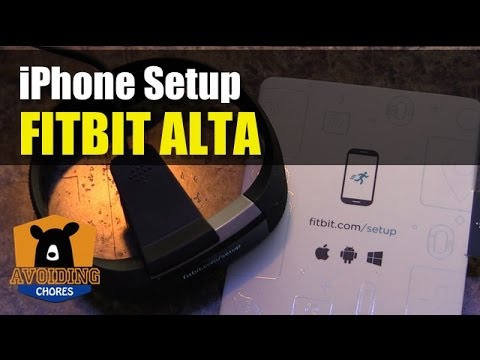
This step verifies your identity and pairs the tracker securely with your phone. The pairing uses a unique four-digit code that appears on your Fitbit Alta screen.
Find the Code on Your Tracker
After selecting the model in the app, look at your Fitbit Alta screen. A four-digit code will appear. If no code shows, try these solutions:
• Press the side button to wake the screen
• Recharge if the battery is low, as sufficient power is required for the code to display
• Perform a hard restart if the screen remains blank
Match the Code Exactly
Enter the displayed digits into the app. Even one wrong number will fail the connection, so type carefully.
If Pairing Fails
When the connection doesn’t work, take these steps:
• Tap “Try Again” in the app
• Go back and restart the setup from the beginning
• Clear old connections by going to your phone’s Settings, then Bluetooth, finding any previous Fitbit devices, and selecting “Forget” or “Unpair”
Once accepted, the app begins syncing automatically.
Sync and Update Time Automatically
After successful pairing, your Fitbit Alta syncs data and calibrates the clock. The time and date on the tracker will update to match your smartphone automatically.
First Sync Completes Setup
During this initial sync phase, several things happen:
• Step count initializes and begins recording
• Sleep data starts being tracked
• Time and date update to match your phone
• Baseline health data populates in the app
Wait for the sync to finish before adjusting settings. You’ll see updated stats in the app dashboard once complete.
Force a Manual Sync Later
To check for missed data or update manually:
• Open the Fitbit app
• Pull down on the dashboard
• Release to trigger a manual sync
Ensure the tracker is within 3 to 6 feet of your phone during syncing.
Customize Your Fitbit Alta Settings
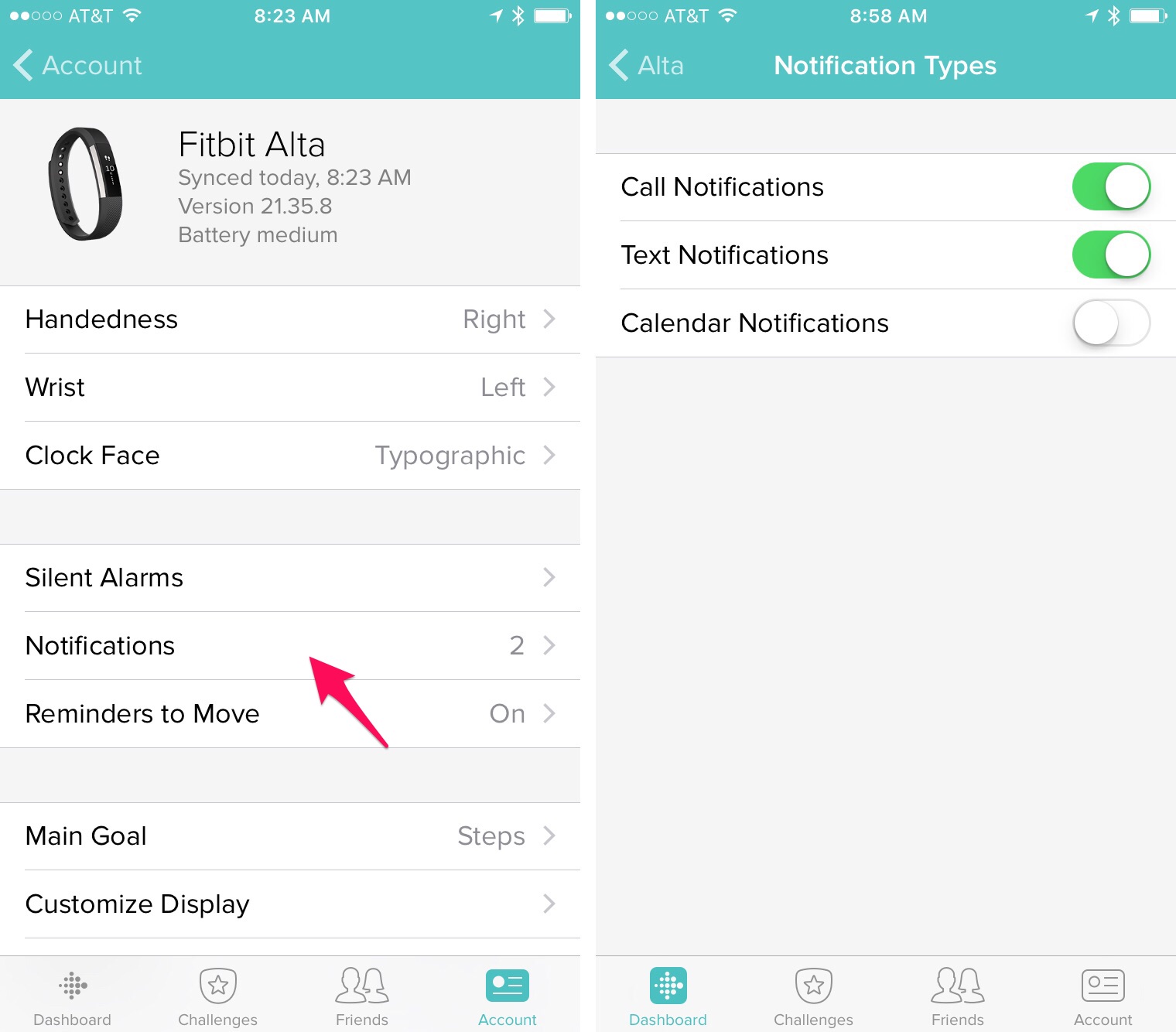
Now that it’s active, personalize your device for better usability and motivation. Access these settings via the Devices tab in the Fitbit app.
Set Goals and Reminders
Adjust these important settings:
• Tap Devices, then Alta
• Adjust your daily step goal (default is 10,000 steps)
• Enable Reminders to Move for hourly alerts if you’ve been sedentary
Choose a Clock Face
Change how time displays on your tracker:
• Open the Today tab
• Long-press the clock
• Select from available clock faces
Turn On Notifications
Get alerts for calls, texts, and calendar events:
• Go to Devices, then Alta, then Notifications
• Toggle on desired apps
• Test by sending a text to yourself
Note: Notifications only work when your phone is nearby and Bluetooth is active.
Troubleshoot Common Activation Issues
Even with careful setup, problems happen. Use these targeted fixes based on your specific symptoms.
Device Won’t Pair or Connect
| Symptom | Solution |
|---|---|
| Bluetooth won’t turn on | Restart your phone and toggle Airplane mode off |
| “Device Not Found” appears | Hold tracker close to phone and remove metal or wall barriers between devices |
| Stuck in pairing loop | Forget old Fitbit devices in Bluetooth settings and restart your phone |
No Code or Blank Screen
| Symptom | Solution |
|---|---|
| No four-digit code showing | Charge longer (1 to 2 hours) until the logo appears |
| Screen stays dark | Clean charging contacts and reattach cable firmly |
| Frozen display | Perform a hard restart |
How to Hard Restart Your Fitbit Alta
Fix unresponsive behavior by following these steps:
- Unplug the tracker from the charger
- Press and hold the button on the charging cable for 5 to 10 seconds
- Watch for the Fitbit logo to flash on-screen
- Reconnect to the charger and retry setup
This resets the device without erasing your data.
Optimize for Long-Term Use
Keep your Fitbit Alta functioning well beyond setup with smart habits.
Wear on the Correct Wrist
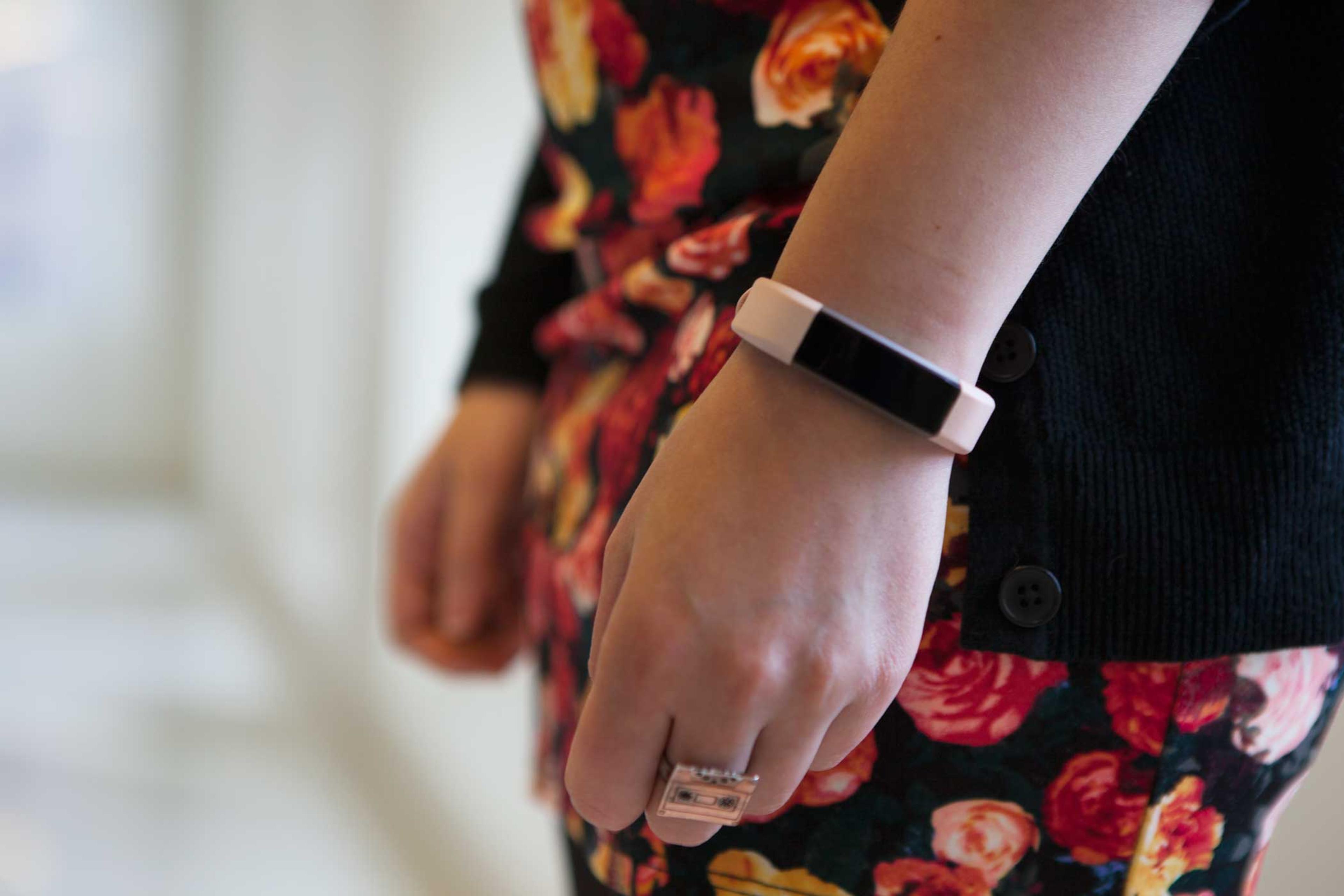
For best accuracy, wear your tracker on your non-dominant wrist. If you’re right-handed, wear it on your left wrist, or vice versa. This helps reduce false motion detection during daily tasks.
Charge Every Few Days
Battery life varies by usage. Frequent screen use and notifications drain power faster. Charge when the app shows 20% battery or lower. A full charge takes about 1 to 2 hours.
Sync Daily
Sync at least once per day to ensure accurate step and sleep logs and to prevent data backlog. Use All-Day Sync in settings for automatic updates.
Maintain Accuracy and Performance
Regular maintenance keeps your tracker reliable and precise.
Clean Contacts Weekly
Dirt or sweat on charging contacts causes poor connections. Wipe gently with a dry cloth or cotton swab to maintain proper contact.
Update Firmware Regularly
Outdated software can cause bugs. Check for updates by opening the Fitbit app, going to Account, then Devices, then Alta, and tapping “Check for updates.” If no update appears, your device may be on the latest supported version.
Track Sleep Effectively
Alta HR automatically detects sleep when worn at night. Wear the band snugly to maintain skin contact for accurate heart rate monitoring and motion detection.
When to Seek Fitbit Support
Some issues cannot be fixed at home. Know when to escalate.
Try These Steps First
Before contacting support, attempt these solutions:
• Clear app cache on Android: Go to Settings, then Apps, then Fitbit, then Storage, then Clear Cache
• Reinstall the app completely
• Perform a hard restart
Contact Fitbit Support
If problems persist:
• Open the Fitbit app
• Go to the Help Section or visit fitbit.com/support
• Provide your model number and error details
Legacy Note: Older Alta units may no longer receive feature updates, but core tracking (steps, sleep) should still work if paired successfully.
Final Activation Checklist
Use this quick reference to confirm every step is complete.
Pre-Setup Checklist
• Charged Alta for 1 to 2 hours
• Installed official Fitbit app
• Signed in with Google or Fitbit account
Pairing Checklist
• Enabled Bluetooth on phone
• Selected “Set Up a Device”
• Entered correct 4-digit code
Post-Setup Checklist
• Completed first sync
• Set step goal and reminders
• Customized clock face and notifications
• Worn on non-dominant wrist
Frequently Asked Questions About Activating Fitbit Alta
Why won’t my Fitbit Alta show the four-digit pairing code?
Your battery may be too low. Charge the device for 1 to 2 hours until the Fitbit logo appears on the screen. If the screen remains blank, try cleaning the charging contacts and performing a hard restart.
Can I set up my Fitbit Alta without a smartphone?
You can install the Fitbit app on a Windows 10 PC to pair the Alta, but this method limits functionality. Notifications and certain features are only available through the mobile app.
How do I fix a pairing loop on my Fitbit Alta?
Go to your phone’s Bluetooth settings, find any previously paired Fitbit devices, and select “Forget” or “Unpair.” Then restart your phone and retry the setup process from the beginning.
Does the Fitbit Alta still work with the latest app?
Older Alta units may not receive feature updates, but core tracking functions (steps, sleep, activity) should still work if the device pairs successfully with the current Fitbit app.
Why is my Fitbit Alta showing the wrong time?
The time updates automatically when your tracker syncs with your phone. Wait for a successful sync, or force a manual sync by pulling down on the app dashboard.
How do I know if my Fitbit Alta is fully charged?
When charging, a battery icon appears on the screen. After 1 to 2 hours, the Fitbit logo displays, indicating the battery has sufficient charge. The battery indicator will show full status when charging is complete.
Key Takeaways for Activating Your Fitbit Alta
Activating your Fitbit Alta doesn’t have to be frustrating. By following the correct charging, pairing, and troubleshooting steps, you’ll have your tracker working in under 30 minutes. The most critical steps are charging fully before starting, entering the four-digit code exactly as shown, and keeping your phone close during pairing.
Keep your device updated by checking for firmware updates regularly. Sync daily to maintain accurate step and sleep logs, and wear the tracker on your non-dominant wrist for best accuracy. If issues arise, refer back to the troubleshooting section, as most problems are solvable with a simple reset or app reinstall.
Now that it’s active, let your Fitbit help you move more, sleep better, and stay on track with your health goals.



