
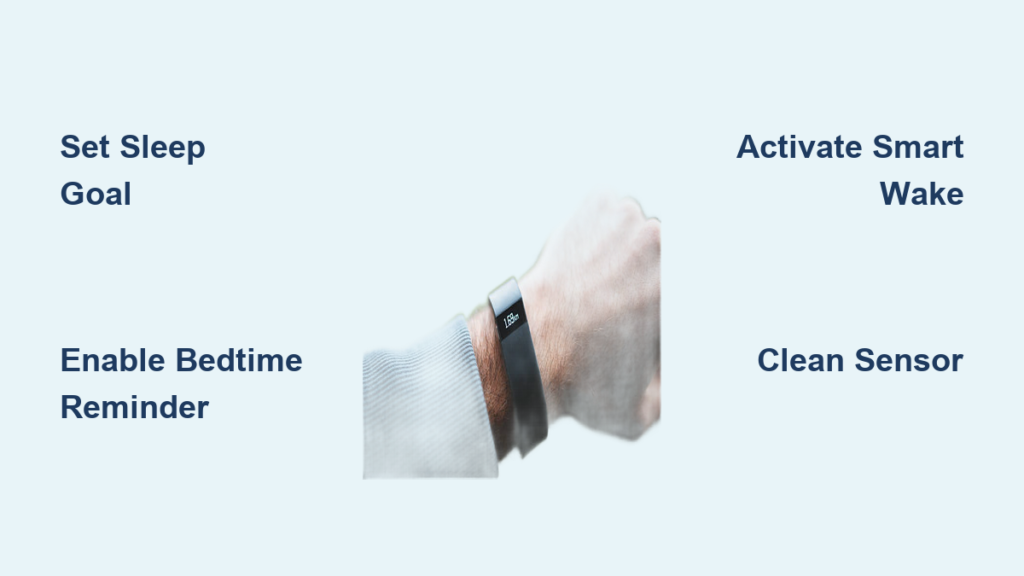
You’re not alone if you’ve ever wondered how to activate Fitbit sleep mode. Many users expect a manual toggle each night, but the truth is, Fitbit sleep tracking activates automatically based on your stillness and movement patterns. However, while core tracking runs in the background, true sleep mode features like silent alarms, bedtime reminders, and Smart Wake must be set up in advance through the Fitbit app.
To get the most out of your Fitbit’s sleep features, you need to configure settings such as sleep goals, alarms, and notifications. Whether you’re using a Fitbit Charge, Inspire, Versa, or Sense, proper setup ensures accurate tracking and personalized insights. In this guide, you’ll learn exactly how to activate and customize all aspects of Fitbit sleep tracking from initial configuration to troubleshooting common issues.
Configure Sleep Settings in the Fitbit App

Before your Fitbit can optimize your sleep experience, you must set up your preferences in the Fitbit app. This is where you define your sleep goals, bedtime schedule, and enable key features like reminders and alarms. Without these configurations, your device may track sleep duration but won’t offer proactive guidance or advanced wake-up options.
Set Your Sleep Duration and Schedule
To begin shaping your sleep routine, specify how many hours you want to sleep and when you plan to go to bed and wake up. These targets train your Fitbit to generate personalized insights and reminders.
- Open the Fitbit app and tap your profile icon in the top-left corner.
- Go to Activity and Wellness > Sleep.
- Tap Set Time Asleep Goal to adjust your target sleep duration using the pull-down menu.
- Under Bedtime, set your desired go-to-bed and wake-up times.
- After five nights of tracked sleep, Fitbit will analyze your patterns and suggest a custom schedule. You can manually override it at any time by tapping the gear icon in the Sleep tile and editing the times.
This schedule powers other features like bedtime alerts and Smart Wake, so setting it accurately is essential for a seamless experience.
Enable Bedtime Reminders
Staying consistent with your sleep schedule starts with timely prompts. The Bedtime Reminder feature sends a notification to your phone when it is time to wind down.
- In the Fitbit app, go to the Today tab.
- Tap the Sleep tile, then select the gear icon in the top-right corner.
- Toggle Bedtime Reminders to On.
- Tap Time to choose your preferred reminder time.
- Select the days of the week you want the reminder active.
Critical Tip: Ensure notifications from the Fitbit app are enabled on your smartphone. If they are blocked, you won’t receive reminders, even if the feature is turned on.
Once enabled, you’ll get a gentle alert each night, helping you establish a healthier circadian rhythm over time.
Set Up Alarms: Silent and Smart Wake

Waking up refreshed is not just about how long you sleep. It is also about when you wake up during your sleep cycle. Fitbit offers two smart alarm types designed to improve morning alertness without disturbing others.
Activate a Silent Alarm
A silent alarm vibrates gently on your wrist instead of making noise, perfect for shared bedrooms or light sleepers.
On Your Device:
1. Swipe left from the clock face until you see the Alarm icon.
2. Tap the time display to set the desired wake-up hour and minute.
3. Toggle the switch to On.
Via the App:
1. Open the Fitbit app.
2. Tap the Today tab > Sleep tile > gear icon.
3. Scroll to Alarms and tap Add Alarm.
4. Set the time and days, then save.
The alarm will vibrate at your chosen time, providing a discreet wake-up call.
Enable Smart Wake Feature
Smart Wake helps you avoid grogginess by waking you during a Light Sleep stage within a 30-minute window before your scheduled alarm.
Activation Steps:
1. On your Fitbit, go to the Alarm screen by swiping left.
2. If no alarm exists, create one first.
3. Scroll down to Smart Wake and toggle it On.
4. Confirm the active time range.
When enabled, your Fitbit monitors your sleep stages and triggers the vibration alarm during the optimal moment in your final light sleep phase. This reduces sleep inertia and helps you start the day feeling more energized.
Pro Tip: Smart Wake requires heart rate monitoring and consistent wear. For best results, wear your Fitbit snugly on top of your wrist to ensure sensor contact.
Use Advanced Sleep Features on Premium Models
If you own a Fitbit Sense, Versa 3, Charge 5, or another premium model, you can access enhanced sleep tools, especially with a Fitbit Premium subscription. These features go beyond basic tracking to offer deeper insights into sleep quality and environment.
Monitor Noise Sensitivity
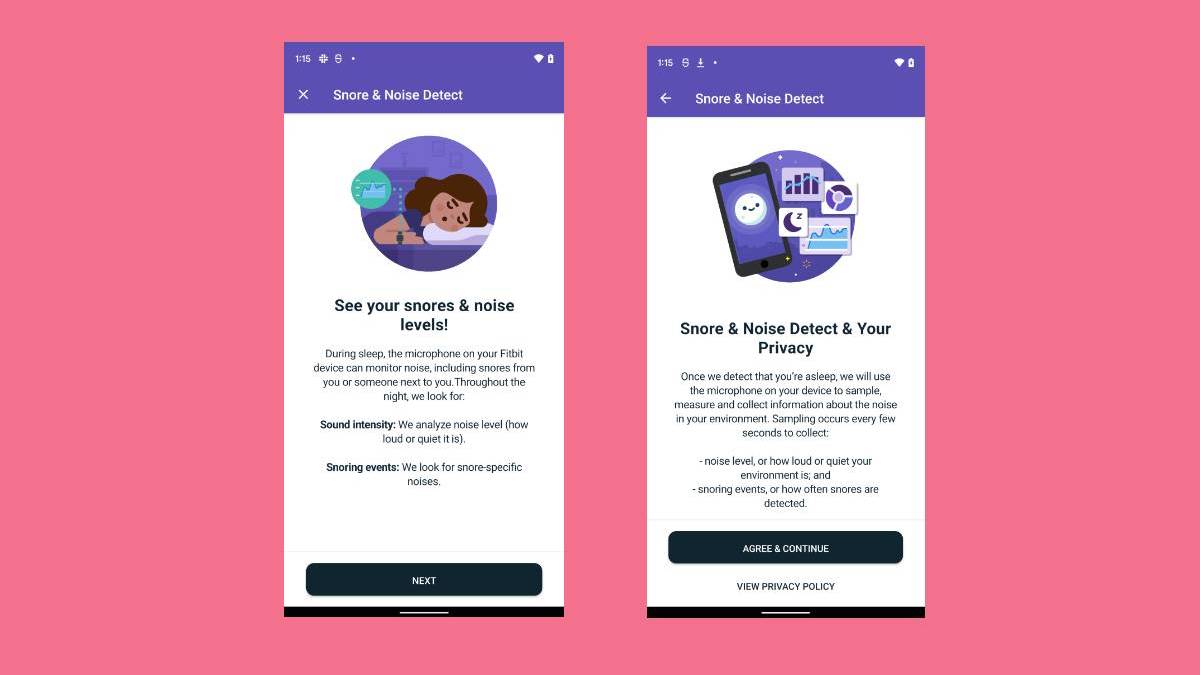
Some Fitbits can detect sounds like snoring or loud environmental noise that may disrupt your rest.
Requirements:
– Compatible device such as Sense or Versa 3
– Fitbit Premium subscription
– At least 40 percent battery charge before bedtime
Setup:
1. Open the Fitbit app and go to the Sleep page.
2. Tap the Settings icon at the top right.
3. Select Sleep Sensitivity.
4. Choose between Normal or Sensitive mode depending on your environment.
After sleeping, check the app for noise events logged during the night. The system may suggest closing windows, using earplugs, or adjusting room temperature.
Battery Impact Warning: This feature consumes significant power. Always charge your device above 40 percent before bed if you plan to use noise monitoring.
View Your Sleep Animal Profile
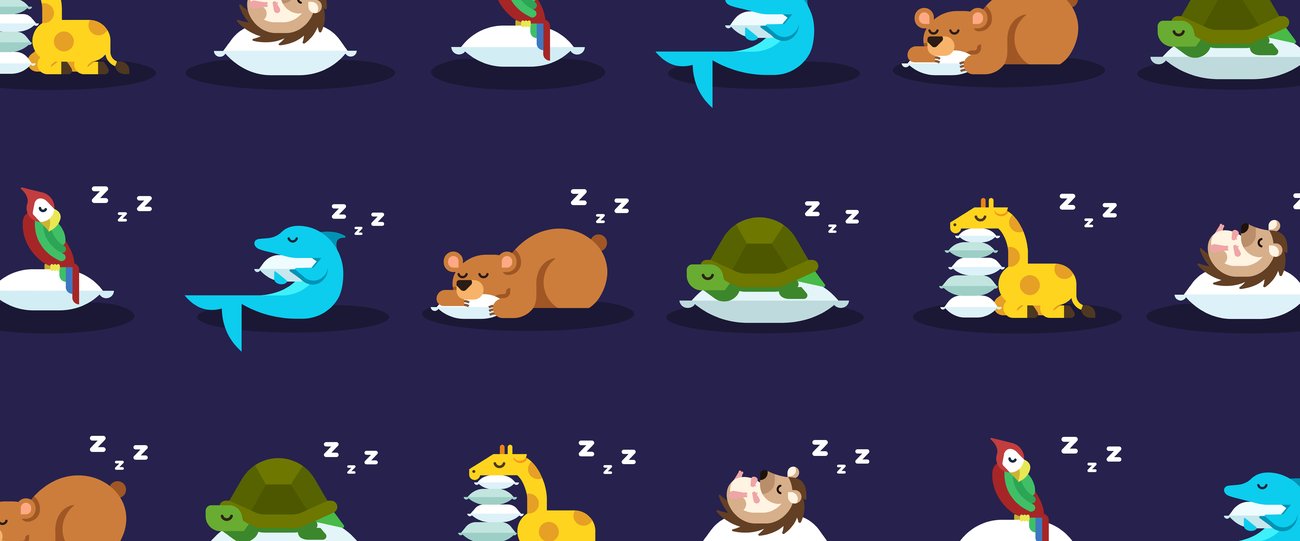
After wearing your Fitbit to bed for 14 nights in a single month, Premium users unlock a fun yet insightful Sleep Animal profile.
Available Profiles Include:
– Bear: Regular sleeper who falls asleep quickly
– Dolphin: Light sleeper who struggles with consistency
– Giraffe: Short sleeper who needs less rest
– Hedgehog: Sensitive to disruptions
– Parrot: Irregular schedule who dreams often
– Tortoise: Slow to fall asleep
This behavioral classification helps you understand your natural sleep tendencies and tailor habits accordingly.
Interpret Your Fitbit Sleep Data
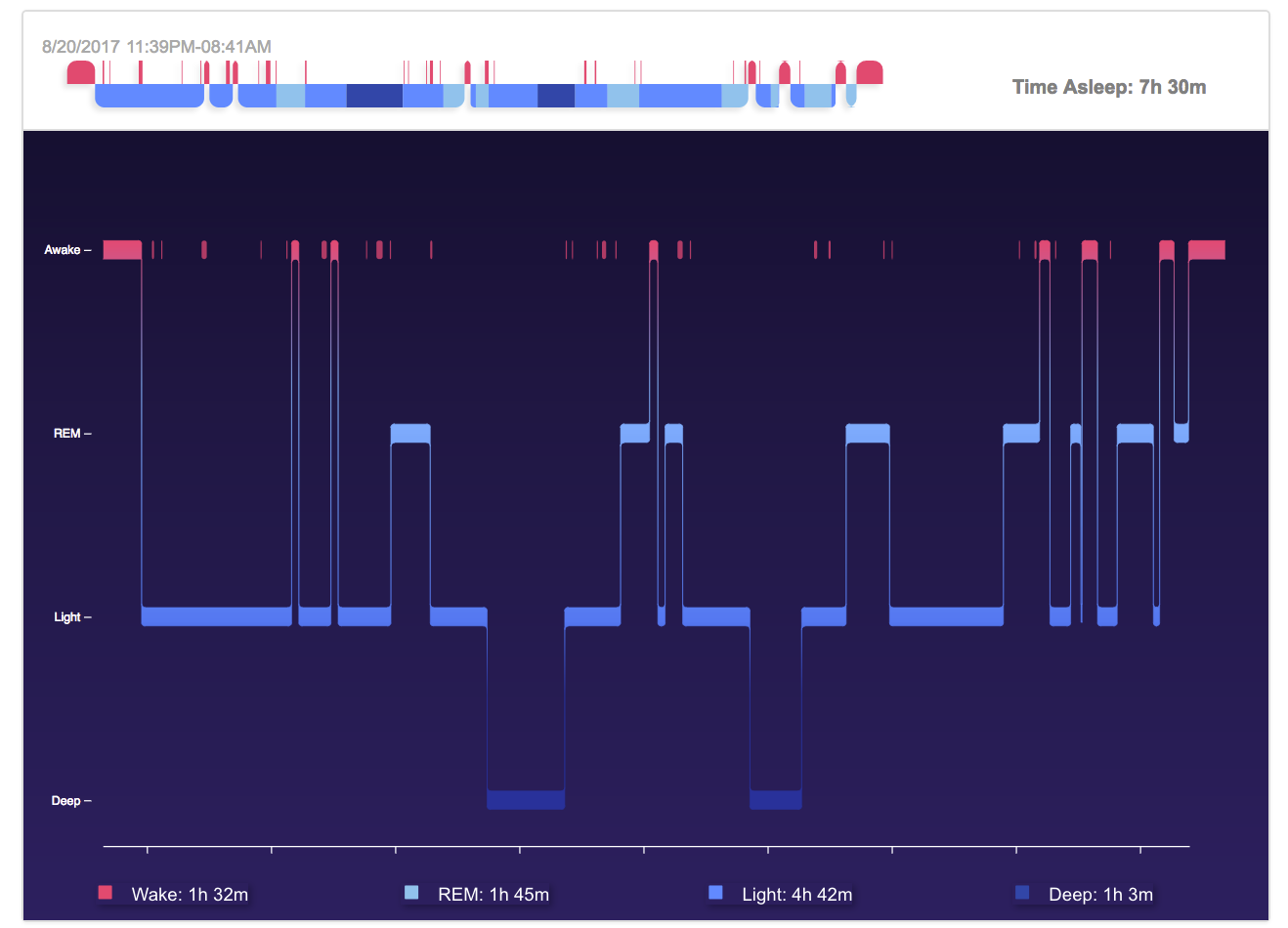
Once your Fitbit has collected sleep data, the real value comes from understanding what the numbers mean. From total duration to Sleep Score, each metric offers insight into your nightly rest.
Understand Sleep Stages
Fitbit estimates three primary sleep stages using movement and heart rate data.
- Light Sleep: Transition phase that occurs most frequently
- Deep Sleep: Restorative period for physical recovery
- REM Sleep: Brain activity increases and dreaming occurs
While these are estimates and not medical-grade EEG readings, trends over time can reveal patterns like whether you are getting enough deep rest or waking up too often.
Decode Your Sleep Score
Your Sleep Score summarizes overall sleep quality based on three components.
- 50 percent: Time Asleep meaning duration
- 25 percent: Sleep Stages meaning balance of Deep and REM
- 25 percent: Restoration meaning how much your heart rate dropped below resting levels
A score above 80 is generally considered good, while below 60 may indicate room for improvement. You will find this score on your device and in the app, along with breakdowns and weekly trends.
Troubleshoot Fitbit Sleep Tracking Issues
Even with correct settings, sleep tracking can fail. Use this systematic approach to fix common problems.
Fix Missing Sleep Data
If your Fitbit did not record sleep, check the following.
Verify Sleep Tracking Is On:
– In the app, tap your profile icon, select your device, scroll to Sleep, and ensure Sleep Tracking is toggled ON.
Sync and Restart:
– Manually sync your device in the app.
– Restart your Fitbit by going to Settings > About > Restart Device.
Update Firmware:
– In Settings > About, look for Update Device.
– If unavailable, check for app updates or ensure Bluetooth is stable.
Factory Reset as Last Resort:
– Navigate to Settings > About > Factory Reset.
– Warning: This erases all data, so sync first.
Re-pair Device:
– Remove your Fitbit from the app and re-add it as a new device if settings are missing or corrupted.
Clean the Green Light Sensor
The green LED sensor on the back of your device detects heart rate and breathing patterns, critical for sleep staging.
If tracking fails or stages are not reported:
1. Wipe the sensor with a soft, dry cloth.
2. Remove sweat, lotion, or dirt that may block the light.
3. Ensure the band fits snugly on top of your wrist.
Avoid wearing the device too loose or upside down, as this breaks skin contact.
Optimize Battery and Wear Habits
For reliable sleep tracking, device performance matters as much as settings.
Charge Your Fitbit Before Bed
- Basic tracking requires at least 20 to 30 percent battery before sleeping.
- Noise sensitivity or Smart Wake requires 40 percent or more.
- Charge your Fitbit daily, ideally after your morning routine.
Wear Your Device Correctly
- Place the tracker on the top of your wrist, not the side.
- Snug fit: The device should move slightly but stay in contact with skin.
- Avoid covering the sensor with clothing or blankets during sleep.
Frequently Asked Questions About Fitbit Sleep Mode
How do I manually activate sleep mode on my Fitbit?
Fitbit does not require manual activation each night. Sleep tracking activates automatically after about one hour of inactivity when you fall asleep. However, you must configure sleep goals, alarms, and reminders in the app beforehand to access advanced features.
Does Fitbit automatically track sleep?
Yes, Fitbit automatically tracks sleep once you fall asleep and remain still for approximately one hour. The device uses built-in accelerometers to detect movement and optical heart rate sensors to monitor pulse rate variations throughout the night.
Why is my Fitbit not recording sleep data?
Common reasons include disabled sleep tracking in the app settings, loose device fit preventing sensor contact, outdated firmware, or low battery. Try syncing your device, restarting it, and ensuring the green light sensor is clean and making proper skin contact.
What is Smart Wake and how do I enable it?
Smart Wake is a feature that monitors your sleep stages and wakes you during a Light Sleep phase within 30 minutes before your scheduled alarm. This helps you wake up feeling more energized. Enable it by creating an alarm in the Alarm app on your Fitbit, then scrolling down to toggle Smart Wake On.
Do all Fitbit models support sleep tracking?
All heart-rate monitoring Fitbit models support basic sleep tracking. However, advanced features like Smart Wake, noise sensitivity monitoring, and Sleep Animal profiles require specific premium models such as Fitbit Sense, Versa 3, or Charge 5, along with a Fitbit Premium subscription for some features.
How accurate is Fitbit sleep staging?
Fitbit sleep staging uses movement and heart rate data to estimate sleep stages, which are inferences rather than direct brainwave measurements. Sleep duration is the most reliable metric, while sleep staging should be viewed as an estimation rather than a clinical diagnosis. Accuracy can be affected by how the tracker is worn or your sleeping position.
Final Thoughts on Activating Fitbit Sleep Mode
Activating Fitbit sleep mode is not about flipping a switch each night. It is about setting up a smart system that works automatically. By configuring your sleep schedule, alarms, and reminders in the app, enabling Smart Wake, and maintaining your device with proper cleaning and charging, you unlock the full potential of your Fitbit’s sleep tracking capabilities.
While features like noise detection and Sleep Animal profiles require premium hardware and subscriptions, even basic models deliver valuable insights into your rest patterns. Remember that sleep data is a guide, not a diagnosis. Use trends rather than single-night scores to adjust habits, and if you struggle with chronic insomnia or fatigue, consult a healthcare provider.
For most users, a well-configured Fitbit becomes a powerful ally in building healthier, more consistent sleep routines one night at a time.



