
If your Garmin watch shows a 0.7-mile run when you clearly completed a full mile, or the compass points the wrong way on a hike, it is time to calibrate. Inaccurate distance, pace, or direction readings are common but fixable. The key is knowing which sensor needs adjustment and how to do it correctly. Whether you are troubleshooting GPS signal issues, aligning treadmill stats, or fixing a misaligned compass, this guide covers every calibration method supported by Garmin. You will learn how to restore accuracy using built-in tools, external sensors, and software updates, all with clear, step-by-step instructions tailored to your model.
Fix GPS Signal and Firmware
A malfunctioning GPS can ruin outdoor workouts with missing routes or distorted distance readings. If your Garmin shows “0.00” under GPS software version or struggles to lock onto satellites, it likely needs initialization, often mistaken for calibration.
Check GPS Software Version
Navigate to Settings, then System, then About, and finally SW Versions. Look for the GPS software entry. If it shows “0.00”, the GPS module is not initialized. This does not mean hardware failure. It means the firmware has not loaded properly, often after a reset or long storage period.
Sync and Initialize GPS
You will need a computer, USB cable, and Garmin Express software, which is free from garmin.com. First, install and open Garmin Express. Connect your watch via USB and wait for device recognition and automatic sync. Click Sync a second time to ensure all updates apply. Disconnect and go outside. Now start any outdoor GPS activity such as Walk or Run for at least one minute, then stop and tap Done.
Return to Settings, System, About, SW Versions. The GPS software should now show a valid version like “2.50” instead of “0.00”. This process initializes the GPS, and true accuracy improves over time with repeated outdoor use in open-sky areas.
Calibrate Treadmill Distance Accurately
Garmin watches estimate indoor treadmill distance using the accelerometer, not GPS. Without calibration, your watch may under-report or over-report based on stride, arm swing, or treadmill quirks.
Why Treadmill Readings Differ
Treadmills often display slightly inaccurate distances. Holding handrails reduces arm motion, confusing the sensor. Indoor stride differs from outdoor form. The watch relies on learned stride patterns from past GPS runs. Garmin uses your historical outdoor runs to train the accelerometer, so the better your outdoor data, the more accurate your indoor estimates.
When Calibration Appears
The “Calibrate & Save” option only appears if you ran at least 1.5 km on older models or 2.4 km on newer models. The activity type must be set to Treadmill. No foot pod or HRM-Run/HRM-Tri can be connected. You must not have held handrails. If conditions are not met, the prompt will not appear.
Perform Treadmill Calibration
Complete a treadmill run of minimum required distance. Stop and tap Done. Wait for the “Calibrate & Save” option to appear. Enter the exact distance shown on the treadmill. Tap Save. Your watch updates its internal stride model for future treadmill runs at similar paces. Calibration only affects future workouts. It does not change past lap times, heart rate, or calories.
Troubleshoot Missing Calibration Option
If “Calibrate & Save” does not show up, check these common causes.
Distance Too Short
Run longer than the minimum 2.4 km on newer models. Even slightly under will not trigger the prompt.
Handrails Were Used
Holding handrails limits arm swing, so the accelerometer cannot detect natural gait. Run freely for accurate motion data.
External Sensors Connected
Foot pods or compatible chest straps like HRM-Run provide their own pace and distance data. When active, they disable internal calibration prompts.
Wrong Activity Mode
Ensure you selected Treadmill, not Outdoor Run. The system will not offer calibration otherwise.
First-Time Use
On first treadmill sessions, the watch may not prompt calibration until you have saved a few indoor runs. If calibration is not available, edit the activity later in Garmin Connect and manually enter the correct distance.
Improve Indoor Accuracy Long-Term
Even after calibration, small discrepancies persist. Here is how to maximize consistency.
Train the Accelerometer Regularly
Every outdoor GPS-recorded run helps refine your stride profile. The watch compares GPS distance with motion data to improve indoor estimates. Do an outdoor run every two to three weeks to keep the model updated.
Use the Same Treadmill
Different machines have varying belt tensions, speeds, and calibrations. Sticking to one reduces variability.
Avoid Handrails
Natural arm movement is critical for accurate sensing. If you must hold them, do so lightly or only during cool-down.
Try a Foot Pod for Precision
Devices like the Garmin Running Dynamics Foot Pod or HRM-Run measure ground contact and flight time directly. They deliver highly accurate indoor pace and distance with no calibration needed. Foot pods bypass the watch accelerometer entirely, eliminating guesswork.
Calibrate Built-In Compass
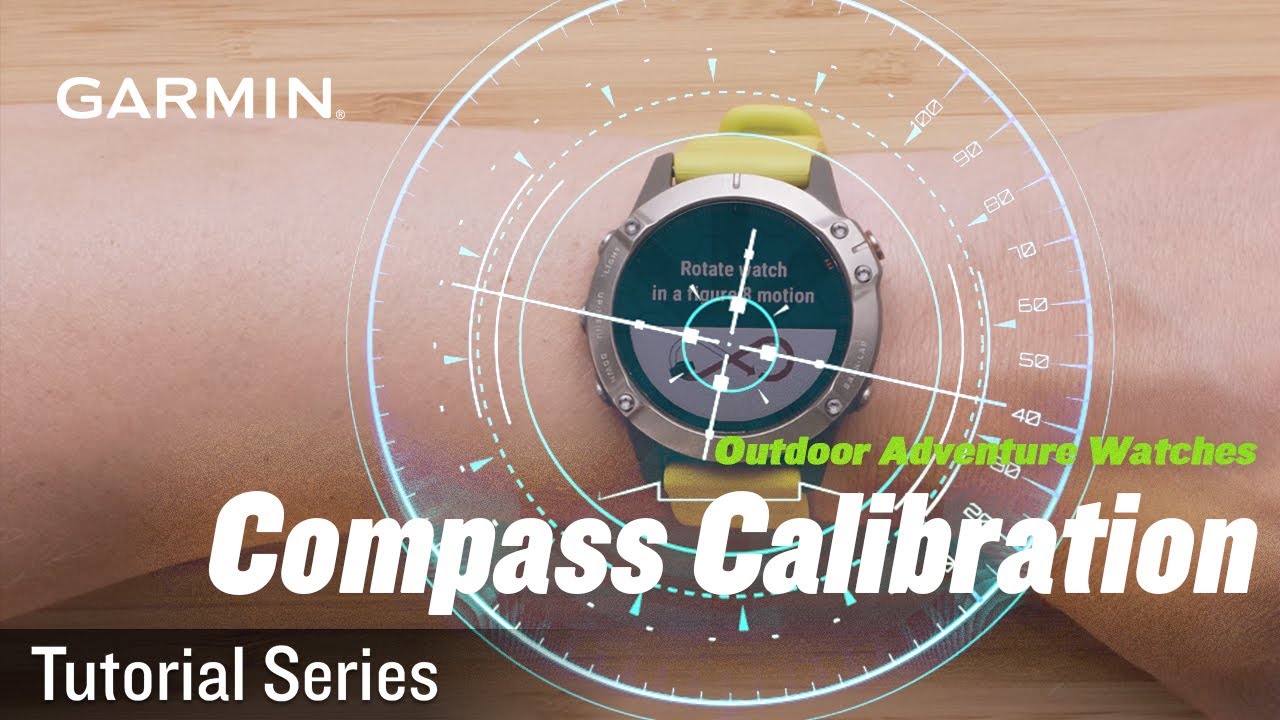
For hikers, trail runners, and navigators, an uncalibrated compass leads to wrong turns and poor route tracking. Models like the fenix, Instinct, epix, and vivoactive 3 include magnetometers and support calibration.
Check If Your Model Has a Compass
Not all Garmin watches have a compass. Typically, fenix, tactix, Instinct, epix, and vivoactive 3+ do. Vivosmart, basic Forerunners, and older Edge models do not. Check your specs or look for a compass app on the watch.
Calibrate Using Figure-8 Motion
Open Settings. Swipe to Sensors & Accessories, then Compass. Tap Calibrate, then Start. Slowly move your wrist in a smooth figure-8 pattern through the air. Continue until “Calibration Complete” appears. Tap OK. Perform this in an open area, away from phones, laptops, cars, or metal structures that cause magnetic interference.
Recalibrate When Needed
Re-run calibration if heading seems off during navigation. You travel across large latitudinal zones. The watch was near strong magnets such as speakers or MRI rooms. After a firmware update. Some models require two to three cycles for full accuracy. Repeat if results feel inconsistent.
Use Garmin Connect for Manual Fixes
Cannot calibrate automatically? Fix it post-workout.
Edit Distance in Garmin Connect
Open the Garmin Connect app or website. Find your treadmill activity. Tap Edit. Change the distance to match the treadmill display. Save. This corrects your training log but does not retrain the accelerometer. Future runs will not benefit unless you use the on-watch calibration.
Leverage External Sensors
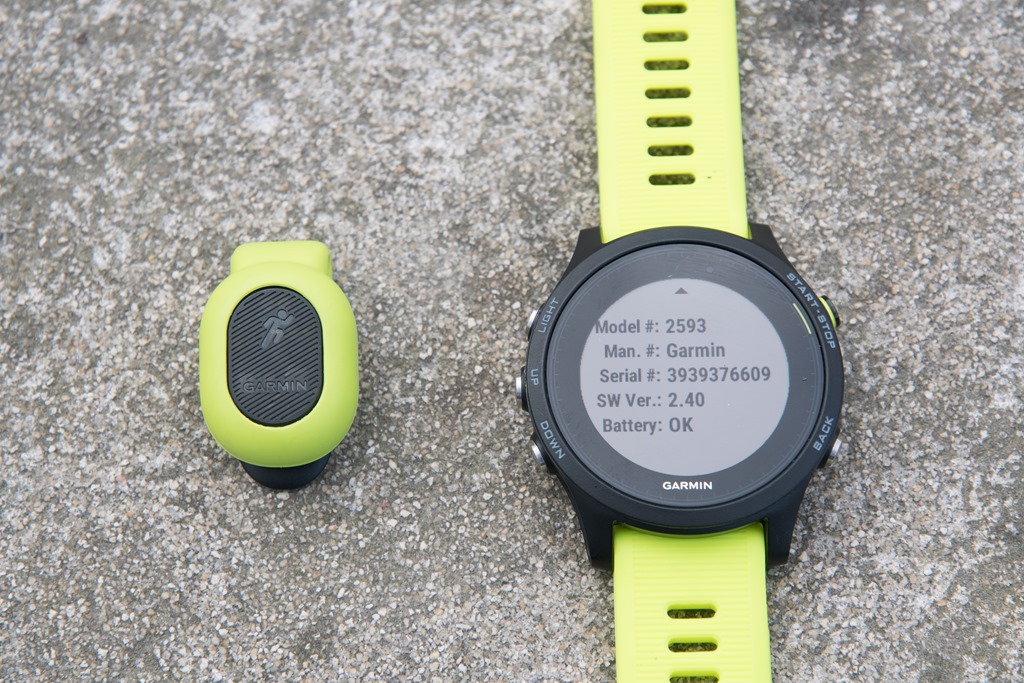
Want to skip calibration altogether? Use devices that provide direct measurements.
HRM-Run and HRM-Tri
These chest straps include accelerometers that measure stride length, ground contact time, and vertical oscillation. They provide real-time pace and distance indoors, overriding the watch internal estimates. When connected, treadmill calibration prompts will not appear because the watch trusts the sensor more.
Speed/Cadence Foot Pod
Attach to your shoe lace. It tracks cadence, contact time, and flight ratio. It calculates precise speed and distance regardless of arm movement. This is ideal for serious runners who train indoors regularly.
ANT+ and Bluetooth Compatibility
Garmin supports many third-party sensors. Just pair them via Settings, Sensors & Accessories, Add New Sensor. Once paired, the watch prioritizes sensor data during relevant activities.
Know Your Model Limits
Not all features work on every watch. Here is what to expect.
Supported Calibration by Model Type
| Feature | Supported Models | Notes |
|---|---|---|
| Treadmill Calibration | Forerunner 235+, vivoactive 3+, fenix, Instinct | Threshold: 1.5 km older, 2.4 km newer |
| GPS Initialization | All GPS-enabled watches | Requires Garmin Express |
| Compass Calibration | Outdoor/sports models only | Not on Vivosmart, basic trackers |
| Accelerometer Training | All indoor-capable models | Improved by outdoor GPS use |
Always consult your official owner manual. Options vary by firmware and hardware.
Fix Common User Problems
Real users face real issues. Here is how to solve them fast.
My Watch Shows 0.7 Miles Instead of 1
This is likely caused by an untrained accelerometer. Do a few outdoor GPS runs, then recalibrate the treadmill.
No Calibrate Option After My Run
The most common reasons are running less than required distance, holding handrails, using an external sensor, or selecting the wrong activity mode. Repeat the workout meeting all conditions.
GPS Still Shows 0.00 After Sync
Possible sync failure. Reinstall Garmin Express. Try a different USB port or cable. Restart computer and retry sync.
Compass Is Off After Software Update
Firmware resets may affect calibration. Recalibrate using figure-8 motion away from electronics.
Maintain Accuracy Over Time
Calibration is not a one-time fix. Keep your watch accurate with routine care.
Sync Weekly
Connect to Garmin Express or Connect Mobile weekly to apply firmware updates, back up data, and refresh sensor profiles.
Update Firmware
New versions often include bug fixes for GPS drift, improved accelerometer algorithms, and better compass stability. Check for updates in Garmin Express or the Connect app.
Alternate Indoor and Outdoor Training
Balance treadmill days with outdoor runs to keep both GPS and accelerometer models fresh.
Recalibrate Before Critical Activities
Before a long hike or race, always recalibrate the compass, verify GPS signal strength, and confirm treadmill calibration if used recently. Firmware updates may reset calibration data, so check after each update.
Access Official Support
Need more help? Garmin offers model-specific resources.
Visit support.garmin.com
Search by your device to find step-by-step calibration videos, downloadable owner manuals, firmware release notes, and troubleshooting wizards. You can also contact Garmin support directly through the site for personalized help. Watch the official treadmill calibration video for your model. It shows exactly where the prompt appears.
Key Takeaways for Calibrating Your Garmin Watch
Calibrating your Garmin watch is not complicated, but it requires knowing which sensor is off and how to fix it. GPS issues require syncing with Express and doing a quick outdoor walk. Treadmill mismatch requires running long enough, avoiding handrails, and calibrating at the end. Compass problems require doing a figure-8 in the open air. With regular maintenance and smart use of sensors, your Garmin will deliver reliable data every time, indoors or out.
Frequently Asked Questions About Calibrating a Garmin Watch
How do I know if my Garmin GPS needs calibration?
Check the GPS software version in Settings, System, About, SW Versions. If it shows “0.00”, the GPS module needs initialization. Sync with Garmin Express and perform a brief outdoor activity to fix this.
Why does my treadmill distance not match the watch?
Garmin watches use the accelerometer for indoor distance, not GPS. The watch learns from your outdoor GPS runs to estimate indoor distance. If the readings differ significantly, run at least 2.4 km on newer models without holding handrails, then calibrate when prompted.
Can I calibrate my Garmin compass myself?
Yes. Go to Settings, Sensors & Accessories, Compass, Calibrate, Start. Slowly move your wrist in a figure-8 pattern until “Calibration Complete” appears. Do this away from electronics and metal objects.
Does calibration affect past workouts?
No. Treadmill calibration only updates the stride model for future workouts. It does not change previously recorded distance, pace, heart rate, or calories. You can manually edit past activities in Garmin Connect if needed.
What do I do if the calibrate option does not appear?
Ensure you ran at least 2.4 km, did not hold handrails, have no external sensors connected, and selected Treadmill as the activity type. If it still does not appear, edit the distance manually in Garmin Connect after the workout.
How often should I recalibrate my Garmin watch?
Recalibrate the compass before important navigation activities or when readings seem off. Treadmill calibration should be done every few months or when switching machines. GPS initialization is rarely needed except after firmware issues or factory resets.



