
If your Garmin watch isn’t tracking sleep automatically or you’re missing bedtime alerts, the issue likely lies in how your sleep mode is configured. Many users struggle to find the right settings, especially with frequent app updates and model-specific variations. But once you know where to look, adjusting sleep mode on your Garmin watch becomes straightforward.
This guide walks you through every method to change sleep mode and schedule, whether you’re using a Venu, Forerunner, Fenix, or Vivoactive model. You’ll learn how to set recurring bedtimes, fix tracking issues, avoid iOS conflicts, and manually log sleep.
Adjust Sleep Schedule via Garmin Connect
The most reliable way to change when your Garmin enters sleep mode is through the Garmin Connect app. This method sets a recurring schedule so your watch knows when to dim the screen, silence notifications, and start tracking.
Open Device Settings in App
Start by accessing your watch settings in the app. Launch Garmin Connect, tap More (bottom menu), select Garmin Devices, and choose your connected watch. From here, navigation varies by model and firmware, so use the correct path below for your device.
Navigate to Focus Modes (Most Models)
For Venu 3, Forerunner 955, Fenix 7, Instinct 2, and other recent models, go to Focus Modes, then Sleep, then Schedule. Tap Edit next to your current schedule, set bedtime and wake-up time, choose days (such as Mon-Fri or custom), and tap Sync to apply to your watch.
This path works on watches running firmware with the Focus Modes update.
Use System Menu (Older Models)
If Focus Modes isn’t visible, try Garmin Devices, then System, then Sleep Mode, then Schedule. This path is common on Forerunner 245/255, Vivoactive 4, and pre-2023 firmware. This older route still functions but may be phased out in future updates.
Access via User Profile (Vivoactive 5+)
After firmware 5.0, some Vivoactive 5/6 users report success with a different approach. Tap the device icon (top-right), select User Profile, and choose Sleep Schedule. This path bypasses device menus and goes straight to scheduling.
Fix iOS Sleep Conflicts

If your Garmin isn’t entering sleep mode on time, your iPhone might be interfering. iOS allows only one active sleep schedule at a time, which can block Garmin from starting tracking.
Check iPhone Health App Settings
Open iPhone Settings, go to Health, then Data Access and Devices, then Sleep Schedule. Ensure Garmin is enabled and no conflicting Apple Sleep Focus schedules exist. If Apple’s native sleep mode is active, it can prevent Garmin from functioning properly.
Disable Overlapping Focus Modes
To prevent conflicts, turn off iPhone Sleep Focus during Garmin tracking hours. Alternatively, use Garmin as primary and disable Apple’s schedule. Sync your watch after making changes to ensure the new sleep window takes effect.
Set Sleep Mode Directly on Watch
No phone? No problem. You can configure sleep mode directly on your Garmin without using the mobile app.
Access Settings Menu
Press and hold the Up button, scroll to Settings, then System, then Sleep Mode, then Schedule. This path works on most modern Garmin watches.
Configure Activation Times
Select Schedule or Edit Schedule, pick days (such as weekdays only), set Activation Time (bedtime) and Deactivation Time (wake-up). Use the rotary dial or buttons to adjust, then press the checkmark to confirm each setting. Changes apply immediately or after the next sync.
Enable Night Mode (Optional)
Some models allow screen dimming, notification silencing, and Do Not Disturb integration. Ensure these are enabled under Sleep Mode or Focus Mode settings for full nighttime optimization.
Customize Per-Day Sleep Times
If your schedule varies, use daily customization to set different times for weekdays versus weekends.
Assign Different Bedtimes
Modern Garmins support separate weekday and weekend schedules, plus custom times for individual days. For example, set weekdays for 10:00 PM bedtime and 6:00 AM wake time, while Saturdays might use 11:30 PM and 8:00 AM.
Workaround for Missing Weekend Options
Some users report not being able to skip weekends or disable Sunday tracking. The fix is to set weekend times far outside normal hours, such as 3:00 AM, to avoid accidental activation.
Manually Log Sleep (For Naps or Shift Work)
No automatic tracking during the day? You can log sleep retroactively in the Garmin Connect app.
Edit Past Sleep Data
Open Garmin Connect, tap More, then Health Stats, then Sleep Score. Find the date you want to adjust, tap the three dots, and select Adjust sleep times. Enter start and end times manually.
This does not enable real-time tracking. It only updates historical data.
Use for Naps and Irregular Shifts
Manual logging is ideal for daytime naps, night shift workers, and travel across time zones. Sync your watch afterward to ensure Body Battery and recovery metrics reflect the change.
Troubleshoot Missing Sleep Tracking
If sleep isn’t recording at all, follow these steps to diagnose the problem.
Verify Schedule Is Set and Synced
Confirm sleep times are entered in the app, tap Sync in Garmin Connect, and check that your watch shows the correct schedule under Settings, System, Sleep Mode. Low battery or failed sync can prevent activation.
Ensure Proper Wear and Fit
For accurate tracking, wear the watch snugly on your wrist, position it two finger-widths above the wrist bone, and avoid loose bands during sleep. Poor contact reduces HRV and motion data accuracy.
Update Firmware
Outdated software may hide settings or cause tracking issues. Open Garmin Connect, go to Garmin Devices, select your watch, then System, then Software Update. New firmware often restores missing menus or improves sleep detection.
Understand Sleep Tracking Features
Knowing what your watch records helps you interpret the data and set realistic expectations.
What Sleep Mode Tracks
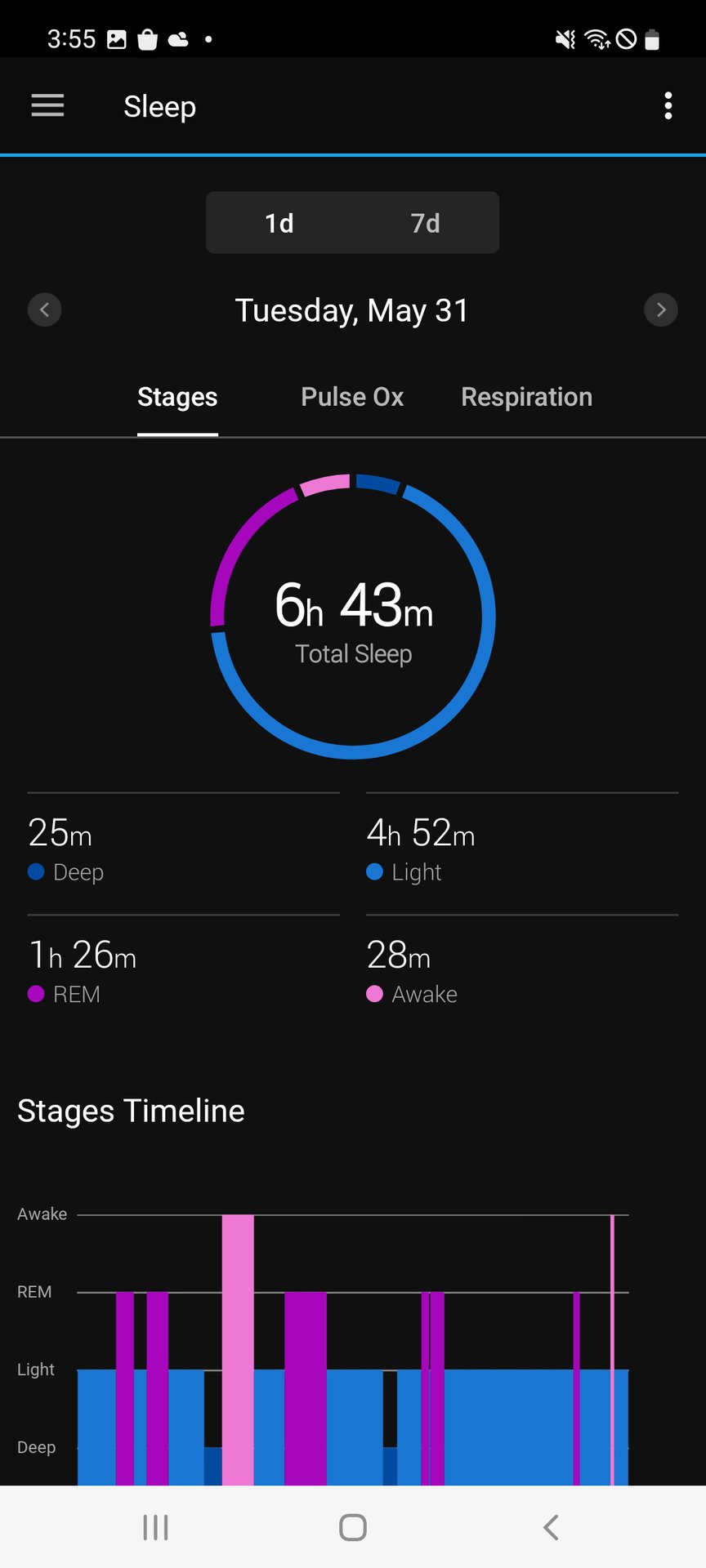
When enabled, sleep mode records sleep stages (light, deep, REM), sleep score (0-100), HRV status and Body Battery, breathing rate and restlessness, and SpO2 on models with Pulse Ox. Data syncs to Garmin Connect each morning.
Accuracy Tips
For best results, wear the watch every night, keep your user profile updated with age, weight, and gender, and avoid removing the watch during sleep. Estimated stages are not medical-grade but useful for tracking trends over time.
Avoid Common Mistakes
Steer clear of these frequent errors that prevent proper sleep tracking.
Editing Wrong Sleep Time Field
Do not use More, Health Stats, Sleep, three dots, Adjust sleep times. This edits past data, not your recurring schedule. Instead, use Focus Modes, Sleep, Schedule for automatic tracking.
Ignoring Sync After Changes
Changes in the app will not apply until you tap the Sync icon and wait for confirmation. No sync means no update on your watch.
Setting Unrealistic Times
Avoid bedtimes too early (such as 6:00 PM) or wake times too late (such as 12:00 PM). These settings may cause misclassification of naps or quiet time as sleep.
Best Practices for Reliable Sleep Tracking
Maximize accuracy and automation by following these recommendations.
Keep Profile Data Updated
Open Settings, User Settings in Garmin Connect and confirm your age, weight, height, and gender are correct. These factors affect sleep score algorithms.
Enable All-Day Stress Tracking
Improve HRV and Body Battery insights by enabling all-day stress tracking in Garmin Devices, then Stress. Better data produces more accurate sleep recovery metrics.
Use Do Not Disturb Exceptions
Ensure critical alarms still sound by allowing important alerts in Focus Mode. Alternatively, set vibration-only alarms for wake-up to prevent oversleeping due to silenced notifications.
Frequently Asked Questions About Changing Sleep Mode on Garmin Watch
How do I find sleep mode settings on my Garmin watch?
The location depends on your model. Most newer watches use Garmin Connect, then More, then Garmin Devices, then Focus Modes, then Sleep, then Schedule. Older models may use System instead of Focus Modes.
Why isn’t my Garmin tracking sleep automatically?
First, verify that a sleep schedule is set and synced. Check that your watch battery isn’t critically low, ensure you’re wearing it snugly on your wrist, and look for iOS conflicts if you use an iPhone. Update your firmware if settings are missing.
Can I set different sleep times for weekdays and weekends?
Yes, most modern Garmin watches support different schedules for weekdays versus weekends. Some users report limitations with full per-day customization, so you may need to set weekend times outside your actual sleep hours if separate scheduling isn’t available.
How do I log sleep manually if I forgot to wear my watch?
Open Garmin Connect, go to More, then Health Stats, then Sleep Score. Find the date, tap the three dots, and select Adjust sleep times. Enter your actual sleep start and end times manually.
Does sleep mode affect battery life?
Sleep mode actually helps conserve battery by dimming the screen and reducing notification processing. However, the optical heart rate sensor and sleep tracking do use some power, which is why setting accurate sleep windows helps optimize overall battery performance.
Why are my alarms not going off during sleep mode?
By design, alarms may be suppressed during sleep mode to prevent disruption. Check your Focus Mode settings to ensure important alerts are allowed, or switch to vibration-only alarms that will still function during sleep tracking.
Key Takeaways for Changing Sleep Mode on Your Garmin Watch
Changing sleep mode on your Garmin watch should be seamless, but inconsistent app layouts make it frustrating for many users. The most important thing is to use the correct path for your specific model, whether that’s through Focus Modes, System settings, or User Profile in the Garmin Connect app.
Always sync your watch after making changes, and check for iOS conflicts if you’re using an iPhone. If one method doesn’t work, try another, because Garmin frequently updates its interface. Once properly configured, your watch will automatically track sleep, improve recovery insights through Body Battery and HRV data, and help you build better rest habits over time.



