
Is your Garmin watch running slow, missing new features, or showing outdated navigation data? You’re not alone. Thousands of users miss critical software updates simply because they don’t know how or when to update their device. The good news: updating your Garmin watch is fast, free, and straightforward when you know the right method. Whether you’re using a Forerunner, Fenix, Venu, or Instinct model, this guide shows you exactly how to update your Garmin watch using the most reliable methods.
You’ll learn the three main update methods, when to use each one, how to avoid common update failures, and what to do if your watch won’t install the update.
Choose Your Update Method

Garmin offers three ways to update your watch. The best method depends on your model, update type, and available equipment.
Mobile App vs. Desktop vs. On-Watch
Use the Garmin Connect app for quick wireless updates. It’s ideal for routine patches and works on all compatible models. However, if you’re dealing with a major firmware jump or map update, Garmin Express desktop software is the most reliable choice. For newer Wi-Fi models like the Forerunner 265 or Fenix 7, you can even update directly on the watch without a phone or computer.
Not all methods work for every watch. Older models like the Forerunner 245 lack on-device update menus and rely entirely on the app. For the fastest, most stable experience, especially after a failed update, always default to Garmin Express.
Update Your Garmin Watch Using the Mobile App
The Garmin Connect app is the go-to method for wireless updates. It’s simple, built into your daily routine, and works without cables.
Check for Updates in the App
Open the Garmin Connect app on your iPhone or Android device. Tap More in the bottom-right corner, then select Garmin Devices. Choose your watch from the list and go to System > Software Update. Tap Check for Updates.
If an update is available, the app downloads it and sends it to your watch over Bluetooth. A green progress bar means the firmware has transferred successfully.
What Happens After Transfer
Here’s the hidden step most users miss: your watch may not install the update until you restart it manually. Even if the app says “Update Sent,” the watch might sit idle. To trigger installation, press and hold the power button, select Restart, and wait 10 to 15 minutes. The watch may reboot multiple times during this process.
This behavior is normal, especially during phased rollouts where Garmin releases updates gradually. If you’re in the early group, your device might receive the file but wait for a server signal to activate.
Enable Auto Update
In the Software Update menu, toggle Auto Update on. When enabled, your watch checks for updates automatically and installs them when the battery is above 50%, connected to your phone, or charging. Use this for convenience, but disable it before races or trips to avoid surprise restarts.
Common App Issues and Fixes
No update available. Clear the app cache or wait 24 to 48 hours due to phased rollout. Update stuck. Re-pair your watch by removing it from the app, restarting both devices, then re-adding. Fails mid-transfer. Switch to Garmin Express because Bluetooth interruptions are common.
Update Your Garmin Watch Using Garmin Express
Garmin Express is the gold standard for updates. It’s faster, more stable, and essential for map installations.
Install and Connect
Download Garmin Express from garmin.com/express. Install it on your Windows 10 or later or macOS 10.15 or later computer. Connect your watch with the original USB cable and open Garmin Express.
The app detects your device and scans for available software and map updates.
Start the Update
Click Install for individual updates or select Install All to apply everything at once. During installation, do not unplug the watch. The screen may go blank or reboot, which is normal. Wait for the Updates Complete message, then safely disconnect and let the watch finalize internally.
Why Use Garmin Express
Garmin Express is faster because USB transfers beat Bluetooth every time. It’s more reliable since encrypted .GCD files prevent corruption. You get full control to see exactly what is updating and when. It is also the only practical way to install TopoActive, City Navigator, or Cycle Maps.
If your mobile update failed, Garmin Express will almost always fix it.
Supported Operating Systems
Windows users need version 10 or later. macOS users need version 10.15 (Catalina) or later, with 11 or later recommended. Ensure your system meets these requirements because older versions may not support the latest Express features.
Update Directly from Your Watch
If you own a Forerunner 255 or 265, Fenix 7, Epix, or Venu 3, you can update without any external device.
Start Update from Watch
Press and hold the middle left button to access the menu. Go to Settings > System > Software Update. Tap Check for Updates.
If Wi-Fi is enabled and connected to your Garmin account, the watch downloads the update directly.
Auto Update Settings
In the same menu, set Auto Update to On for automatic downloads and installs. Set it to Off to approve updates manually. Auto Update is great for daily use, but disable it before long runs or travel.
Requirements for On-Watch Updates
Your watch battery must be above 50 percent or connected to a charger. Wi-Fi must be enabled and signed in. Initial pairing with Garmin Connect must be completed. Even with Wi-Fi, some updates may still prompt a phone connection for authentication.
Limitations
On-watch updates are not available on older models like the Forerunner 245 or Instinct 2. They are slower than Garmin Express for large updates. May delay due to phased rollouts. Still, for cable-free convenience, on-device updates are a game-changer.
Update Maps on Your Garmin Watch
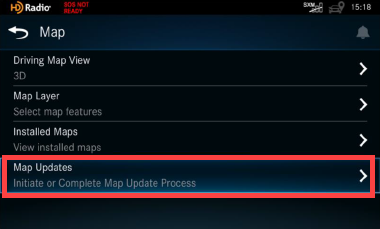
Maps need updating too, especially if you hike, cycle, or drive with navigation.
Supported Map Types
TopoActive maps cover trails and terrain. City Navigator provides turn-by-turn driving directions. Cycle Maps offer bike routes and elevation data. Ski Maps handle resort trail navigation. LakeVü includes fishing and boating charts.
Some devices include lifetime free maps, while others require a one-time purchase or subscription.
Best Way to Update Maps
Use Garmin Express. Map files are large, often exceeding 100 MB. Bluetooth transfers fail mid-way. USB ensures stable, fast delivery.
Connect your watch via USB, open Garmin Express, click Install next to available map updates, and wait for completion without disconnecting. After updating, verify the new version in your watch’s Maps or System Information menu.
Avoid Mobile Map Updates
While technically possible, updating maps via the Garmin Connect app is not recommended. Slow speeds and dropped connections make it unreliable. Stick to Garmin Express for any map changes.
Fix Common Garmin Update Problems
Even with the right method, issues happen. Here is how to fix them fast.
Update Sent But Not Installing
The firmware loader needs a manual restart. Restart your watch and wait 10 to 15 minutes. If still stuck, try Garmin Express.
No Software Update Option on Watch
Your model does not support on-device checks, such as the Forerunner 245. Use the Garmin Connect app or Garmin Express instead. These methods work regardless of watch interface limits.
Update Fails Mid-Process
Low battery, poor connection, or interrupted transfer often cause this. Charge the watch to at least 50 percent. Use the original USB cable. Retry with Garmin Express because it is the most stable method.
Update Not Available Despite Known Release
Phased rollout or app cache issue could be the cause. Wait 24 to 48 hours. Clear the app cache on Android through Settings > Apps > Garmin Connect > Storage > Clear Cache. Try Garmin Express because it often bypasses mobile delays.
Watch Reboots Repeatedly After Update
This is normal post-installation initialization. Let it run for 10 to 15 minutes. If it continues, perform a soft reset by holding the power button for 15 to 20 seconds.
Best Practices for Safe Garmin Watch Updates
Follow these rules to avoid problems or losing data.
Maintain Battery Above 50 Percent
Low power is the number one cause of failed updates. Always start with at least half battery, and better yet, plug it in during large updates.
Keep Apps Updated
An outdated Garmin Connect or Express app may misreport status or fail to detect updates. Always run the latest version.
Restart After App Transfer
If you used the mobile app and the watch does not update, restart manually and wait for installation to begin. This step is critical and often overlooked.
Disable Auto Update Before Events
Enable Auto Update for convenience, but turn it off before races, trips, or important workouts. An unexpected restart could ruin your day.
Back Up Critical Data
Firmware updates typically do not delete user data, but it is smart to sync recent workouts, save custom routes or training plans, and note down any manual settings. Garmin does not offer a full backup tool, so manual documentation helps.
When to Use Each Update Method
Choosing the right method saves time and prevents frustration.
For routine software patches, use the Garmin Connect app with Auto Update enabled. It is wireless, automatic, and integrates with daily sync.
For major firmware upgrades, use Garmin Express (wired). It is the most reliable, fastest, and provides full visibility.
For map updates, use Garmin Express (wired). Bluetooth is too slow, and USB prevents failures.
For quick updates on Wi-Fi models, use on-device updates directly from the watch. No cables or phone needed.
For failed mobile updates, use Garmin Express. It has the highest success rate for recovery.
For pre-race or trip prep, manually check all updates, then disable Auto Update. This avoids surprise restarts during critical times.
Frequently Asked Questions About Updating Garmin Watches
How do I check if my Garmin watch has an update available?
Open the Garmin Connect app, go to Garmin Devices, select your watch, tap System > Software Update, and tap Check for Updates. Alternatively, use Garmin Express on your computer or check directly on the watch if your model supports on-device updates.
Why does my Garmin watch say no update available when I know there is one?
Garmin releases updates in phased rollouts, meaning not everyone receives them simultaneously. Wait 24 to 48 hours, clear your app cache, or try Garmin Express to bypass mobile rollout delays.
Can I update my Garmin watch without a phone?
Yes. Use Garmin Express with a USB cable, or if you have a Wi-Fi-enabled model like the Forerunner 265 or Fenix 7, update directly from the watch menu.
Will updating my Garmin watch delete my workouts and data?
No. Standard firmware updates do not erase user data like workouts, settings, or routes. However, back up important training plans or custom routes before major version jumps as a precaution.
What should I do if my Garmin watch update stuck or failed?
Restart your watch manually. If the problem persists, try using Garmin Express instead of the mobile app. Ensure your battery is above 50 percent and use the original USB cable.
Key Takeaways for Updating Your Garmin Watch
Updating your Garmin watch does not have to be stressful. Use the Garmin Connect app for quick wireless patches, Garmin Express for major updates and maps, and on-device updates for Wi-Fi-enabled models. Always maintain above 50 percent battery, restart manually after mobile transfers, and disable Auto Update before races or trips.
With the right method and a few key habits, you will stay current, secure, and ready for every adventure. Now go update and get back to tracking what matters.



