

You just pulled your new Bose Sport Earbuds out of the box and want to start listening right away—but first, you need to pair them with your iPhone. The good news is that connecting Bose Sport Earbuds to iPhone takes only a few minutes, even if you have never used wireless earbuds before. You can use the Bose Music app for the full feature experience or pair directly through your iPhone’s Bluetooth settings.
In this guide, you will learn both pairing methods, what the LED light signals mean, how to unlock advanced customization, and how to fix the most common connection issues. By the end, your earbuds will be fully linked, customized, and ready for music, calls, and workouts.
Pair Bose Sport Earbuds Using the Bose Music App
The Bose Music app is the recommended way to connect your earbuds because it unlocks firmware updates, EQ settings, and touch control customization. This method gives you the complete Bose experience from day one.
Download and Launch the App
Open the Apple App Store and search for “Bose Music.” Download and install the app, then tap to open it. You will need an internet connection and a Bose account to proceed.
Start the Setup Process
Inside the app, tap “Set up new device” and select “Headphones” from the category list. The app prepares to scan for nearby Bose devices in pairing mode.
Remove Earbuds to Trigger Pairing
Take both earbuds out of the charging case at the same time. They power on automatically and enter pairing mode without any button presses. Within seconds, “Bose Sport Earbuds” appears in the app’s device list.
Confirm the Connection
Tap the device name and then tap “Connect”. Your iPhone displays a system pop-up asking you to confirm the Bluetooth pairing. Tap “Connect” again to finalize the link.
Verify a Successful Link
The app shows a success screen once pairing finishes. You now have access to firmware updates, sound profiles, touch controls, and the Find My Earbuds feature. Keep the app open during initial setup so all features activate correctly.
Connect Bose Sport Earbuds Through iPhone Bluetooth Settings
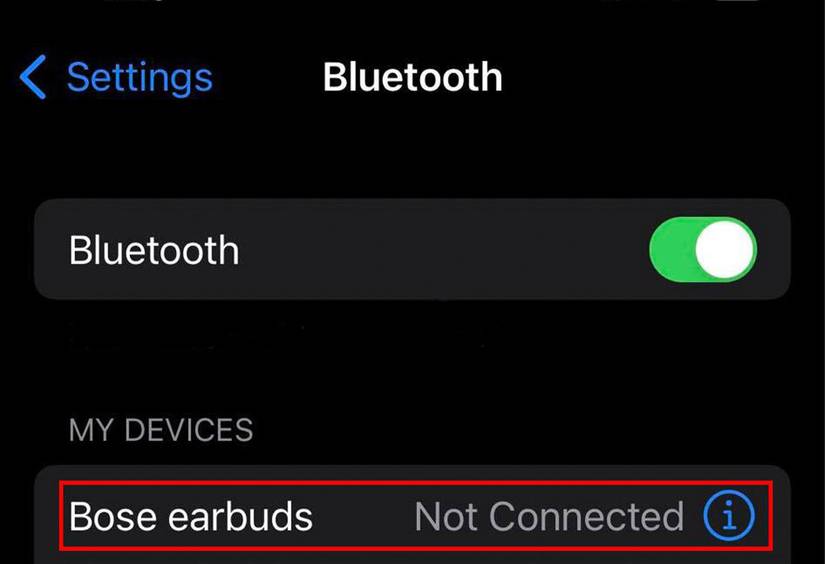
If you prefer not to use the app or want a quick connection, your iPhone’s built-in Bluetooth menu works perfectly. This method is fast and ideal for users who only need basic audio playback.
Activate Pairing Mode on the Case
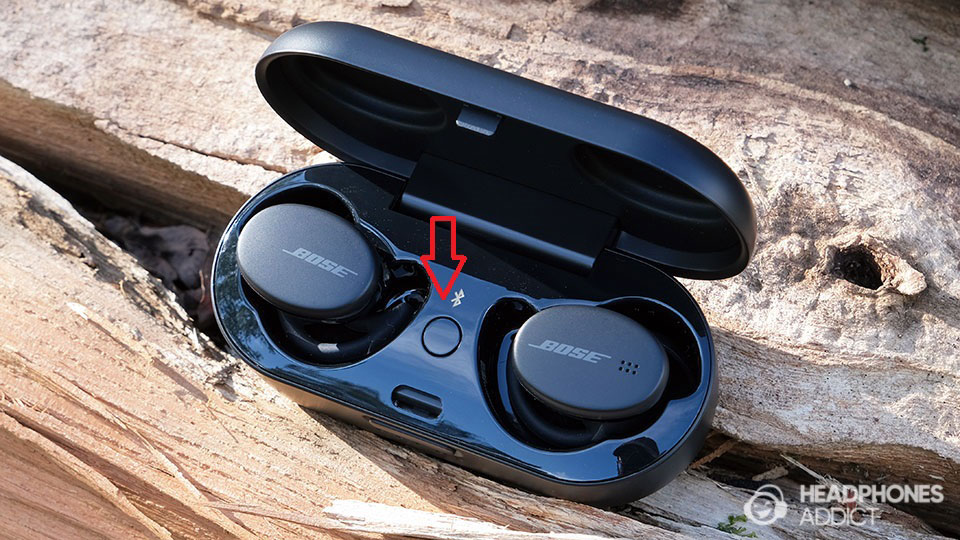
Open the charging case lid and locate the Bluetooth button on the front. Press and hold this button for about 5 seconds until the LEDs on both earbuds begin blinking steady blue. This blinking pattern means the earbuds are discoverable.
If the lights do not respond, check that the case has battery and try holding the button a bit longer. A solid blue light means the earbuds are already connected to another device.
Open iPhone Bluetooth Settings
On your iPhone, go to Settings > Bluetooth and make sure the toggle is switched on. Wait a moment for “Bose Sport Earbuds” to appear under the Other Devices section.
Tap to Connect
Select “Bose Sport Earbuds” from the list. Your iPhone may display a prompt asking for permission to access your Contacts and Call History. Tap “Pair” to complete the connection.
Choose Contact Access Permissions
You will see an option to Allow or Deny contact access. Choose Allow if you want caller ID announcements, voice dialing, and Siri integration during calls. Choose Deny if you only plan to use the earbuds for music and podcasts. You can change this later in Settings > Privacy.
The blinking blue LED turns solid once the connection is stable.
Decode the LED Light Signals on Your Earbuds
The small LED lights on each earbud give you instant feedback about power and connection status. Learning these signals helps you troubleshoot problems quickly.
Blue Light Meanings
• Steady blinking blue means pairing mode is active and the earbuds are discoverable
• Solid blue means the earbuds are successfully connected to your iPhone
• No light means the earbuds are powered off or the battery is drained
If the lights do not respond at all, place both earbuds in the case, close the lid for 10 seconds, then try again. This resets the earbud state.
Customize Your Earbuds Inside the Bose App
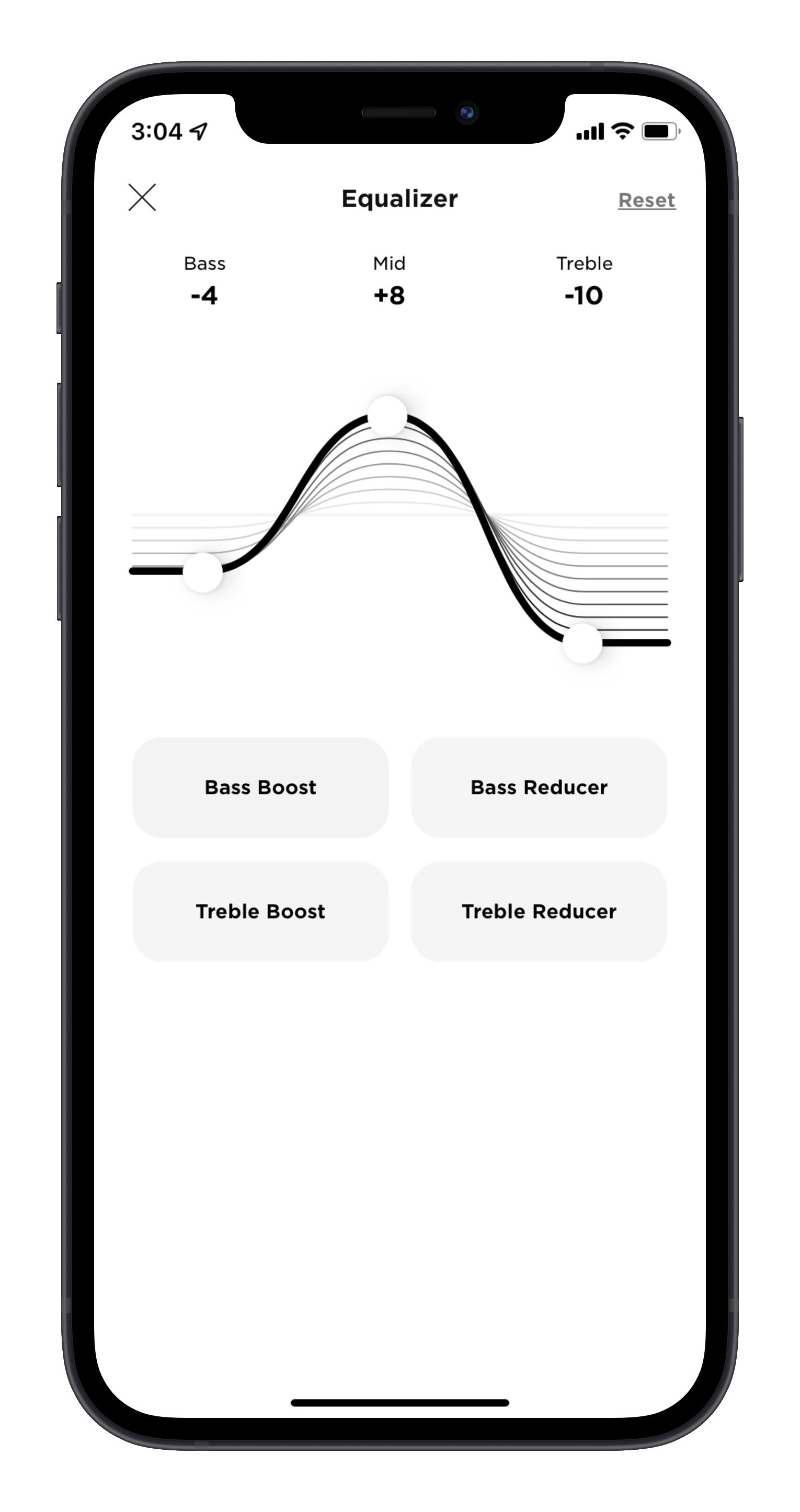
After pairing, return to the Bose Music app to unlock premium features unavailable through standard Bluetooth. These settings let you tailor your listening experience.
Adjust Sound with EQ and Profiles
Fine-tune your audio using the built-in equalizer and sound profiles:
• Boost bass or clarity with the EQ slider
• Switch between profiles like Balanced, Bright, or Bass Enhanced
• Save your favorite settings for workouts, commutes, or relaxation
These adjustments save directly to the earbuds, so your sound stays consistent across every device you pair with.
Reprogram Touch Controls
Each earbud surface responds to taps and presses. Customize these gestures in the app to control:
• Play and pause music
• Skip tracks forward or backward
• Activate Siri
• Toggle noise modes when available
Choose which gestures perform which actions. This is especially helpful during workouts when reaching for your phone is inconvenient.
Keep Firmware Updated
Firmware updates improve battery life, fix bugs, and sometimes add new features. The Bose Music app checks for updates automatically. Always install them when prompted to keep your earbuds performing at their best.
Never disconnect the earbuds during an update. Keep them in range and well charged throughout the process.
Troubleshoot Common Connection Problems
Even with a simple setup, you may occasionally run into issues. These targeted fixes resolve the most frequent problems users face when connecting Bose Sport Earbuds to iPhone.
Earbuds Do Not Appear in the Bluetooth List
When “Bose Sport Earbuds” is missing from your iPhone settings, follow these steps:
- Remove both earbuds from the charging case
- Press and hold the Bluetooth button on the case for 5 seconds until blue lights blink
- On your iPhone, turn Bluetooth off, wait 5 seconds, then turn it back on
- Retry the pairing process
Make sure no other device is currently connected. Bose Sport Earbuds only maintain one active connection at a time.
Audio Keeps Cutting Out
If sound drops during playback, try these solutions:
• Stay within 30 feet (9 meters) of your iPhone
• Avoid walls, metal objects, or Wi-Fi routers between the devices
• Restart Bluetooth on your iPhone
• Re-pair the earbuds if the issue continues
These earbuds are built for sports, so normal movement will not break the signal. Distance and interference are the usual culprits.
Only One Earbud Is Playing Audio
When one side goes silent, reset the synchronization:
1. Place both earbuds back in the charging case
2. Close the lid and wait 10 seconds
3. Open the lid and remove both earbuds at the same time
4. Wait for both LEDs to blink blue, then reconnect to your iPhone
This refreshes the link between the left and right earbuds.
Optimize Daily Use and Battery Performance
Once connected, a few smart habits help you get the most out of your Bose Sport Earbuds every day.
Automatic Power Management
Your earbuds handle power automatically based on case interaction:
• Removing them from the case powers them on and connects them
• Placing them back in the case powers them off and starts charging
No buttons to press. Just grab and go.
Switch Between Multiple Devices
Bose Sport Earbuds remember several paired devices. To switch from your iPhone to another device:
- Disconnect from the current device through Bluetooth settings
- Open Bluetooth settings on the new device
- Select “Bose Sport Earbuds” from the available list
Reconnection takes only seconds when the device was previously paired.
Monitor Battery Levels
Track your battery life through either the Bose Music app or your iPhone:
• View individual earbud battery percentages
• Check the charging case battery level
• Receive low-battery alerts before workouts
On iPhone, add the Bose widget to your Today View for quick battery access without opening the app.
Frequently Asked Questions About Bose Sport Earbuds and iPhone
Do Bose Sport Earbuds Work With iPhone?
Yes. Bose Sport Earbuds use standard Bluetooth and connect to any iPhone running iOS 10 or later. They support music playback, calls, and Siri voice commands once paired.
Why Are My Bose Sport Earbuds Not Showing Up on iPhone?
The earbuds may not be in pairing mode. Place them in the case, close the lid for 10 seconds, then open the lid and hold the Bluetooth button on the front for 5 seconds. The LEDs should blink blue, signaling discoverable mode.
How Long Does It Take to Connect Bose Sport Earbuds to iPhone?
The first-time pairing usually takes under one minute. After the initial setup, your earbuds reconnect automatically within seconds whenever you remove them from the case.
Can I Use Bose Sport Earbuds Without the Bose Music App?
Yes. You can pair them through standard iPhone Bluetooth settings and enjoy full audio playback. However, the app is required for firmware updates, EQ customization, touch control remapping, and Find My Earbuds.
Do Bose Sport Earbuds Support Noise Cancellation?
Standard Bose Sport Earbuds do not include active noise cancellation. They use a passive seal to block outside noise. Some firmware versions may offer ambient aware modes through the app, depending on your specific model.
How Do I Reset Bose Sport Earbuds?
Place both earbuds in the charging case and close the lid for 10 seconds. Open the lid and hold the Bluetooth button on the front for 10 seconds until the LEDs blink blue twice. This clears all paired devices and resets the earbuds to factory state.
Key Takeaways for Connecting Bose Sport Earbuds to iPhone
Connecting Bose Sport Earbuds to iPhone is a quick process that works through either the Bose Music app or your iPhone’s Bluetooth settings. The app method unlocks the full feature set, while Bluetooth pairing offers a faster path for basic listening needs.
Remember these essentials for the best experience: keep your firmware updated through the app, grant contact access during setup for full call functionality, and store the earbuds in their case when not in use. If connection problems appear, resetting pairing mode by holding the case button for 5 seconds resolves most issues.
Your Bose Sport Earbuds are now ready for music, calls, and workouts. Enjoy the freedom of wireless audio with reliable iPhone performance every time you put them on.



