
You’ve decided it is time for a fresh start with your Fitbit. Perhaps you are troubleshooting persistent glitches, preparing to sell or gift your device, or simply want to erase your fitness history and begin anew. The good news: you can delete Fitbit data and reset your device, but the exact steps depend on your specific model and whether you want to preserve your cloud-synced history.
This guide walks you through every method to delete Fitbit data permanently, including soft and factory resets, handling pre-owned devices, and understanding what stays in the cloud versus what gets wiped from the device.
When to Reset Your Fitbit
Before wiping data, confirm a reset is truly needed. Common triggers include syncing failures with the Fitbit app, a frozen screen or unresponsive buttons, rapid battery drain or incorrect charging behavior, incorrect time display especially after travel, selling or gifting the device, or buying a used Fitbit and needing to erase the previous owners data.
A soft reset fixes most minor issues without data loss. Use a factory reset only when problems persist or privacy is a concern.
Soft Reset vs Factory Reset: Know the Difference

Soft Reset: Reboot Without Data Loss
A soft reset is like restarting your phone. It clears temporary glitches but keeps all your data intact.
What stays:
• All synced and unsynced activity, sleep, and health data remains intact
• Settings, alarms, and goals stay unchanged
• Personal profile information is preserved
Use this first for freezes, sync issues, lag, or unresponsive screens. This resolves approximately 80% of common Fitbit issues.
Factory Reset: Wipe Data and Start Over
A factory reset erases everything on the device and returns it to out-of-the-box condition.
What gets deleted:
• All local data including steps, sleep, heart rate, workouts, and settings
• Unsynced data is lost permanently
• Previously synced data remains in your Fitbit cloud account
Required for selling, gifting, or fixing deep software issues. Warning: you cannot undo a factory reset. Ensure your latest data is synced before proceeding.
How to Soft Reset by Model
Charge Series: Charge 2 to Charge 5
- Plug in the charging cable
- Press and hold the side button for 8 to 10 seconds
- Release when the Fitbit logo appears
- Device restarts automatically
No data is lost. Use this method for sync issues or a frozen screen.
Versa Series: Versa, Versa 2/3/4, Lite
- Press and hold the back button and bottom button simultaneously
- Hold for approximately 10 seconds
- Release when the Fitbit logo appears
- Wait for full restart
Some newer models may have only one physical button. If no second button exists, hold the back button for 15 seconds instead.
Inspire Series: Inspire, Inspire 2/3
- Connect to the charging cable
- Press and hold the side button for 5 seconds
- Release when a smiley face icon appears
- Device restarts within seconds
If no smiley appears, clean the charging port with a dry toothbrush and retry.
Fitbit Ionic
- Press and hold the back button and bottom button simultaneously
- Hold for approximately 10 seconds
- Release when the Fitbit logo appears
- Allow full reboot
This method works for freezing, lag, or unresponsiveness.
How to Factory Reset by Model
Charge Series: Charge 2 to Charge 5
- Connect to the charging cable
- Press and hold the side button for 15 seconds
- Keep holding until the logo disappears, then reappears
- Release when the logo reappears
- Re-pair via the Fitbit app
Device restarts as new. All local data is erased.
Versa Series: Versa, Versa 2/3/4, Lite
- Swipe to Settings
- Scroll to About
- Tap Factory Reset
- Confirm when prompted
- Wait for wipe and reboot
No data recovery is possible. Synced history remains in your cloud account.
Inspire Series: Inspire, Inspire 2/3
- Open Settings on the device
- Scroll to Clear User Data
- Confirm to erase all data
- Re-pair with the Fitbit app
The label says Clear User Data rather than Factory Reset, but the effect is the same.
Fitbit Ionic
- Go to Settings
- Scroll to About
- Tap Factory Reset
- Confirm the action
- Re-setup as new device
This fully wipes health logs, workouts, and settings.
Older Models: Flex, Alta, and Similar
- Press and hold the side button for 10 to 15 seconds
- Release when the screen turns off and restarts
- Device resets to default
These models lack on-screen menus, so the button-hold method is the only reset option available.
Selling or Gifting? Fully Delete Fitbit Data
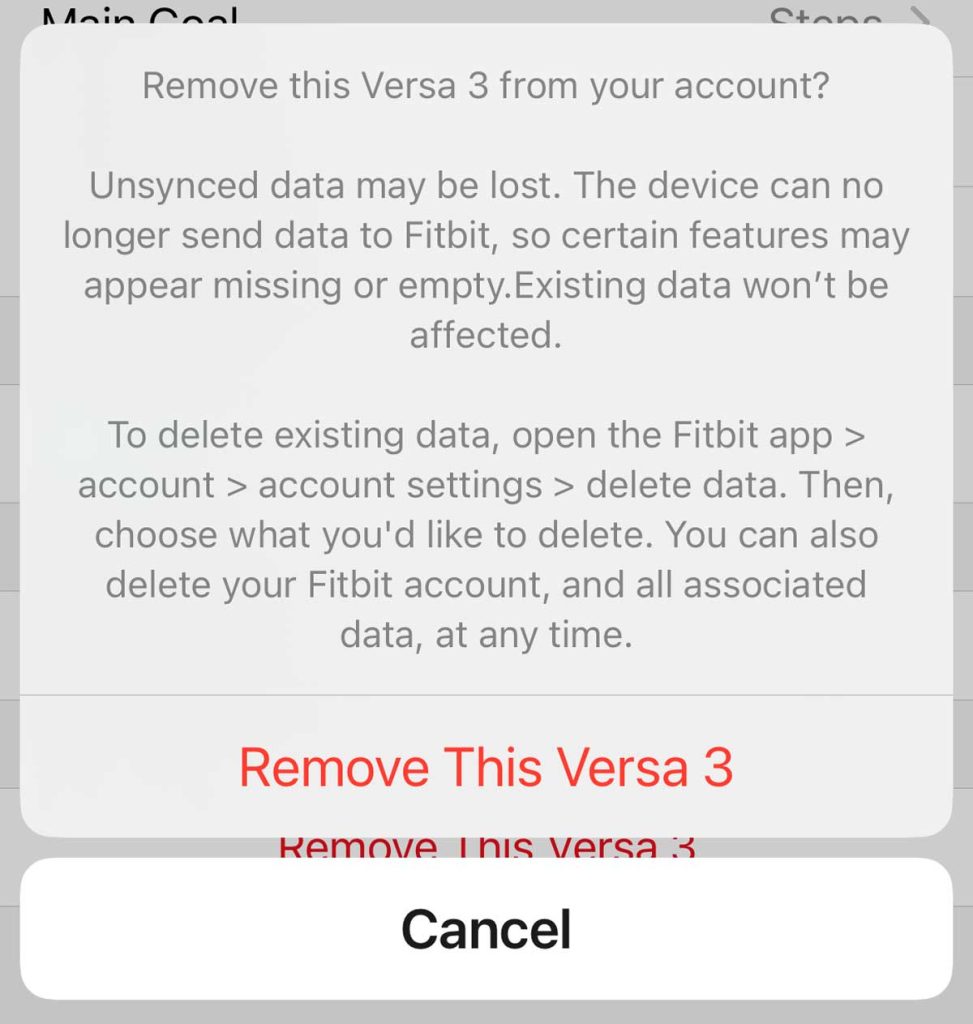
If you are giving away your Fitbit, a factory reset alone is not enough. Follow these steps to fully erase data and prevent account conflicts.
Step 1: Factory Reset the Device
Use the model-specific method above to wipe all local data from the device itself.
Step 2: Remove Device from Your Fitbit Account
A reset does not unlink the device from your Fitbit account. This step is critical for privacy.
- Open the Fitbit app
- Tap your profile icon in the top-left corner
- Go to Devices, then select your Fitbit
- Tap the gear icon for Settings
- Select Remove Device
- Confirm deletion
This ensures no future sync conflicts and fully protects your privacy. Never skip this step when selling or gifting.
Step 3: Let New Owner Set Up Their Own Account
After removal, the new user can pair the device to their Fitbit account. All data will sync under their profile. Your historical data remains in your cloud account, and theirs starts completely fresh.
Buying a Used Fitbit? Erase Previous Owner Data
Got a secondhand Fitbit? It may still contain someone elses health data. Here is how to start over securely.
Step 1: Perform a Factory Reset
Use the correct method for the specific model. This wipes local data like steps, sleep, and heart rate logs from the device.
Step 2: Check for Account Linking
If the device will not pair or shows someone elses name, ask the previous owner to remove it from their account. If the previous owner is unreachable, you can still pair it to your account. Once paired, your data begins fresh, and the previous cloud history stays with them.
Verify in your app that the device appears under your devices, not the previous owners.
Step 3: Set Up as New
- Power on the reset device
- Open the Fitbit app on your phone
- Tap Set Up a Device
- Follow prompts to link and configure
All new data is yours. The device is now fully transferred to your account.
What Data Gets Deleted versus What Stays

Erased from Device Forever After Reset
The following data is permanently deleted from the device itself:
• Steps, distance, and calories burned
• Sleep logs, stages, and sleep scores
• Heart rate, SpO2, and skin temperature readings
• Workout history and GPS tracks
• Alarms, goals, and clock faces
• Personal profile including weight, age, and stride length
Unsynced data is lost permanently. Always sync before resetting to preserve your progress.
Kept in Fitbit Cloud
The following remains in your Fitbit account even after a device reset:
• All previously synced data stays in your Fitbit dashboard
• Your account profile including height, weight, and goals is unchanged
• Trends and reports remain available in the app
To delete cloud data, you must manually remove it from the Fitbit website or delete your entire account entirely.
Can You Delete Cloud Data Too
Yes, but not through the device reset. To erase synced history from Fitbit servers:
- Go to fitbit.com and log in
- Click your profile, then select Settings
- Scroll to Data Export
- Tap Delete Account
- Confirm to erase all data permanently
This deletes everything: your account, all history, and all goals. Use this only if you are done with Fitbit forever.
Troubleshooting Failed Resets
If your reset does not work, try these fixes.
Charging Issues During Reset
• Clean the charging port with a dry toothbrush
• Ensure the cable is fully connected
• Use the original charger, as third-party cables may not deliver enough power
Charging is required for Charge and Inspire series resets.
Stuck on Logo or Will Not Restart
- Force restart again using the correct button combination
- Leave the device on the charger for 15 or more minutes before retrying
- Update firmware via the Fitbit app after reboot
Outdated software can block reset success.
Sync Problems After Reset
• Open the Fitbit app and tap Sync Now
• Restart your phones Bluetooth
• Uninstall and reinstall the app if sync fails repeatedly
The first sync after reset may take longer than usual.
Final Tips for a Clean Start
• Always sync before resetting to save your progress
• Use original charging cables for reliable resets
• Remove the device from your account when selling, do not just reset
• Update firmware after reset for best performance
• Back up key data through screenshots or reports if needed
Whether you are troubleshooting, upgrading, or passing your Fitbit on, you now know exactly how to delete Fitbit data and start again the right way.
Frequently Asked Questions About Deleting Fitbit Data
Does a factory reset delete all my Fitbit history?
A factory reset deletes all data from the device itself. However, any data that was previously synced to your Fitbit account remains in the cloud. To delete cloud data, you must delete your entire Fitbit account through the website.
Can I undo a factory reset on my Fitbit?
No, a factory reset cannot be undone. Once the data is wiped from the device, it is gone permanently. Always sync your data before performing a factory reset to preserve your fitness history in the cloud.
What is the difference between a soft reset and a factory reset?
A soft reset restarts the device without deleting any data. A factory reset wipes all local data, settings, and personal information from the device, returning it to out-of-the-box condition. Use a soft reset first for minor issues.
Do I need to remove my Fitbit from my account before selling it?
Yes, you must remove the device from your Fitbit account in the app before selling or gifting it. A factory reset alone does not unlink the device from your account, which could cause sync conflicts and privacy issues.
Why is my Fitbit not resetting?
If your Fitbit is not resetting, try cleaning the charging port and ensuring a secure connection. Make sure you are using the original charging cable. If the device is stuck on the logo, leave it on the charger for 15 minutes before attempting the reset again.
Will my sleep data be deleted if I reset my Fitbit?
Any sleep data that was synced to your Fitbit account before the reset will remain in your cloud history. Any sleep data that was stored locally on the device but not yet synced will be lost permanently.
Key Takeaways for Deleting Fitbit Data and Starting Fresh
Always try a soft reset first when troubleshooting minor issues like freezes or sync problems, as it preserves all your data. When selling or gifting your device, perform a factory reset and then remove the device from your Fitbit account to prevent account conflicts and protect your privacy. Remember that factory resets only erase data from the device itself, while previously synced data remains safe in your Fitbit cloud account. Use these steps to confidently delete Fitbit data and start again whenever you need a fresh beginning.



