

Setting up a new Fitbit account is your gateway to tracking steps, sleep, heart rate, and Active Zone Minutes. Whether you have a Fitbit Charge, Versa, Inspire, or no device at all, creating an account takes just a few minutes and opens access to your personal fitness dashboard. This guide walks you through every step clearly so you can start monitoring your health right away.
The process involves downloading the app, registering your account, pairing a device if you have one, and customizing your experience. Each section below covers exactly what you need to do, including tips to avoid common problems.
Download the Fitbit App for Account Setup
Before creating your account, you need the official Fitbit app on your phone or tablet. The app is free and available for both iOS and Android devices.
Get the App on Your Device
Open the Apple App Store if you use an iPhone, or the Google Play Store if you use an Android device. Search for “Fitbit” and download the official app by Fitbit, Inc. Wait for installation to complete, then tap to open the app.
Make sure your phone is connected to Wi-Fi for faster downloads. The app is required for account creation, even if you do not plan to use a Fitbit device immediately.
Enable Required Permissions
When you open the app for the first time, it requests certain permissions. Allow Bluetooth to pair and sync your Fitbit device. Allow Location on Android devices, which is required for accurate activity tracking and device discovery. These permissions enable real-time syncing and help your Fitbit stay connected throughout the day.
Create Your Fitbit Account in the App
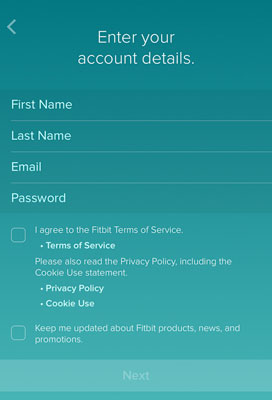
With the app installed, you are ready to register your account. The sign-up process takes less than two minutes and requires basic personal information.
Tap Join Fitbit to Begin
On the app welcome screen, tap “Join Fitbit.” You will be guided through the account creation process step by step. This button is prominently displayed, so you cannot miss it.
Enter Your Account Details
You need to provide several pieces of information to create your account. Enter a valid email address, which will serve as your login username. Create a strong password using at least eight characters with numbers and symbols. You also need to enter your date of birth, gender, height, and weight.
This information helps Fitbit personalize your fitness goals and calculate accurate calorie estimates. The more accurate you are now, the better your results will be.
Verify Your Email Address
After submitting your information, Fitbit sends a verification email to the address you provided. Open your email inbox and look for the message from Fitbit with the subject “Verify your email address.” Click the activation link inside to confirm your account.
Check your spam or junk folder if you do not see the email within five minutes. If it is not there, tap “Resend Verification Email” in the app. Once verified, return to the app and log in with your credentials.
Secure Your Account
Use a unique password that you do not reuse from other websites. Consider enabling two-factor authentication later in the app settings to prevent unauthorized access to your health data. This adds an extra layer of protection beyond your password.
Pair Your Fitbit Device to Your New Account
If you have a Fitbit tracker or watch, now is the time to connect it to your account. Pairing links your device to your profile so data can sync automatically.
Turn On Your Device
Charge your Fitbit fully before starting setup. Press and hold the side button until the Fitbit logo appears on the screen. Wait for the setup screen, which typically shows a smiling face or gear icon.
Start Device Setup in the App
In the Fitbit app, tap “Set Up a Device.” Choose your specific Fitbit model from the list, such as Fitbit Charge 6 or Fitbit Inspire 3. Follow the visual prompts on screen, which may involve aligning your phone camera with an animated code on your device display.
Some older models require manual entry of a PIN shown on the device instead of scanning a code. The app will indicate which method to use for your specific model.
Confirm Pairing Success
Pairing is successful when you see a confirmation screen in the app. Your device name and icon will appear on the dashboard, and the time and date will sync automatically. If pairing fails, ensure Bluetooth is turned on, your device is charged, and you are within six inches of your phone.
Sync Your Fitbit for Real-Time Data
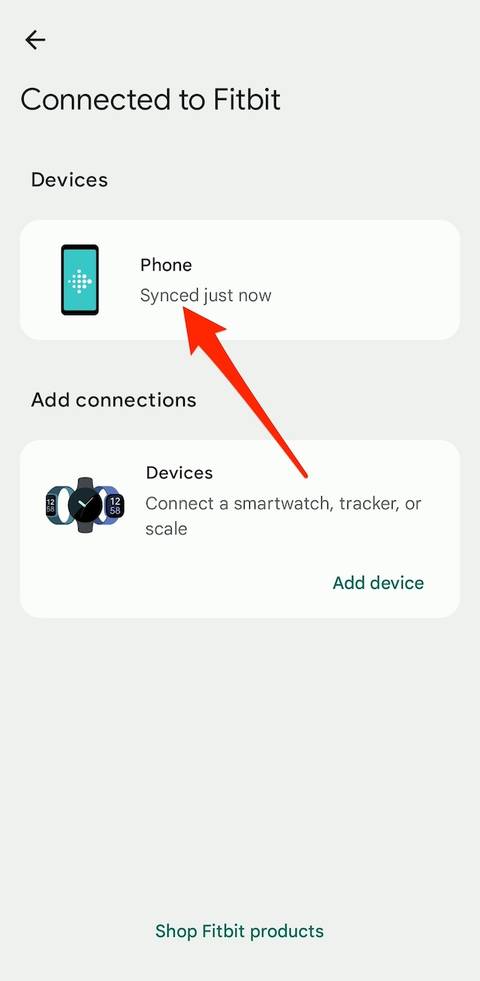
Syncing transfers data from your Fitbit device to your account so you can view it in the app. Understanding how to sync ensures your metrics stay up to date.
Enable All-Day Sync
Go to the Today tab in the app and tap your profile picture. Select Settings, then Devices, then your specific device. Tap All-Day Sync and toggle it on. With this enabled, your Fitbit syncs data every few minutes when near your phone.
Sync Manually When Needed
To force a sync immediately, open the app and pull down on the Today tab. Wait a few seconds for the refresh animation to complete. Your latest data will appear on the dashboard.
Fix Common Sync Issues
If your Fitbit is not syncing, try these solutions in order. Restart the Fitbit app or reboot your phone. Turn Bluetooth off and on again. Check for app updates in the App Store or Google Play Store. Verify your device is charged and within range of your phone.
Syncing issues often resolve after a simple app restart, so try that first before attempting more complex fixes.
Customize Your Fitbit Dashboard
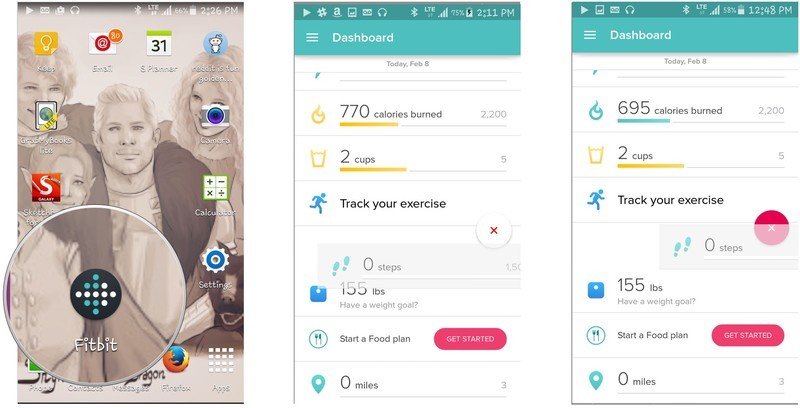
Your dashboard is the central hub for viewing all your health data. Customizing it helps you focus on the metrics that matter most to you.
Set Activity Goals
Tap Today in the app, then tap Goals. You can adjust your daily step goal, Active Zone Minutes, floors climbed, distance, and calories burned. The default step goal is 10,000 steps, but you can change this based on your fitness level. Start with achievable goals and increase them gradually over time.
Add Health Metrics to Your Display
Choose which stats appear on your main screen, including heart rate, sleep score, blood oxygen, and stress management score. To customize, tap and hold any metric on the Today tab. Select “Edit Display” and drag items to reorder or hide ones you do not want to see.
Join the Fitbit Community
The Fitbit community adds a social dimension to your fitness journey. Connecting with others helps you stay motivated and accountable.
Access Community Features
Tap the Community icon in the app, which looks like a speech bubble. Browse public groups or search for friends by email or username. You can join step challenges that run for seven days, weekends, or custom timeframes.
Stay Motivated Through Connection
The community helps you stay accountable to your goals. Send friend requests to people you know, or connect with new friends who share your fitness interests. Share achievements like new sleep records or workout milestones to celebrate your progress.
Joining a challenge during your first week boosts engagement and helps build lasting habits.
Fix Common Fitbit Account Problems
Even with clear instructions, problems can occur during setup. Here is how to resolve the most frequent issues.
Cannot Receive Verification Email
Double-check that you entered the correct email address when signing up. Wait five to ten minutes for delivery. Check spam, junk, and promotions folders thoroughly. Tap “Resend Verification Email” in the app if needed. If problems persist, try signing up with a different email address.
Forgot Your Password
On the login screen, tap “Forgot Password?” Enter your email address and submit. Open the reset link sent to your inbox, then create a new password. Use a password manager to store your login securely to avoid this problem in the future.
Device Will Not Pair
Restart your Fitbit by holding the button for ten to twelve seconds. Forget the device in your phone Bluetooth settings, then attempt pairing again. Update the Fitbit app to the latest version. If all else fails, reset your device through Settings on the device itself.
Use Fitbit Without a Device
You do not need a Fitbit tracker to create an account and use the app. The platform offers valuable features even without hardware.
Track Health Manually
With a free account, you can log workouts and steps manually. Record your weight and food intake. Monitor sleep patterns by entering bed and wake times. View health trends over time to identify patterns in your wellness.
Connect Other Apps and Devices
Fitbit integrates with Apple Health on iOS and Google Fit on Android. You can also connect services like MyFitnessPal, Strava, and MapMyRun. To link these apps, tap Today, then Profile, then Settings. Select Connected Apps and choose the service you want to connect.
Maximize Your Fitbit Experience
With your account set up, explore advanced features that help you get the most from your data.
Set Up Reminders to Move
Avoid sitting for long periods by enabling movement reminders. Go to Settings in the app and select Reminders to Move. Enable this feature and set your preferred frequency, such as every hour. A notification will nudge you to walk at least 250 steps.
Track Sleep Automatically
When you wear your Fitbit to bed, it detects when you fall asleep and measures sleep stages including light, deep, and REM sleep. The device provides a nightly Sleep Score that you can view in the Sleep section of the app. Consistent wear leads to more accurate sleep data.
Monitor Heart Rate Trends
Your Fitbit logs your resting heart rate daily. A lower resting heart rate often indicates better cardiovascular fitness. Check trends by tapping Today and selecting Heart Rate. View weekly or monthly graphs to see how your heart health evolves over time.
Secure Your Fitbit Account
Protecting your personal health data is important. Follow these practices to keep your account safe.
Use Strong Login Practices
Never share your password with anyone. Avoid logging in on public Wi-Fi networks. Make sure to log out of shared devices after each use. These simple habits prevent unauthorized access to your sensitive health information.
Review Privacy Settings
Tap Profile in the app, then select Settings, then Privacy. Control what data you share publicly, including your name, stats, and profile picture. You can pause location sharing or disable social features anytime you want more privacy.
Frequently Asked Questions About Starting a Fitbit Account
Can I create a Fitbit account without downloading the app?
No, you must download the Fitbit app to create an account. The app is available free on the Apple App Store and Google Play Store. Even if you do not own a Fitbit device, the app is required for account registration.
What information do I need to create a Fitbit account?
You need a valid email address, a secure password, your date of birth, gender, height, and weight. This information helps Fitbit personalize your fitness goals and calculate accurate metrics. The process takes less than two minutes to complete.
Why did I not receive the verification email?
Check your spam, junk, and promotions folders first. The email may take five to ten minutes to arrive. If you still do not see it, tap “Resend Verification Email” in the app or try using a different email address.
Can I use Fitbit with an iPhone and Android phone?
Yes, the Fitbit app works on both iOS and Android devices. You can switch phones if needed, but your account data syncs to the cloud, so you can access it from any device. Just log in with your credentials on the new phone.
Do I need a Fitbit device to use the app?
No, you can create an account and use the app without any Fitbit hardware. You can manually log workouts, track weight, and monitor trends over time. However, a Fitbit device provides automatic tracking for more accurate data.
Key Takeaways for Starting Your Fitbit Account
Creating a Fitbit account is fast, free, and opens the door to powerful health tracking. Download the official app, register with your email, verify your account, and pair your device if you have one. Enable All-Day Sync to keep your data updated automatically, and customize your dashboard to focus on the metrics that matter most to you.
Join the Fitbit community to stay motivated, and take advantage of advanced features like sleep tracking, heart rate monitoring, and movement reminders. Secure your account with a strong password and review your privacy settings to control what you share. Once set up, your Fitbit account becomes a daily tool for progress in your fitness journey.



