

Is your Fitbit watch not turning on, stuck on the logo, or failing to charge? You’re not alone. Thousands of users face issues like flickering screens, unresponsive buttons, sync failures, or sudden battery drain. The good news? Most problems can be resolved without professional help. Whether you own a Fitbit Sense, Charge 6, Versa 4, or Inspire 3, this guide delivers step-by-step fixes backed by real troubleshooting data and technician insights.
From cleaning corroded contacts to navigating firmware bugs, you will learn how to revive your device, restore functionality, and avoid common repair pitfalls, all without voiding your warranty.
Identify Your Fitbit Model
Before attempting repairs, confirm your exact model. Fitbit uses internal identifiers that differ from consumer names, and using the wrong method can cause further issues.
Check Model Number and Version
Locate your model using these identifiers. The internal codes help technicians provide the correct parts and button combinations.
• Fitbit Sense = FB512
• Fitbit Sense 2 = FB521
• Fitbit Versa 2 = FB507
• Fitbit Versa 3 = FB51
• Fitbit Versa 4 = FB523
Find the serial number in the Google Health app by opening the app, tapping your profile photo, selecting your device, and scrolling to Model and Serial Number. Knowing your model ensures correct troubleshooting procedures, compatible parts, and accurate firmware updates.
Fix Charging and Power Issues

A dead Fitbit is often fixable with simple steps. Do not assume the battery is dead until you have tried these solutions.
Clean Charging Contacts
Debris and corrosion prevent charging from working properly. Regular cleaning extends your device lifespan.
What you need: soft toothbrush, cotton swabs, isopropyl alcohol (70% or higher), microfiber cloth.
Steps to clean:
1. Dampen a swab with alcohol.
2. Gently clean the bronze or gold contacts on the back of the watch.
3. Scrub charging cable pins carefully. Do not leave cotton fibers behind.
4. For sunken pins on Sense or Versa 4, flip the cradle and tap into your palm to release them.
5. Dry completely before reconnecting.
Never use metal tools. They scratch the plating and accelerate future corrosion.
Charge Properly After Deep Discharge
If the watch shows no sign of life, follow this protocol before assuming hardware failure.
• Plug into a UL-certified wall charger, not a USB hub.
• Leave it charging for at least one hour before pressing any buttons.
• Try different USB ports or cables if there is no response.
Some users report success after 12 or more minutes of charging, especially on Versa 2 models. Patience is critical when reviving a deeply discharged device.
Test With OEM Cable
Third-party chargers may deliver inconsistent power that damages batteries over time. Use the original cable when possible. If lost, buy a certified replacement from Fitbit or Google Store.
Restart and Reset Your Fitbit
Restarting clears temporary glitches. Resetting erases data but fixes deep software issues. Use these in order.
Perform a Force Restart
Use these model-specific methods to force a restart.
Fitbit Luxe and Charge 5:
1. Plug into charger.
2. Press the button on the USB end three times within 8 seconds (1 second apart).
3. Wait for Fitbit logo.
Fitbit Sense and Sense 2:
1. Press and hold the home button for 10 seconds.
2. Release when logo appears.
Fitbit Charge 6 (Hard Reboot):
1. Place on charger.
2. Press the side button three times quickly within 8 seconds.
3. Wait up to 10 seconds for reboot.
General method for all models: press and hold the side button for 20 or more seconds until vibration or logo appears.
Factory Reset as Last Resort
This erases all data. Only proceed if other steps fail. Back up your data first through the app.
How to reset:
1. Connect to charger.
2. Hold side button for 10 to 15 seconds until logo flashes.
3. Release and immediately re-press until you see Reset option.
4. Confirm via touchscreen.
After reset, re-pair via Google Health app. Data will sync from cloud backup if previously synced.
Update Firmware Correctly
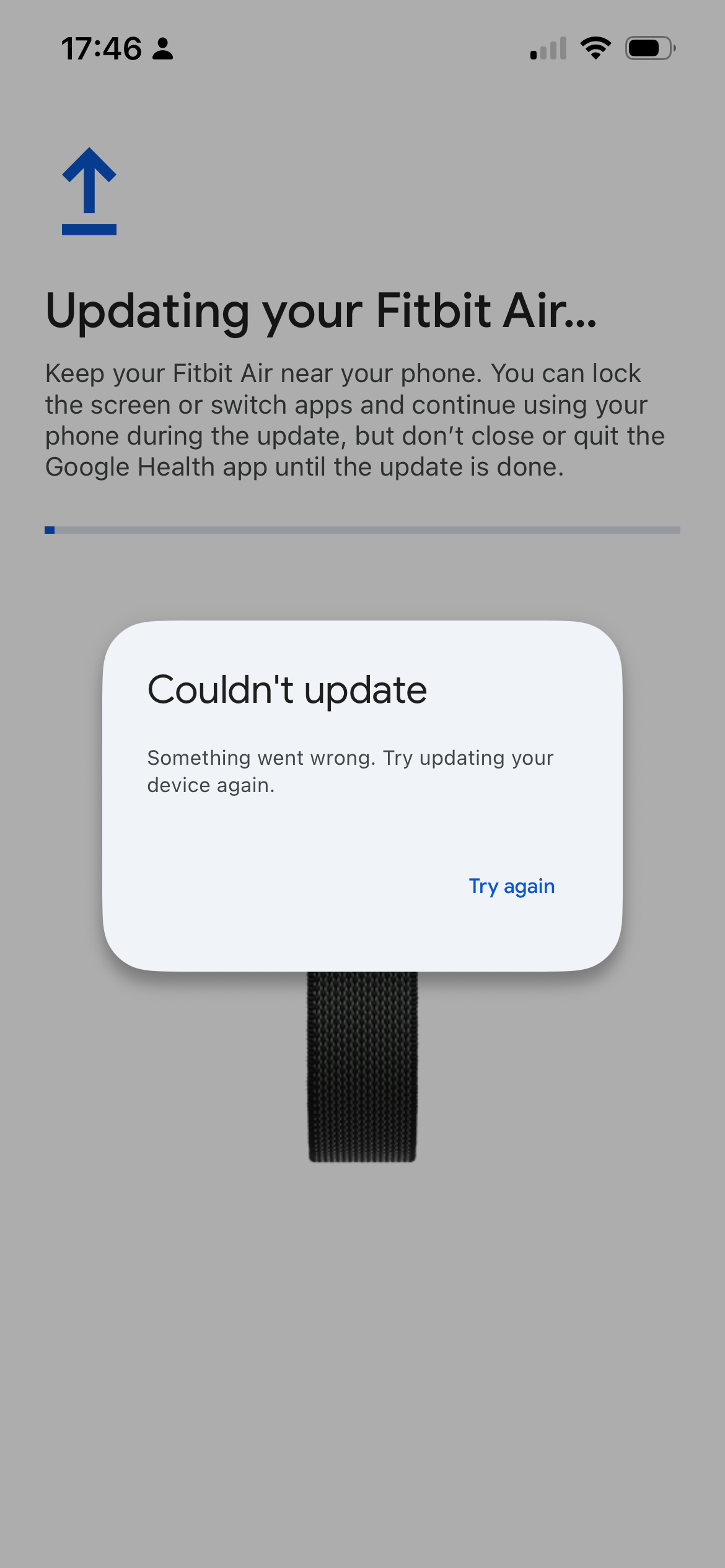
Outdated or buggy firmware causes crashes, blank screens, and sync errors. Keeping firmware current prevents most issues.
Prepare for Update
• Fully charge your Fitbit before starting.
• Update the Google Health app to latest version.
• Keep phone nearby with Bluetooth turned on.
Start the Update
- Open Google Health app.
- Go to Connections, then select your device.
- Tap the pink Update button. This only appears if an update is available.
- Keep both devices close together. A progress bar will show on watch and phone.
Updates can take over one hour. Let the app run in the background. Do not close it or let your phone sleep during the process.
Avoid Problematic Firmware
Some updates cause more harm than good. Monitor forums before updating.
| Model | Problematic Version | Issues |
|---|---|---|
| Charge 5 | v194.61 (July 2023) | Bricked devices |
| Charge 5 | v194.91 (Jan 2024) | Battery drain, sleep data loss |
| Inspire 2 | 1.124.76 | Blank screen, missing icons |
If affected, perform a factory reset after updating to the next stable version.
Fix Syncing Problems
Failed syncs block updates and cause data loss. Most sync issues resolve with these steps.
Manual Sync Steps
- Open Google Health app.
- Tap Today tab.
- Pull down to refresh, or go to Connections and tap Sync Now.
Fix Android Permissions
On Android 6.0 and higher, sync fails without location access. This is a common issue that frustrates many users.
Enable location permissions:
1. Go to Settings, Apps, Google Health, Permissions.
2. Set Location to Allow all the time.
3. Turn on Location Services globally.
Also disable battery saver modes that restrict background activity.
Re-Pair Your Device
If sync is stuck in a loop, completely remove and re-add the device.
- In app, go to Connections, Unpair Device.
- Restart your phone.
- Toggle Bluetooth off and on.
- Re-pair from scratch.
If still failing, reinstall the Google Health app entirely.
Fix Screen and Touch Issues

Blank, flickering, or unresponsive screens often have software causes. Try these fixes before assuming hardware failure.
Blank or Black Screen
• Clean contacts and charge for one or more hours.
• Try a force restart.
• Check if Do Not Disturb mode is enabled. This dims or blanks the screen.
Flickering Screen
White or green flashing is common on Versa models. This usually resolves with simple steps.
• Restart the device.
• Switch to a stock Fitbit clock face. Third-party faces often cause instability.
• As of June 2024, EU users can no longer download third-party apps. Sense 2 and Versa 4 do not support them at all.
Unresponsive Touch
• Wipe screen with a lint-free cloth slightly dampened with water.
• Oil, sweat, and dirt interfere with touch sensitivity.
• Avoid screen protectors that reduce responsiveness.
Stuck on Logo or Red Circle
Attempt a factory reset. If the red circle persists, contact Fitbit support. This indicates a hardware fault that cannot be fixed at home.
Fix Battery Drain Fast

Fitbit should last 5 to 7 days on a full charge. If it dies in hours, these fixes restore normal battery life.
Disable Power-Hungry Features
• Turn off Always-On Display (AOD). Swipe right on watch face (Sense or Versa) or go to Settings, Display (Charge or Luxe).
• Disable GPS when not tracking workouts.
• Avoid live weather updates or constant notifications.
Recalibrate Battery Reading
If battery gets stuck at 80% or drops suddenly, recalibrate the system.
- Drain fully until device shuts off.
- Charge to 100% without interruption.
- Perform a factory reset. This resets the battery calibration.
Charge 4 Specific Fix
Update v1.100.76 caused severe battery drain on Charge 4 devices. The fix is a hard restart immediately after the update completes.
Fix Time, Alarms, and Clock Errors
Incorrect time or silent alarms are annoying but easy to fix.
Set Correct Time Zone
- In Google Health app, go to Today, Settings (cog), Date, time and units.
- Turn off Set Automatically.
- Manually select correct time zone.
- Sync device.
To switch between 12 and 24-hour clock formats, use the Clock Display Time setting in the same menu.
Test Alarm Vibration
On Ionic models, press and hold the left button. The device should vibrate twice to confirm silent alarm works.
If no vibration occurs, check that Silent Alarm is enabled in the app under Account, Device, Silent Alarm. If still failing, the motor may be damaged. Contact support.
Fix Heart Rate and Health Tracking Errors
Inaccurate health data frustrates users who rely on their Fitbit for fitness tracking.
Heart Rate Spikes When Not Worn
• Place watch face down. Sensors should stop flashing.
• If heart rate continues, sensors may be dirty or faulty.
• Clean sensor area with alcohol wipe.
Ensure the band is snug but not tight. A loose fit causes false readings.
Missing Steps or Calories
• Confirm correct weight and height in app profile.
• Log out and back into Google Health app.
• Update to app version v3.63 or higher.
• Disable Strava or third-party integrations. They can block step sync.
Walks Recorded as Runs
This is caused by incorrect stride length. Go to Profile, Personal, Height and adjust if inaccurate.
ECG Inconclusive on Fitbit Sense
Some units have hardware defects. Fitbit offered free replacements for affected units. If skin irritation occurs during ECG, consult a dermatologist.
Fix Button and Band Problems
Sticky buttons and skin rashes are common but preventable with proper maintenance.
Unresponsive Buttons
• Clean around buttons with cotton swab and alcohol.
• Remove lint, sweat residue, or dried soap.
• For Inspire 2, if side buttons fail, try factory reset or contact support.
Prevent Skin Rash
• Clean band and tracker daily with mild soap.
• Do not wear too tightly. Allow airflow.
• Remove after workouts or long wear.
• Switch to breathable bands: nylon, metal mesh, or leather.
Replace Broken Bands
Most models allow band-only replacement. This is covered under warranty if due to manufacturing defect. Google Store offers a 45-day return window, extended to January 31 for November and December purchases.
When to Seek Professional Repair
If all else fails, hardware repair may be needed. Know when to stop troubleshooting.
Signs You Need a Technician
• Screen is cracked or unresponsive after reset.
• Battery dies within hours despite recalibration.
• Buttons or sensors do not work post-cleaning.
• Device will not power on after extended charge.
Trusted Repair Service: Joe’s GE (Fix My Fitbit)
This service offers professional repairs for out-of-warranty devices.
Process:
1. Submit online form for free estimate.
2. Get pre-paid shipping label (USA only).
3. Send device only. No charger or box.
4. Technician diagnoses and sends quote.
5. Approve repair, then pay via credit, debit, or PayPal.
6. Repair takes 2 to 5 days. Total turnaround is 1 to 2 weeks.
Costs:
• $40 diagnostic fee if you decline repair.
• $25 return fee for counterfeit or unsupported devices.
• Repairs covered by 100-day warranty.
Common repairs include screen replacement for cracked displays and battery replacement for no power or poor battery life.
Backup data first. Technicians do not access data, but loss is possible during service.
Prevent Future Fitbit Issues
Keep your device running smoothly with these habits.
Monthly Maintenance Routine
• Clean contacts and sensors with alcohol swab.
• Check for firmware updates weekly.
• Restart device once a month.
• Rotate bands to reduce wear.
Avoid Firmware Risks
• Do not install updates immediately. Wait for user feedback.
• Monitor forums for bug reports before updating.
Use Only OEM Accessories
Third-party chargers and bands increase failure risk. Stick to certified parts from Fitbit or Google Store.
Final Checklist: Fix Any Fitbit Watch
:max_bytes(150000):strip_icc()/fitbit-46c925e43d7b497faed15c293043c242.jpg)
Before seeking professional help, complete this checklist:
• Model identified. Know your FB number.
• Contacts cleaned. No corrosion or debris.
• Charged 1+ hour. Using wall adapter.
• Force restart done. Model-specific method.
• Firmware updated. App and device current.
• Sync tested. Manual refresh, permissions fixed.
• Clock face changed. Using stock Fitbit face.
• Factory reset if needed. Data backed up.
• Hardware evaluated. Consider professional repair.
Frequently Asked Questions About Fixing a Fitbit Watch
Why is my Fitbit watch not turning on?
Your Fitbit may not turn on due to a depleted battery, dirty charging contacts, or a software crash. Clean the charging contacts with isopropyl alcohol, then charge for at least one hour using a wall charger. If it still will not turn on, try a force restart specific to your model.
How do I fix a Fitbit stuck on the logo?
A Fitbit stuck on the logo usually indicates a software crash. Try holding the side button for 20 seconds to force restart. If it persists, perform a factory reset. This erases all data but often fixes the issue.
Why does my Fitbit battery drain so fast?
Fast battery drain is caused by Always-On Display, active GPS, or buggy firmware updates. Disable AOD, turn off GPS when not needed, and avoid installing firmware updates immediately after release. Check for known problematic versions in our firmware table.
Can I fix a cracked Fitbit screen myself?
Screen replacement requires specialized tools and parts. Most users should seek professional repair services like Joe’s GE. Attempting self-repair often voids the warranty and may cause further damage.
How do I fix Fitbit sync not working?
Sync failures usually stem from Bluetooth permissions on Android. Grant Location permission to Google Health app and enable Location Services. If that fails, unpair and re-pair the device, or reinstall the app.
Why is my Fitbit heart rate reading wrong?
Incorrect heart rate readings come from dirty sensors or loose bands. Clean the sensor area with alcohol and ensure the band is snug but not tight. Place the device face down to test if sensors deactivate properly.
Key Takeaways for Fixing Your Fitbit Watch
Most Fitbit issues are software-related and solvable at home. Start with cleaning the charging contacts and performing a force restart. Move to firmware updates and factory resets only if simpler fixes fail. Always back up your data before performing a factory reset.
Use only OEM chargers and cables to prevent power delivery issues. Avoid installing firmware updates immediately after release. Wait a week or two to monitor user forums for bug reports.
Professional repair is affordable and reliable for hardware issues like cracked screens or failing batteries. Services like Joe’s GE offer screen and battery replacement with warranties. With proper care, your Fitbit can last years, keeping you on track toward your fitness goals.



