
You glance at your wrist after a brisk walk, curious how hard your heart worked. But where exactly do you find that number on your Fitbit? Whether you’re tracking fitness progress, monitoring recovery, or just checking your resting heart rate, knowing how to find heart rate on Fitbit is essential for getting the most from your device. Your Fitbit automatically measures heart rate using optical sensors, and accessing this data is simple once you know where to look.
In this guide, you’ll learn exactly how to view real-time and historical heart rate data across all major Fitbit models, customize settings for better accuracy, and troubleshoot common display issues without digging through confusing menus.
View Real-Time Heart Rate Directly on Your Fitbit

The quickest way to see your current heart rate is directly on your Fitbit wristband. Most models feature a dedicated heart rate tile on the home interface.
Locate the Heart Rate Tile on Your Device
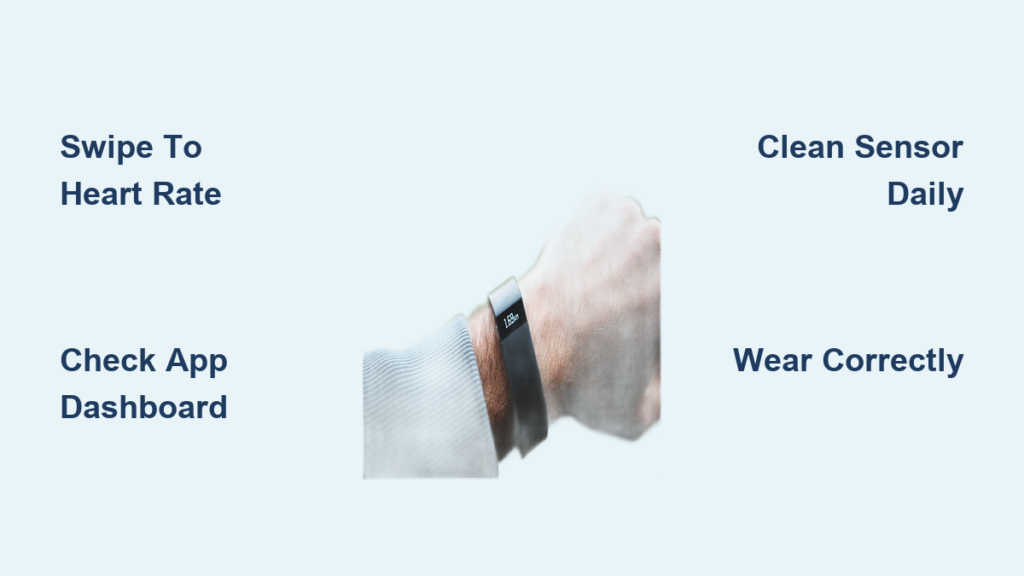
Swipe left or right from your clock face to cycle through available tiles until you find the heart rate display. Look for the heart icon or pulsing animation showing your live Beats Per Minute. Tap the tile to expand it and view your real-time BPM, a four-hour heart rate graph, and your daily resting heart rate.
Add the Heart Rate Tile If Missing
If the heart rate tile doesn’t appear on your device, add it through the Fitbit app. Navigate to Today, tap Account, select Devices, choose Clock Faces, and tap Edit to add the heart rate widget to your display.
Check Your Specific Fitbit Model Capabilities
Not all Fitbits display heart rate the same way. The Charge 5, Versa series, Sense, Luxe, and Inspire 2 offer full on-device heart rate tracking with graphs. The Inspire 1 and Lite models do not show continuous heart rate on the device and only provide data through the app. Legacy devices like the Alta HR and Charge 2 display BPM but lack advanced zone visualizations.
Check Heart Rate in the Fitbit App
For deeper insights beyond the live number on your wrist, use the Fitbit mobile app to access comprehensive heart rate data.
Open the Heart Rate Dashboard
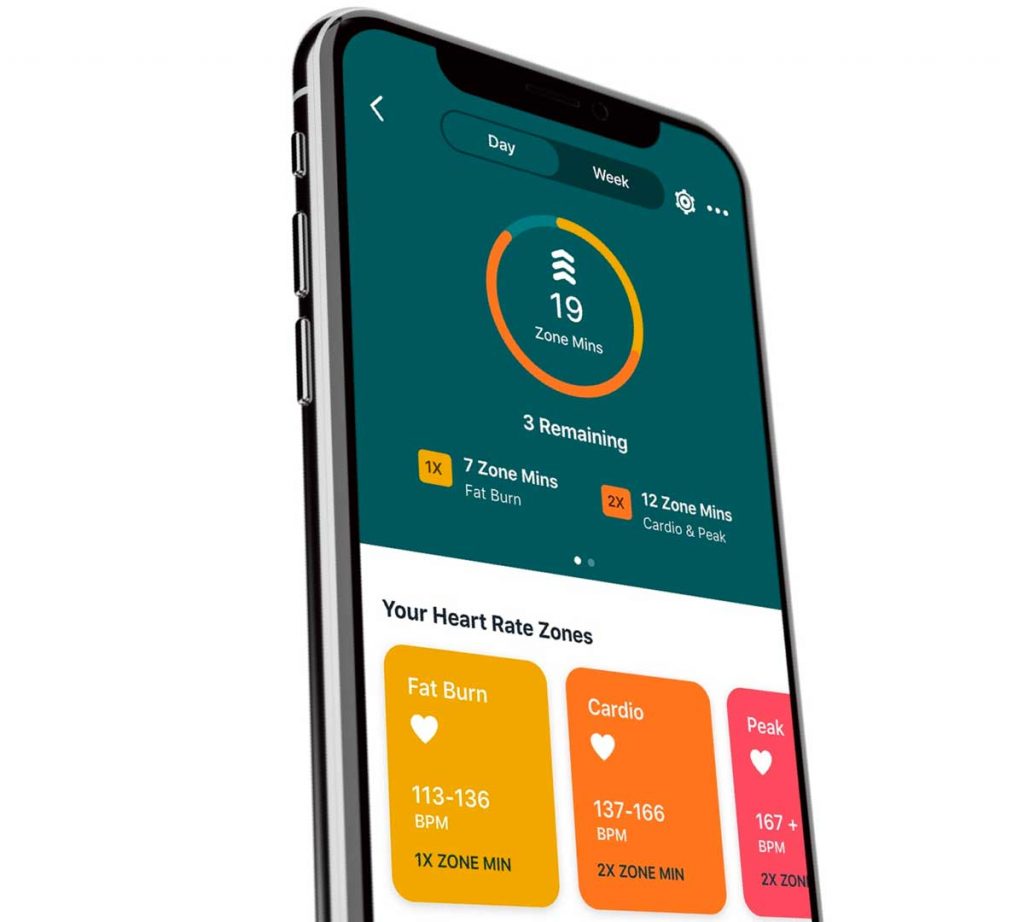
Open the Fitbit app and tap the Today tab. Scroll down and tap the Heart Rate tile to see your resting heart rate, which is your average BPM at rest typically measured overnight. You’ll also find a trend graph showing hourly changes throughout the day and workout zone data displaying time spent in Fat Burn, Cardio, and Peak zones.
Review Historical Data by Date
To analyze past heart rate patterns, tap the date at the top of the Heart Rate screen and select any past day. You can view your resting heart rate, daily average, zone minutes, and a graph of fluctuations during sleep or exercise. This helps you spot trends like elevated resting heart rate signaling fatigue or illness.
Access Health Metrics for Advanced Data
For more detailed health insights, open the Health Metrics dashboard in the app. Here you’ll find your 30-day resting heart rate trend, heart rate variability data for recovery analysis, and sleep heart rate patterns. This longitudinal view helps you understand how your cardiovascular fitness changes over time.
Access Heart Rate Data on the Fitbit Web Dashboard

For larger screen analysis and trend comparisons, use the Fitbit website to view your heart rate data.
Log In and Navigate to Heart Rate Data
Go to fitbit.com and log in to your account. Click Dashboard, then select Heart Rate to explore interactive charts showing weekly and monthly resting heart rate trends. You can also see correlations with sleep, steps, and weight data.
Use Premium Features for Deeper Insights
Fitbit Premium subscribers gain access to the Daily Readiness Score, which uses resting heart rate and heart rate variability to recommend workout intensity. This feature combines sleep quality metrics, resting heart rate, and HRV recorded during sleep to generate a score from zero to 100.
Enable and Customize Heart Rate Settings
Most Fitbit devices have heart rate tracking enabled by default, but you can verify and customize these settings if needed.
Turn On Heart Rate Monitoring
To enable heart rate tracking on most devices, open Settings on your Fitbit, scroll to Heart Rate, and toggle it to On. Note that Fitbit Sense, Sense 2, Versa 3, and Versa 4 cannot disable heart rate tracking since it runs continuously for core functionality. For legacy models like the Alta HR and Charge 2, use the Google Health app to access Connections, select your device, and set heart rate to Auto.
Adjust Heart Rate Zones for Training
Personalize your training zones to match your fitness level. In the Fitbit app, tap your profile icon, select Settings, and choose Heart Rate Zones. You can enter a custom maximum heart rate or create entirely custom zones for Fat Burn, Cardio, and Peak training. Accurate zones improve your Active Zone Minutes tracking and workout feedback.
Understand Key Heart Rate Metrics and Features

Your Fitbit uses heart rate data to power multiple health and fitness features beyond simple BPM tracking.
Track Resting Heart Rate for Fitness Insights
Your resting heart rate appears automatically each morning in the Health Metrics dashboard. A lower resting heart rate generally indicates better cardiovascular fitness, while sudden increases may signal overtraining, dehydration, or illness. Most adults average 60 to 100 BPM, while athletes often fall between 40 and 60 BPM.
Monitor Active Zone Minutes
Active Zone Minutes replaces the old active minutes metric and rewards exercise intensity. The Fat Burn zone (50 to 69 percent of max heart rate) earns one AZM per minute, while Cardio (70 to 84 percent) and Peak (85 to 100 percent) zones earn two AZMs per minute. The recommended goal is reaching 150 AZMs weekly for optimal health.
Use ECG and SpO2 Features When Available
On Fitbit Charge 5 and Sense series devices, you can take an ECG by pressing and holding the side button and placing your finger on the metal bezel for 30 seconds. Results classify your rhythm as Normal Sinus Rhythm or indicate potential Atrial Fibrillation. SpO2 tracking monitors blood oxygen levels during sleep and helps identify potential signs of sleep apnea.
Troubleshoot Missing or Inaccurate Heart Rate Readings
If your Fitbit shows a blank, frozen, or inconsistent heart rate reading, follow these troubleshooting steps.
Fix Blank or Frozen Readings
If your BPM reads dash or freezes, stay still for 10 to 30 seconds since motion disrupts optical sensors. Reposition the band by wearing it one finger’s width above the wrist bone. During exercise, slide it higher up the forearm to reduce motion noise. Ensure the fit is snug but not too tight, as a loose fit causes light leakage while a tight fit restricts blood flow.
Clean the Sensor Regularly
Sweat, oil, and dirt block the green LEDs used for heart rate detection. Wipe the back of your device with a dry, soft cloth daily after workouts to maintain accuracy. Avoid wearing the device over tattoos or hairy skin, as ink and hair scatter light and interfere with readings.
Restart or Update Your Device
When data remains inconsistent, restart your device by holding the Back and Bottom buttons simultaneously until the logo appears. Check for firmware updates through the Fitbit app under the Devices tab. If issues persist, perform a factory reset as a last resort, noting that this erases stored data.
Maximize Heart Rate Accuracy with Proper Wear
Proper placement is critical for accurate heart rate readings from your Fitbit device.
Wear It Right Every Time
Position your device approximately one finger’s width above the wrist bone for daily wear. During exercise, move the device slightly higher up the wrist to minimize motion interference from the wrist joint. The band should be snug but comfortable, as a loose fit causes motion artifacts and light leakage while a too-tight fit restricts blood flow.
Understand Optical Sensor Limitations
Optical sensors work best during walking, running, and steady-state cardio activities. They are less accurate during HIIT, boxing, and weightlifting due to rapid arm motion causing signal lag. The PurePulse 2.0 technology in newer devices improves accuracy by 56 percent during running through six independent optical channels, but some limitations remain compared to chest strap monitors.
Use Heart Rate Data for Long-Term Health Insights
Heart rate data becomes powerful when analyzed over time to identify health trends.
Watch Trends Over Weeks and Months
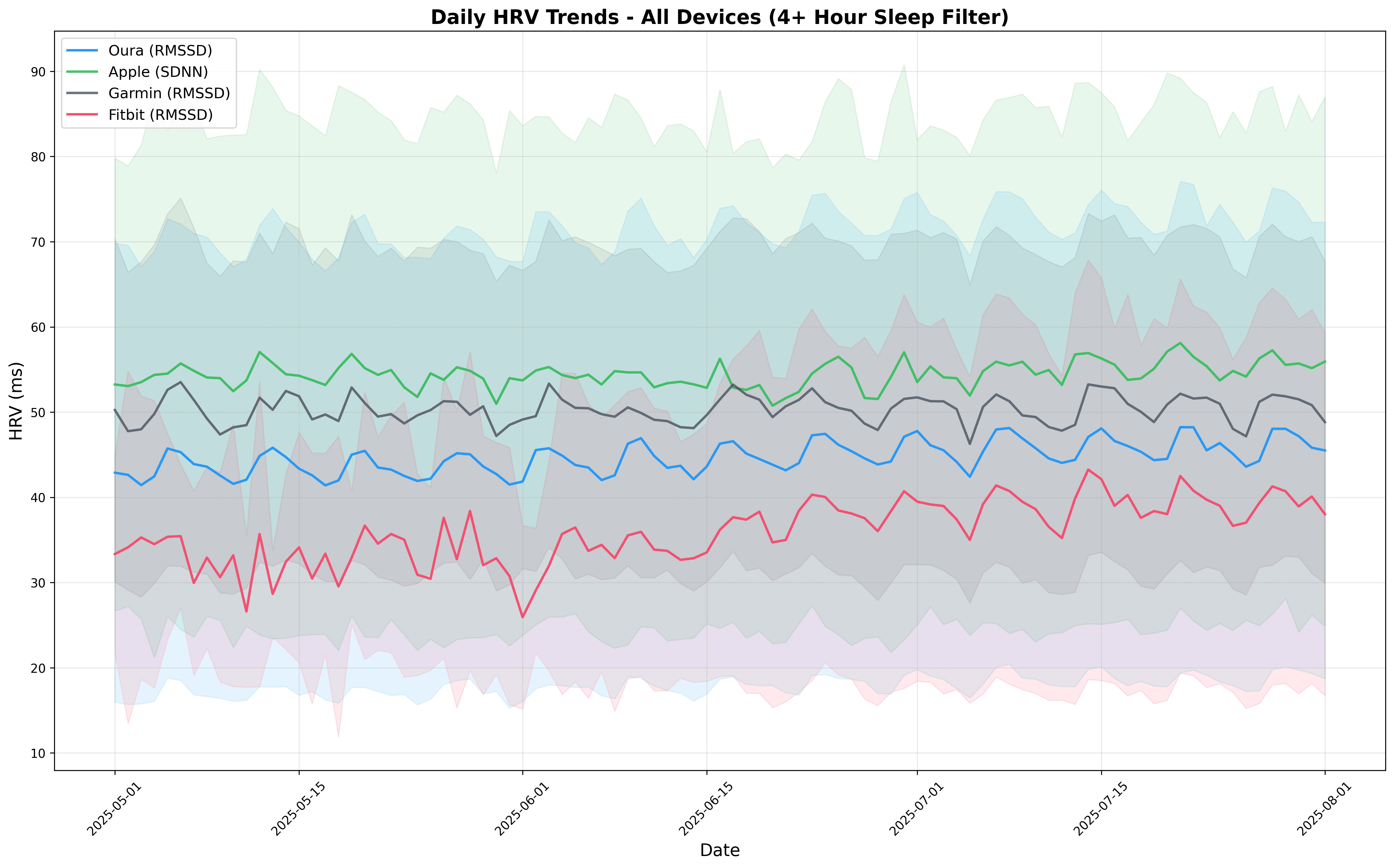
Open the Health Metrics tab to view your 30-day resting heart rate trend, HRV for recovery, and sleep heart rate patterns. Use these insights to adjust training load or detect early signs of burnout. A rising resting heart rate trend can signal fatigue, illness, or overtraining.
Sync Heart Rate With Other Health Metrics
Fitbit combines heart rate with sleep stages (deep sleep shows lower, stable BPM), calorie burn (active calories use heart rate to refine estimates), and stress management through the Fitbit Relax app. This integrated approach helps you understand how your cardiovascular system responds to daily activities and recovery.
Frequently Asked Questions About Finding Heart Rate on Fitbit
How do I see my current heart rate on my Fitbit watch?
Swipe left or right from your clock face to find the heart rate tile displaying your live Beats Per Minute. Tap it to see a four-hour graph and your daily resting heart rate. If the tile is missing, add it through the Fitbit app under Clock Faces.
Where is the heart rate data in the Fitbit app?
Open the Fitbit app, tap the Today tab, and scroll down to tap the Heart Rate tile. This shows your resting heart rate, hourly trend graph, and workout zone data. Tap any date to view historical information.
Why does my Fitbit show no heart rate reading?
A blank or frozen reading usually means the sensor lost signal due to motion or poor skin contact. Stay still for 10 to 30 seconds, reposition the band one finger’s width above your wrist bone, and ensure a snug fit. Clean the sensor if there’s buildup from sweat or lotion.
Can I turn off heart rate tracking on my Fitbit?
Most Fitbit devices allow you to disable heart rate tracking through Settings, but Fitbit Sense, Sense 2, Versa 3, and Versa 4 cannot turn off continuous heart rate monitoring. Legacy models like Alta HR require using the Google Health app to adjust settings.
How accurate is Fitbit heart rate tracking?
Fitbit optical sensors are highly accurate for resting heart rate, walking, and steady-state activities like running and cycling. Some lag may occur during rapid heart rate changes in HIIT or weightlifting. PurePulse 2.0 sensors in newer devices improve accuracy by 56 percent during running compared to earlier models.
Key Takeaways for Finding Heart Rate on Fitbit
Knowing how to find heart rate on Fitbit unlocks valuable health insights from daily fitness feedback to long-term cardiovascular trends. Your device provides real-time BPM on your wrist, detailed graphs in the app, and advanced features like ECG and Active Zone Minutes for comprehensive health monitoring.
To get the most accurate data, wear your Fitbit one finger’s width above the wrist bone with a snug but comfortable fit, keep the sensor clean, and position it higher during exercise. Review your heart rate trends regularly through the Health Metrics dashboard to track fitness improvements and detect early signs of fatigue or illness. By turning raw numbers into actionable intelligence, you can optimize your health and athletic performance.



