
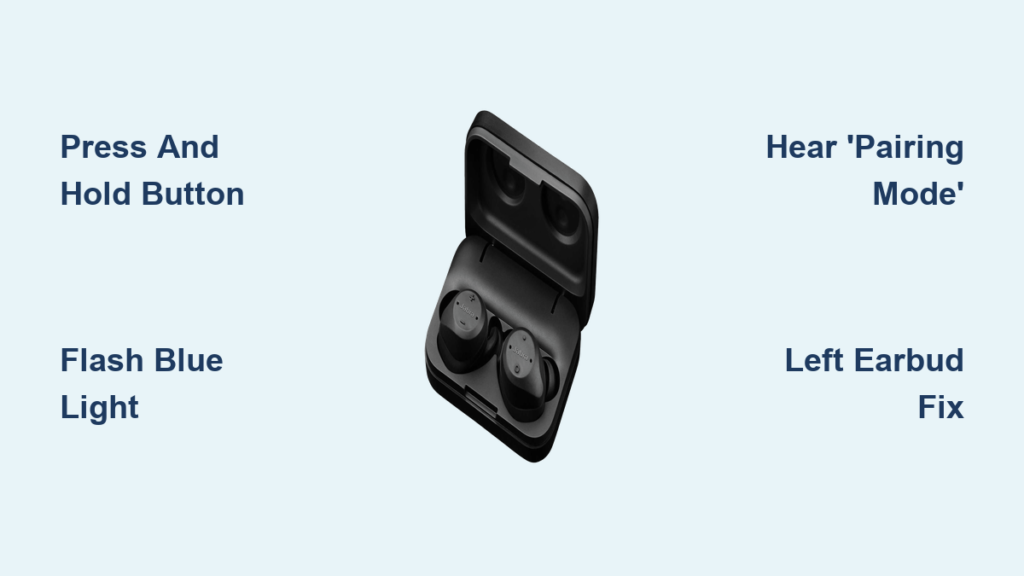
Nothing’s more frustrating than unboxing a new pair of wireless earbuds and not being able to connect them. If you’ve just got your Jabra Sport earbuds and are wondering how to pair Jabra Sport earbuds with your phone, you’re not alone. The process is simple once you know the exact steps, but skipping even one small detail can leave you staring at a flashing light with no sound.
Whether you’re setting them up fresh from the box or reconnecting after storage, this guide walks you through every step. We’ll cover both manual and automatic pairing methods, plus troubleshooting tips when things don’t go as planned. By the end, you’ll know exactly how to pair Jabra Sport earbuds and get back to your music.
Enter Pairing Mode Using the Multi-Function Button
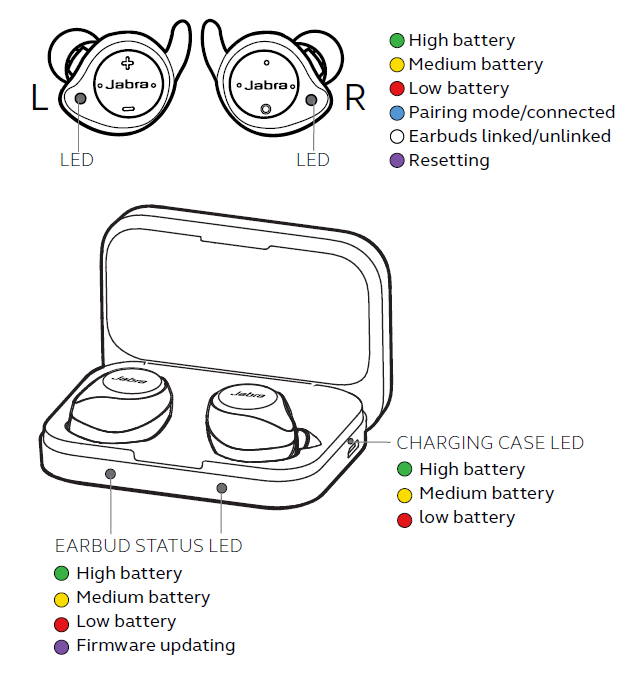
If your earbuds are new, uncharged, or have been reset, they won’t connect automatically. You’ll need to manually activate pairing mode using the multi-function button.
Press and Hold the Multi-Function Button
Locate the multi-function button on either earbud. This is the main control button typically used for play, pause, and answering calls. Press and hold this button for about 5 to 7 seconds.
Watch for the LED indicator to begin flashing blue. This signals that the earbud is powering up and preparing to pair. At the same time, you should hear a voice prompt saying “Pairing mode.” Once you hear this and see the flashing blue light, release the button.
Activate the Left Earbud if Unresponsive
Sometimes, especially during first-time setup, the left earbud may not power on with the multi-function button press. If only one earbud is responding, go to the left earbud and press and hold



