
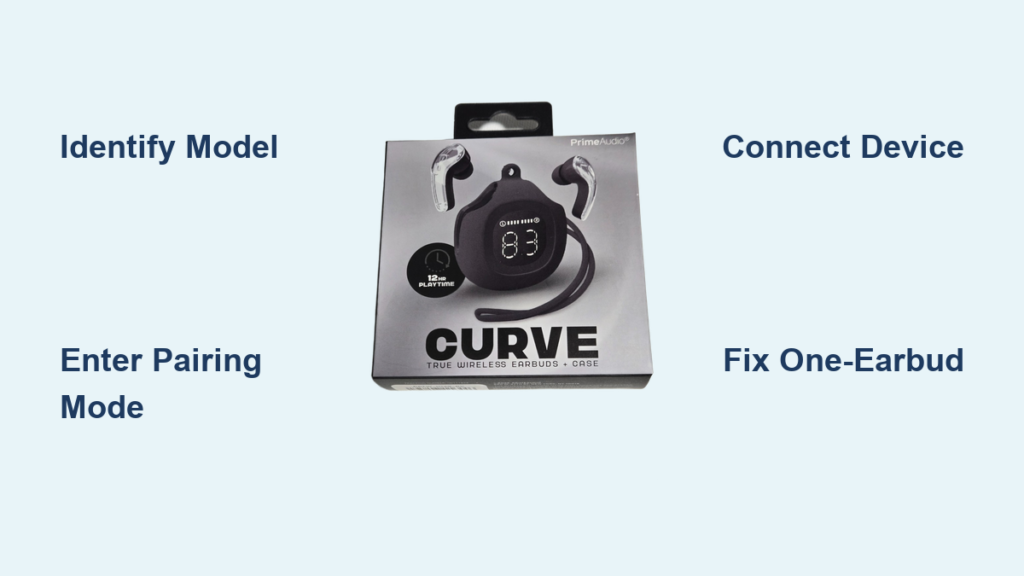
You just pulled your new Prime Sports earbuds out of the box, hit the pairing button, and… nothing. No device found, no music, just silence. This is one of the most common frustrations with Prime Sports earbuds because the brand includes several different models, each with its own pairing method. Using the wrong steps for your specific version is the number one reason these wireless earbuds fail to connect on the first try.
This guide walks you through how to pair Prime Sports earbuds based on your exact model. You will learn to identify whether you have the TWS4, standard Prime Sports, I12 variant, or Prime Audio touch model, then follow the correct pairing sequence. We will also cover troubleshooting for one-earbud issues, detection failures, and connection drops so you can get back to your music fast.
Identify Your Prime Sports Earbud Model
Pairing steps change depending on which Prime Sports model you own. Confirming your hardware first saves time and prevents failed connections.
Check the Charging Port and Case Design
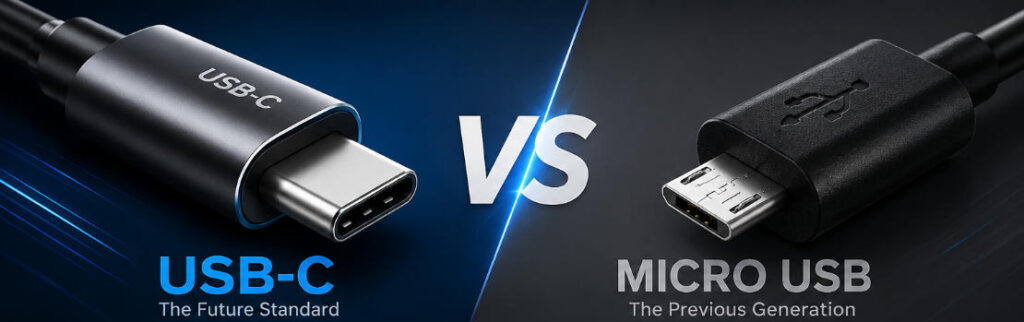
Flip the case over and look at the charging port. A Micro USB port on the back typically means you have the Prime TWS4 or a standard model. A USB-C port on the side usually points to the I12 variant with a matte black finish.
Look at the case texture too. A sleek matte finish suggests newer touch-control models. A glossy or basic plastic case usually means older TWS4 or button-controlled versions.
Observe LED Behavior
LED patterns reveal a lot about your model. Red and blue flashing alternately signals the TWS4 or standard model in pairing mode. Solid or blinking blue only points to a touch-control model like the I12 or Prime Audio.
Case LEDs also differ. The TWS4 and standard models show a red LED during charging that turns off when full. The I12 and USB-C models display a blue LED during charging.
Match the Bluetooth Device Name
When you scan for devices, the name that appears tells you which model you have. Look for “Prime TWS4,” “Prime Sports,” or “I12” in your Bluetooth list. Matching this name to the correct pairing protocol ensures a smooth first connection.
Prime TWS4 Pairing Steps for First Use

This method applies to models with FCC ID 2AY4Z-TWS4, Micro USB charging, and red/blue LED indicators.
Activate Pairing Mode
- Remove both earbuds from the case at the same time.
- Wait for the LEDs to flash alternately red and blue on both earbuds.
- After about 2 seconds, the right earbud LED will turn off while the left keeps flashing.
- This means the earbuds are synced to each other and ready to connect.
Connect to Your Device
- Open Bluetooth settings on your phone, tablet, or PC.
- Scan for new devices.
- Select “Prime TWS4” from the list.
- Wait for confirmation. The LED may slow flash or go solid depending on firmware.
- Once connected, audio plays through both earbuds.
Pro Tip: If only one earbud works, delete “Prime TWS4” from your Bluetooth settings, turn off Bluetooth, place both earbuds back in the case, remove them together, and repeat the process.
Standard Prime Sports Pairing Method
Use this method if your earbuds are labeled simply as “Prime Sports” and feature physical buttons.
Enter Pairing Mode
- Make sure Bluetooth is enabled on your device.
- Press and hold the buttons on both earbuds at the same time.
- Hold until the LEDs flash blue (this takes about 3 to 5 seconds).
- Release the buttons.
Complete the Connection
- Open your device’s Bluetooth menu.
- Look for “Prime Sports” in the list.
- Tap to connect.
- When successful, the LED turns solid blue.
Troubleshooting Tip: If the LEDs flash red and blue instead of blue, try activating one earbud first, wait for blinking, then activate the second earbud.
I12 Variant Pairing Steps
This method applies to models with USB-C charging, touch controls, and a left-primary design.
Power On and Prepare
- Take both earbuds out of the case.
- If they do not power on automatically, tap the touch zone on each earbud three times or hold for 3 seconds.
- Ensure the left earbud is on. The LED may flash white or blue.
- Press and hold the right earbud’s touch control for 2 to 3 seconds to enter pairing mode.
Connect via Android or iOS
- On Android: Go to Bluetooth settings, scan, and select “I12”.
- On iPhone: Open the case near your phone. A pop-up should appear. Tap Connect.
Wait for confirmation. You will hear a chime or see a “Connected” message.
Note: Never try to pair the right earbud first. The I12 model uses a left-primary architecture where the left earbud acts as the master transmitter.
Prime Audio Touch Model Auto-Pairing
Some Prime Audio models connect instantly when you remove them from the case.
Use the Auto-Pair Feature
- Open the charging case.
- Remove the earbuds.
- They should power on and enter pairing mode automatically. The LED blinks white or blue.
- Select “Prime Audio Buds” or a similar name in your Bluetooth settings.
Force Pairing Mode if Needed
If the earbuds do not auto-detect:
- Place them back in the case.
- Hold the touch controls on both earbuds for 5 to 10 seconds.
- Watch for rapid blinking that indicates pairing mode.
- Retry the connection from your device.
Expert Note: Touch zones sit on the bend of the earbud. Tap firmly but gently. Light brushes can trigger accidental commands.
Reconnect Prime Sports Earbuds Without Re-Pairing
Once paired, your earbuds should reconnect automatically to the last device.
Normal Reconnection Process
- Open the case or remove one earbud.
- The earbuds power on and attempt to connect to the last paired device.
- If Bluetooth is on and in range, connection happens within 1 to 3 seconds.
Fix Failed Reconnection
If the earbuds do not reconnect:
- Turn off Bluetooth on your device.
- Place the earbuds back in the case.
- Wait 5 seconds, then remove them.
- Turn Bluetooth back on and manually select the device.
Warning: Do not leave earbuds in pairing mode for more than 5 minutes. Battery drains quickly in this state.
Troubleshoot Common Prime Sports Pairing Issues
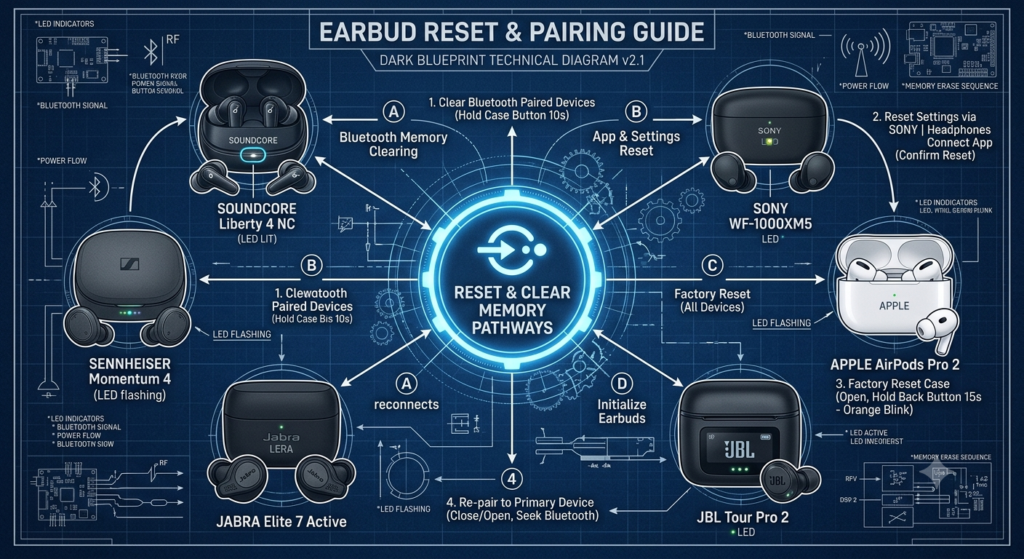
Even with the right steps, problems can occur. Here is how to fix them quickly.
Device Cannot Detect the Earbuds
Verify power and battery first. Place the earbuds in the case and check for a red LED (TWS4) or blue LED (I12). If no light appears, charge the case using a working cable and power source.
Restart and re-pair using these steps:
- Forget the device in your Bluetooth settings.
- Power off the earbuds by holding the button for 5 seconds.
- Turn off phone Bluetooth.
- Wait 10 seconds, then power everything back on.
- Re-enter pairing mode and reconnect.
Shortcut: Try pairing with another device like a friend’s phone. This helps you figure out if the problem is with the earbuds or your phone.
Only One Earbud Produces Sound
This usually means the earbuds lost internal sync. Re-synchronize them with these steps:
- Delete “Prime TWS4” or “I12” from your Bluetooth list.
- Turn off Bluetooth on your phone.
- Place both earbuds in the case.
- Remove them at the same time.
- Wait for the right earbud LED to turn off (TWS4) or for both to flash (I12).
- Re-enable Bluetooth and reconnect.
Critical Step: Both earbuds must be out of the case and powered before connecting to the phone.
Intermittent Connection or Static Noise
Stay within range. Keep your phone within 30 feet (10 meters) of the earbuds. Avoid physical barriers. Your hands block Bluetooth signals when covering the earbuds.
Check for interference. Move away from Wi-Fi routers, microwaves, or other Bluetooth devices. Try using the earbuds in a different location.
Recharge immediately. Low battery causes unstable connections. Return the earbuds to the case for 10 to 15 minutes, then retry.
Charging Best Practices for Prime Sports Earbuds

Proper charging prevents pairing failures and extends the life of your earbuds.
Charge the Earbuds
- Insert the earbuds into the case. Magnets or contacts should snap into place.
- A red LED (TWS4) or blue LED (I12) lights up to confirm charging.
- Charging takes about 1 hour.
- The LED turns off when fully charged.
Note: Some cases require pressing a front button to start charging. Press once to begin and again to stop.
Charge the Case
- Use a 5V USB power source like a wall adapter, computer, or power bank.
- Connect with the correct cable. Use Micro USB for TWS4 and USB-C for I12 models.
- The LED lights during charge and turns off when full.
Pro Tip: Always carry a spare cable. A damaged or low-quality cable is a common cause of charging failure.
Control Functions by Prime Sports Model Type
Knowing how to operate your earbuds improves daily use.
Physical Button Controls (TWS4 and Standard Models)
- Play/Pause: Single tap on either earbud.
- Answer/Hang Up Call: Single tap.
- Skip Track: Long press for 2 seconds on either earbud.
- Voice Assistant: Triple tap to activate Siri or Google Assistant.
- Volume Up: Double tap the left earbud on I12-compatible firmware.
- Redial Last Number: Double tap the right earbud.
Touch Controls (I12 and Prime Audio Models)
- Tap once: Play/Pause or answer call.
- Tap twice on left: Volume up.
- Tap twice on right: Redial last number.
- Tap three times: Activate voice assistant.
- Hold 2 seconds: Reject call.
Warning: Touch controls are sensitive. Avoid brushing them during wear to prevent accidental inputs.
Safety and Maintenance Tips
Keep your Prime Sports earbuds working longer with smart habits.
Follow FCC Safety Rules
These earbuds comply with FCC Class B regulations. If you experience radio or TV interference, move the device away from the receiver or use a different power outlet. Do not modify the earbuds. This voids compliance and may damage them.
Protect from Damage
Keep earbuds away from children. They are not a toy. Do not drop or throw them. Impact can break internal components. Never disassemble them. There are no user-serviceable parts inside.
Clean Regularly
Wipe the earbuds and case contacts with a dry cloth. Remove earwax from mesh grilles with a soft brush. Dirty contacts cause charging failures and poor connections.
Store Properly
Always return earbuds to the case after use. Store in a cool, dry place and avoid extreme heat or moisture.
Frequently Asked Questions About Pairing Prime Sports Earbuds
Why won’t my Prime Sports earbuds show up in Bluetooth?
The earbuds are likely not in pairing mode. For TWS4 models, remove both earbuds at the same time and wait for the right LED to turn off. For standard models, hold both buttons until the LEDs flash blue. If the earbuds still do not appear, charge them fully and try again.
How do I know which Prime Sports model I have?
Check three things: the charging port (Micro USB or USB-C), the case finish (matte or glossy), and the Bluetooth device name. The name “Prime TWS4,” “Prime Sports,” or “I12” tells you exactly which model you own and which pairing method to use.
Can I pair Prime Sports earbuds with two devices at once?
Standard Prime Sports earbuds connect to one device at a time. To switch devices, disconnect via the active device’s Bluetooth settings or turn off its Bluetooth, then connect from the second device.
What do I do if only one Prime Sports earbud works?
Delete the earbuds from your Bluetooth list, turn off Bluetooth, place both earbuds in the case, and remove them together. Wait for the right earbud LED to turn off (TWS4) or for both to flash (I12), then reconnect.
How long does it take to charge Prime Sports earbuds?
A full charge takes about 1 hour for both the earbuds and the case. The earbuds deliver approximately 3 hours of continuous playback per charge, depending on volume and usage.
Do Prime Sports earbuds work with iPhones?
Yes. Prime Sports earbuds work with both Android and iOS devices. For I12 models, iPhones may show a native pop-up when you open the case nearby. Tap Connect to pair instantly.
Key Takeaways for Pairing Prime Sports Earbuds Successfully
Pairing success depends on matching the correct method to your specific Prime Sports model. Start by identifying your hardware using the charging port, case design, and Bluetooth device name. Then follow the pairing protocol that matches your model: TWS4, standard Prime Sports, I12, or Prime Audio touch.
If you run into problems, reset by forgetting the device, turning off Bluetooth, and re-pairing from scratch. Keep your earbuds charged, stay within 30 feet of your device, and avoid covering the earbuds with your hands during use. With the right steps and proper care, your Prime Sports earbuds will deliver reliable wireless audio for workouts, calls, and daily listening.



