

If your Apple Watch is frozen, unresponsive, or stuck on the Apple logo, you’re not alone. Many users face issues when trying to reset Apple Watch properly, especially those with older models. Whether you’re preparing to sell it, fix a glitch, or set it up fresh, knowing how to reset your Apple Watch correctly is essential. This guide covers every working method, including user-tested fixes that actually work in 2024.
You’ll learn the difference between a force restart and a full reset, step-by-step methods for each scenario, and what to do when the reset option simply won’t appear. We also cover troubleshooting for Series 2 users and how to handle Activation Lock on used watches.
Force Restart vs. Full Reset: Know the Difference
Before diving in, understand what each option does to your device.
A force restart reboots your Apple Watch if it’s frozen or unresponsive. No data is erased. This is your first troubleshooting step when the watch won’t respond to touches or appears stuck.
A full reset wipes everything and restores factory settings. Use this when selling your watch, troubleshooting persistent software issues, or starting completely fresh.
When to use each:
• Force restart for freezing, unresponsiveness, or watch stuck on Apple logo
• Full reset when selling, gifting, or fixing software glitches that restart won’t fix
How to Force Restart Your Apple Watch
If your watch won’t turn on or is frozen, a force restart often solves the problem without erasing data.
Press and hold both the side button and Digital Crown for at least 10 seconds. Keep holding until the Apple logo appears on the screen. Release both buttons and wait for your watch to restart normally.
This works on all Apple Watch models, including Series 1 through Ultra 2. The process takes about 10-15 seconds total. If the Apple logo doesn’t appear after 15 seconds, check that your watch has some battery charge.
How to Reset Apple Watch: Erase All Content

When you want to wipe your watch completely, use one of these proven methods.
Method 1: Reset From Settings App
Use this if your watch responds to touches and you can navigate the interface.
Open the Settings app on your Apple Watch. Tap General, then tap Transfer or Reset Apple Watch. Tap Erase All Content and Settings. Enter your passcode if prompted, then confirm by tapping Erase.
This method preserves your iPhone backup and is the safest way to reset. The process takes 5-10 minutes and requires at least 50% battery.
Method 2: Reset Via Power Off Menu
Use this when the screen is responsive but you can’t access Settings.
Plug your Apple Watch into the charger. Press and hold the side button until the Power Off slider appears. Press firmly on Power Off (do not slide it) and tap Erase All Content and Settings when it appears. Confirm and wait for the process to complete.
Common mistake: Users try to swipe the power off bar instead of pressing down firmly on it. You must press down like a 3D Touch command.
Hard Reset When Apple Watch Is Frozen
Normal methods sometimes fail, especially on older models. This hard reset method has helped hundreds of users in 2024.
Method 3: Side Button Only (Works on Stuck Watches)
This method bypasses unresponsive menus and forces the erase option to appear.
Press and hold both the side button and Digital Crown for 10 seconds. Release both buttons when you see the Apple logo. Wait 2 seconds, then press and hold only the side button. Keep holding for 20-30 seconds, even after the SOS screen appears. Eventually, an Erase All Content and Settings prompt will show up. Tap it, then confirm with the green checkmark.
Why it works: After a force restart, holding the side button longer tricks the system into showing the reset option, even if it’s not normally accessible through the menu.
What If Reset Option Never Appears
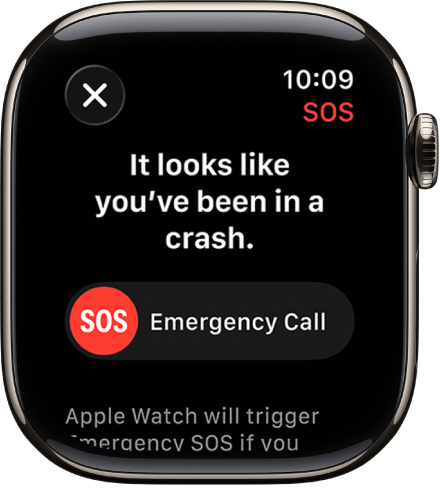
Many users report that the erase option never shows up, no matter what they try. Here’s what actually works.
Keep Holding the Side Button Past SOS
If you see the Emergency SOS screen, don’t stop holding. Many users give up too early. After the Apple logo, when you hold the side button, the SOS screen appears first. Keep holding after that screen appears. After 15-20 seconds, the reset prompt will appear.
One user reported: “I kept holding the side button after SOS… eventually the reset button showed up.” This is the key insight that most guides miss.
Try Multiple Times
Sometimes timing matters. If it fails the first time, wait 30 seconds before trying again. Ensure your watch is on the charger the entire time. Interrupting the process may cause errors or failed resets.
Can’t Reset? Unpair From iPhone Instead
If your Apple Watch is connected to your iPhone, you can erase it remotely, even if the watch itself is unresponsive.
Open the Watch app on your iPhone. Tap your watch at the top of the screen. Tap the “i” icon next to your watch name. Tap Unpair Apple Watch, then confirm.
Your iPhone erases the watch and removes Activation Lock if signed in with your Apple ID. The process takes 5-10 minutes. Your watch must be charged and near the iPhone for this to work.
Bought a Used Apple Watch? Activation Lock Blocks You
Many buyers face this frustrating situation: they can’t unpair the watch because the previous owner isn’t responding.
Apple Watches are tied to the original owner’s Apple ID. Without their help, you can’t fully use the watch. This security feature protects stolen devices but creates problems for secondhand buyers.
What you can do:
Contact the seller and ask them to go to iCloud.com, click Find iPhone, select Devices, choose your Watch, and click Remove from Account. If they won’t help, contact Apple Support with proof of purchase. They may remove Activation Lock if you provide the receipt and original details.
Warning: Never buy a used Apple Watch without confirming Activation Lock is off.
Apple Watch Series 2 Reset Tips

Older models like Series 2 are more prone to reset failures due to outdated software and limited processing power.
Why Series 2 Is Harder to Reset
The Series 2 has a slower processor and limited memory. Apple no longer supports iOS updates for these models, which can cause reset methods to behave unpredictably. Many users report spending hours trying to reset these devices.
One user frustration: “This makes me not want another Apple Watch if the software will be impossible to update in 7 years.”
Best Fix for Series 2
Stick with Method 3 (the hard reset with side button only). Hold side plus crown until Apple logo appears. Wait, then hold side button only for 20+ seconds. Wait for the erase prompt to appear. This method has been verified by multiple Series 2 owners as the only one that works.
Common Mistakes That Ruin Your Reset
Don’t sabotage your reset attempt by making these errors.
Not charging the watch. Low battery prevents reset from completing. Always plug in during reset attempts.
Releasing buttons too early. The erase prompt appears after the SOS screen. Hold the side button for 20-30 seconds, even if you think it’s stuck.
Confusing reset with force restart. Force restart fixes freezes. Reset erases data. Know which one you need.
Skipping the firm press on Power Off. On Method 2, you must press down hard on Power Off, not swipe. Think of it as a 3D Touch command.
Contact Apple Support When Reset Fails Completely
If all else fails, it’s time for expert help.
Apple can use specialized tools to force-erase the device. They can remove Activation Lock if you provide proof of purchase. They can diagnose hardware issues like faulty buttons or logic board problems.
To contact Apple Support, open the Apple Support app on your iPhone. Tap Apple Watch, then select No Power or Restart Issues. Choose Chat or Call. Alternatively, visit getsupport.apple.com and select Apple Watch.
Reset Success? Here’s What Comes Next
Once your watch resets, you’ll see a setup screen with a swirl animation. Pair it with your iPhone by opening the Watch app. Hold your iPhone near the watch and follow the on-screen steps. You can set it up as new or restore from a backup.
Frequently Asked Questions About Resetting Apple Watch
Does resetting Apple Watch delete everything?
Yes, resetting erases all content and settings from your Apple Watch. Your health data, apps, and personal settings will be removed. If you have a backup on your iPhone, you can restore from that backup when setting up again.
Why won’t my Apple Watch reset option appear?
The reset option may not appear if you’re not holding the side button long enough. Try Method 3: force restart first, then hold only the side button for 20-30 seconds after the SOS screen appears. Keep holding past the SOS screen.
Can I reset Apple Watch without the iPhone app?
Yes. You can reset directly from the Apple Watch settings (Settings app > General > Transfer or Reset). You can also use the hard reset method with buttons only. The iPhone app method is useful when the watch is unresponsive.
How do I force restart a frozen Apple Watch?
Press and hold both the side button and Digital Crown for at least 10 seconds. Release when you see the Apple logo. This is different from a full reset and doesn’t delete any data.
What is the Digital Crown?
The Digital Crown is the small rotating button on the right side of your Apple Watch. It’s used for scrolling, zooming, and navigation. Some guides call it the “knob.” It’s located below the side button and can be pressed or turned.
Can I reset a used Apple Watch with Activation Lock?
You cannot fully reset and use a used Apple Watch if Activation Lock is still on. You need the original owner to remove it via iCloud, or contact Apple Support with proof of purchase to request removal.
Key Takeaways for Resetting Your Apple Watch
Resetting an Apple Watch can be frustrating, especially on older models like Series 2. However, Method 3 (the hard reset with side button only) works in most stubborn cases. The key is patience: hold that side button longer than you think you need to, even after the SOS screen appears.
If Activation Lock blocks you from using a purchased used watch, contact the previous owner first, then Apple Support with proof of purchase if needed. Always ensure your watch has sufficient battery before attempting any reset method.
With the right steps and a bit of persistence, your Apple Watch can be back in action quickly.



