

You’re not alone if your Casio watch suddenly shows the wrong time or date after a battery change or accidental button press. Many users struggle with the simple yet unintuitive process of resetting a Casio watch with 3 buttons, especially on iconic models like the F91W or A163WA. The good news? Once you know the exact sequence, it takes less than two minutes. This guide delivers a clear, step-by-step method to fully reset and reconfigure your Casio watch without needing the manual.
Whether you’re syncing your watch after replacing the CR2016 battery or fixing a time drift, this walkthrough covers every detail. You’ll learn how to enter setting mode, adjust time and date using the three-button layout, and save changes correctly. We’ll also tackle common issues like unresponsive buttons and incorrect mode entry so you can avoid frustration and get back on schedule fast.
Enter Time-Setting Mode on Your Casio Watch
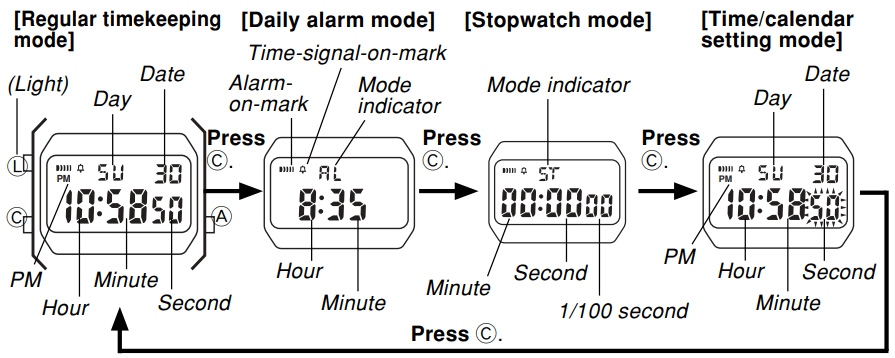
Press Mode Button Exactly Three Times
To begin resetting your Casio watch, press the bottom-left button labeled Mode (B) exactly three times in succession. After the third press, the seconds display will start flashing, signaling that you’ve entered time-setting mode. This mode is essential for accessing all configuration options including hours, minutes, month, day, and weekday.
Common mistakes include pressing Mode too few or too many times, which lands you in Stopwatch, Alarm, or Chime mode instead. If the seconds aren’t blinking, return to the normal time display and try again, counting each press carefully.
Confirm You’re in Configuration Mode
When successful, the seconds digits will blink steadily. This visual cue confirms the watch is ready for adjustment. On models like the F91W, you may hear a short beep when pressing the right button during this phase.
If no field is flashing, return to the main time screen by pressing Mode repeatedly. Wait until the standard time appears, not stopwatch or alarm. Then press Mode three times again. Perform this in a well-lit area so you can clearly see when digits start blinking.
Reset Seconds to Zero
Use Right Button to Reset
With the seconds flashing, press the right-side button (labeled Start/Stop or C) once. This action resets the seconds counter to 00 and synchronizes the time start point. On F91W models, a soft beep confirms the reset.
This step ensures your watch aligns precisely with an accurate time source like your phone clock. Skipping this step may cause your watch to run slightly off, so always reset seconds before adjusting hours and minutes. The display will remain in setting mode, automatically advancing to the next field only when you manually move forward using the top-left button.
Adjust Hour Setting
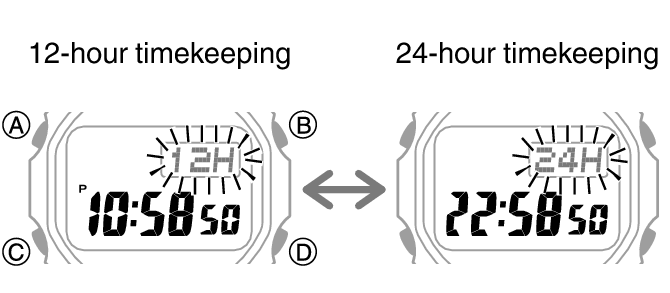
Advance to Hour Field
Press the top-left button (Adjust or Light, labeled A) once. The hour digits will now flash, indicating they’re ready for adjustment. This button cycles through each setting stage in sequence.
Set Correct Hour in 24-Hour Format
Use the right button (C) to increase the hour value. Each press adds one hour. Hold the button to scroll quickly through values. Casio watches use 24-hour military time, so never use 12-hour AM/PM logic.
| Standard Time | Set As |
|---|---|
| 12:00 AM (Midnight) | 00 |
| 6:00 AM | 06 |
| 12:00 PM (Noon) | 12 |
| 2:00 PM | 14 |
| 8:00 PM | 20 |
| 11:00 PM | 23 |
If you overshoot the correct hour, keep pressing until it wraps around because there’s no way to decrease values on these watches.
Set Minute Value
Move to Minute Field
Press the top-left button (A) again. The minute digits will begin flashing. Now you’re ready to fine-tune the minute display.
Increment Minutes Accurately
Tap or hold the right button (C) to adjust minutes. One press equals plus one minute. Hold equals rapid scroll. Set the correct minute value for your current time.
If minutes won’t change, ensure you’re still in setting mode (digits should be blinking), the battery isn’t low, and the right button isn’t stuck or damaged. Once set, press the top-left button (A) to advance to the next setting: month.
Configure Date and Day of Week
Set Month First
After minutes, pressing the top-left button (A) will make the month flash. Use the right button (C) to set the correct month. January equals 01, February equals 02, and so on through December equals 12.
Press A again to move to the day of the month.
Adjust Day of Month
Now the date digits will blink. Use the right button (C) to set today’s date. Casio watches do not auto-adjust for 30 versus 31-day months or leap years, so you must manually update at month-end.
Press A once more to reach the day of the week.
Select Correct Weekday
The display will now show a flashing day abbreviation. Use the right button (C) to cycle through Sun, Mon, Tue, Wed, Thu, Fri, and back to Sun. Set the current actual day to keep alarm and calendar functions accurate. Matching the correct weekday helps the watch auto-advance the date properly at midnight.
Save and Exit Setting Mode
Return to Normal Display
After setting the weekday, press the top-left button (A) one final time. All flashing stops and the display returns to the seconds field, now static. Then press the Mode button (B) once to exit the entire configuration sequence and return to regular time display.
Settings are automatically saved when you exit. No extra confirmation is needed. This is a critical point that many users overlook.
Verify Your Changes
Check that the time advances correctly, the date updates at midnight, and the day of week matches the current calendar. If something’s wrong, repeat the full reset process starting with pressing Mode three times. Always restart from the beginning if you make a mistake because partial corrections often lead to misalignment.
Fix Unresponsive Buttons on Your Casio Watch
Test Battery and Contacts
If buttons don’t respond during reset, low or dead battery is the most common cause. Replace the CR2016 battery, which is standard in F91W and A163WA models. Even a slightly weak battery can prevent entry into setting mode.
Clean metal contacts inside the case with a cotton swab and isopropyl alcohol before inserting a new battery. After replacement, the watch resets automatically, so begin the setting process immediately.
Clear Stuck Buttons
Dirt, sweat, or moisture can jam buttons over time. Gently press each button multiple times and clean around edges with a soft brush or toothpick. Avoid liquids near the case unless specified as water-resistant.
For persistent issues, remove the battery for 10 to 15 seconds to perform a hard reset. Reinsert and try the setup process again. Occasionally, watches need a full power cycle to clear any stuck state.
Model-Specific Tips for F91W and A163WA
Casio F91W Settings Sequence
The F91W follows the exact universal 3-button reset process. Press Mode 3 times, reset seconds with right button, use top-left to advance fields, use right button to increment values, then exit with Mode.
Unique traits include an audible beep when resetting seconds, no direct date display in normal view (press Mode once to see date), and extreme durability often lasting 10 plus years. This model is favored by armed forces due to reliability and long battery life.
Casio A163WA Button Labels
This stainless steel model functions identically but labels the top-left button as Light in manuals. Functionally, Light button equals Adjust (A). The same sequence applies: press Mode 3x, use Light to navigate, right button to set.
The backlight activates when you hold the top-left button in normal mode. This model has a slightly larger face and metal band but same internal logic as the F91W.
Avoid Common Setting Mistakes
Don’t Skip the 24-Hour Rule
Setting 2:00 PM as 02 instead of 14 is the number one error. The result is your watch shows 2:00 AM instead of PM. Always add 12 to PM times: 1 PM equals 13, 6 PM equals 18, 11 PM equals 23. Midnight equals 00, not 24.
Never Ignore Day of Week
While optional visually, the weekday setting drives date rollover logic. If set incorrectly, the date may advance at the wrong time. Always match the actual day.
Don’t Forget Manual DST Adjustment
Casio watches do not auto-adjust for daylight saving time. Twice a year you must manually add one hour in spring and subtract one hour in fall using the same reset process.
Maintain Your Casio Watch
Clean Buttons Monthly
Dust buildup causes sluggish response. Wipe with a dry cloth weekly and use isopropyl alcohol monthly on button edges. Avoid submerging unless rated for swimming. Most models are splash-resistant (30m), not dive-proof.
Replace Battery Promptly
Average battery lifespan is 7 to 10 years. Signs of low battery include dim display, slow button response, flashing screen, or watch stopping intermittently. Replace with CR2016 coin cell, which costs under $5. Replace every 8 years as preventive maintenance even if still working.
Summary: Full Reset Steps at a Glance
- Press Mode (B) 3 times to enter setting mode
- Press right button (C) to reset seconds to 00
- Press top-left (A) to advance to hours
- Press C to set hour in 24-hour format
- Press A to advance to minutes
- Press C to set minutes
- Press A to advance to month
- Press C to set month
- Press A to advance to day
- Press C to set date
- Press A to advance to weekday
- Press C to set day of week
- Press A to stop flashing
- Press Mode (B) to exit and save
Your watch now displays the correct time and date.
Key Takeaways for Resetting Your Casio Watch
The process is identical across nearly all Casio 3-button digital watches. Whether you own an F91W, A163WA, or similar model, this method works reliably. Remember the core sequence: press Mode three times to enter setting mode, use the right button to increment values, and use the top-left button to navigate between fields.
The most critical points are using 24-hour format (2 PM equals 14), setting the correct weekday for proper date rollover, and always exiting setting mode to save your changes. Keep your watch clean, replace the battery every 7 to 10 years, and manually adjust for daylight saving time twice yearly. Bookmark this guide for future reference because you’ll have everything you need to reset your Casio watch with confidence whenever the need arises.
Frequently Asked Questions About Resetting Casio Watches
How do I enter setting mode on a Casio 3-button watch?
Press the Mode button (bottom-left) exactly three times. The seconds field will start flashing, indicating you’re in time-setting mode. If the wrong mode appears, press Mode repeatedly until you return to the normal display, then try again.
Why does my Casio watch show the wrong time after resetting?
The most common cause is forgetting to use 24-hour format. Make sure you set PM times by adding 12 to the hour. For example, 3 PM should be set as 15, not 3.
Can I decrease values when setting my Casio watch?
No. Casio 3-button watches only allow incrementing values. If you overshoot, continue pressing until the value cycles back around to your target.
How do I fix unresponsive buttons on my Casio watch?
First, replace the battery with a fresh CR2016. If the problem persists, clean around the buttons with isopropyl alcohol and a soft brush. For stubborn issues, remove the battery for 15 seconds to perform a hard reset.
Do Casio watches adjust for daylight saving time automatically?
No. Casio digital watches require manual adjustment for DST. When clocks spring forward, add one hour. When they fall back, subtract one hour using the same reset procedure.
How often should I replace the battery in my Casio watch?
Replace the battery every 7 to 10 years as preventive maintenance, even if the watch still functions. Signs of low battery include dim display, slow button response, and intermittent operation.



