
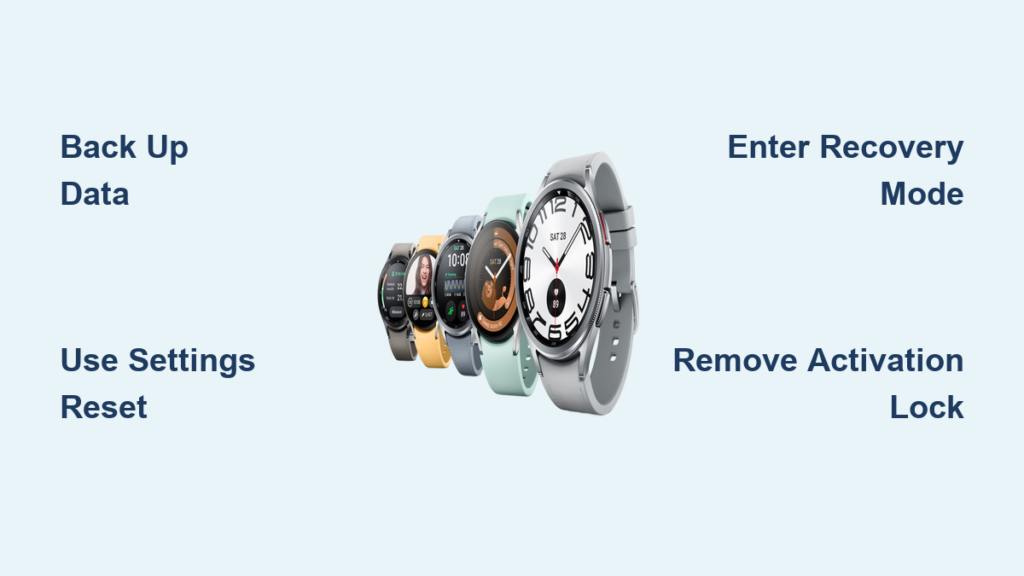
Is your Galaxy Watch 6 running slow, stuck in a boot loop, or locked out because you forgot your PIN? A factory reset clears software glitches, frees up storage, and restores your watch to like-new performance. Whether you’re troubleshooting persistent crashes, preparing to sell your device, or passing it to someone else, resetting your Galaxy Watch 6 wipes all personal data and returns it to its original out-of-box state.
This guide covers every reset method you need. You’ll learn how to back up your data first, perform a standard reset when your watch is responsive, force a hard reset through recovery mode when locked out, and properly prepare your device for resale. Follow these steps to reset your Galaxy Watch 6 safely and avoid common mistakes that could cause activation lock or data loss.
Back Up Your Galaxy Watch 6 Before Resetting
Before wiping your Galaxy Watch 6, save the data you cannot afford to lose. A factory reset permanently erases everything stored on the device, so backing up first is essential if you want to restore your apps, watch faces, and settings afterward.
Use Galaxy Wearable App to Back Up Data
The Galaxy Wearable app on your paired Android phone can preserve key settings and configurations.
- Open the Galaxy Wearable app on your phone
- Tap your connected Galaxy Watch 6
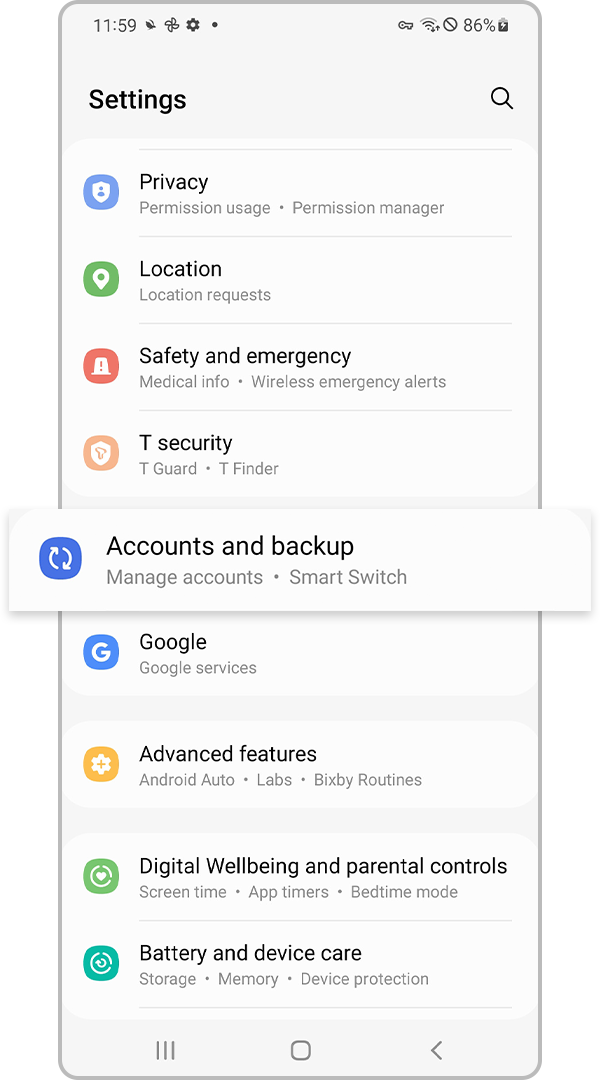
- Go to Watch Settings > Accounts and Backup > Backup and Restore
- Tap Back up now and wait for confirmation
This backup saves your installed apps and settings, custom watch faces and complications, Wi-Fi networks and login details, notification preferences, and synced contact and calendar settings.
Pro Tip: Always confirm the backup completed successfully. No confirmation pop-up means the backup failed.
Important Limitation: Third-party app data from Strava, Spotify, and similar services may not restore fully. Cloud-synced health metrics from Samsung Health and Google Fit will re-sync after re-pairing if you use the same account.
Battery Warning: Ensure your watch has at least 50% battery before backing up or resetting. A power loss during reset can cause system corruption.
Standard Reset: When Your Watch Is Responsive
If your Galaxy Watch 6 turns on and responds to touch, use the built-in reset option to erase everything safely. This is the recommended method for general troubleshooting, performance issues, or preparing to keep the device.
Access Reset Through Watch or Phone
You can initiate a factory reset directly from the watch or through the Galaxy Wearable app.
From the Watch:
1. Swipe up from the watch face to open apps
2. Tap Settings (gear icon)
3. Scroll to General > Reset
From Galaxy Wearable App:
1. Open the app on your phone
2. Tap Watch Settings
3. Follow prompts that appear on the watch screen to reach the Reset menu
Both methods lead to the same reset option. Using the on-watch reset gives you full control if phone connectivity is unstable.
Complete the Factory Reset
- In Settings > General, select Reset
- If using an eSIM, you’ll be prompted to back up or remove the profile. This data will be erased permanently
- Tap Next
- Read the warning: “All personal data will be erased”
- Tap Reset to proceed immediately, or tap Continue to back up first
- Confirm the action when prompted
- Wait 2 to 5 minutes while the watch erases data and reboots
After reset, your watch shows the initial setup screen. All apps, accounts, and customizations are gone. To restore your data, re-pair with Galaxy Wearable and choose “Restore from backup” during setup.
Hard Reset: Bypass Lock Screen or Frozen Watch
Cannot unlock your Galaxy Watch 6 because you forgot your PIN or your screen is frozen? Recovery Mode lets you force a factory reset even without access to your device. This method bypasses all security locks and cannot be undone, so use it only when locked out.
Enter Recovery Mode on Galaxy Watch 6
- With the watch powered off or unresponsive, press and hold both the top button (Power/Bixby) and bottom button (Back/Home)
- Hold for 10 to 15 seconds until the Samsung logo appears
- Release both buttons immediately
- Quickly press the bottom button (Home) twice
The Service Menu appears, confirming you’ve entered diagnostic mode.
Navigate to Factory Reset in Recovery Mode
In Recovery Mode, the Home button selects and confirms, while the Back button scrolls down only (no up-scrolling).
- Press Back to scroll to “Wipe data/factory reset”
- Press Home to select
- Scroll to “Factory data reset” and press Home to confirm
Once started, the erase process cannot be canceled. Wait 30 to 60 seconds for completion.
Reboot Your Watch After Reset
- After completion, scroll to “Reboot system now” using the Back button
- Press Home to confirm
- The watch restarts and shows the welcome screen
If it does not boot, repeat the button sequence and re-select “Reboot system now.”
Alternative Recovery Method Using Power Button
Some users find better success with slightly different button timing, especially on newer firmware versions.
Try This Variant Sequence
- Power off the watch completely
- Press and hold Power + Back button until the Samsung logo appears
- Release both buttons
- Immediately press the Power button twice to open the Service Menu
- Use the Power button to scroll to Recovery
- Hold the Power button to select and enter Recovery
- Wait for the menu to load
- Use the Back button to navigate to “Wipe data / Factory reset”
- Press Power to confirm
- Navigate to “Factory data reset” and confirm again
- After reset, go to “Reboot system now” and press Power to restart
This path works identically but may suit users who struggle with Home button timing.
Prepare Galaxy Watch 6 for Sale or Transfer
Resetting alone is not enough when selling or gifting your Galaxy Watch 6. You must remove the device from online accounts, or the new owner will face activation lock requiring your Samsung or Google credentials.
Step-by-Step Resale Preparation
Log Out of All Accounts on the Watch:
– Go to Settings > Accounts
– Sign out of Samsung account, Google account, Spotify, Strava, and other third-party services
– Also log out of Google Wallet and Samsung Wallet
Disable Screen Lock:
– Go to Settings > Lock screen
– Turn off PIN, pattern, or password
This prevents lockout during new owner setup.
Perform On-Watch Factory Reset:
– Use Settings > General > Reset, not just the phone app
Resetting via Galaxy Wearable alone may not fully disassociate the device.
Remove Device from Online Dashboards:
After resetting, visit these websites on a computer or phone to remove your Galaxy Watch 6:
- Samsung account devices page
- Google account device info page
Find your watch and remove it from the list. This step is critical. Without it, activation lock can block setup even after a full reset.
What Data Gets Lost After Reset
A factory reset permanently erases all user data from your Galaxy Watch 6. Here’s what disappears:
- Apps and app data, including third-party applications
- Custom watch faces and complications
- Health and fitness logs stored locally
- Wi-Fi passwords and Bluetooth pairings
- Notification history
- Payment cards in Samsung Wallet and Google Wallet
- eSIM profile (requires carrier reactivation)
- Biometric data used for unlock
What gets preserved: Cloud-synced data from Samsung Health and Google Fit will re-sync if you sign in with the same account. Backups made via Galaxy Wearable can restore app settings and watch faces.
No local recovery is possible. No backup means permanent loss.
Fix Common Reset Problems
Even with correct steps, issues can occur. Here’s how to troubleshoot.
Watch Freezes During Reset
Wait 10 minutes. Some resets take longer than expected. If still frozen, force restart by holding both buttons for 10 or more seconds.
Cannot Enter Recovery Mode
Release buttons exactly when the Samsung logo appears. Retry up to 3 times. Timing is critical. Ensure the watch is not charging during the attempt.
Pairing Fails After Reset
- Open Galaxy Wearable on your phone
- Tap your old device and select Remove device
- Forget the Bluetooth connection in phone settings
- Restart your phone
- Re-pair with a fresh scan
This clears old pairing conflicts.
Reset Option Missing in Settings
Update your watch software through Galaxy Wearable. Outdated firmware may hide the reset menu.
Recovery Mode Not Responding
Use only the Back button to scroll down. Press Home once to confirm, avoiding rapid taps. If unresponsive, restart the entry process.
Set Up Your Galaxy Watch 6 After Reset
After reset, your Galaxy Watch 6 behaves like a brand-new device. Here’s how to restore or start fresh.
Restore from Backup
- Power on and follow setup prompts
- Connect to Wi-Fi
- Open Galaxy Wearable on your phone
- Tap Pair
- When prompted, select “Restore from backup”
- Choose the latest backup to restore apps, watch faces, and settings
Most users report full restoration of preferences.
Set Up Without Backup
- Complete setup manually
- Re-pair with Galaxy Wearable
- Reinstall apps from Galaxy Store or Google Play
- Re-sync health data via Samsung Health and Google Fit
- Re-add payment cards and Wi-Fi networks
You may need to remove the old device from Galaxy Wearable before pairing a fresh one.
When to Reset Your Galaxy Watch 6
A factory reset isn’t just for emergencies. Use it strategically for these scenarios.
Recommended scenarios:
– Persistent lag or app crashes
– Failed software updates
– Forgotten PIN or lockout
– Bluetooth pairing issues
– Preparing for resale or gifting
– Removing personal data before repair
When not to reset:
– Minor glitches (try restarting first)
– Battery drain (check settings or update software)
– Temporary sync delays (wait or restart phone)
Maintenance tip: Restart your watch weekly to clear memory. Reset only every 6 to 12 months unless troubleshooting.
Frequently Asked Questions About Resetting Galaxy Watch 6
How do I reset my Galaxy Watch 6 to factory settings?
Go to Settings > General > Reset on your watch and confirm the reset. Alternatively, open Galaxy Wearable app, tap Watch Settings, and follow the prompts on your watch screen. Wait 2 to 5 minutes for the process to complete.
Can I reset my Galaxy Watch 6 if I forgot my PIN?
Yes. Press and hold both buttons for 10 to 15 seconds until the Samsung logo appears, release, then press the Home button twice to enter Recovery Mode. Navigate to “Wipe data/factory reset” to bypass the forgotten PIN.
Will resetting my Galaxy Watch 6 delete my health data?
Local health data stored on the watch gets deleted. However, data synced to Samsung Health or Google Fit cloud will re-sync if you sign in with the same account after resetting.
How do I remove activation lock before selling my Galaxy Watch 6?
After resetting, visit your Samsung account devices page and Google account device info page to remove your watch. Also log out of all accounts and disable screen lock before resetting.
Why is my Galaxy Watch 6 not responding to the reset steps?
Ensure you’re using correct button timing. For Recovery Mode, release both buttons exactly when the Samsung logo appears. If the watch is frozen, try waiting 10 minutes or force restart by holding both buttons for 10 seconds.
Key Takeaways for Resetting Your Galaxy Watch 6

Resetting your Galaxy Watch 6 is safe, officially supported, and effective when done correctly. Always back up first through Galaxy Wearable app. Use the on-watch reset method for resale to fully disassociate the device. Log out of Samsung and Google accounts before resetting, then remove the device from online dashboards to prevent activation lock. Use Recovery Mode only when locked out or when the watch is completely unresponsive. A factory reset does not void your warranty and is the best solution for persistent software issues, performance degradation, or preparing your device for a new owner.



