
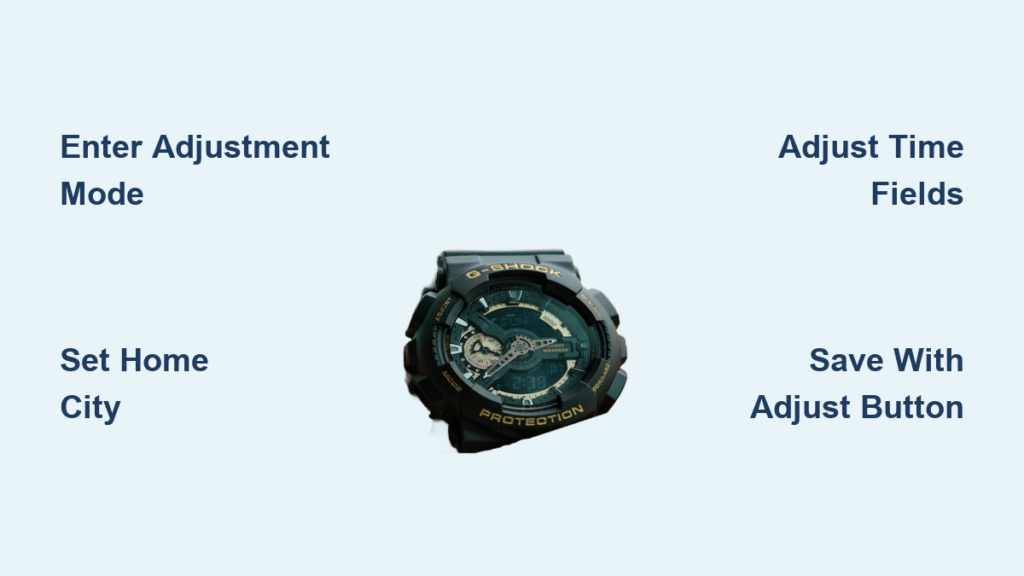
You glance at your G-SHOCK, only to realize the time is off after a battery change, travel across time zones, or an accidental button press. No worries. Whether you own a classic digital DW-5600 or a Bluetooth-enabled GMW-B5000, resetting the time on your G-SHOCK is quick and straightforward once you know the steps. This guide covers every method to reset G-SHOCK watch time, including manual adjustments, atomic sync, Bluetooth setup, and World Time configuration, tailored for all model types.
Enter Time Adjustment Mode
To reset your G-SHOCK watch time, you must first enter the setting interface. The process is consistent across most models but varies slightly by type.
Press and Hold the Adjust Button
Ensure your watch is in Timekeeping Mode, which is the main time display. Locate the Adjust button, typically labeled as button A in manuals and positioned on the upper-left side. Press and hold this button for 2 to 5 seconds. The display will beep, and digits such as seconds or hours will begin flashing. Some models show “SET” or a flashing hand icon to indicate adjustment mode is active.
Pro Tip: If nothing happens, press Mode repeatedly until the time screen appears. Many users accidentally try to adjust from Stopwatch or Timer mode.
Model-Specific Entry Notes
Analog-digital models like the GA-110 require holding Adjust for 5 seconds. The digital display enters edit mode, and the hands may move to indicate the mode change. Bluetooth models such as the G-B5600 allow manual time setting, but updates may be overridden by app sync if the watch is connected to your phone. On models with non-standard labels where you see Lap, Start, or Display instead of Adjust, the Lap button typically functions as Adjust. Hold it to enter SET mode.
Navigate and Set Time Fields
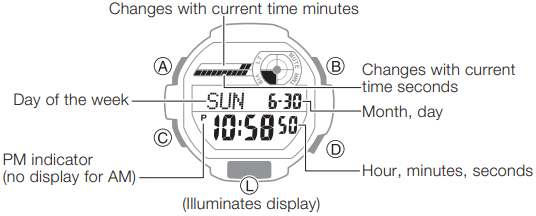
With the watch in adjustment mode, cycle through settings to correct the time, date, and related options.
Cycle Through Settings with Mode Button
Press Mode to move between fields in this sequence: Home City, Hours, Minutes, Seconds, Year, Month, Day, Summer Time, 12H/24H format, and Backlight Duration. The flashing element indicates which field is currently active and ready for editing.
Adjust Values with Forward and Reverse Buttons
Use Reverse to decrease the value and Forward to increase it. Hold Forward to rapidly scroll through numbers. This is especially useful when setting the year or scrolling through city codes.
Set Seconds to Zero for Precision
When the seconds field is flashing, use Forward to set it to 00. This ensures your watch is perfectly synced with reference time. Skipping the seconds field can cause your watch to appear consistently fast or slow over time.
Set Home City and Time Zone

Your G-SHOCK uses Home City to determine time zone and daylight saving rules, which is critical for automatic accuracy.
Select Your City Code
Press Mode until Home City flashes on the display. You will see city codes like “LON” for London, “NYC” for New York, or “TYO” for Tokyo. Use Forward or Reverse to scroll through the available city codes and select your local city.
| City | Code | Time Zone |
|---|---|---|
| London | LON | UTC+0 |
| Chicago | CHI | UTC-6 |
| Sydney | SYD | UTC+10 |
| Dubai | DXB | UTC+4 |
Enable AUTO Daylight Saving Time
After setting the city, press Mode to reach the Summer Time setting. Choose OFF for no DST adjustment, ON to always stay in DST, or AUTO to let the watch automatically adjust. The AUTO setting is the factory default and recommended option. With AUTO DST, your watch changes time on the correct dates, such as the second Sunday in March for New York.
Exit and Save Time Settings
Saving your changes is simple, but skipping this step means no updates are applied to your watch.
Press Adjust to Confirm
After setting all fields, press Adjust. The flashing stops, and the watch returns to normal timekeeping mode. All changes are saved automatically when you exit adjustment mode.
Warning: If you leave the mode by waiting too long or pressing Mode repeatedly, changes may not save. Always press Adjust to confirm your settings.
Fix Misaligned Analog Hands
Analog G-SHOCK watches like the GA-110 and GM-B2100 sync physical hands to the digital time. Mismatches happen after battery changes or strong impacts.
Realign Hands via Digital Time
Enter Adjustment Mode by holding Adjust for 5 seconds. Navigate to Hours and Minutes using Mode. Set the correct time using Forward and Reverse. Press Adjust to exit. The analog hands will automatically rotate to match the digital display.
If Hands Still Misaligned
Repeat the process and ensure the digital time is exact. Some models require a hidden calibration mode, so refer to the official manual for your specific model. Avoid forcing hand movement manually, as this can damage the mechanism.
Pro Tip: After battery replacement, always reset time settings. This triggers hand recalibration and ensures accuracy.
Sync Time Automatically on Atomic Models
G-SHOCKs with Multiband 6, such as the GW-6900 and GW-M5610, sync daily with atomic clocks for perfect accuracy.
How Atomic Sync Works
Watches receive radio signals from one of six global transmitters, including WWVB in the USA and DCF77 in Germany. Sync occurs automatically at night between 2:00 AM and 6:00 AM. The update includes time, date, DST, and leap seconds.
Ensure Successful Sync
Set the correct Home City so the watch knows which time zone to apply. Place the watch near a window facing the transmitter direction, such as westward for WWVB in Europe. Avoid concrete walls, electronics, and metal structures that block signals. Maintain sufficient battery charge for signal reception.
Force Manual Sync
Enter Adjustment Mode. Navigate to Time Reception or Manual Receive. Select Start or Receive Now. Wait for the confirmation icon, such as “RCVD,” to appear. If out of range, the watch uses its last synced data and maintains quartz accuracy.
Use Bluetooth to Reset Time on Smart Models
Bluetooth G-SHOCK models like the GBA-800 and GMW-B5000 sync time via the Casio Watches App, which is ideal for travelers.
Pair and Sync with Casio App
Install the Casio Watches App from the iOS App Store or Google Play. Enable Bluetooth on your phone. Press and hold Adjust to enter pairing mode. Open the app and follow the pairing prompts. Tap World Time, select your city or drop a pin on the map. Tap “Set this city” and the watch updates instantly.
Benefit: Even non-atomic models gain atomic-level accuracy through phone sync.
Enable Auto-Adjust for Travel
Enable Auto Time Zone in the app. When you move to a new location, your phone detects the new zone and updates the watch automatically. DST changes are handled without manual intervention.
Restore Factory Time Settings
If settings are corrupted or you want a clean start, perform a factory reset.
Reset to Default Settings
In Timekeeping Mode, press and hold Forward for 2 seconds. The display shows the Home City name, such as “LON” or “NYC.” All user settings revert to defaults, including time format set to 12H, Summer Time set to AUTO, and backlight set to 1.5 seconds. Alarms and timers also reset.
Note: This does not affect battery or timekeeping circuitry. Only customizable options are reset.
Troubleshoot Time Reset Issues
Even with clear steps, problems can occur. Here is how to fix them fast.
No Beep When Holding Adjust
The cause is usually not being in Timekeeping Mode. Press Mode until the main time appears, then hold Adjust.
Buttons Unresponsive
Low battery or sleep mode on solar models is the typical cause. Charge the watch in sunlight for Tough Solar models or replace the battery on standard models.
Time Resets Incorrectly
DST or Home City is likely misconfigured. Set Summer Time to AUTO and verify the Home City is correct.
Seconds Not Synced
The seconds field was skipped during setup. Re-enter adjustment mode and set seconds to 00.
Watch Skips Fields When Pressing Mode
Pressing Mode too quickly causes this issue. Press Mode slowly and wait for the field to flash before proceeding.
Optimize Time Accuracy Long-Term
Keep your G-SHOCK precise with these maintenance habits.
Set DST to AUTO
This ensures automatic daylight saving adjustments and avoids manual changes twice a year.
Use World Time for Travel
Press Mode to cycle to World Time. Track home and local time simultaneously. Toggle between zones with Adjust on many models.
Maintain Signal Reception
For atomic models, place near a window overnight. For Bluetooth models, sync weekly when traveling. Update the Casio Watches App regularly for the latest features and bug fixes.
After Battery Replacement
Always re-enter time, Home City, and DST settings. This triggers hand realignment on analog models and ensures all features work properly.
Frequently Asked Questions About Resetting G-SHOCK Watch Time
How do I manually set the time on my G-SHOCK?
Press and hold Adjust for 2 to 5 seconds until digits flash. Use Mode to navigate to hours, minutes, and seconds. Use Forward and Reverse to adjust values. Press Adjust to save and exit.
Why is my G-SHOCK time wrong after battery replacement?
Battery replacement interrupts the time settings. You must manually reset the time, Home City, and DST settings. On analog models, this also triggers hand recalibration.
Can G-SHOCK watches sync time automatically?
Yes, if your model has Multiband 6 or Bluetooth. Atomic models sync via radio signals. Bluetooth models sync via the Casio Watches App on your smartphone.
How do I fix misaligned analog hands on my G-SHOCK?
Enter Adjustment Mode and set the digital time correctly. Press Adjust to save. The analog hands should automatically align with the digital display.
What does AUTO DST mean on G-SHOCK?
AUTO DST means the watch automatically adjusts for daylight saving time based on the selected Home City. This is the recommended setting for most users.
Key Takeaways for Resetting Your G-SHOCK Watch Time
Resetting G-SHOCK watch time is a straightforward process when you follow the correct button sequence. Remember to start in Timekeeping Mode, hold Adjust to enter settings, use Mode to navigate fields, and press Adjust to save your changes. For analog models, the digital time governs hand position, so accuracy there ensures proper alignment. Take advantage of atomic sync or Bluetooth features for automatic updates, and always set Home City with AUTO DST for hassle-free daylight saving adjustments. With these steps, your G-SHOCK will maintain precise time regardless of which model you own.



