

Your smart watch shows the wrong time. Again. You are late for a meeting, your calendar alerts are off, and syncing feels like a guessing game. You just want to change time on a smart watch quickly and correctly. The good news is it is almost always fixable, whether your device is an Apple Watch, Samsung Galaxy Watch, budget FitPro model, or anything in between.
Most smart watches do not let you manually adjust the time like an analog watch. Instead, they rely on automatic synchronization with your smartphone, which is the most accurate and reliable method. But when auto-sync fails or you are traveling across time zones, knowing how to manually intervene is essential. This guide covers every method, model-specific quirks, troubleshooting fixes, and expert-backed steps to ensure your smart watch displays the correct time every time.
Enable Auto-Sync via Companion App
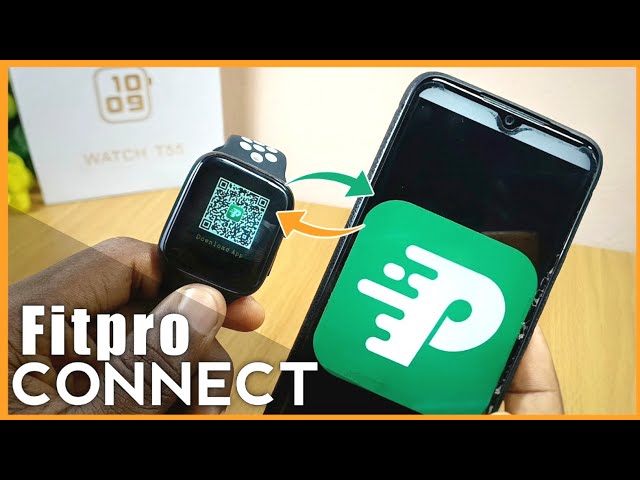
The fastest, most reliable way to change time on any smart watch is through automatic synchronization with your phone using the correct companion app.
Install the Right Companion App
Your smart watch needs a matching app to communicate with your smartphone. Generic models often use third-party apps. Here are the most common options.
• FitPro, DaFit, Hryfine, LaxasFit are common for budget watches
• Zepp Life is used by Amazfit watches
• Galaxy Wearable is for Samsung watches
• Wear OS by Google works with Fossil, Mobvoi, and others
• Apple Watch App is for iPhone only
To find the right app, search your phone is app store using the watch model name, scan a QR code on the watch or in the manual, or check the watch settings menu for app hints.
Critical: Many apps require Location Services to bind, especially FitPro and DaFit, even if GPS is not technically needed.
Pair and Sync Time Automatically
Follow these steps to enable automatic time sync.
- Enable Bluetooth on both devices
- Keep devices within 1 to 3 feet of each other
- Open the companion app and tap Add Device or Pair New Watch
- Select your watch from the Bluetooth list
- Confirm pairing code if shown
Once paired, go to Device Settings in the app and toggle on Sync with Phone, Automatic Time Sync, and Set Time Automatically. The watch updates instantly to match your phone is clock.
Pro Tip: If time is wrong, fix it on your phone first. The watch pulls time from there.
Change Time via Smartphone System Settings
Some Android smart watches sync directly with the phone is system clock, bypassing third-party apps entirely.
Adjust Time on Android Phone
- Open Settings on your phone
- Go to System, then Date and time
- Turn off Set time automatically
- Tap Set time and adjust hour, minute, and second if available
- Tap Set date and update day, month, and year
- Re-enable automatic time after correction
- Your watch updates within seconds
This method works only for watches that sync with the OS clock, not those requiring proprietary apps like FitPro.
iPhone Limitation
iPhones do not support system-level time sync for non-Apple watches. You must use a companion app for any time adjustments.
Manually Set Time on the Smart Watch
If auto-sync is off or broken, you can manually set the time, but only on select models.
Supported Devices
This option works on Wear OS watches like Fossil and TicWatch, some Android-based smartwatches, and higher-end models with full settings menus.
Apple Watch and most budget watches like T900 and i9 Pro Max do not allow manual time setting. They are fully dependent on the paired phone.
Steps to Set Time Directly
- Press the side button or crown to open the menu
- Swipe down or navigate to Settings
- Go to System then Date and time, or Time then Set time
- Turn off Automatic date and time
- Select Set time and swipe to adjust hour and minute, or use buttons to increment values
- Select Set date and update day, month, and year
- Confirm with OK, Save, or checkmark
Changes apply to all watch faces immediately.
Switch Between 12-Hour and 24-Hour Format
Prefer military time or AM/PM? You can change the format on most smart watches through several methods.
Change Format on the Watch
- Open Settings on the watch
- Navigate to Time then Time Format, or System then Date and time then 24-hour format
- Choose 12-hour or 24-hour format
- Change applies instantly
Some budget models lack this option. The format must be changed via the companion app instead.
Change Format via Smartphone
On Android, go to Settings then System then Date and time, disable Use local default, and enable Use 24-hour format. Wait for sync and the watch updates automatically.
On iPhone with Apple Watch, open the Watch app, go to My Watch then General then Date and Time, and toggle 24-Hour Time on or off.
Via companion apps like FitPro or Galaxy Wearable, open the app, go to Device Settings then Time Format, select your preference, and save.
Warning: App updates may reset format preferences. Re-enable your preferred format after any updates.
Set or Change Time Zone
This is essential for travelers or remote workers across regions.
Auto Time Zone Detection
The best method for travel requires Location Services enabled on your phone, GPS active, and the companion app running. As you move, the phone detects the new zone and pushes it to the watch automatically. No action is needed from you.
Manually Select Time Zone
On Wear OS or Android watches, open Settings, tap System then Date and time, turn off Automatic time zone, tap Select time zone, and choose a city or UTC offset.
Via companion apps, open the app, go to Device Settings then Time Zone, pick your desired region, and save.
Note: Some apps do not allow manual override and sync strictly from phone location.
Model-Specific Time Settings
Different watch brands handle time differently. Here is what you need to know for each.
Apple Watch Series 7 through 10 features auto-sync with iPhone but does not allow manual time setting. Change the time format through the Watch app.
Samsung Galaxy Watch with Wear OS supports both auto-sync and manual setting. You have full control over time and format.
Fossil and TicWatch with Wear OS support auto-sync, manual setting, and adjustable time format on both device and phone.
Amazfit via Zepp Life supports auto-sync with limited manual setting on some models. Sync reliability depends on firmware.
Generic Budget Watches like T900 and i9 Pro Max rely on auto-sync via FitPro or DaFit apps. They do not allow manual setting and require the companion app for time format changes.
Fix Smart Watch Showing Wrong Time

When your watch displays the wrong time, try these fixes in order.
Bluetooth Disconnected is the most common cause. Re-enable Bluetooth, move devices closer, and re-pair if needed. Check if the watch icon shows connected in the app.
Auto-Sync Disabled means you need to re-enable Sync with Phone in the app or watch settings. Look for toggles labeled Set time automatically.
Phone Has Wrong Time is often overlooked. Correct the time on your phone first. The watch mirrors whatever time the phone displays.
Outdated Software can cause sync issues. Update both the companion app and watch firmware through your app store and device settings.
Incorrect Time Zone requires setting the correct zone on your phone or in the companion app. Test by changing the phone zone and watching if the watch follows.
Hardware or Firmware Bug is rare but happens. Perform a factory reset as a last resort after backing up any health or activity data.
Time Sync Not Working? Try This
When auto-sync fails despite having a connection, work through these steps systematically.
- Check App Permissions by going to Phone Settings then Apps then your companion app. Ensure Bluetooth, Location, Notifications, Calendar, and Storage permissions are all granted.
- Restart Both Devices by powering off the phone and watch, then turning them back on and re-pairing.
- Reinstall the Companion App by uninstalling it, reinstalling from your app store, re-pairing the devices, and re-granting all permissions.
- Enable GPS and Location Services, which are required for FitPro, DaFit, and some other apps.
- Factory Reset the Watch through Settings then System then Reset then Factory Reset, then re-pair and reconfigure everything.
Prevent Time Drift and Accuracy Issues
Time drift happens when the watch loses accuracy over time, especially on budget models.
Why Time Drifts
Low battery below 15 percent causes clock circuits to malfunction. Infrequent syncing can cause drift up to 30 seconds per day. Outdated firmware may have known timing bugs. Low-cost internal clocks have poor oscillator precision.
Keep Time Accurate
Keep your battery above 20 percent, maintain regular Bluetooth connection, update firmware monthly, and use auto-sync instead of manual mode.
When synced, your watch maintains accuracy within plus or minus 1 second. If syncing infrequently, drift can reach plus or minus 30 seconds per day.
Time Resets After Restart?
If time resets every time you restart your watch, the cause is likely a missing real-time clock chip or a firmware bug.
The solution is to keep the watch paired at all times, update firmware regularly, and avoid powering off for extended periods. This is common in budget models and represents a hardware limitation rather than user error.
Frequently Asked Questions About Changing Time on a Smart Watch
Can I manually change the time on my Apple Watch?
No. Apple Watch does not allow manual time setting. It is fully dependent on the paired iPhone. You can only change the time format through the Watch app settings.
Why does my smart watch show the wrong time after updating the app?
App updates often reset user preferences including time format. Re-enable your preferred format in the companion app or phone settings after any update.
Do I need GPS to sync time on my smart watch?
GPS is not required for basic time sync, but it is required for automatic time zone detection during travel. Some apps like FitPro require Location Services to pair, even without GPS.
How do I change from 12-hour to 24-hour format on a budget smart watch?
On budget watches without direct settings, change the format through the companion app. Go to Device Settings then Time Format and select your preference.
Why does my watch lose time when disconnected from my phone?
Budget watches often lack a real-time clock chip. They depend entirely on the phone connection to maintain accurate time. Keep Bluetooth on and devices paired to prevent drift.
What should I do if my watch time is wrong after traveling to a new time zone?
Enable automatic time zone detection on your phone and companion app. If it does not update automatically, manually select the new time zone in the app settings.
Key Takeaways for Getting Accurate Time on Your Smart Watch
Changing time on a smart watch is rarely about turning a dial. It is about ensuring seamless sync between devices. Whether you are using an Apple Watch, Samsung Galaxy Watch, or a budget FitPro model, the phone is the source of truth. Keep it accurate, keep it connected, and grant the right permissions.
For most users, automatic sync via companion app is the only method you will ever need. But when travel, updates, or bugs interfere, knowing how to manually adjust time, format, or time zone ensures your smart watch stays reliable no matter where you are.
Follow the steps in this guide, keep your software updated, and your smart watch will always be on time, every time.



