
You’ve got a Fitbit and an Amazon Echo, or maybe a Fitbit smartwatch, and you’re wondering if you can use Alexa on your Fitbit. The answer is yes, but how you use it depends on your specific device. Whether you’re checking your steps with your voice, controlling smart home devices from your wrist, or helping a loved one stay independent, Alexa on Fitbit offers real utility if you know how to set it up.
This guide covers exactly how to use Alexa on Fitbit, including the Fitbit Alexa Skill for Echo devices and native Alexa support on Versa 2 and Versa 4 watches. You’ll learn setup steps, supported voice commands, troubleshooting fixes, and how this integration helps people with memory challenges. No fluff, no guesswork.
Enable the Fitbit Alexa Skill
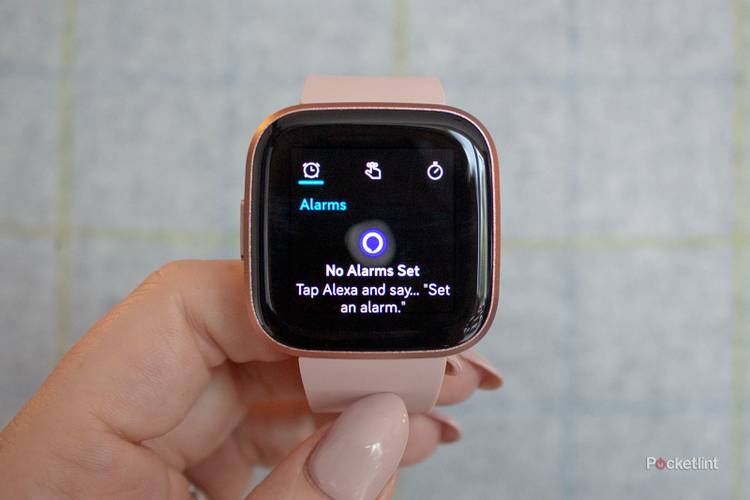
Use your Echo to ask about steps, heart rate, or water intake without touching your phone. This method works with any Alexa-enabled device, including Amazon Echo speakers, Fire TV, and third-party speakers like Sonos One.
Link Fitbit to Alexa Account
To sync your fitness data with Alexa, you must connect your Fitbit account via the Alexa app. Here is the step-by-step process:
- Open the Alexa app on your phone or go to alexa.amazon.com in your browser.
- Tap Skills and Games, then search for “Fitbit” in the search bar.
- Select the official Fitbit skill from the results.
- Tap Enable Skill and sign in using your exact Fitbit email and password.
- Grant Amazon permission to access your Fitbit data.
- Confirm the skill is enabled.
Once linked, Alexa pulls data like steps, calories, and weight from your Fitbit app, not directly from your tracker. This means information reflects your last sync, not real-time sensor data.
Ask Alexa for Your Fitness Data
All queries require the prefix “Alexa, ask Fitbit” to work properly. Try these voice commands:
- “Alexa, ask Fitbit how many steps I took today.”
- “Alexa, ask Fitbit what my resting heart rate is.”
- “Alexa, ask Fitbit how many calories I burned.”
- “Alexa, ask Fitbit how much water I have drunk.”
- “Alexa, ask Fitbit how many stairs I climbed yesterday.”
Important note: Data is only as current as your last sync. If your Fitbit has not synced recently, open the Fitbit app to force an update before asking Alexa for your stats.
Handle Multiple Users at Home
In shared households, Alexa can serve different Fitbit users, but not automatically. You need to set up Amazon Household profiles:
- Go to alexa.amazon.com, then navigate to Settings, Account, and Amazon Household.
- Add each user’s profile to the household.
- To switch between users, say “Alexa, switch profiles” before asking Fitbit questions.
Limitation: Alexa does not reliably use voice recognition to automatically detect which Fitbit user is speaking. Manual profile switching ensures you get your own data.
Turn Off the Fitbit Skill
To stop data sharing and revoke Amazon’s access to your health metrics:
- Open the Alexa app and go to Skills and Games.
- Find the Fitbit skill in your list.
- Tap it and select Disable Skill.
This revokes access instantly.
Activate Native Alexa on Versa 2 and 4
Control smart home devices and get information hands-free right from your wrist. Native Alexa support is available only on Versa 2 and Versa 4 smartwatches.
Set Up Alexa on Fitbit Watch
Here is how to enable Alexa directly on your Fitbit watch:
- Open the Fitbit app on your phone.
- Tap the Today tab, then tap your profile or device image.
- Go to Device Settings and select Voice Assistant.
- Choose Amazon Alexa from the options.
- Sign in with your Amazon account credentials.
- Tap Get Started and follow the on-screen prompts.
Your watch is now Alexa-ready without needing an Echo nearby.
Use Alexa on Your Wrist

Activate Alexa in two ways:
- Press and hold the side button on your watch.
- Swipe to the Alexa clock face if you have enabled it.
After activation, speak your command clearly.
Output Differences by Model
The response method varies between models:
| Model | Audio Response | Visual Feedback |
|---|---|---|
| Versa 2 | No speaker | Text only on screen |
| Versa 4 | Speaker-equipped models | On-screen text plus audio |
Even with audio on Versa 4, the primary feedback is visual. You will see your command confirmed onscreen.
Control Smart Home Devices
Once set up, use your Fitbit to control your smart home just like you would with an Echo:
- “Alexa, turn off the bedroom lights.”
- “Alexa, play jazz on the living room speakers.”
- “Alexa, set a timer for 15 minutes.”
- “Alexa, what is the weather today?”
These commands work great for quick actions without pulling out your phone.
Fix Common Alexa Issues
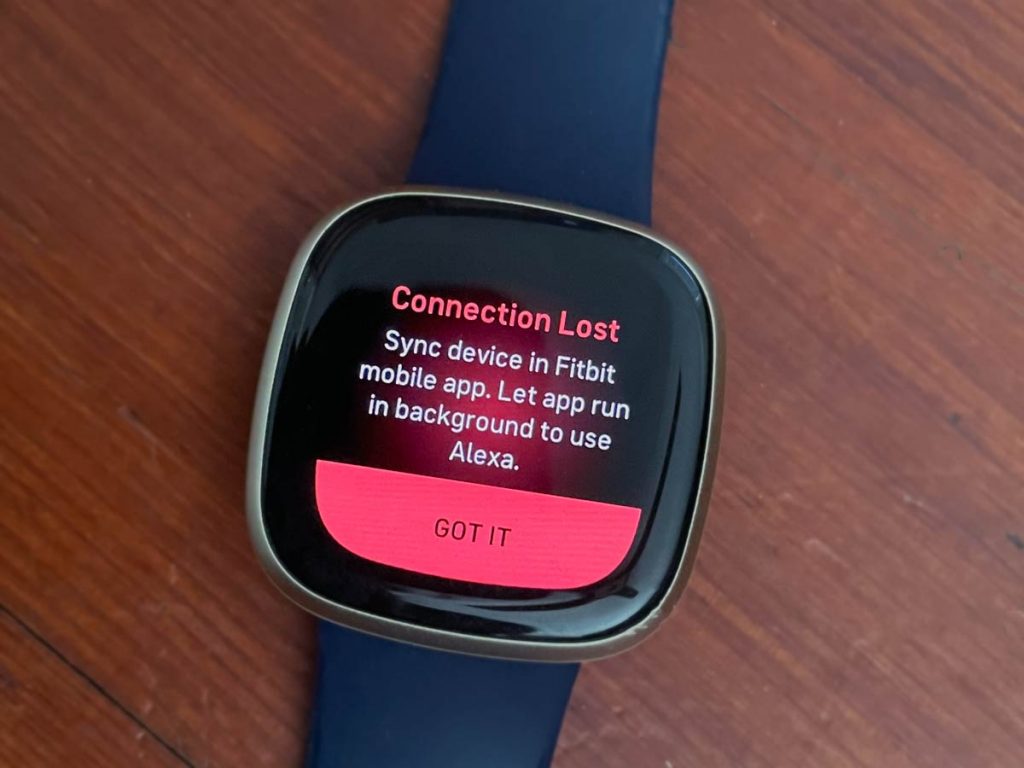
Alexa sometimes fails to respond even when it hears you. Here is how to fix the most common problems.
Ensure Stable Connectivity
Alexa on Fitbit watches requires both a Bluetooth connection to your phone and internet access on your paired smartphone. If your phone loses connection or Bluetooth drops, Alexa will fail with a message saying it cannot reach your device.
Solution: Keep your phone nearby and Bluetooth turned on. Do not leave your phone in another room while using Alexa on your watch.
Check App Permissions
If Alexa does not activate when you press the side button, check your phone permissions:
- Go to Settings on your phone, then Apps, then Fitbit.
- Tap Permissions and ensure Microphone access is enabled.
Without microphone access, the watch cannot send your voice to Alexa.
Update Firmware and App
Outdated software causes crashes and unresponsiveness. Open the Fitbit app and check for firmware updates under Account, then Firmware. Also update the Fitbit app itself through the App Store or Google Play.
Keeping both current resolves most background process errors.
Restart Devices
When Alexa stops responding completely:
- Restart your Fitbit watch by holding the side button, selecting Power off, then restarting.
- Restart your phone.
This resets the Bluetooth connection and clears any stuck background processes.
Reduce Background App Kill
Android and iOS may close the Fitbit app to save battery, which breaks Alexa connectivity.
- On Android, go to Settings, Apps, Fitbit, Battery, and select Unrestricted.
- On iPhone, avoid closing the Fitbit app manually. Let iOS manage background activity.
Preventing forced closures keeps Alexa connected reliably.
Optimize Voice Recognition
Even with perfect setup, Alexa might mishear you. These tips improve accuracy.
Speak Clearly in Quiet Spaces
Voice recognition works best when you are in a low-noise environment, speak directly toward the watch, and pause slightly after activation before speaking your command.
Avoid shouting. Speak at a normal volume and pronounce words clearly.
Re-Enable After Inactivity
If Alexa has not been used in weeks, it may deactivate automatically. Simply return to the Fitbit app, go to Voice Assistant, select Amazon Alexa, and re-enable the feature.
Use Alexa for Daily Independence
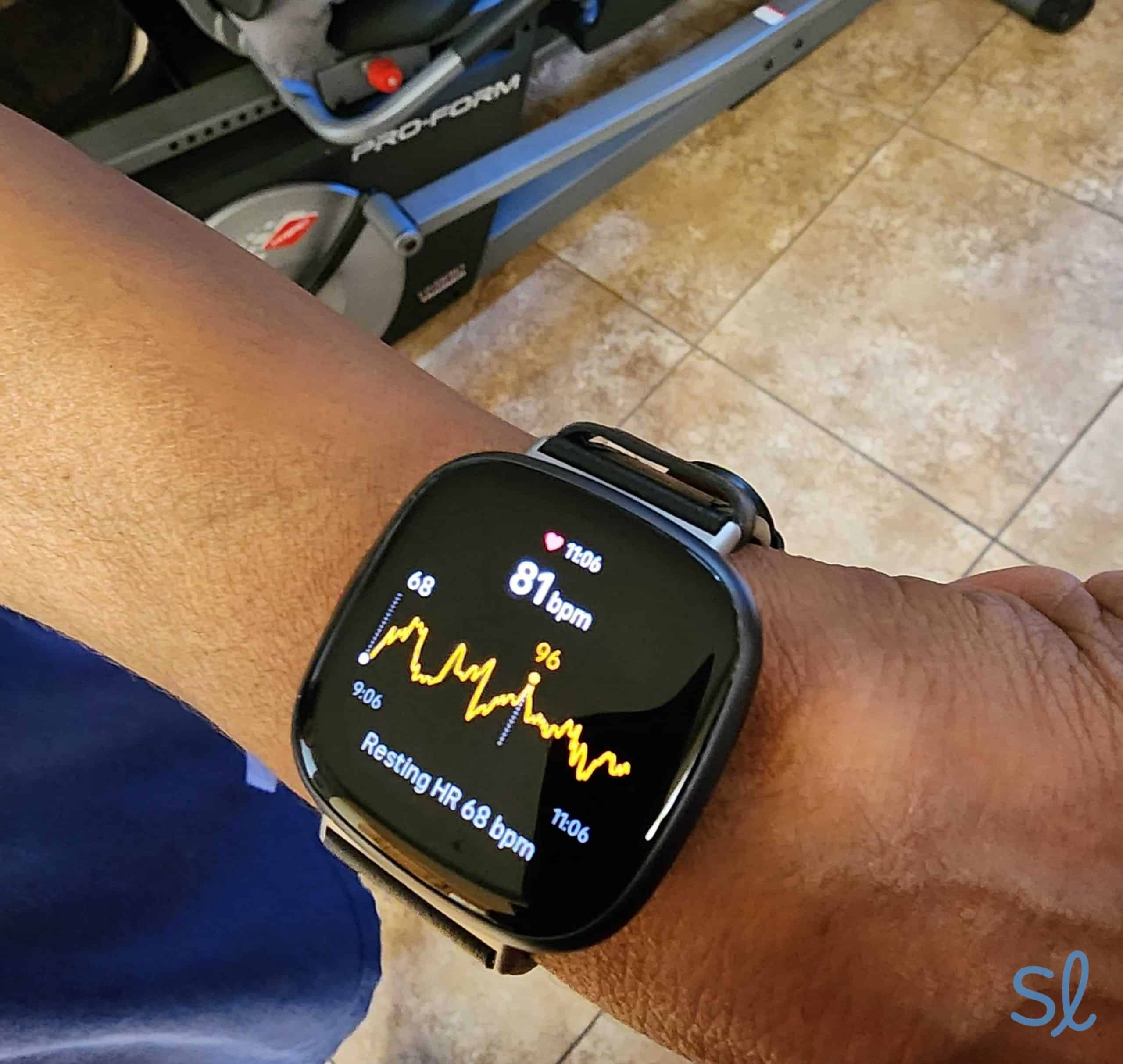
Alexa on Fitbit is not just for fitness. It serves as a lifeline for people with memory challenges.
Support Cognitive Health Needs
For individuals with Alzheimer’s or dementia, voice commands reduce confusion and reliance on caregivers. No need to navigate complex menus. Just ask:
- “Alexa, what is the weather today?”
- “Alexa, what time is dinner?”
- “Alexa, how do I get to the pharmacy?”
- “Alexa, call Mom.”
These simple interactions restore autonomy and reduce anxiety.
Caregiver Setup Tips
Caregivers should handle the initial setup by creating the Amazon account and linking everything in advance. Teach three to five core commands and practice them daily. Use a quiet room for initial voice training and encourage repetition to build confidence.
Pair with a Versa 4 for audio feedback, making responses easier to understand for users who may have vision limitations.
Know the Limitations
Alexa on Fitbit is powerful but has clear boundaries you should understand.
Data Is Not Real-Time
The Fitbit Skill shows data from the last app sync, not real-time sensor readings. Native Alexa relies on your phone’s internet connection, so there is no standalone cellular capability.
Always sync your Fitbit before asking for post-workout stats to get accurate information.
No Automatic Profile Switching
Even with Voice Match enabled on Amazon, Alexa will not automatically detect which Fitbit user is speaking. Always say “Alexa, switch profiles” before asking personal health questions in multi-user homes.
Limited Output on Versa 2
The Versa 2 has no built-in speaker, so all responses appear as text only. You will not hear music, weather forecasts, or timers. You will only see them on the screen.
Use These Key Voice Commands
Save time by memorizing these tested phrases.
Fitness Tracking via Echo
- “Alexa, ask Fitbit how many steps I took today.”
- “Alexa, ask Fitbit what my resting heart rate is.”
- “Alexa, ask Fitbit how many calories I burned.”
- “Alexa, ask Fitbit how much water I have drunk.”
- “Alexa, ask Fitbit how many stairs I climbed on Monday.”
Smart Home and Daily Tasks via Watch or Echo
- “Alexa, dim the living room lights.”
- “Alexa, play NPR on the kitchen speaker.”
- “Alexa, set a timer for 10 minutes.”
- “Alexa, what is the weather?”
- “Alexa, where is the nearest pharmacy?”
Profile Management
- “Alexa, switch profiles.”
- “Alexa, which profile am I using?”
Use these commands to avoid accessing someone else’s data in shared households.
Frequently Asked Questions About Using Alexa on Fitbit
Which Fitbit devices support Alexa?
Native Alexa support is available only on Fitbit Versa 2 and Versa 4 smartwatches. All other Fitbit devices can use the Fitbit Alexa Skill through an Echo or other Alexa-enabled speaker.
Does Alexa work on Fitbit without Wi-Fi?
No. Alexa on Fitbit watches requires a Bluetooth connection to your phone, and your phone must have internet access through Wi-Fi or cellular data. The watch cannot connect to the internet independently.
Why does Alexa give me outdated Fitbit data?
Alexa retrieves data from the Fitbit app cloud, not directly from your tracker sensors. The information reflects your last sync. Open the Fitbit app to force a sync before asking for your stats.
Can I use Alexa to control smart home devices from my Fitbit?
Yes, once you enable native Alexa on Versa 2 or Versa 4, you can control lights, speakers, thermostats, and other smart home devices using voice commands directly from your wrist.
How do I switch between Fitbit profiles on Alexa?
Say “Alexa, switch profiles” before asking Fitbit questions. Alexa does not automatically detect which user is speaking, so you must manually switch to access the correct health data.
Is Alexa on Fitbit helpful for people with memory issues?
Yes. Voice commands allow people with Alzheimer’s or dementia to get information like weather, time, and directions without navigating menus. Caregivers can set this up to help loved ones maintain independence.
Key Takeaways for Using Alexa on Your Fitbit
You now know exactly how to use Alexa on Fitbit, whether through your Echo or directly on your Versa watch. From tracking steps to empowering loved ones with cognitive challenges, Alexa adds real value to your Fitbit experience.
Remember the three most important things. First, keep your Fitbit app synced before asking for fitness data. Second, ensure Bluetooth stays connected between your watch and phone. Third, verify that microphone permissions are enabled in your phone settings.
With these steps, your voice assistant is always ready when you are. Set up Alexa today and start using your voice to track fitness, control your home, and stay independent.



